


















Blog AI Avatar Google Studio AI: How to Build Pro Camera Angles

Google Studio AI: How to Create Every Camera Angle in Nano Banana PRO

Google AI Studio

Google Studio AI is redefining how creators direct scenes, control lighting, and build cinematic storytelling, all from a single image. Combined with Nano Banana PRO and powered by Gemini, Google’s generative foundation model, creators can now design every classic camera angle, from close-up to wide shot, using only text prompts.

This technology transforms the filmmaking process into an AI-powered workflow where you can generate, refine, and animate camera angles without ever touching a physical camera. With VidAU AI, these stills can evolve into dynamic motion shots, giving your story cinematic realism from any perspective. 

What is Google Studio AI, and How Does it Enhance Cinematic Creation?

Google Studio AI is Google’s latest creative workspace that uses the Gemini multimodal engine to combine text, image, and video generation. It integrates deeply with Nano Banana PRO, an advanced AI imaging model capable of interpreting complex shot descriptions.

In this ecosystem, Google Studio AI acts as the “director,” Gemini as the “brain,” and Nano Banana PRO as the “camera.” The combination allows you to design classic film shots, like wide, zoom, close-up, above, front, and behind, directly through written language.

Creators use this setup to:

  • Previsualize scenes and storyboards
  • Experiment with cinematic framing
  • Build consistent lighting and character tone across every angle
  • Export shots directly into VidAU AI for animation and editing

How do you Start With a Base Character in Nano Banana PRO?

Everything begins with your base character, a front-facing, full-body image generated through Nano Banana PRO’s text-to-image feature.

To maintain consistency across camera angles:

  1. Write a descriptive prompt. Include character appearance, clothing, and style.
  2. Turn off “prompt improver” to preserve creative control.
  3. Choose a cinematic aspect ratio (16:9).
  4. Set the output quality to 4K for cleaner details.

For example:
“Generate a full-body image of a Jedi in dark boots, brown robe, and glowing lightsaber, standing in a smoky lava field, 16:9.”

This image becomes the foundation for every other shot—your reference frame for close-up, side, or over-the-shoulder perspectives.

How Can You Control Camera Shots Using Distance Prompts?

Nano Banana PRO gives you control over shot distance, letting you “zoom” in or out by simply describing the framing.

Each distance prompt changes storytelling focus:

  • Full-body / long shot: “Zoom out slightly to show the Jedi’s full body in frame.”
  • Medium shot: “Mid-shot of her upper body holding a lightsaber.”
  • Close-up: “Close-up on her face at eye level, calm expression.”
  • Extreme close-up: “Extreme close-up of her left eye, lava light reflection visible.”
  • Extreme long shot: “Tiny silhouette of her against a vast glowing landscape, 16:9.”

These textual controls mimic a cinematographer’s camera distance control, only faster and far more precise.

How Do You Keep Lighting and Environment Consistent Across Shots?

Visual coherence ties your entire sequence together. The secret lies in environmental prompts, not color adjustments.

If a close-up looks inconsistent with your wide shot, reintroduce your environment details:

“Light gray sky, faint orange glow from lava reflecting off smoke.”

By repeating this line across each new prompt, you preserve the mood, lighting, and atmospheric tone.

This level of consistency mirrors what professional DPs (Directors of Photography) achieve in live-action filming, now fully achievable within Nano Banana PRO.

How Can You Control Camera Angles and Perspective in Nano Banana PRO?

Once distance is set, it’s time to direct the camera angle, the direction the camera faces relative to your subject.

Below are key film angles you can recreate using Google Studio AI + Nano Banana PRO, complete with entity-based prompt examples:

Camera AngleExample PromptPurpose
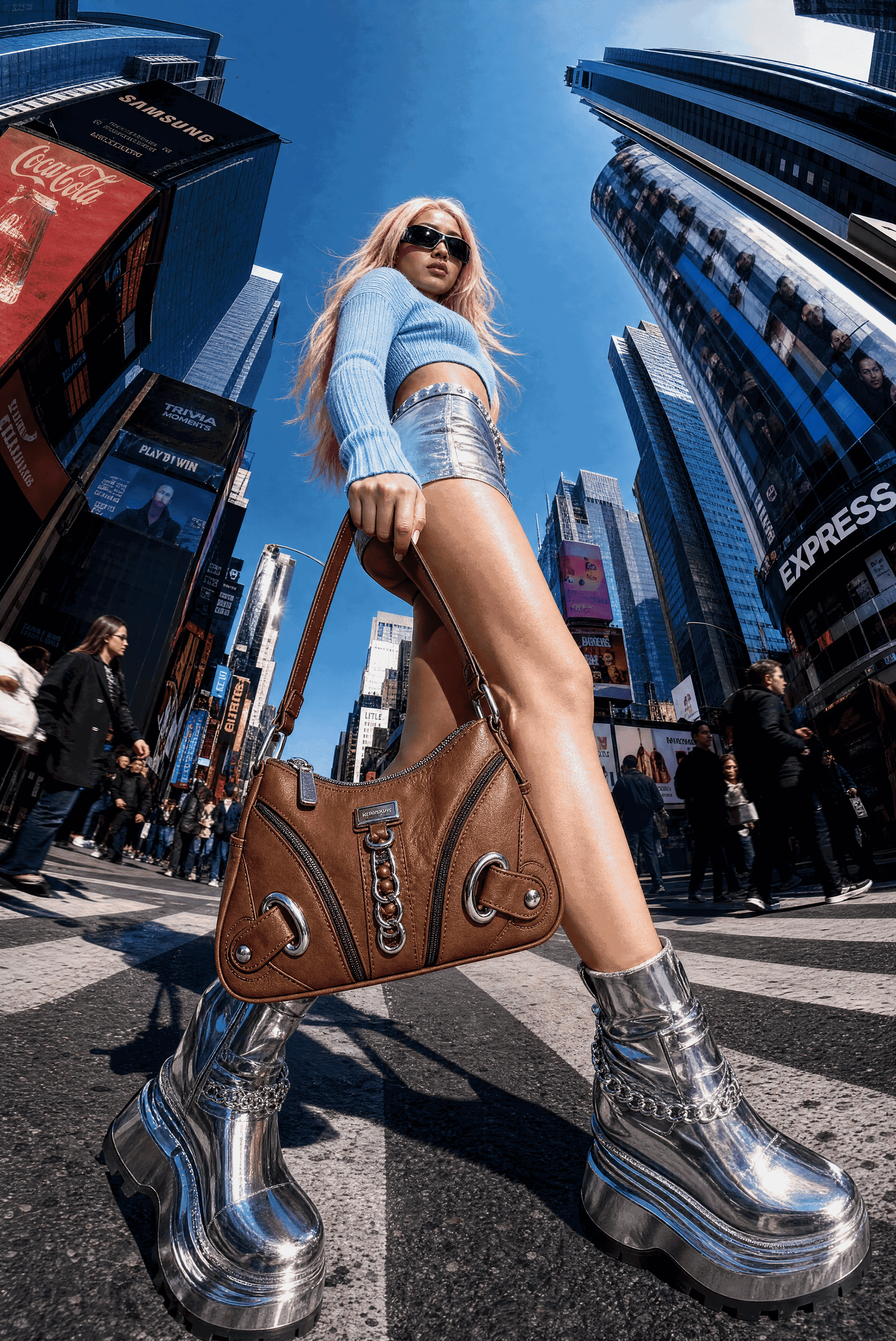
Low Angle (Powerful)“Low-angle shot looking up at her from below.”Shows dominance or heroism
High Angle (Vulnerable)“High-angle shot looking down on her kneeling in the smoke.”Creates vulnerability
Side Profile“Side profile from her right, lava light casting shadows.”Highlights emotion
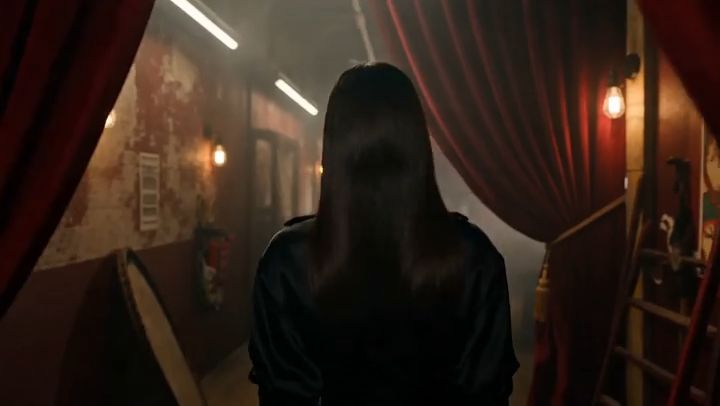
Behind Shot“Shot from behind her, facing the glowing horizon.”Adds mystery and scale
Bird’s-Eye View“Overhead shot from directly above her, centered in the lava field.”Emphasizes isolation
Dutch Angle“Tilted Dutch angle for tension.”Adds unease or motion
POV (Point of View)“POV shot from her eyes holding the lightsaber.”Immerses viewers in perspective

By combining direction + distance, you get multi-layered, film-style depth that traditional tools can’t replicate.

How Can You Reframe Composition and Layer Multiple Camera Angles?

Framing is storytelling. In Nano Banana PRO, you can fine-tune where your character appears in each frame.

Try prompts like:

  • “Character kneeling on one knee on the left side of the frame.”
  • “Place her off-centre with the lava horizon behind her.”

To layer multiple angles, use the image-to-image tool:

  1. Generate a one-shot (e.g., a behind-the-scenes).
  2. Upload that image again.
  3. Add camera angle instruction.

Example:

“Starting from this shot from behind, create a high-angle shot from above.”

This hybrid method, mixing behind + high angle, lets you build complex shot libraries for your story.

How Can VidAU AI Transform Stills Into Cinematic Motion?

google ai studio

Once you’ve generated multiple shots in Nano Banana PRO, bring them to VidAU AI’s Free AI Video Generator.

VidAU AI allows you to:

  • Upload static images and turn them into motion.
  • Add transitions (orbit, tilt, zoom, handheld).
  • Animate camera movements between stills for storytelling flow.

Prompt Examples for Motion:

  • “Camera orbits around her as she gazes at the lava horizon.”
  • “Tilts the camera upward from the lightsaber to her face.”
  • “Camera zooms in slowly from full-body to close-up.”
  • “Handheld shaky movement as she walks forward.”

VidAU AI uses frame interpolation and prompt-driven transitions to mimic cinematic moves normally achieved with physical rigs.

Motion TypePrompt ExampleUse Case
Orbit“Camera circles around her slowly.”Hero reveals
Tilt“Camera tilts up from ground to face.”Discovery scenes
Zoom“Camera zooms from wide to close-up.”Emotional intensity
Handheld“Shaky handheld camera movement.”Action sequences

When combined, these create a smooth, cinematic storytelling motion that feels entirely human-directed.

How do Google Studio AI, Nano Banana PRO, and VidAU AI Work Together?

These three tools form a unified creative pipeline:

  1. Google Studio AI (Gemini Engine)
    • Processes multimodal prompts for contextual accuracy.
    • Interprets camera-related commands like “wide,” “zoom,” or “behind.”
  2. Nano Banana PRO (Image Generation)
    • Converts text prompts into consistent cinematic images.
    • Offers text-to-image and image-to-image tools for framing and re-posing.
  3. VidAU AI (Video Generation)
    • Transforms those stills into animated sequences.
    • Adds movement, transitions, and motion physics.

Together, they allow creators to move from prompt → image → animation without traditional cameras or post-production software.

This integration lets AI handle the technical setup, freeing you to focus solely on visual storytelling.

What Makes This Workflow Different From Traditional AI Art Tools?

Unlike static AI art platforms, Google Studio AI introduces camera logic. You don’t just describe objects; you describe how they’re filmed.

Its understanding of spatial composition (front, behind, above, close-up, wide) mirrors professional cinematography. Meanwhile, Nano Banana PRO ensures consistency across frames, body position, lighting, and character identity never drifts.

When paired with VidAU AI, this system produces genuine camera motion: tilts, zooms, and pans that mimic real video production.

The result: cinematic storytelling powered entirely by text.

Conclusion

With Google Studio AI, Gemini, and Nano Banana PRO, anyone can now direct a full cinematic sequence from a single image. Add VidAU AI to the workflow, and those stills evolve into animated shots with real movement, depth, and emotion.

This isn’t just AI-assisted filmmaking, it’s filmmaking redefined. Every camera angle, from close-up to bird’s-eye view, can be created, refined, and animated with a few descriptive prompts.

VidAU AI bridges the final step, transforming creative vision into motion. The result is cinematic storytelling that’s faster, smarter, and infinitely scalable.

FAQs

1. Is Google Studio AI free?

Yes. Google Studio AI currently offers free access for users experimenting with Gemini-powered creative tools. Advanced features like video generation or Veo 3 integration may require a workspace or paid plan in future releases.

2. What is Google Studio AI used for?

Google Studio AI is used for text, image, and video generation. It lets creators design cinematic visuals, storyboard sequences, and camera movements using written prompts. In workflows with Nano Banana PRO and VidAU AI, it helps generate precise shots and animate them into complete videos.

3. How do I use Google Studio AI for text-to-speech?

You can access text-to-speech functions within the Studio workspace by connecting Google’s Speech Services. Type or paste your script and select a voice model to generate audio. These outputs can be combined with VidAU AI visuals for full narration videos.

4. How do I use Google Studio AI with Gemini?

Gemini acts as the core engine for Google Studio AI. When you write prompts—like “close-up shot,” “high-angle view,” or “zoom out”—Gemini interprets the text and structures the visual output. This makes Gemini essential for multi-angle storytelling in Nano Banana PRO.

5. What is Google Studio AI Veo 2 or Veo 3?

Veo 2 and Veo 3 are Google’s video diffusion models connected to Studio AI. They turn static images into moving cinematic sequences. These models can be paired with VidAU AI for editing, transitions, and packaging into finished AI films.

6. How do I log in to Google Studio AI?

You can log in at ai.google.dev/studio with a Google account. Access currently rolls out in beta, with features like image generation, Veo model integration, and Gemini-powered prompt editing.

7. Can Google Studio AI generate images and videos?

Yes. You can create both with it. Google Studio AI supports text-to-image and video generator modes powered by Gemini and Veo. Combined with Nano Banana PRO, it delivers camera control, and with VidAU AI, it completes the animation workflow.

8. How does VidAU AI complement Google Studio AI?

VidAU AI focuses on animation, transitions, and video storytelling. After generating shots or scenes in Google Studio AI, you can use VidAU to turn them into cinematic motion. Together, they give creators full control—from static concept to animated delivery.

Scroll to Top