




































































































































Cinematic Reels: Complete Shooting & Editing Breakdown
Introduction: Why Most Reels Don’t Look Cinematic
Most Instagram and TikTok reels fail to result in cinematic reels for one simple reason: creators focus on editing tricks before mastering how the footage is captured. No amount of transitions or filters can fix poorly shot video. Cinematic reels AI Tools are not about expensive cameras or complex software. They are the result of a repeatable system that combines intentional shooting with clean, purposeful editing.
This guide breaks down the exact shooting and editing formula behind viral cinematic reels. You will learn how to capture cinematic phone footage and how to transform a single source video into a polished reel using CapCut.
—
What ‘Cinematic’ Actually Means in Short-Form Video
Before touching your camera or editing app, it is important to understand what cinematic means in the context of reels.
Cinematic short-form video usually includes:
– Controlled motion instead of shaky footage
– Consistent exposure and color
– Depth and subject separation
– Intentional pacing and rhythm
– Clean transitions that serve the story
Cinematic does not mean slow motion everywhere or heavy filters. It means clarity, mood, and visual intention packed into a short time frame.
—
Step 1: Camera Settings for Cinematic Phone Footage
Your phone is capable of cinematic results if the settings are correct. Default auto settings often ruin consistency.
Frame Rate
Set your camera to 24fps or 30fps. These frame rates feel natural and cinematic. Avoid 60fps unless you plan to slow the footage down.
Shutter Speed
Use the 180-degree rule when possible:
– 24fps → 1/48 or 1/50 shutter
– 30fps → 1/60 shutter
This creates natural motion blur, which is essential for a cinematic look.
Resolution
Shoot in 4K even if your final reel is 1080p. Higher resolution gives you flexibility to crop, stabilize, and reframe without losing quality.
Focus and Exposure Lock
Lock both focus and exposure. Automatic adjustments mid-shot are one of the biggest cinematic killers. Tap and hold to lock on your subject before recording.
Use Neutral Color Profiles
If your phone allows it, use a flat or neutral profile. Avoid heavy contrast or saturation in-camera. You want flexibility in editing.
—
Step 2: Shooting Techniques That Create a Film Look

Cinematic reels start with how you move the camera.
Move the Camera, Not the Subject to Make Cinematic Reels
Instead of asking your subject to move, move the camera slowly:
– Push in
– Pull back
– Side-to-side slides
– Gentle tilt or pan
Slow, deliberate motion always looks more cinematic than fast movement.
Stabilization Is Critical
Use a tripod, gimbal, or rest your phone on a stable surface. Even small shakes can ruin an otherwise cinematic clip.
Shoot for Depth
Create separation by placing your subject away from the background. Foreground elements like walls, plants, or doors add depth and visual interest.
Light Direction Matters
Position light to hit the subject from the side or back, not directly from the front. Natural window light works extremely well for cinematic reels.
—
Step 3: Planning Your Shots for One Source Video
Since this reel uses one source video, planning is essential.
Think in Sections
Plan your clip so it contains multiple usable moments:
– A slow push-in
– A slight angle change
– A pause for text overlay
These moments will later become cut points for transitions and effects.
Leave Extra Space
Frame wider than needed. This gives room for cropping, zooms, and motion effects in CapCut.
Shoot Longer Than You Need
Record at least 10–15 seconds longer than the final reel. This gives editing flexibility.
—
Step 4: Importing and Structuring Footage in CapCut
Once inside CapCut, structure comes before effects.
Create a Clean Timeline
– Import the clip
– Trim unusable sections
– Identify key moments for transitions
Cut on Motion
Make cuts when the camera is already moving. This makes transitions feel natural and seamless.
Match Music Early
Choose music before adding effects. Cinematic reels rely heavily on beats, drops, and pauses.
—
Step 5: Cinematic Reels Transitions Using Masks and Motion
Transitions should support the story, not distract from it.
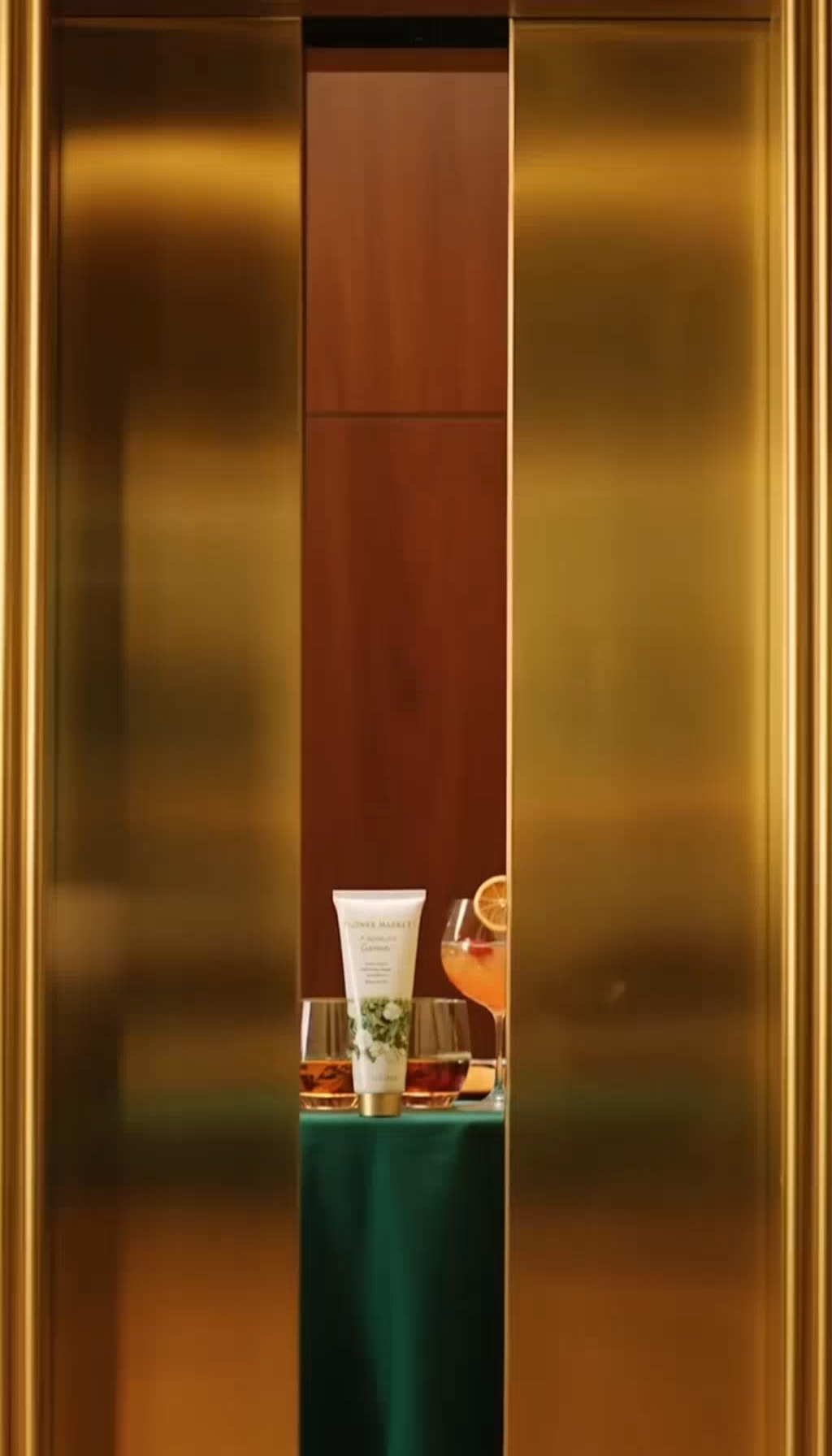
Mask Transitions
Use mask shapes to create smooth reveals:
– Duplicate the clip
– Apply a mask to the top layer
– Animate the mask path slowly
This creates professional, film-style transitions without flashy effects.
Motion Blur
Add subtle motion blur during transitions to soften cuts and enhance realism.
Speed Ramping
Use light speed ramps instead of extreme ones. Gradual speed changes feel cinematic, while aggressive ramps feel gimmicky.
—
Step 6: Color, Filters, and Basic Film Grading in CapCut
Color grading is where footage truly becomes cinematic.
Correct Before You Style
First, adjust:
– Exposure
– Contrast
– White balance
Then apply creative looks.
Use Film-Inspired Adjustments
– Slightly lower highlights
– Lift shadows gently
– Reduce saturation a bit
– Add warmth or coolness intentionally
Avoid stacking multiple filters. One clean look always beats heavy grading.
Add Subtle Grain
Light film grain adds texture and removes the digital feel. Keep it subtle.
—
Step 7: Professional Text Overlays and Timing for Cinematic Reels
Text should enhance the reel, not overpower it.
Keep Fonts Simple
Use clean sans-serif fonts. Avoid decorative styles that distract from the visuals.
Animate with Purpose
Instead of flashy animations:
– Fade in
– Slide slowly
– Scale gently
Time Text to Beats
Text should appear on beats, pauses, or visual transitions. Poor timing instantly breaks immersion.
Use Hierarchy
Highlight one key phrase at a time. Too much text reduces impact.
—
Common Mistakes That Ruin Cinematic Reels

– Shooting in auto mode without exposure lock
– Overusing transitions and effects
– Heavy filters that crush highlights and shadows
– Shaky handheld footage
– Text appearing too fast or too late
– Editing before choosing music
Avoiding these mistakes alone will dramatically improve your reel quality.
—
Final Checklist for Cinematic Reels
Before posting, confirm the following:
– ✅ Shot at 24fps or 30fps
– ✅ Stable footage with controlled motion
– ✅ Subject separated from background
– ✅ Clean cuts matched to music
– ✅ Subtle transitions using masks or motion
– ✅ Balanced color grading
– ✅ Clear, well-timed text overlays
If every box is checked, your reel will look intentional and professional.
—
Conclusion
Cinematic reels are not about luck or complex tools. They are built through a clear system: intentional shooting, structured editing, and restraint with effects. When you master both sides of the process, even a single phone clip can compete with high-end productions.
Apply this shooting and editing breakdown consistently, and your Instagram and TikTok reels will instantly stand out in crowded feeds.
Frequently Asked Questions
Q: Can I create cinematic reels using only my phone?
A: Yes. With proper camera settings, controlled movement, and intentional lighting, modern smartphones are more than capable of producing cinematic reels.
Q: Is CapCut good enough for professional cinematic editing?
A: CapCut is powerful enough for cinematic reels when used correctly. Masks, keyframes, color tools, and motion effects allow for high-quality results without advanced software.
Q: Do I need multiple clips to make a cinematic reel?
A: No. A single well-planned source video can be edited into a cinematic reel using creative cuts, masks, and motion techniques.
Q: What frame rate is best for cinematic short-form video?
A: 24fps or 30fps provides the most cinematic motion. Avoid higher frame rates unless you intend to use slow motion.