









































































Higgsfield AI Cinema Studio Complete Tutorial for 2026
Introduction: The rise of cinematic video with AI

Cinematic video creation has entered a new era in 2026. AI-powered tools now allow creators to produce film-like visuals without large crews, expensive cameras, or complex software. Higgsfield AI Cinema Studio stands out as one of the most influential platforms in this shift. It focuses on cinematic storytelling, visual consistency, and professional-grade output, even for beginners.
If you are new to AI video tools, the interface and options can feel overwhelming. This tutorial gives you a clear, beginner-friendly walkthrough of Higgsfield AI Cinema Studio, showing you how to move from account setup to polished cinematic video with confidence.
The problem: Why beginners struggle with AI video tools
Many new users jump into AI video generation expecting instant results. Instead, they face confusing settings, inconsistent characters, and videos that look more like animations than cinema. The main challenges include unclear prompting, lack of visual continuity, and poor export choices.
Higgsfield AI Cinema Studio solves many of these problems, but only if you understand how to use its features correctly. This guide focuses on practical steps that help you avoid common mistakes and maximize cinematic quality from the start.
Platform overview: What Higgsfield AI Cinema Studio does
Higgsfield AI Cinema Studio is designed specifically for cinematic video generation. Unlike generic AI video tools, it emphasizes camera movement, lighting, mood, and scene continuity. The platform combines text-based prompting with visual controls, making it suitable for video creators, digital artists, and social media producers.
Key strengths of the platform include:
- AI-driven scene generation with cinematic framing
- Consistency controls for characters and environments
- Export settings optimized for social and professional use
These features make Higgsfield ideal for short films, branded content, and high-impact social videos.
Account setup and first project walkthrough
Getting started with Higgsfield AI Cinema Studio is straightforward. Follow these steps to create your first project.
Step 1: Create your account
Sign up using your email or supported social login. After verification, you gain access to the main dashboard. Take a moment to review your profile settings, especially default resolution and aspect ratio preferences.
Step 2: Start a new project
Click on “New Project” and choose a cinematic preset. These presets are optimized for film-style visuals and provide a strong starting point for beginners.
Step 3: Choose your aspect ratio
Select an aspect ratio based on your goal:
- 16:9 for cinematic YouTube or portfolio work
- 9:16 for short-form social media video
- 2.39:1 for ultra-wide cinematic storytelling
Choosing the correct ratio early prevents framing issues later.
Core features explained
Understanding the core features of Higgsfield AI Cinema Studio helps you work faster and achieve better results.
- Scene generation
Scene generation allows you to describe a moment in natural language. Higgsfield interprets your prompt and generates a cinematic clip with camera movement, lighting, and atmosphere. You can specify location, time of day, mood, and action.
- Consistency controls
Consistency controls are critical for cinematic storytelling. These settings help maintain the same character appearance, wardrobe, and environment across multiple scenes. Use them whenever you plan to stitch clips together into a longer narrative.
- Export settings
Export settings determine final video quality. Higgsfield offers presets for social platforms as well as high-bitrate cinematic exports. Always match your export choice to your distribution platform to avoid compression issues.
Step-by-step guide to generating a cinematic scene
This step-by-step process shows how to create a cinematic video clip from scratch.
Step 1: Write a focused prompt
Start with a clear, visual description. For example:
“A slow cinematic dolly shot of a lone filmmaker standing on a rainy city rooftop at night, neon lights reflecting on wet concrete, dramatic lighting, shallow depth of field.”
Avoid vague language. Specific details produce stronger results.
Step 2: Set camera and motion
Choose a camera movement such as dolly, pan, or handheld. Cinematic video benefits from controlled, intentional motion rather than rapid cuts.
Step 3: Adjust lighting and mood
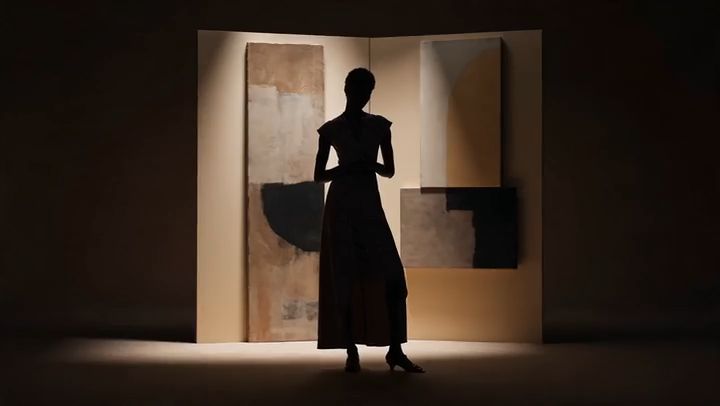
Use lighting presets or manual controls to define the emotional tone. Soft lighting creates intimacy, while high-contrast lighting adds drama.
Step 4: Lock consistency settings
If you plan to generate multiple shots, lock character and environment consistency before generating additional scenes.
Step 5: Generate and review
Generate the scene and review it carefully. Look for framing, motion smoothness, and lighting balance. Regenerate only specific elements if needed instead of starting over.
Best practices for cinematic prompting
Strong prompts are the foundation of cinematic AI video. Follow these best practices.
- Describe camera movement explicitly
- Include lighting and time of day
- Define emotional tone and pacing
- Keep prompts concise but detailed
For example, instead of saying “cinematic scene,” describe what makes it cinematic, such as lens type, movement, and mood.
Practical examples for social media and short films
Example 1: Social media cinematic short
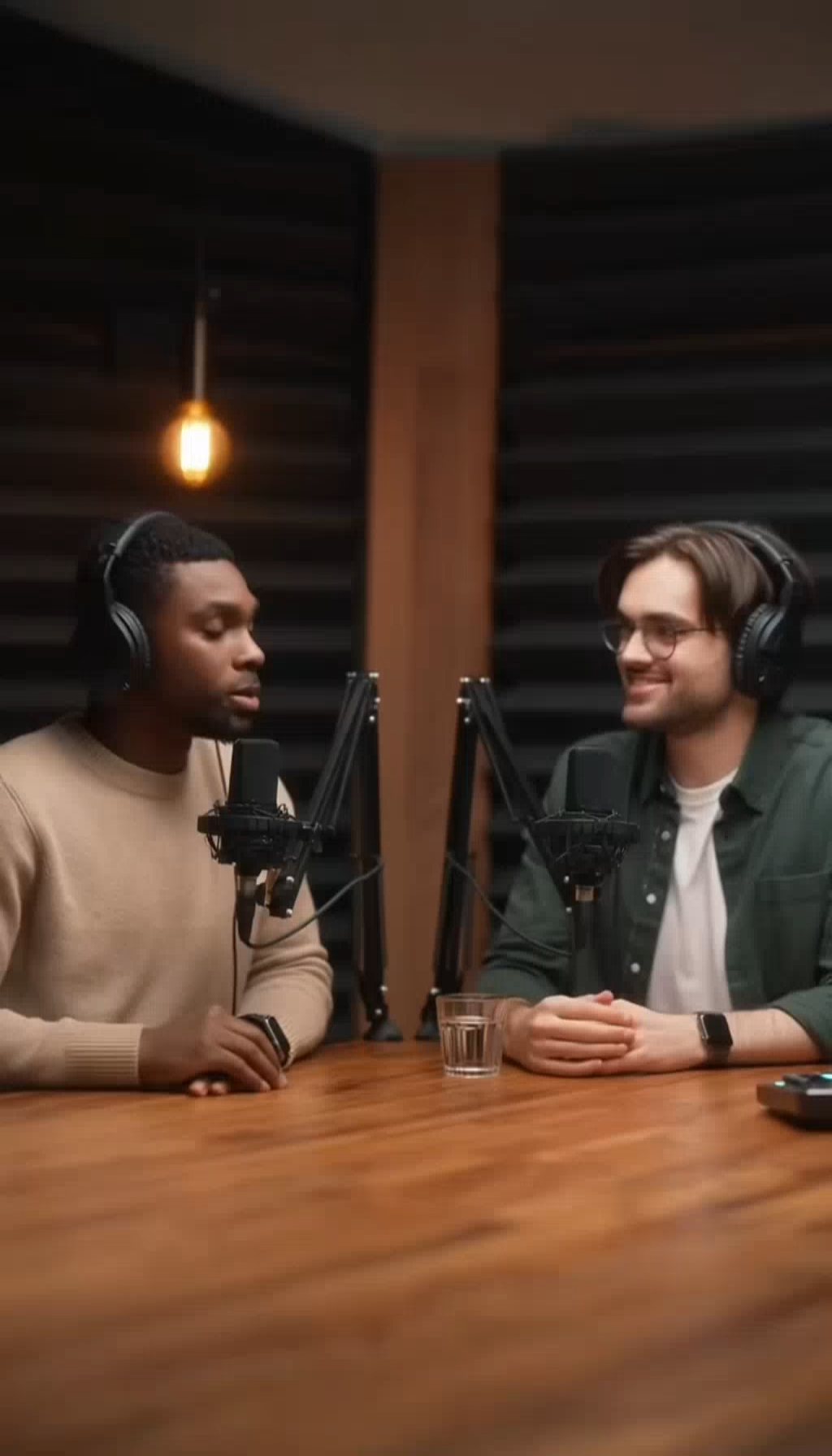
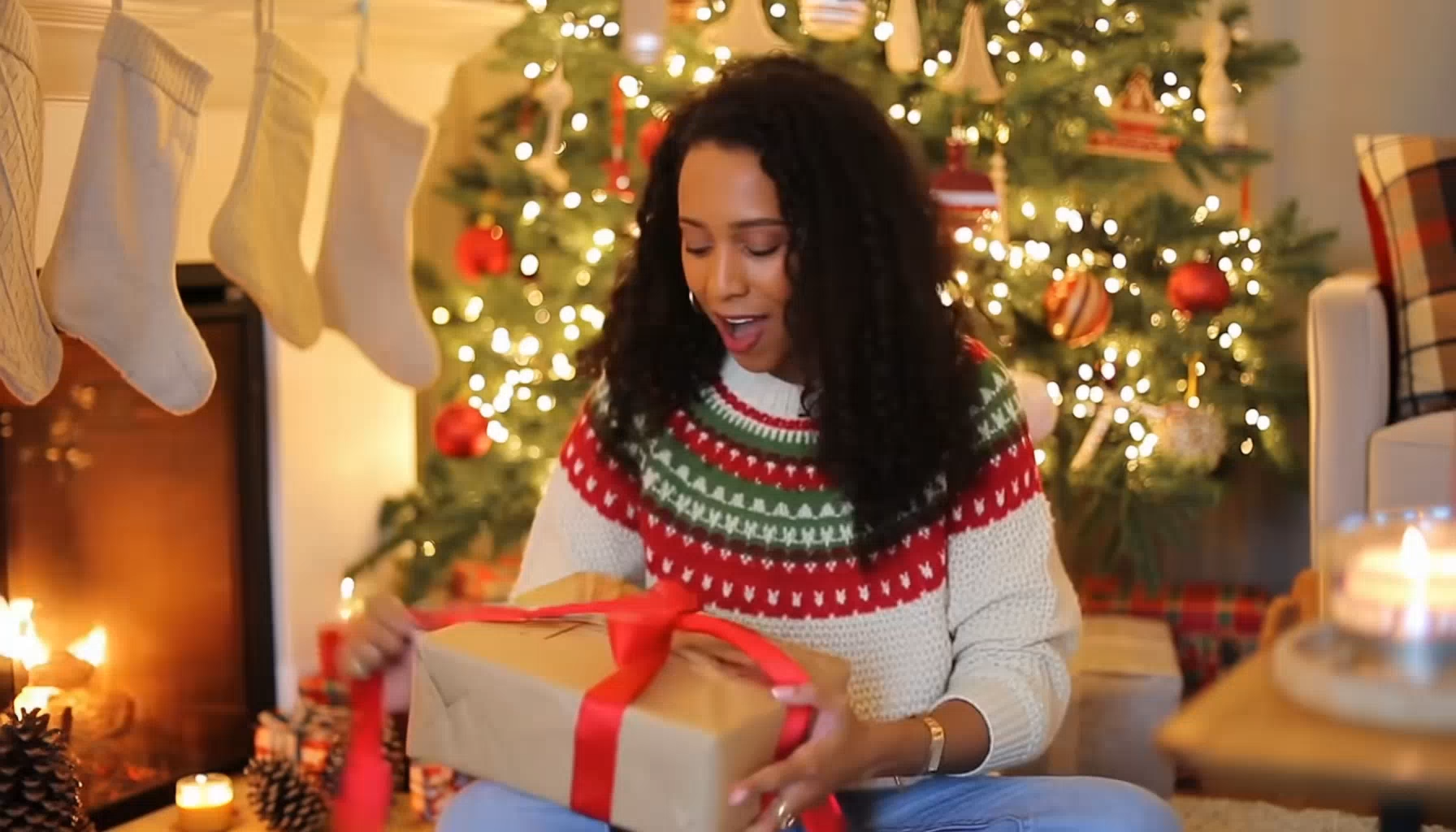
A content creator can generate a 10-second cinematic intro for a brand by focusing on atmosphere and motion. Using a vertical aspect ratio and subtle camera movement ensures the video feels premium while remaining platform-friendly.
Example 2: Short film sequence
A digital artist can create a three-shot sequence by generating an establishing shot, a medium character shot, and a close-up. Consistency controls ensure the character looks the same across all clips, making editing seamless.
These approaches allow creators to scale production without sacrificing cinematic quality.
Common mistakes beginners make
Even with a powerful tool like Higgsfield AI Cinema Studio, beginners often repeat the same errors.
- Overloading prompts with too many ideas
- Ignoring consistency controls
- Using default export settings for every platform
- Regenerating entire scenes instead of refining details
Avoiding these mistakes saves time and improves final output quality.
Final checklist for cinematic quality output
Before exporting your video, run through this checklist:
- Prompt includes camera, lighting, and mood
- Aspect ratio matches the target platform
- Consistency controls are enabled when needed
- Camera motion feels intentional and smooth
- Export settings match distribution goals
Following this checklist ensures your video meets cinematic standards every time.
Conclusion
Higgsfield AI Cinema Studio makes cinematic video creation accessible in 2026. By understanding the platform, using structured prompts, and applying consistency controls, beginners can produce professional-looking results. With practice and attention to detail, this tool becomes a powerful extension of your creative workflow.
Next Steps
Start your first cinematic project today by exploring Higgsfield AI Cinema Studio and applying these step-by-step techniques to bring your creative vision to life.
Frequently Asked Questions
Q: Is Higgsfield AI Cinema Studio suitable for beginners?
A: Yes. The platform offers cinematic presets and intuitive controls that make it accessible for beginners while still powerful enough for advanced creators.
Q: Can I use Higgsfield AI Cinema Studio for social media videos?
A: Absolutely. The platform supports vertical and square aspect ratios optimized for short-form social media content.
Q: How do I maintain character consistency across scenes?
A: Use the built-in consistency controls to lock character appearance, wardrobe, and environment before generating additional scenes.
Q: What export settings are best for cinematic quality?
A: Choose high-bitrate exports for cinematic projects and platform-specific presets for social media to balance quality and file size.