


















AI Cartoon Video Creation from Photos: A Deep-Dive Guide to 3D Dancing Characters with Runway and ComfyUI

Transform your photos into 3D cartoon animations without any animation skills, turn a single image into a lively, dancing cartoon character using modern AI video models and a repeatable workflow.
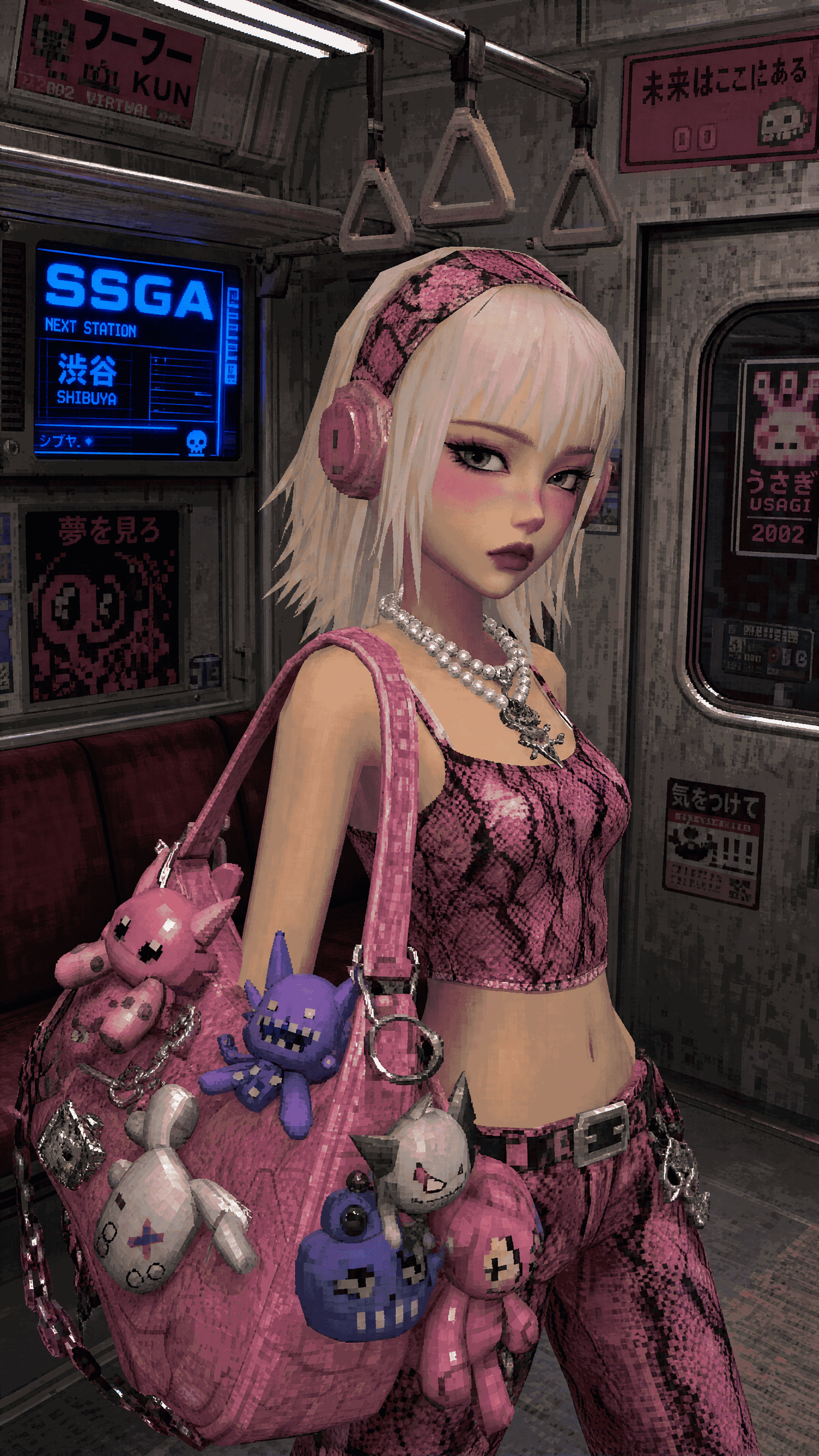
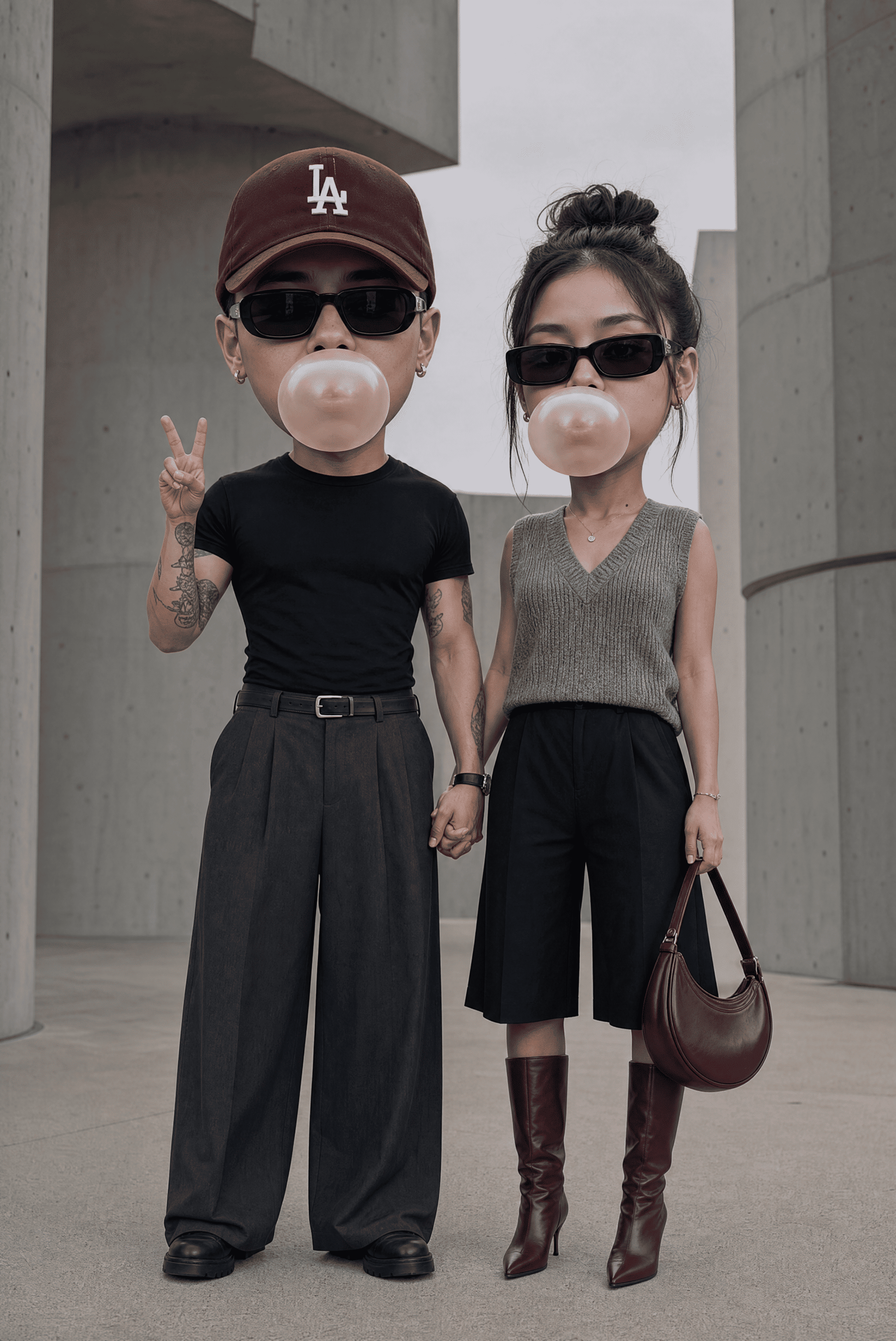
AI cartoon video creation no longer starts with animation software. It starts with a photo. Today’s AI video models let you turn a single image into a 3D cartoon character that dances, loops, and performs without rigging, keyframes, or 3D tools.
The real challenge is not creativity. The challenge is control. You need consistent characters, stable motion, and predictable results when moving from a photo to animated video. Many creators fail because they push motion too hard or rely on tools without seed parity and temporal stability.
This guide shows a practical, repeatable workflow for creating 3D dancing cartoon characters from photos using Runway and ComfyUI. You learn how to prepare images, convert them into cartoon characters, add dance motion, and optimize the final output for Shorts, Reels, and kids’ content. The focus stays on results, not theory.
From Photo to 3D Cartoon Motion: The Core AI Pipeline
The biggest misconception about AI animation is that you need to understand rigging, keyframes, or 3D software like Blender. In reality, today’s AI video engines abstract most of that complexity away. The real challenge is choosing the right pipeline and understanding just enough technical vocabulary to stay in control.
For this guide, we’ll focus on a simple but powerful setup using Runway Gen-3*, with optional extensions via *ComfyUI for creators who want deeper control. This combination works especially well for animation enthusiasts, social media creators, and parents creating kids’ content.
Step 1: Preparing the Source Photo
Your input photo determines 70% of the final result. AI models rely heavily on latent structure extraction, so clarity matters more than resolution.
Best practices:
- Use a single subject, full or half body
- Neutral or simple background (solid color works best)
- Clear facial features (no motion blur)
- Avoid extreme perspective distortion
Before uploading, lightly enhance the photo using any AI image upscaler. This improves latent consistency when the image is mapped into the video model’s internal space.
Step 2: Converting the Photo into a Cartoon Character
In Runway Gen-3*, upload your image and select *Image-to-Video.
Key settings:
- Style guidance: Medium to High
- Motion strength: Medium (too high causes limb distortion)
- Seed locking (Seed Parity): Enabled
Seed parity ensures that every generation starts from the same latent noise pattern, which is critical if you want consistent characters across multiple clips.
At this stage, you are not animating yet—you are stylizing. Your goal is to push the model toward a 3D cartoon aesthetic rather than realism.
Step 3: Adding Dance Motion
Runway’s motion engine uses internal pose estimation similar to a lightweight temporal diffusion process. To trigger dancing behavior, you’ll rely on prompt-based motion cues.
Examples:
- “energetic cartoon dance loop”
- “happy 3D cartoon character dancing in place”
- “kids animation style, rhythmic body movement”
If you want more control, export the stylized frame and move into ComfyUI with AnimateDiff.
In ComfyUI:
- Load SDXL Cartoon Model
- Add AnimateDiff Motion Module
- Use ControlNet OpenPose with a dance pose sequence
- Scheduler: Euler a (better for exaggerated motion)
This setup allows frame-to-frame coherence while preserving the cartoon style.
Prompt Engineering and Character Customization for Consistent Cartoon Results
This is where most beginners fail. Prompting for video is not the same as prompting for images. You must balance style tokens*, **motion descriptors**, and *temporal constraints.
Pillar 1: Best AI Prompts for Cartoon-Style Conversions
A strong base prompt structure:
3D cartoon character, soft plastic texture, rounded proportions, Pixar-style lighting, vibrant colors, clean outlines, smooth shading, child-friendly animation, stable anatomy, dancing loop
Negative prompt (equally important):
Realistic skin, photorealism, uncanny face, extra limbs, jitter, warped hands, blurry edges
In ComfyUI, pair this with:
- CFG: 6–8 (higher causes jitter in motion)
- Steps: 20–24
- Temporal consistency: Enabled
Pillar 2: Character Customization Options and Settings
To create recurring characters (perfect for kids’ channels), you need consistency across videos.
Key techniques:
1. Reference Image Locking
- Use the same source photo
- Keep seed parity constant
2. IP-Adapter (Advanced Users)
- Inject facial identity into each generation
- Reduces face drift over long sequences
3. Color Anchoring
- Explicitly describe clothing colors
- Example: “red hoodie, blue sneakers, yellow accents”
4. Proportion Control
- Use terms like “chibi proportions” or “short limbs, big head” for kids’ content
In Runway, save your project as a template so motion and style settings stay identical across videos.
Rendering, Upscaling, and Social Media Optimization
Even great animation fails if it looks bad on TikTok or YouTube Shorts. Rendering is not just about resolution, it’s about compression-aware quality.
Pillar 3: Rendering Quality Tips for Social Media Platforms
Aspect Ratios:
- TikTok / Shorts / Reels: 9:16 (1080×1920)
- YouTube long-form: 16:9
In Runway:
- Export at highest available quality
- Avoid excessive motion blur
In ComfyUI:
- Upscale using ESRGAN or UltraSharp
- Apply light temporal denoise (0.1–0.2)
Frame Rate and Motion Smoothness
AI-generated motion can stutter if pushed too far.
Recommended settings:
- FPS: 24 or 30
- Avoid interpolation unless necessary
- Keep motion loops under 4 seconds for kids’ content
Short loops perform better algorithmically and hide minor artifacts.
Audio and Final Polish
Once exported:
- Add royalty-free music
- Sync motion peaks to beats
- Keep total video under 10 seconds for maximum retention
Parents creating kids’ content should favor:
- Bright colors
- Simple dance loops
- Familiar rhythms
Why This Workflow Works
This method avoids traditional animation entirely while still producing 3D-style cartoon dancing videos. By combining:
- Latent consistency
- Seed parity
- Prompt-driven motion
- Euler a scheduling
You get repeatable, scalable results without technical overwhelm. Whether you’re building a kids’ YouTube channel, experimenting with AI animation, or creating viral social content, this pipeline lets you focus on creativity, not complexity.
Frequently Asked Questions
Q: Can I create multiple videos with the same cartoon character?
A: Yes. Use the same source photo, enable seed parity, and keep prompts and style settings identical. For advanced consistency, use IP-Adapter in ComfyUI.
Q: Do I need powerful hardware to make these videos?
A: No. Runway runs in the cloud. For ComfyUI, a GPU with 8–12GB VRAM is recommended but not mandatory for short clips.
Q: How long should a cartoon dance video be for kids’ content?
A: 3–6 seconds works best. Short loops reduce visual artifacts and improve engagement on social platforms.
Q: What’s the biggest mistake beginners make?
A: Overloading prompts and using high motion strength. This causes jitter, limb warping, and inconsistent faces.