
















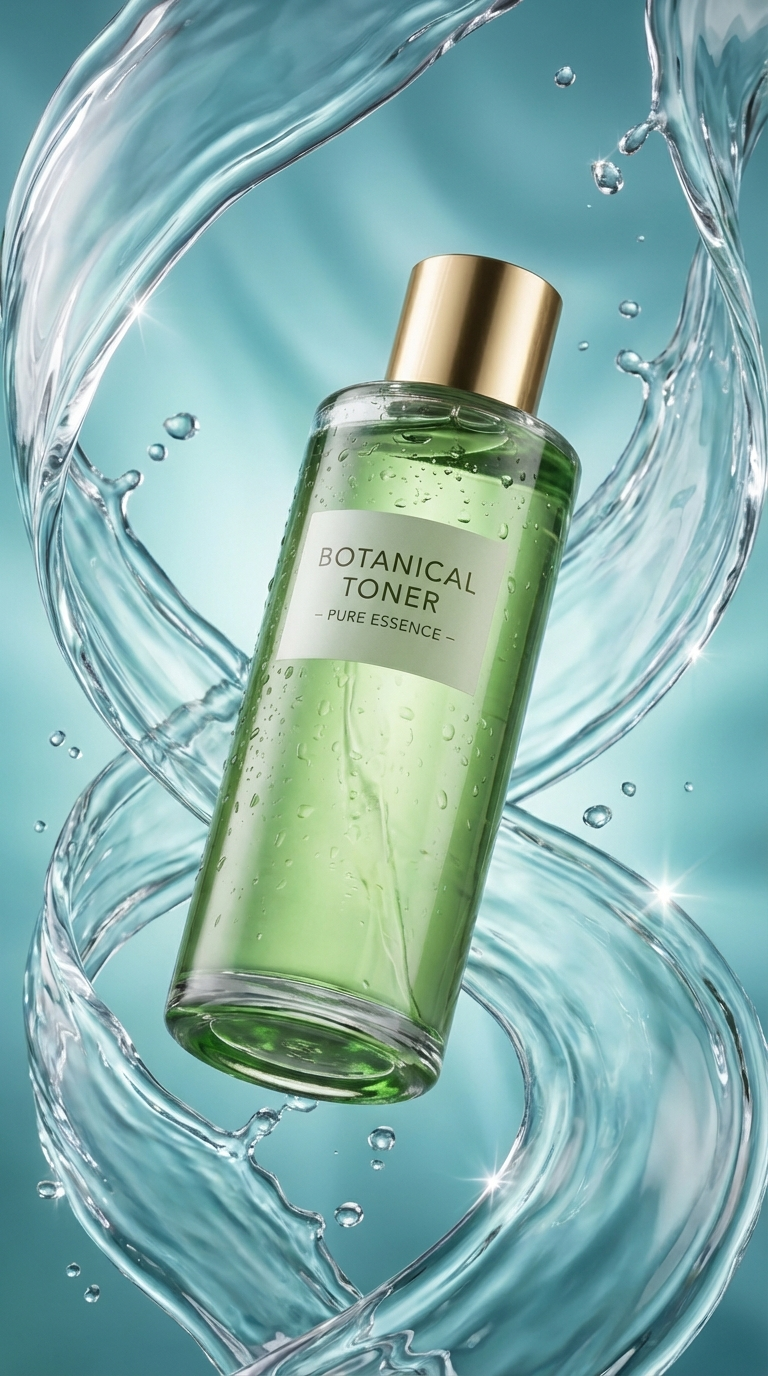

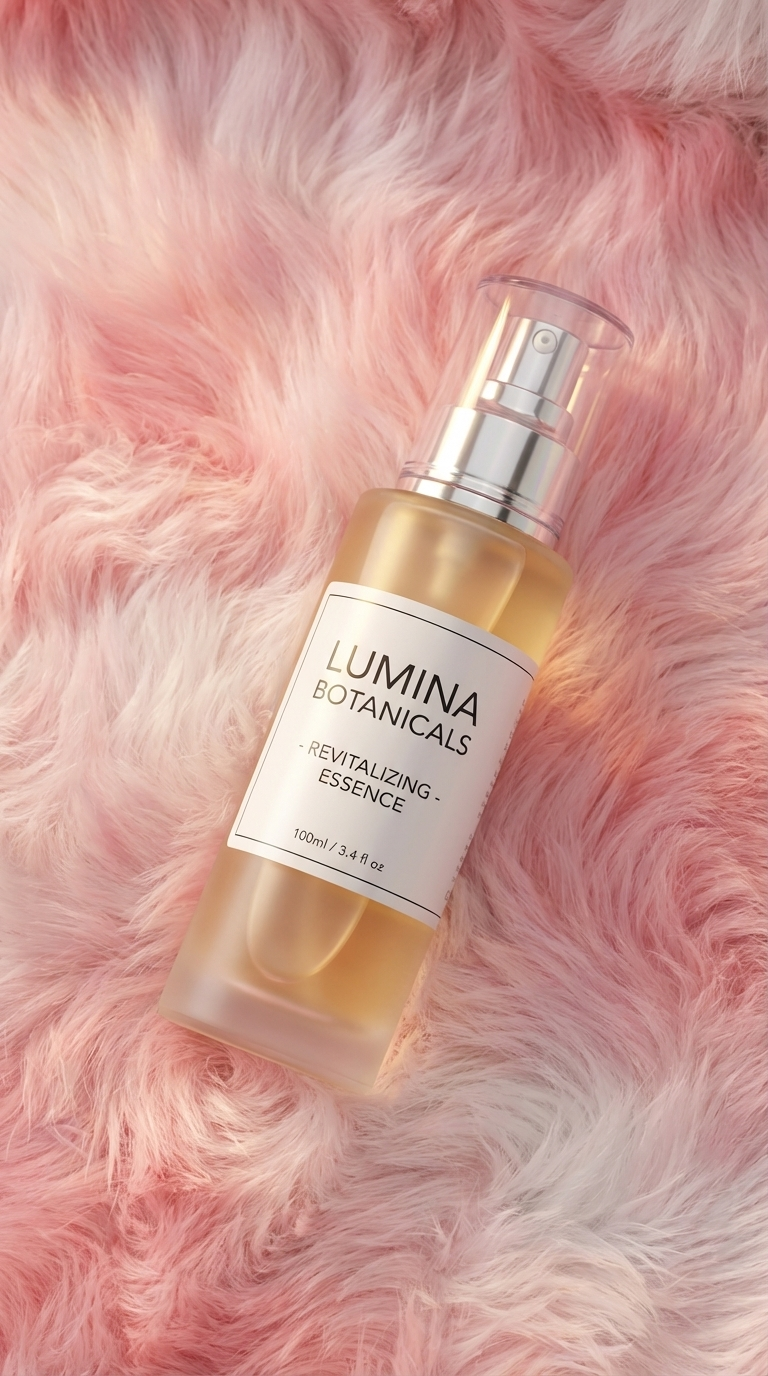
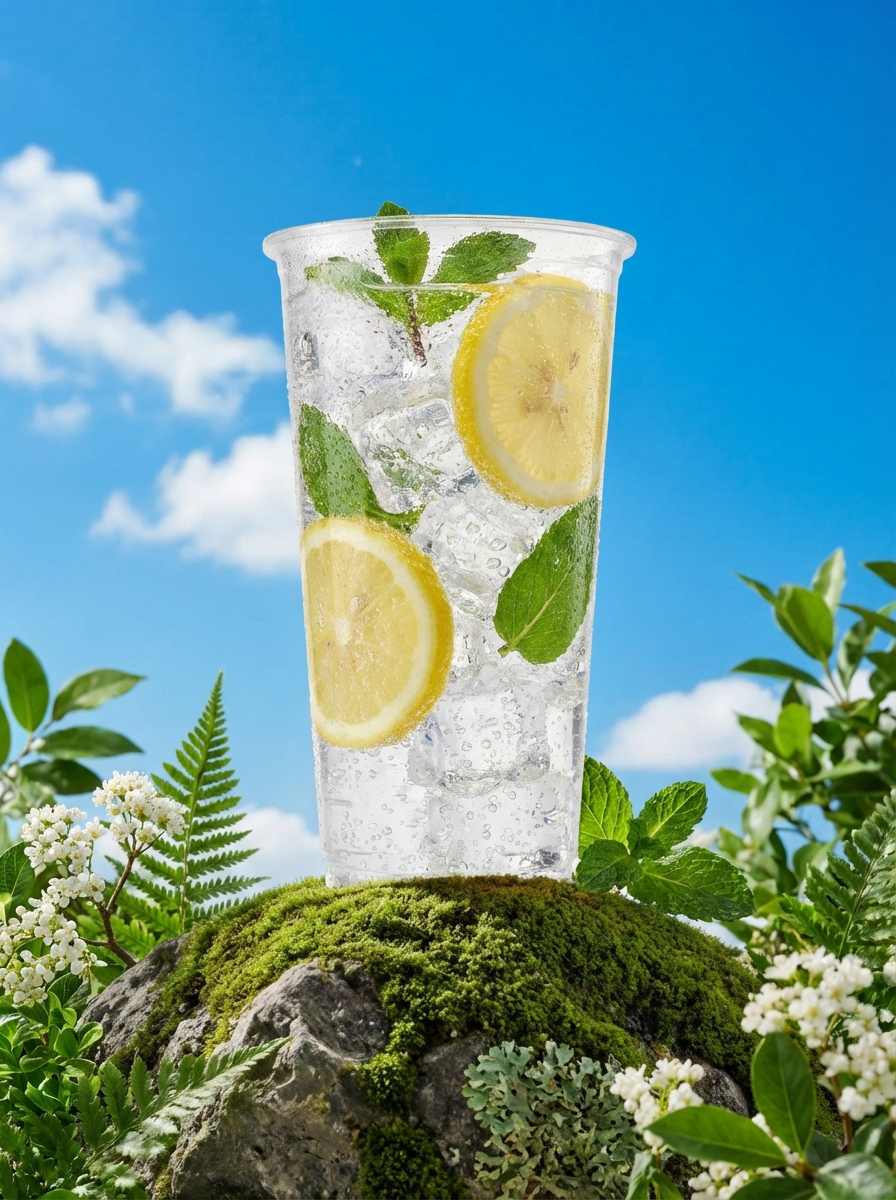
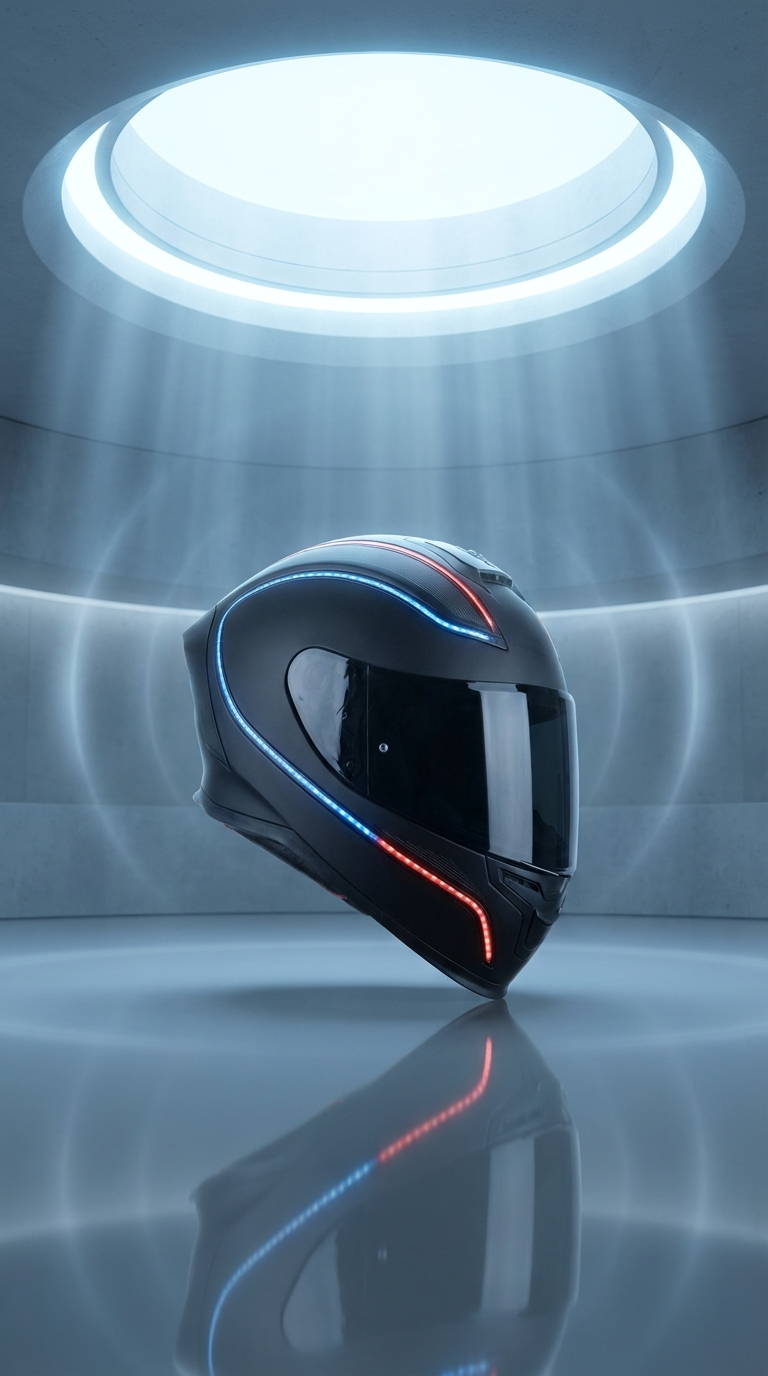


Pomelli Photoshoot Feature: Complete Beginner’s Guide to AI Product Photography in 60 Seconds
This free Google tool, Pomelli, turns your product photos into pro marketing shots in 60 seconds. If you’re an online seller, marketer, or small business owner tired of expensive photoshoots and complicated editing software, Pomelli’s new Photoshoot feature is about to revolutionize your product imagery workflow. This AI-powered tool leverages advanced diffusion models to transform basic product photos into professional-grade marketing assets—and you don’t need any technical expertise to use it.
Understanding Pomelli’s AI Photoshoot Architecture
Before diving into the step-by-step process, it’s crucial to understand what’s happening under the hood. Pomelli’s Photoshoot feature utilizes latent diffusion models similar to those powering Stable Diffusion and DALL-E, but optimized specifically for product photography. The system operates in latent space—a compressed representation of images that allows for faster processing and more coherent results.
The tool employs ControlNet technology* to maintain product integrity while transforming backgrounds and contexts. This ensures your product’s shape, details, and branding remain pixel-perfect while the AI generates photorealistic environments around it. The inference pipeline uses *DPM++ 2M Karras schedulers for rapid generation (achieving those 60-second turnarounds) while maintaining high visual fidelity.
Unlike traditional image editing that requires manual masking and compositing, Pomelli’s system performs semantic segmentation automatically, identifying your product boundaries and preserving fine details like transparent packaging, reflective surfaces, and intricate textures.
Pillar 1: Uploading and Preparing Product Images for Optimal Results on Pomelli

Image Resolution and Format Requirements
The quality of your output is directly proportional to your input preparation. Pomelli’s Photoshoot feature accepts JPEG, PNG, and WebP formats, but understanding the optimal specifications will dramatically improve results:
Recommended specifications:
– Resolution: 2048×2048 pixels minimum (the system uses this as the base resolution for latent encoding)
– Aspect ratio: 1:1 (square) or 4:5 (portrait) work best for product-focused compositions
– File size: Under 10MB for optimal upload speeds
– Color space: sRGB for consistent color reproduction
Background Considerations for Source Images in Pomelli
While Pomelli’s AI can handle complex backgrounds, providing clean source images significantly improves edge fidelity and reduces artifacts. Here’s the hierarchy from best to acceptable:
Optimal: Pure white background (RGB 255, 255, 255) with even lighting—this gives the segmentation model the clearest boundaries and reduces the computational load on the background removal pipeline.
Good: Neutral solid colors (gray, beige, light blue)—the contrast between product and background helps the edge detection algorithms maintain sharp boundaries.
Acceptable: Simple textured backgrounds (wood, fabric)—the AI can handle these, but you may need to increase the generation steps from the default 20 to 30 for cleaner extraction.
Problematic: Busy patterns, multiple products, or backgrounds that match your product’s color profile—these confuse the semantic segmentation and may result in incomplete product extraction.
Lighting Setup in Source Photography
Even though Pomelli will re-light your scene, the original lighting affects how the AI interprets your product’s geometry and material properties:
Front-lit products (light source facing the camera) work best because they minimize shadows and provide clear surface detail information to the diffusion model.
Avoid harsh side lighting in source images—this creates strong shadows that the AI may interpret as part of the product geometry, leading to inconsistent results across different generated backgrounds.
Reflective and transparent products require special attention. For glass, jewelry, or chrome items, use diffused lighting in your source photo. The AI’s material recognition works by analyzing highlights and reflections; harsh point-source lighting creates unrealistic specular highlights that won’t match the generated environment.
Pre-Upload Checklist
Before uploading, verify:
1. Product is centered in the frame with 15-20% margin on all sides
2. Focus is sharp on the product (the AI cannot enhance blurry source images)
3. White balance is neutral (color casts will be propagated to the final output)
4. No lens distortion (smartphone wide-angle lenses create perspective issues)
5. Full product visibility (no cropped edges—the AI needs complete context)
Pillar 2: Customizing Backgrounds, Lighting, and Styling Options

The Prompt Engineering Interface on Pomelli
Pomelli’s Photoshoot feature uses a natural language prompt system powered by CLIP (Contrastive Language-Image Pre-training) embeddings. Your text descriptions are encoded into the same latent space as the images, allowing semantic control over generation.
Effective prompt structure:
[Environment] + [Lighting description] + [Mood/Style] + [Additional details]
Example: “Modern minimalist kitchen countertop, soft morning sunlight from window, clean professional atmosphere, marble surface”
This structure helps the diffusion model prioritize the most important elements. The AI processes prompts left-to-right with decreasing attention weights, so lead with your primary requirements.
Background Style Presets Explained
Pomelli offers preset categories that apply style LoRAs (Low-Rank Adaptations) to the base diffusion model:
Studio:* Applies professional photography lighting setups—three-point lighting simulation with adjustable key-to-fill ratios. This preset increases the *CFG scale (Classifier-Free Guidance) to 8.5, resulting in more literal interpretation of your prompts.
Lifestyle: Generates contextual environments where your product appears in realistic use scenarios. Uses a lower CFG scale (6.5) for more creative interpretation and natural scene composition.
Minimal: Focuses on geometric simplicity with gradient backgrounds. This preset reduces the sampling steps to 15 for faster generation since it’s creating less complex scenes.
Luxury: Applies material-specific enhancements—increased specular reflections, deeper shadows, and premium environment elements like marble, leather, or metallic accents.
Lighting Controls Deep Dive
The lighting adjustment panel controls the illumination conditioning of the diffusion process:
Brightness slider (0-100): Adjusts the overall exposure value in the generated scene. Values above 70 may cause highlight clipping on reflective products—monitor the live preview.
Contrast slider (0-100): Modifies the tonal range. Higher contrast (70+) works well for dramatic product presentations but can crush shadow detail in products with dark surfaces.
Color temperature (2700K-6500K): Shifts the white point of the scene lighting. This doesn’t just apply a color overlay—it actually conditions the diffusion model to generate appropriate colored lighting, reflections, and ambient bounce light.
Shadow intensity (Soft/Medium/Hard): Controls the edge characteristics of cast shadows by adjusting the apparent light source size in the generation. “Soft” simulates large diffused light sources (softboxes), while “Hard” mimics point sources (direct sunlight).
Advanced Styling Parameters
Seed control:* Each generation uses a random seed value to initialize the latent noise. Pomelli displays this seed number after generation. Recording successful seeds allows you to maintain *seed parity—generating variations of the same scene composition by keeping the seed constant while adjusting prompts.
Variation strength (0.0-1.0): When regenerating from an existing result, this parameter controls how much the new generation deviates from the original. Values below 0.3 create subtle variations (different shadow positions, slight angle changes), while values above 0.7 produce entirely new compositions.
Aspect ratio lock: Enable this when you need consistent dimensions across a product line. The AI will maintain composition rules across different aspect ratios, but disabling the lock allows more creative framing.
The Generation Process
When you click “Generate,” here’s what happens:
1. Image encoding (5-10 seconds): Your product image is processed through the VAE (Variational Autoencoder) into latent space representation
2. Segmentation (3-5 seconds): ControlNet identifies product boundaries with sub-pixel accuracy
3. Denoising steps* (30-40 seconds): The diffusion model iteratively refines the background through 20-30 steps using the *Euler ancestral scheduler
4. Upscaling (5-10 seconds): The latent representation is decoded back to pixel space and optionally upscaled using Real-ESRGAN
5. Final compositing (2-5 seconds): Product and generated background are merged with edge refinement
Total processing time varies based on complexity, but most generations complete within the advertised 60-second window.
Pillar 3: Common Mistakes to Avoid When Using the Pomelli Photoshoot Feature
Mistake #1: Over-Prompting and Conflicting Instructions
The problem: Many beginners create prompts like “luxury modern minimalist vintage industrial professional studio lifestyle warm cool bright dark background.”
This creates semantic confusion in the CLIP embedding space. The diffusion model receives contradictory guidance signals, resulting in incoherent compositions or averaging effects that satisfy none of your requirements.
The solution: Limit prompts to 15-20 words maximum. Focus on one primary style direction. If you need to test multiple concepts, generate them as separate variations rather than combining them in a single prompt.
Technical explanation: The attention mechanism in the diffusion model has finite capacity. Each additional concept dilutes the attention weight available for the others. This is why focused prompts (high attention concentration) produce more coherent results than kitchen-sink descriptions.
Mistake #2: Ignoring Product Material Properties
Reflective, transparent, and translucent products require special handling that many users overlook.
The problem: Generating a glass bottle on a dark background without adjusting lighting parameters results in the product disappearing or looking artificially composited because the AI-generated environment isn’t reflecting properly on the glass surface.
The solution: For transparent/reflective products:
– Increase brightness by 15-20 points
– Add specific lighting descriptions: “backlit,” “rim lighting,” “visible reflections”
– Use the “Studio” preset which applies specular enhancement to the material rendering
– Consider adding environmental elements that will create interesting reflections: “near window with city view” or “on table with visible background elements”
Technical insight: The diffusion model learned material properties from its training data. When it recognizes glass or metal (through the product segmentation), it expects environmental reflections. Providing explicit lighting and environmental context in your prompt helps the model generate physically plausible interactions.
Mistake #3: Not Leveraging the Batch Generation System
Pomelli allows generating 4 variations simultaneously, but most beginners generate one at a time, wasting processing efficiency.
The problem: Single generations provide limited exploration of the latent space. You might miss superior compositions that exist a few sampling steps away from your initial result.
The solution:* Always generate batches of 4, especially for initial explorations. The system processes these in parallel using *batched inference, which is only marginally slower than single generation but provides 4x the creative options.
Use the batch to test prompt variations:
– Image 1: Your base prompt
– Image 2: Base prompt + lighting modifier (“dramatic lighting”)
– Image 3: Base prompt + environmental detail (“marble surface”)
– Image 4: Base prompt + mood descriptor (“elegant atmosphere”)
This systematic approach reveals which semantic elements have the strongest influence on your specific product.
Mistake #4: Accepting First-Generation Results
The problem:* The stochastic nature of diffusion models means the first generation is rarely optimal. Many users accept mediocre results without exploring the *latent space neighborhood through refinement.
The solution: Use the iterative refinement workflow:
1. Generate initial batch (4 variations)
2. Select the best composition
3. Click “Refine” and set variation strength to 0.2-0.3
4. Generate another batch based on the selected image
5. Repeat until satisfied
Each refinement iteration samples a slightly different region of latent space while maintaining the core composition. This is dramatically more efficient than random regeneration.
Technical detail: Setting variation strength below 0.4 constrains the sampling process to a small radius in latent space, effectively “searching” around the current solution for improvements while preventing radical departures from the successful elements.
Mistake #5: Mismatching Resolution Expectations
The problem: Users upload 800x800px source images and expect 4K output quality. The diffusion model operates at native resolution; upscaling is applied post-generation but cannot create detail that wasn’t captured in the source.
The solution: Match your source image resolution to your target output:
– For web use (1200px): 1500px source minimum
– For print/high-res marketing (2400px+): 2400px source minimum
– For billboard/large format: Consider traditional photography or specialized high-resolution AI services
Pomelli’s upscaling uses Real-ESRGAN which can reasonably double resolution (2x), but pushing beyond that introduces artifacts.
Mistake #6: Ignoring Color Space and Export Settings
The problem: Generating beautiful results that look completely different when imported to marketing materials or posted on social media.
The solution:
– Always download in the highest quality setting (Pomelli offers quality presets)
– For social media: Use sRGB color space (Pomelli’s default)
– For print: Download the 16-bit version if available and convert to CMYK in your design software
– Check “Preserve metadata” to maintain color profile information
Technical context: The diffusion model generates in linear color space but encodes to sRGB for display. If your downstream tools expect different color profiles, you’ll see shifts in saturation and brightness.
Mistake #7: Not Maintaining Product Consistency Across Catalog
When shooting multiple products in a line, inconsistent AI generation parameters create a disjointed catalog appearance.
The solution: Document your successful parameters:
Product Line: Summer Skincare
Preset: Studio
Prompt: “Clean white marble surface, soft diffused lighting from above, minimal shadows, professional product photography”
Brightness: 65
Contrast: 55
Seed: 847562 (record for consistency)
Variation Strength: 0.25
Reuse these exact settings across all products in the line. The seed value is particularly important—using the same seed with similar products generates coherent visual relationships (similar camera angles, lighting positions) that make your catalog feel professionally coordinated.
Advanced Tips for Maximum Output Quality
Using Negative Prompts (If Available)
Some versions of Pomelli’s Photoshoot feature include negative prompting—specifying what you don’t want in the generation. This provides invaluable control:
Effective negative prompts for product photography:
Negative: blurry, distorted, watermark, text, multiple products, cropped, low quality, oversaturated, unrealistic lighting
Negative prompts work by reducing the attention weights associated with unwanted concepts during the denoising process. They’re particularly effective for eliminating common AI artifacts.
The Two-Stage Approach for Complex Products
For products with intricate details (jewelry, electronics with small text, products with important texture):
1. Stage 1: Generate the background scene without the product using a text-to-image mode (if available) or by using a simple placeholder object
2. Stage 2: Use Pomelli’s advanced compositing to place your product photo onto the generated background
This approach gives you more control over product detail preservation while still leveraging AI for background creation.
Seasonal and Trend Adaptability
One of Pomelli’s most powerful features is rapid adaptation to seasonal marketing needs:
Holiday season: “Product on rustic wooden table, warm golden Christmas lights in soft-focus background, cozy winter atmosphere”
Summer campaign: “Bright sunny day, product on white beach sand, soft blue sky background, fresh clean aesthetic”
Back-to-school: “Modern desk setup, natural window light, organized study environment, crisp autumn atmosphere”
The AI’s training on millions of images means it understands seasonal visual language and can generate contextually appropriate environments without requiring you to stage physical photoshoots.
A/B Testing Generated Variants
Use Pomelli’s batch generation for marketing A/B tests:
– Generate 4 different background styles for the same product
– Use them in parallel ad campaigns
– Track click-through and conversion rates
– Double down on the AI-generated style that performs best
This data-driven approach to visual marketing was previously only accessible to brands with substantial photography budgets.
Conclusion: Streamlining Your Product Photography Pomelli Workflow
Pomelli’s Photoshoot feature represents a fundamental shift in product photography economics. What previously required expensive equipment, studio rentals, professional photographers, and skilled retouchers can now be accomplished in 60 seconds with a free tool.
The key to mastery is understanding that you’re not just applying filters—you’re directing an AI system that understands photography, materials, lighting, and composition. By optimizing your source images, crafting focused prompts, and avoiding common pitfalls, you can generate professional-grade marketing assets that rival traditional photography.
Start with the basics: clean source images, simple prompts, and systematic experimentation with the preset styles. As you develop intuition for how the diffusion model responds to different inputs, gradually incorporate advanced techniques like seed control, iterative refinement, and strategic variation strength adjustment.
The competitive advantage goes to sellers and marketers who can rapidly iterate on visual content, test multiple creative directions, and adapt to seasonal trends—all capabilities that Pomelli’s Photoshoot feature delivers without requiring technical AI expertise.
Your product photography workflow will never be the same.
Frequently Asked Questions
Q: What image format and resolution should I upload to Pomelli’s Photoshoot feature for best results?
A: Upload images in JPEG, PNG, or WebP format at a minimum resolution of 2048×2048 pixels. Use a 1:1 (square) or 4:5 (portrait) aspect ratio with sRGB color space. Keep files under 10MB for optimal processing speed. Higher resolution source images produce better final outputs—the AI cannot create detail that doesn’t exist in your original photo.
Q: Why do my transparent or reflective products look artificial in the generated images?
A: The AI needs proper environmental context to generate realistic reflections and transparency effects. For glass, metal, or reflective products, increase brightness by 15-20 points, use the ‘Studio’ preset, and add specific lighting descriptions to your prompt like ‘backlit’ or ‘rim lighting.’ Include environmental elements that will create reflections, such as ‘near window with city view.’
Q: How do I create consistent-looking product photos across my entire catalog?
A: Document and reuse the exact same generation parameters for all products in a line: the same preset, prompt, brightness, contrast, and crucially, the same seed value. Pomelli displays the seed number after each generation—recording this ensures similar camera angles, lighting positions, and overall aesthetic across your product catalog.
Q: What’s the difference between the Studio, Lifestyle, and Minimal background presets?
A: Studio preset applies professional three-point lighting with higher CFG scale (8.5) for literal prompt interpretation. Lifestyle generates contextual environments with lower CFG scale (6.5) for more creative, natural scenes. Minimal focuses on geometric simplicity with gradient backgrounds and uses fewer sampling steps (15 instead of 20) for faster generation of simpler compositions.
Q: Should I accept the first generated image or keep refining?
A: Always generate in batches of 4 to explore variations, then use iterative refinement on the best result. Select your preferred image, click ‘Refine,’ set variation strength to 0.2-0.3, and generate another batch. This samples the latent space around your successful composition to find improvements while maintaining core elements. First generations are rarely optimal due to the stochastic nature of diffusion models.
Q: How can I write effective prompts for Pomelli’s Photoshoot feature?
A: Keep prompts focused and under 15-20 words using this structure: [Environment] + [Lighting description] + [Mood/Style] + [Additional details]. Example: ‘Modern minimalist kitchen countertop, soft morning sunlight from window, clean professional atmosphere, marble surface.’ Avoid conflicting descriptors (like ‘warm cool’ or ‘modern vintage’) as they create semantic confusion in the AI model.