Complete AI Animation Workflow for Beginners: Create Your First Cartoon in 5 Simple Steps
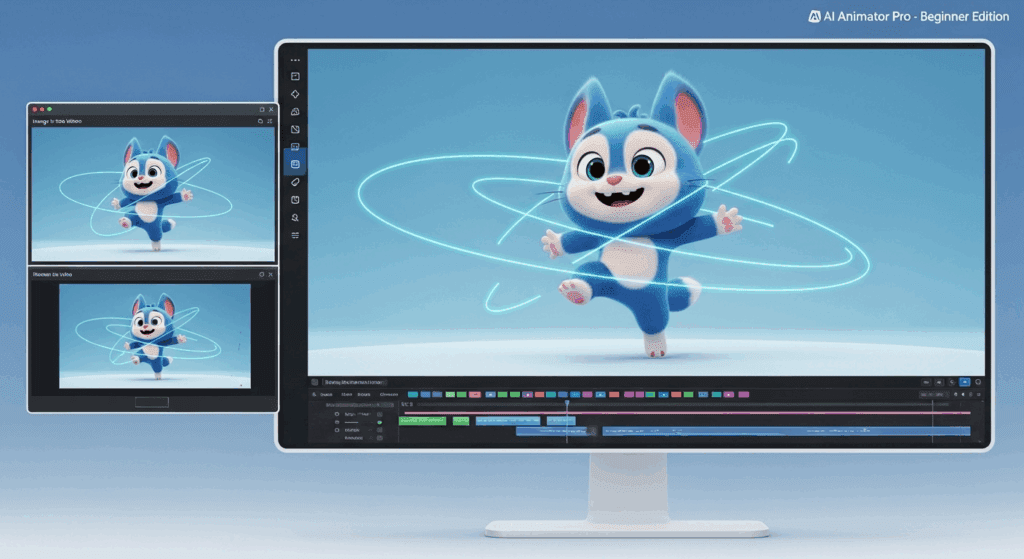
AI animation used to feel impossible without art or editing skills. Not anymore. Today, anyone can go from a simple idea to a finished cartoon using free AI tools. You don’t need expensive software, a design degree, or animation experience.
This beginner-friendly guide walks you through a full AI animation workflow in 5 simple steps. It’s built for people who have never touched animation software before. You’ll learn how to plan, design, animate, add voice, and export a full short video using easy tools like ChatGPT, VidAU, Runway, and Pika.
We’ll use a five-step visual engine that mirrors how professional AI creators work, but simplified for complete beginners. Along the way, you’ll learn essential concepts like latent consistency, seed parity, and Euler a schedulers without getting overwhelmed.
How to Make AI Animated Stories Step by Step
Below is a simple, beginner‑friendly process that shows you how to create AI animated stories from start to finish, using easy tools and clear steps.
Step 1: Planning a Short Cartoon Story with AI Assistance
Every animation starts with a story, but you don’t need to be a writer. AI can handle the heavy lifting.
The Goal of This Step
Create a short, simple cartoon story that can be animated easily. Think 30–60 seconds, 3–5 scenes, one main character.
Tools to Use
– ChatGPT or Claude for story ideation
– Notion or Google Docs for organizing scenes
Prompt Example
“Write a 45-second cartoon story for beginners. One main character, simple actions, clear beginning, middle, and end. Include scene descriptions.”
AI will return a script broken into scenes. This matters because AI video tools generate clips scene by scene, not entire movies at once.
Pro Tip: Think Visually
Avoid complex actions like fighting, dancing crowds, or fast camera moves. Simple actions like walking, waving, or talking are ideal for AI animation engines.
By the end of Step 1, you should have:
– A short script
– Scene-by-scene breakdown
– Basic description of your main character
Step 2: Designing and Maintaining Consistent AI Characters
This is where most beginners fail. AI is great at creating characters but terrible at keeping them consistent unless you guide it properly.
The Core Problem: Character Drift
Without control, your character’s face, clothes, or proportions will change every scene. This happens because each generation starts from a new latent space.
The Solution: Latent Consistency + Seed Parity
Latent Consistency means keeping the character’s underlying AI representation stable across generations.
Seed Parity means reusing the same random seed number so the AI starts from the same noise pattern each time.
Recommended Tools
– Midjourney (Character Reference mode)
– Stable Diffusion via ComfyUI
– Runway Gen-2 (for reference-driven animation)
Beginner Workflow (ComfyUI Option)
1. Generate a high-quality character image
2. Lock the seed value
3. Save the prompt, seed, and sampler
4. Use Euler a scheduler for stable, predictable results
Euler a is favored by beginners because it balances detail and stability, reducing unexpected distortions.
Character Prompt Structure
– Physical description
– Clothing
– Art style
– Mood
– Camera framing
Example:
“Young cartoon robot, blue metal body, round head, expressive LED eyes, simple Pixar-style shading, friendly mood, medium shot”
By the end of Step 2, you should have:
– One master character image
– Saved prompt and seed
– A repeatable way to regenerate your character
Step 3: Animating Scenes Using Modern AI Video Engines
Now we bring your character to life.
Tools That Work Best for Beginners
– Runway Gen-2: Image-to-video animation
– Pika Labs: Simple motion prompts
– Sora or Kling (if available): Text-to-video with higher temporal consistency
Image-to-Video Is Your Best Friend
Instead of generating video from text alone, upload your character image and animate it. This dramatically improves consistency.
Motion Prompt Example
“The robot slowly walks forward and waves at the camera, smooth motion, stable background”
Key Settings to Watch
– Motion strength (keep it low)
– Camera movement (minimal for beginners)
– Duration (3–5 seconds per clip)
Generate one clip per scene. Don’t try to animate the entire story at once.
Advanced Tip: Frame Coherence
Some tools allow you to reference the last frame of the previous clip. This improves temporal continuity and reduces visual jumping between scenes.
By the end of Step 3, you should have:
– Multiple short video clips
– One clip per scene
– Consistent character appearance
Step 4: Adding Voiceovers, Dialogue, and Sound Effects
Animation feels empty without sound. Luckily, AI makes this simple.
Voiceover Tools
– ElevenLabs (natural voices)
– Play.ht
– OpenAI TTS
Paste your dialogue, choose a voice, and export audio files for each scene.
Sound Effects Tools
– Adobe Audio Enhancer
– Epidemic Sound
– AI SFX generators like Soundraw
Use subtle effects: footsteps, ambient noise, simple music. Avoid clutter.
Syncing Tips
– Match voice lines to clip length
– Leave small pauses at the start and end
– Normalize audio levels for consistency
Step 5: Editing, Exporting, and Publishing Your First AI Cartoon
This is where everything comes together.
Editing Tools for Beginners
– CapCut
– DaVinci Resolve (Free)
– Runway Editor
Basic Editing Workflow
1. Import video clips
2. Arrange scenes in order
3. Add voiceovers
4. Add sound effects and music
5. Export in 1080p
Export Settings
– 24 or 30 fps
– H.264 codec
– High quality preset
Congratulations, you’ve just completed a full AI animation workflow.
Comparing AI Animation Tools for Beginners
Before choosing an AI animation tool, you need to understand how each option supports beginner workflows, scene creation speed, and motion control for simple cartoon projects.
| Tool | Best For | Key Feature | Skill Level |
| VidAU | Fast scene animation | One-click image-to-video | Beginner |
| Runway Gen-2 | Smooth motion & coherence | Image-to-video control | Beginner |
| Pika Labs | Quick motion prompts | Easy text-to-video | Beginner |
| ComfyUI | Precision & consistency | Full control over seed and scheduler | Intermediate |
How to Use VidAU to Animate Your Scenes Faster

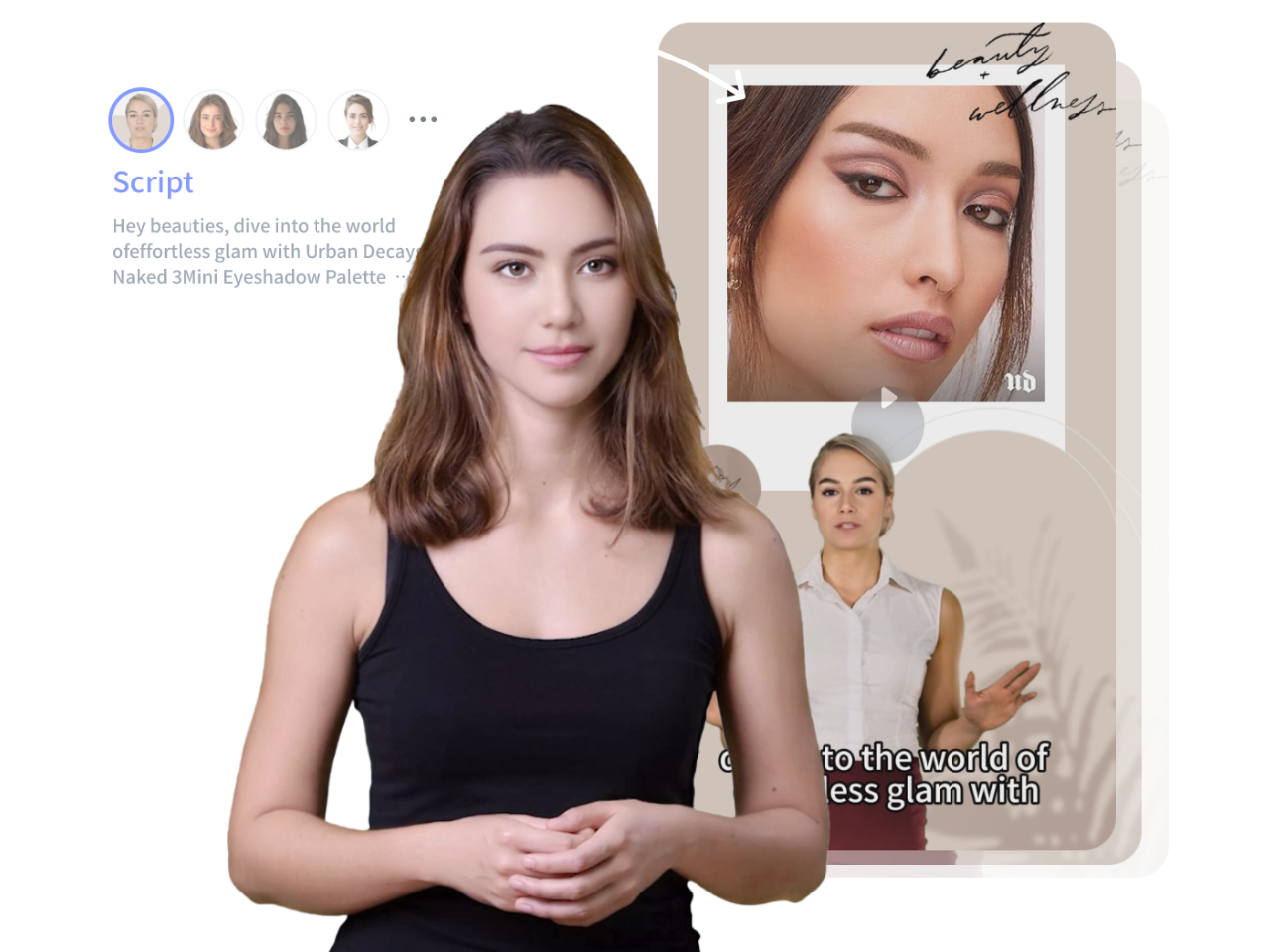
VidAU helps beginners create smooth short-form videos by turning still images or text prompts into animated scenes. Once you’ve created your character and planned the story, use VidAU to animate each scene with minimal setup.
What You Can Do in VidAU:
- Upload your image or paste a text prompt
- Choose motion styles like walking, waving, or talking
- Select a template (UGC, Snap Video, explainer)
- Generate short clips in 1 click
This works well when combined with ChatGPT. Let ChatGPT structure your story and character prompts, then feed that output into VidAU for fast, clean animation.
Why This 5-Step System Works
This workflow removes guesswork. Instead of juggling dozens of tools, you follow a linear process:
1. Plan
2. Design
3. Animate
4. Add sound
5. Edit and export
By understanding concepts like latent consistency, seed parity, and Euler a schedulers, you’re not just copying steps—you’re building real AI animation skills.
Your first cartoon doesn’t need to be perfect. It just needs to exist. From here, every project gets easier.
Welcome to AI animation.
Frequently Asked Questions
Q: Do I need a powerful computer to start AI animation?
A: No. Many tools like Runway, Pika, and Sora are cloud-based. For Stable Diffusion with ComfyUI, a GPU helps, but beginners can rely entirely on web tools.
Q: What is the easiest AI animation tool for beginners?
A: Runway Gen-2 is currently one of the easiest due to its image-to-video workflow and simple interface.
Q: Why does my character keep changing between scenes?
A: This happens due to lack of latent consistency. Use the same prompt, seed parity, and reference images to stabilize your character.
Q: How long should my first AI cartoon be?
A: Aim for 30–60 seconds. Shorter projects help you learn faster and reduce technical issues.