How To Make Tutorials With CapCut Web Trending Template
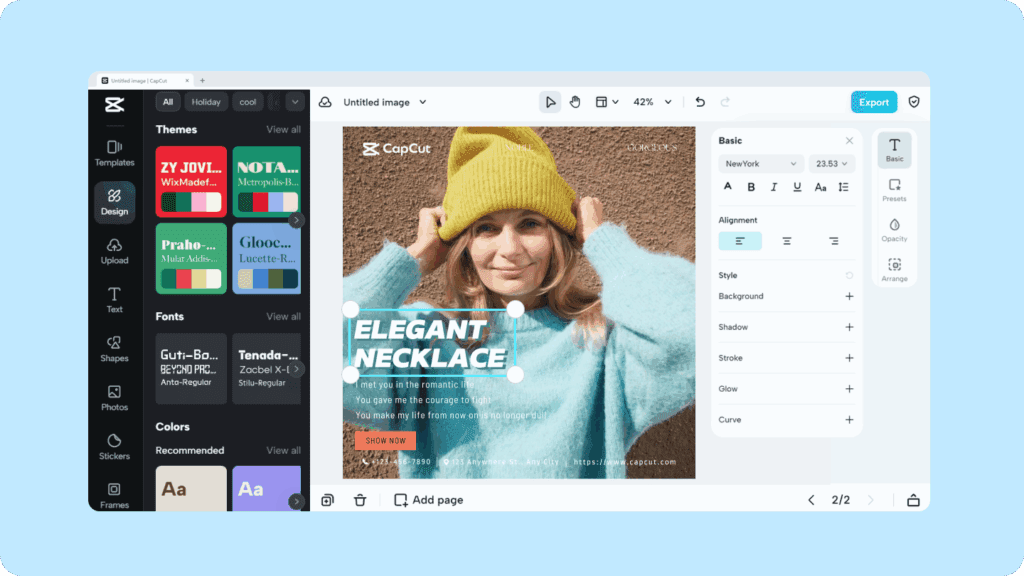
CapCut is everywhere right now. A lot of that buzz is about CapCut Web and CapCut Pro. Instead of installing an app, you can open it in your browser. Then use the same trending templates you see on TikTok, and turn them into your own AI generated tutorials.
So, instead of building everything from scratch, you start with a ready-made layout. Afterwards, swap in your clips, change the text, and adjust the timing. In the next sections, you’ll see exactly how to go from “CapCut Web is open in my browser” to “I’ve made a clean, step-by-step tutorial with a trending template.”
How Do You Actually Open CapCut Web?
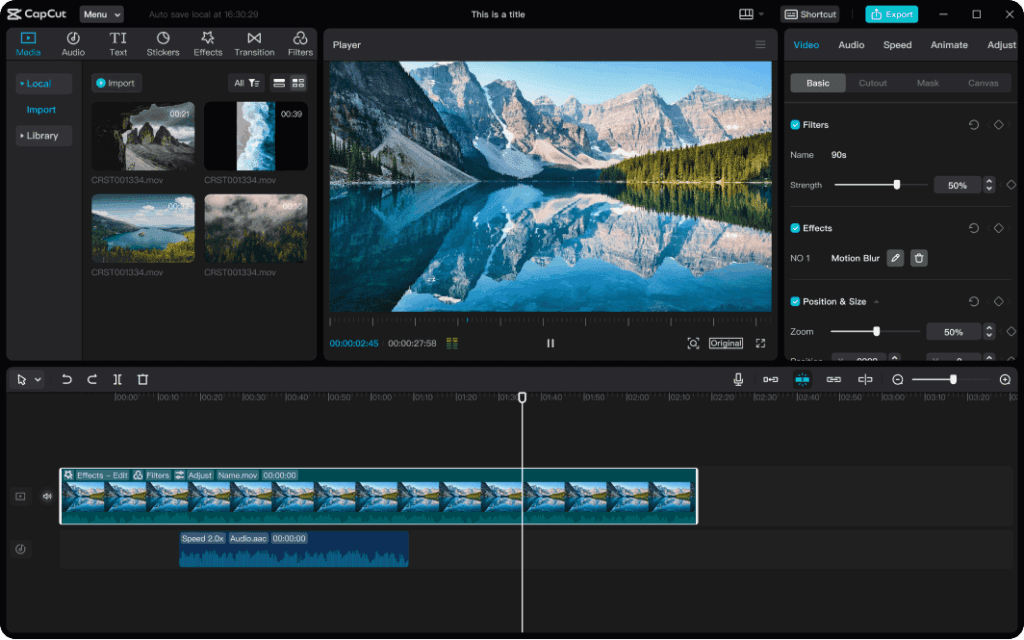
To reach CapCut Web, you do not need to download any software. You only need a browser and an internet connection.
Follow This Path:
- Open your browser and type capcut.com in the address bar.
- On the homepage, look for “Online Video Editor”, “Start editing”, or “Try online”.
- Click that button. This opens the CapCut online editor in a new workspace.
- Sign up or log in with TikTok, email, or another supported login option.
Once you see a timeline, a preview window, and a media panel, you are inside CapCut Web.
If all you wanted was “where do I click to get CapCut Web?”, you have it now. If you also want to use trending templates to make tutorials, keep reading.
Where Do You Find CapCut Web Trending Templates?
Now that you are inside CapCut Web, the next step is finding the trending templates you see all over TikTok and Reels.
You can access templates like this:
- While logged in, open a new tab and go to the Templates section from the CapCut site or top menu.
- You will see a grid of trending video templates with preview thumbnails, durations, and styles.
- Use filters if available (for example: Video / Image, duration, or style tags).
- Click any template thumbnail to open its detail page.
Most template pages show:
- A video preview
- Duration (for example, 00:17)
- Style tags (like “viral”, “glitch”, “aesthetic”)
- A “Use template” button
Which Templates Work Best For Tutorials?
Not every viral video template is good for tutorials. Some are too fast, flashy, or focused on pure aesthetics. For tutorial content, you want templates that leave room for steps.
Look for templates that have:
- Titles related to “how-to”, “tips”, “guide”, or “explainer”
- Clean layouts with clear text areas
- Moderate transitions instead of chaotic effects
- Durations between 15–60 seconds
If you don’t see “tutorial” in the name, that is okay. Choose a simple trending template and convert it into a tutorial by changing the text and replacing the clips.
This is one big reason CapCut Web is trending: it lets you take the same templates influencers use and repurpose them as short, helpful educational videos.
How Do You Load A Trending Template Into CapCut Web?
Once you’ve found a template you like, you need to bring it into the web editor so you can customize it.
Do this:
- On the template page, click “Use template”.
- If you are not logged in yet, CapCut will ask you to sign in.
- After login, the template opens inside the CapCut online editor automatically.
- You now see the full layout on the timeline, ready to edit.
You are no longer just watching a demo. You’re inside a real CapCut Web project built from that trending template.
How Do You Turn A CapCut Web Trending Template Into A Tutorial?
Now the fun part: you turn a trendy layout into a clear, step-by-step tutorial.
Step 1: Replace Placeholder Clips
On the timeline, you’ll see multiple video or image slots.
- Click each video or image segment.
- In the media panel, upload your own screen recording, talking-head clip, or product footage.
- Drag your clip onto the placeholder to replace it.
Now your footage lives inside a trending structure.
Step 2: Rewrite Text For Teaching, Not Just Aesthetic
Trending templates often ship with aesthetic or meme-style text. For video tutorials, you want clear instruction.
Replace the default text with steps like:
- “Step 1: Open CapCut Web”
- “Step 2: Click on Templates”
- “Step 3: Choose a trending layout”
- “Step 4: Replace clips with your own video”
You can edit text by:
- Clicking the text layer on the timeline
- Typing new wording in the text or caption panel
CapCut Web supports titles, captions, and styled overlays, so your instructions can stand out even on a small phone screen.
Step 3: Slow Key Moments Slightly
Templates are built for short attention spans, so they are usually fast. Video tutorials, however, need a bit more breathing room.
- If a key step appears too quickly, grab the edge of that clip in the timeline and drag it to extend the duration.
- Keep transitions smooth, but give viewers enough time to read and follow each instruction.
This simple timing tweak is what turns a flashy trend into a usable tutorial.
How Do You Add Voice, Captions, And AI Help In CapCut Web?
Another big reason CapCut Web is trending is that it includes helpful AI tools right in the browser, such as auto-captions and voice features. These are perfect for tutorial content.
Add Voiceover
You have two main options:
- Record a voiceover directly in CapCut Web.
- Or upload a separate audio file you recorded earlier.
Then line up the voice with your clips on the timeline so each spoken step matches the on-screen action.
Add Auto-Captions
Many people watch tutorials with sound off, especially on mobile. Auto-captions fix that.
In CapCut Web you can:
- Select your main video or audio track.
- Use the auto subtitle or speech-to-text tool from the AI or text menu.
- Let CapCut generate captions from your voiceover.
- Quickly correct any words that were misheard.
Now your tutorial works with or without sound.
How Do You Export And Post Your Tutorial From CapCut Web?
When your tutorial feels ready, it’s time to export and post.
- Click Export in the top-right corner of the video editor.
- Choose your resolution (1080p is usually enough for TikTok, Reels, and Shorts).
- Pick the correct aspect ratio. For social tutorials, 9:16 vertical works best.
- Confirm export and wait for rendering to complete.
- Download the video or, if available, publish directly to TikTok, YouTube Shorts, or other platforms from CapCut.
Your tutorial, built from a CapCut Web trending template, is now ready to go live.
CapCut Web Vs CapCut App: When Should You Use Each?
CapCut gives you both a web editor and a mobile app, and each one shines in different situations. Choosing the right one makes tutorial creation easier.
Use CapCut Web when:
- You edit on a laptop or office computer.
- You want a bigger screen and more precise timeline control.
- There is plan to layer text, B-roll, and screen recordings.
- You are building TikTok, Reels, or Shorts tutorials based on trending templates.
Use the CapCut mobile app when:
- Filming and posting directly from your phone.
- You want to jump on a trend instantly while you’re out.
- You only need light edits, basic text, and quick posting.
Here’s a quick view:
| Feature | CapCut Web | CapCut App |
| Where it runs | Browser (laptop / desktop) | Phone / tablet |
| Best for | Tutorials, structured edits | Quick trends, fast posting |
| Screen size | Large timeline and preview | Small screen, thumb editing |
| Templates | Full access to trending templates | Templates, optimized for mobile |
| Ideal use case | Step-by-step how-to videos | Fast reactive content |
So, if you are planning clear, step-based tutorials using CapCut Web trending templates, the web version is usually the better choice.
Conclusion
CapCut Web makes it easy to go from search bar to finished tutorial in just a few clicks. You open the online editor, pick a trending template, drop in your own clips, and turn it into a clear, structured how-to video.
Because everything runs in the browser, you do not need extra software, a powerful machine, or a complex setup. Instead, you get free editing, AI tools, and viral-style templates in one place. So, when people search for “capcut web”, this workflow gives them exactly what they really want: a fast way to reach the editor, find the right trending template, and turn it into a tutorial that looks like the trends they already enjoy watching.
Frequently Asked Questions
1. Is CapCut Web free to use?
Yes. You can open CapCut in your browser, use templates, and export videos without paying.
2. Do I need to download anything to use CapCut Web?
No. Everything runs in the browser. You just log in and edit online.
3. Can I use CapCut Web without the mobile app?
Yes. You can create an account and edit directly from the web, even if you never install the app.
4. Does CapCut Web work on low-end laptops?
Usually yes. Because most of the heavy work is handled online, many modern laptops can run CapCut Web as long as the internet is stable.
5. Can I use CapCut Web templates for TikTok tutorials?
Yes. You can open a trending template, replace the clips with your own footage, and rewrite the text into step-by-step instructions.
6. Can I switch between CapCut Web and the mobile app for the same tutorial?
Yes, you can sign in with the same account and access your cloud projects. This makes it easy to start on CapCut Web and then do quick final tweaks on your phone.