Google Gemini AI Photo Editing Tutorial
Introduction: Edit Holiday Photos in Minutes with Google Gemini AI
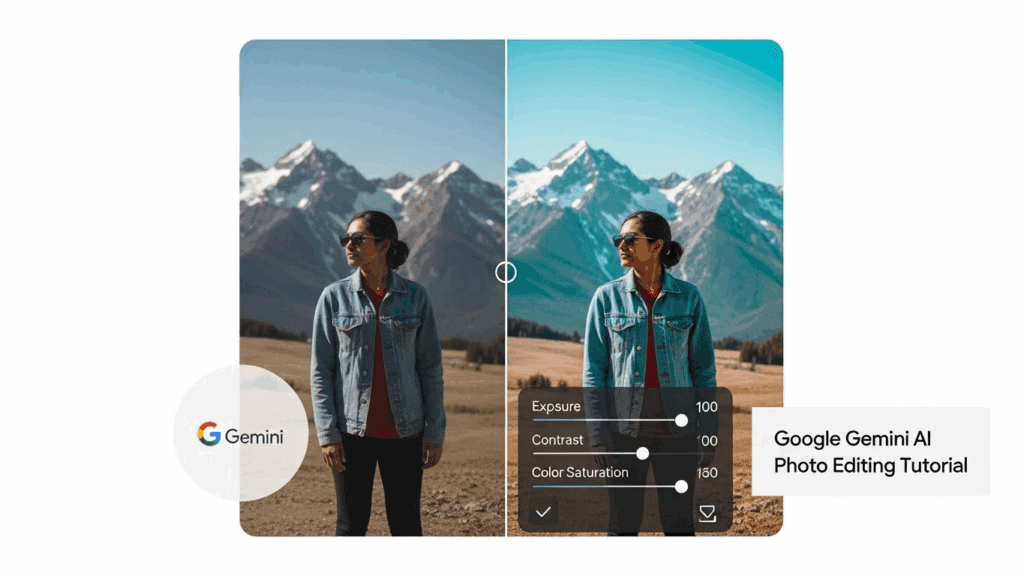
Holiday campaigns move fast. Social posts, ads, and seasonal visuals often need to go live within hours, not days. If you work in AI photography, you already know that traditional photo editing can slow everything down. This tutorial shows how to edit holiday photos in minutes with Google Gemini AI, using a prompt-driven workflow designed for speed and consistency.
This guide focuses on practical steps, real examples, and clear comparisons so social media managers and photo editors can decide when Gemini AI fits their workflow.
The Problem: Slow Seasonal Photo Editing Workflows
Seasonal and themed edits usually involve repetitive tasks. You add decorations, change lighting, adjust colors, and adapt images for different platforms. Doing this manually in tools like Photoshop or Lightroom works, but it costs time.
Common workflow bottlenecks include:
– Recreating the same holiday look across multiple photos
– Switching between tools for retouching, compositing, and exporting
– Revising designs based on last-minute feedback
For social media managers, these delays can mean missed posting windows. For photo editors, they reduce billable efficiency. This is where AI photography tools like Google Gemini AI offer a different approach.
Step-by-Step: Google Gemini Setup and Photo Upload Workflow
In 2026, creators are using Gemini not just for text prompts but also for uploading photos, editing visuals, and refining image-based content directly inside the tool. If you’ve only used it for writing, you’re missing some of its most useful features.
This step-by-step section shows you exactly how to set up Google Gemini for image workflows. From logging in to uploading high-quality photos, this guide helps you start editing smarter without needing extra software.
Now let’s walk through the full setup and photo upload process.
Step 1: Access Google Gemini
Log into your Google account and open Google Gemini. Make sure you are using a version that supports image input and editing.
Step 2: Prepare Your Photo
Before uploading, choose a clean base image. Photos with good lighting and clear subjects produce better results. Avoid heavily compressed images.
Step 3: Upload the Photo
Use the image upload option inside Gemini. Once uploaded, Gemini will confirm that it can analyze the image.
Step 4: Define the Goal
Before writing a prompt, clarify the theme. For example:
– Christmas lifestyle post
– Halloween product shot
– New Year promotional banner
Having a clear goal improves prompt accuracy and reduces revisions.
This upload-and-define workflow is demonstrated clearly in the source video (ID: qNiXobn_bmk), which shows how quickly Gemini responds once the image is loaded.
Step-by-Step: Prompt Writing for Themed Photo Edits

Prompt quality determines output quality. In AI photography, vague prompts lead to inconsistent results.
Step 1: Describe the Theme
Start with the holiday or seasonal theme.
Example:
“Transform this photo into a festive Christmas scene.”
Step 2: Specify Visual Elements
Add details such as colors, props, and mood.
Example:
“Add warm lighting, subtle snow in the background, and red and green decorations.”
Step 3: Control the Style
Define realism or artistic style.
Example:
“Keep the style realistic and suitable for a social media brand post.”
Step 4: Protect Key Elements
Tell Gemini what not to change.
Example:
“Do not alter the subject’s face or clothing.”
A complete prompt might look like this:
“Transform this photo into a festive Christmas scene with warm lighting, subtle snow in the background, and red and green decorations. Keep the style realistic for a social media brand post. Do not alter the subject’s face or clothing.”
This structure works across most holiday themes.
Why Google Gemini AI for AI Photography
Google Gemini AI combines image understanding with natural language prompts. Instead of editing layer by layer, you describe the result you want. Gemini analyzes the photo and applies changes based on context.
For holiday edits, this means:
– Faster transformations using text prompts
– Consistent themes across image sets
– Reduced manual adjustments
Gemini is not a full replacement for traditional editing, but it excels at concept-driven changes and rapid iteration. When speed matters more than pixel-level control, Gemini becomes a strong option.
Practical Examples: Holiday Transformations with Gemini
Example 1: Christmas Social Post
Original: A neutral lifestyle photo taken indoors.
Gemini edit:
– Adds warm lighting
– Introduces soft snowfall outside a window
– Enhances red accents in the background
Time spent: Under 3 minutes.
Example 2: Halloween Product Image
Original: Product on a white background.
Gemini edit:
– Darkens the background
– Adds subtle fog and orange highlights
– Keeps the product unchanged
This approach works well for quick campaign variations without rebuilding scenes from scratch.
Comparing Gemini Results vs Traditional Editing
Traditional editing still offers more precision, but it requires more time.
Gemini AI advantages:
– Rapid turnaround
– Easy experimentation
– Consistent themes across batches
Traditional editing advantages:
– Full creative control
– Advanced compositing
– Precise color grading
For AI photography workflows, a hybrid approach works best. Use Gemini for concept drafts and fast social posts. Use traditional tools for final hero images or print assets.
Common Mistakes to Avoid
Even with AI, mistakes can slow you down.
– Writing vague prompts without visual details
– Uploading low-quality or poorly lit images
– Asking for too many changes in a single prompt
– Forgetting to protect key elements like faces or logos
Fix these issues by simplifying prompts and reviewing results in small iterations.
Final Checklist for Fast AI Photo Editing
Before exporting your edited image, review this checklist:
– Theme clearly defined
– Prompt includes mood, colors, and style
– Key elements protected
– Output matches platform requirements
– Visuals consistent with brand tone
Following this checklist helps maintain quality while moving fast.
Conclusion: Who Should Use This Workflow
This Google Gemini AI photo editing workflow is ideal for social media managers and photo editors who need fast, seasonal visuals. If your priority is speed, consistency, and rapid testing, Gemini fits naturally into your AI photography toolkit. For high-end retouching, pair it with traditional editing tools for the best results.
Frequently Asked Questions
Q: Is Google Gemini AI suitable for professional AI photography?
A: Yes, Google Gemini AI works well for professional use when speed and concept development matter. It is best used alongside traditional editing tools.
Q: Can Gemini AI replace Photoshop for holiday photo edits?
A: Gemini can handle quick themed transformations, but Photoshop remains better for detailed retouching and complex composites.
Q: How long does a typical holiday edit take with Gemini?
A: Most holiday-themed edits take between one and five minutes, depending on prompt clarity and image quality.
Q: Do I need prompt-writing experience to use Gemini?
A: Basic prompt-writing skills are enough. Clear, structured prompts produce the best results.