How to Use Grok AI Video Generator to Make Long YouTube Videos with 10 Free Prompts
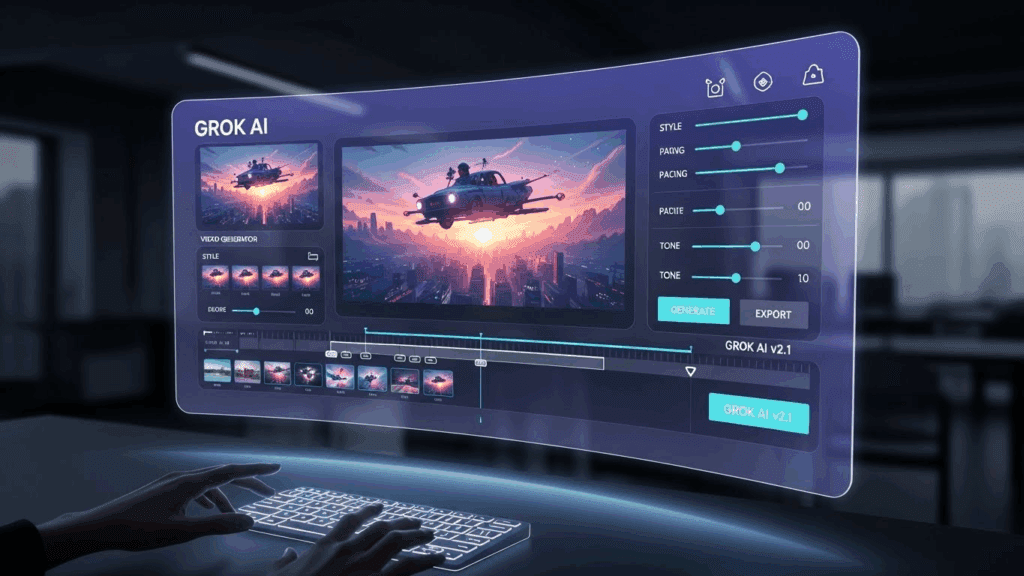
Long-form YouTube content used to be hard. You’d brainstorm for hours, write scripts, record voiceovers, shoot B-roll, and spend your weekend editing just to get one video out. But that model is dying. Creators today are using AI to skip the grind. With grok ai video generator, they’re building full-length YouTube videos using nothing but prompts and they’re doing it free.
Most people overthink long YouTube videos. They assume it takes hours of editing, a team of writers, or expensive software to make content that keeps viewers watching. That used to be true.
This guide breaks it down. You’ll see exactly how to go from a simple idea to a full-length YouTube video without filming, voicing, or scripting manually. Using only free prompts and tools, you’ll learn how to get consistent video output that sounds human, looks polished, and flows like real storytelling.
How to Create Long YouTube Videos With Grok AI Video Generator
Before starting, make sure your Grok AI account is active. Use the free plan if you’re testing. The tool works best on desktop.
Here are the key steps:
1. Start With a Video Idea and Structure
Think about your topic. Break it into segments or chapters. Long videos should feel organized. Use a format like:
- Hook (30-60 sec)
- Introduction
- Part 1: First idea or story
- 2: Main segment
- 3: Final idea or story
- Summary or call to action
This gives Grok a clear structure to follow when generating visual and spoken content.
2. Write Structured Prompts for Each Segment
Instead of one big prompt, split your script ideas into separate prompts. For example:
- “Generate an intro scene with a voiceover explaining why people struggle with morning routines.”
- “Create a 2-minute scene showing a character waking up late, missing a meeting.”
Keep your instructions short but specific. You can also specify tone, location, and voice type.
3. Choose a Video Style and Voice Output
Grok offers different video templates. Pick a consistent visual style early so your video flows smoothly. Select voice settings: male/female, calm/energetic, etc.
Once selected, apply the same style across all prompts.
4. Generate and Download Each Clip
Once a prompt is ready, hit “Generate.” Review the output. If it fits your idea, download it. If not, tweak the prompt slightly and try again.
Repeat this for every part of your video.
5. Stitch the Video Together
Use a basic video editor like CapCut, Clipchamp, or VN Editor. Drag and drop your clips into the timeline. Add transitions, background music, and on-screen text if needed.
Export in 1080p for YouTube.
6. Upload and Optimize on YouTube
Title your video with relevant keywords. Write a full description. Add chapters if the video is over 10 minutes. Use a strong thumbnail. Then publish.
10 Free Prompts to Use with Grok AI Video Generator
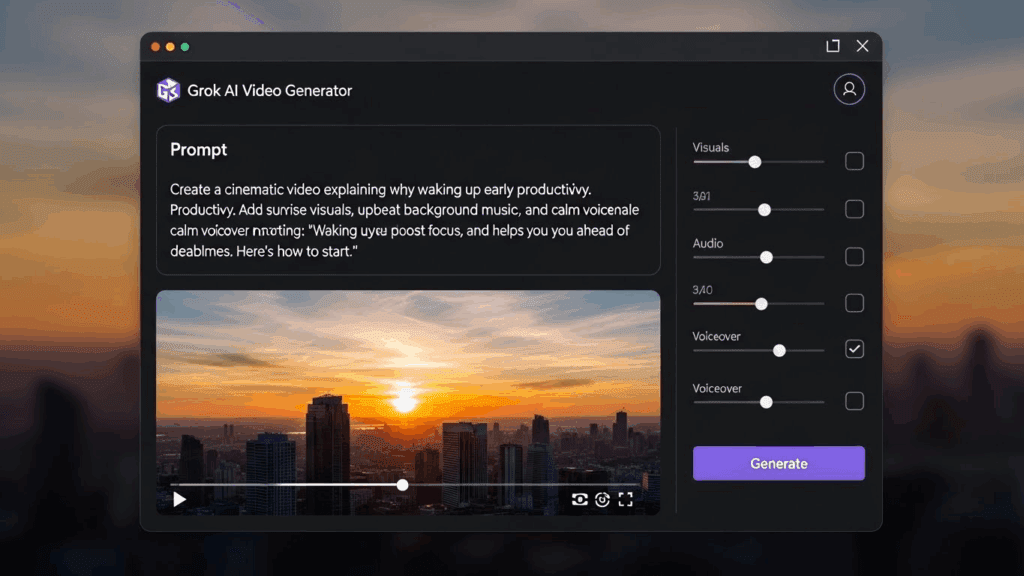
Each of these prompts is written for direct copy-paste into Grok AI. You can adjust character names, voice tones, or styles as needed.
1. Productivity Benefits of Waking Up Early
“Create a cinematic video explaining why waking up early improves productivity. Add sunrise visuals, upbeat background music, and a calm male voiceover narrating: ‘Waking up early gives you quiet time to plan your day, boosts focus, and helps you stay ahead of deadlines. Here’s how to start.'”
2. Beginner Cooking Journey
“Generate a 2-minute scene where a beginner cook struggles with a new recipe but learns through trial and error. Include a cozy kitchen setting, soft background music, and a humorous female voiceover explaining the steps.”
3. Personal Finance Tips for Beginners
“Create an explainer video with animated visuals breaking down 5 simple personal finance tips. Add a friendly voiceover and text overlays for each point: budgeting, saving, avoiding debt, building credit, and investing basics.”
4. Motivational Speech With Visuals
“Build a 90-second motivational video with slow-motion scenes of people training, working, and overcoming failure. Use a deep, powerful male voice to deliver lines like: ‘The only limit is the one you accept. Keep going. Push forward.'”
5. Nature and Mindfulness
“Show peaceful nature clips (forests, waterfalls, mountains) with a soothing female voiceover talking about mindfulness: ‘Breathe in. Pause. Let go of everything you can’t control. Nature heals more than time ever could.'”
6. Freelancer’s First Client Story
“Generate a short narrative video about a freelancer sending emails, getting rejections, and finally landing their first paying client. Include desk scenes, time lapses, and a soft-spoken narrator sharing the journey.”
7. Remote Work: Pros and Cons
“Create a side-by-side animated explainer comparing the pros and cons of remote work. Use icons, overlays, and a neutral voice explaining each point. Example: ‘Pro: No commute. Con: Feeling isolated.'”
8. Social Media Addiction Scene
“Build a dramatic story scene showing a person glued to their phone, ignoring real life. Cut between scrolling clips, notifications, and a frustrated family. End with a voiceover: ‘When you lose hours online, what do you gain?'”
9. Workspace Organization Tutorial
“Create a tutorial video on organizing a workspace for productivity. Show before/after shots, add text tips on the screen, and use an energetic voiceover explaining how to clear clutter, set up zones, and reduce distractions.”
10. Overcoming Failure
“Generate a scene where someone faces repeated failures but doesn’t quit. Show progress across time, dramatic music, and an emotional narrator saying: ‘Failure isn’t final. It’s a lesson. Rise. Try again.'”
Comparison Table: Grok AI vs Other Free AI Video Generators
Before choosing your tool, check how Grok compares to others:
| Feature | Grok AI | Pictory | Runway ML | Lumen5 | Kapwing |
| Script-to-Video Workflow | Yes | Yes | No | Yes | Yes |
| Free Plan Available | Yes | Limited | Yes | Yes | Yes |
| Voiceover Integration | Yes | No | Yes | Yes | Yes |
| Video Style Consistency | High | Medium | Low | Medium | Medium |
| Prompt-Based Generation | Yes | No | No | No | No |
| Best For | Long videos | Short explainers | Creative edits | Slide-based | Social content |
Why Should You Use Grok AI for Your YouTube Channel in 2026?
Grok AI solves the hardest part of content creation: staying consistent. Instead of planning, scripting, filming, and editing from scratch, you use prompts to create fast, structured content.
Many creators struggle to post regularly. Grok AI solves that with automated scene generation. With proper planning and prompt control, you get:
- Less burnout
- Higher output volume
- More time to test thumbnails, titles, and hooks
You also don’t need to speak, appear on camera, or learn advanced editing. This works well for faceless YouTube channels, educational videos, explainer videos, and list-style formats.
Why VidAU Works Well with Grok AI Video Generator
Once you generate clips with Grok AI, the next step is turning them into short, polished, viral-ready content. This is where VidAU comes in.
VidAU makes it easy to:
- Repurpose your long video into short TikToks or Reels
- Add high-quality voice swaps, captions, and music
- Maintain consistency across formats
If you’re using Grok AI for YouTube, pair it with VidAU for Shorts. You get full-length videos from Grok, and snackable clips from VidAU—all AI-powered.
Conclusion: Grok AI Makes Long Videos Simple
Grok AI video generator removes the biggest blocks to long video creation: scripting, voiceover, editing. With a good structure and prompt design, you can use Grok to create high-retention YouTube videos that educate, entertain, or inspire. The best part? You don’t need to show your face or record anything manually.
If you’re building a faceless YouTube channel or want to batch-create content quickly, Grok gives you the workflow to get it done free.
FAQs About Grok AI Video Generator
1. How long can videos generated with Grok AI be?
There’s no fixed limit, but for longer content, you must generate multiple segments and combine them manually.
2. Does Grok AI add watermarks to free videos?
Absolutely, the free plan adds a small watermark. You can remove it by upgrading.
3. Can I choose different voices for different parts of the video?
Yes, but for consistency, it’s better to pick one voice per video.
4. Is Grok AI good for storytelling videos?
Obviously, Grok performs well with story-based prompts and character-based scenes.
5. Can I monetize Grok AI videos on YouTube?
As long as your output meets YouTube’s policies and avoids copyright issues, you’re free to monetize content made with Grok AI.