Higgsfield AI Tutorial – How to Generate AI Video with lip sync & Sound (Step by Step)
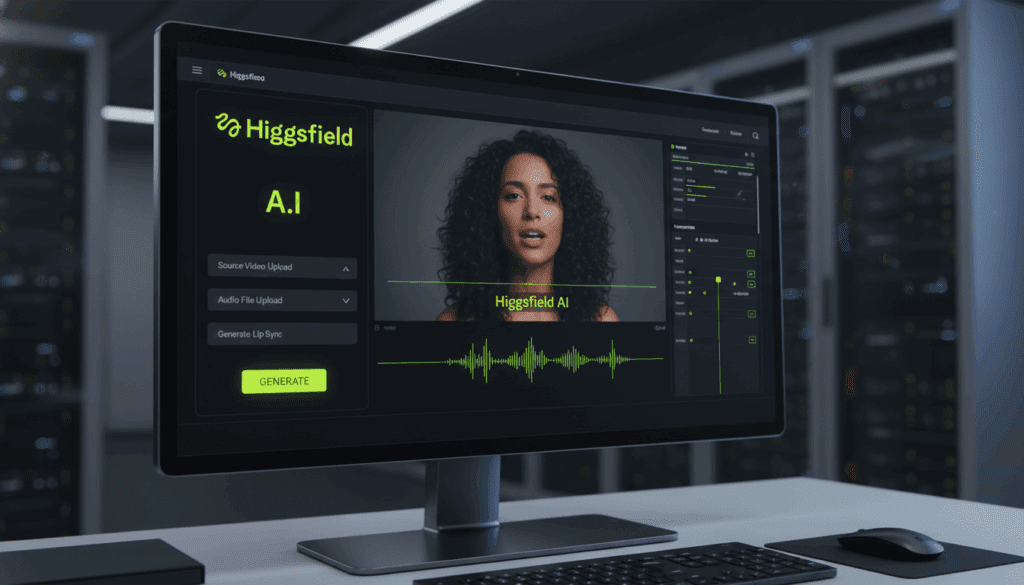
Higgsfield AI continues to stand out in 2026 for its ability to create expressive, character-driven videos using a single photo and prompt. Short-form content now dominates TikTok, Instagram Reels, and YouTube Shorts, and Higgsfield AI helps creators tap into that with cinematic motion, lifelike lip sync, and emotion-rich storytelling.
What makes Higgsfield AI stand out is how it handles expression and motion. Instead of basic face filters or rigid animations, it lets users control how a character speaks, looks, and reacts over time. Combined with VidAU, creators now turn static images into engaging, monetizable videos ready for TikTok, Reels, and YouTube Shorts.
Below is a complete tutorial on how to use Higgsfield AI to create videos with lip sync and sound, how to generate them on both mobile and desktop, and how to blend it all into your VidAU content system.
How Do You Generate Lip Sync Videos With Higgsfield AI?
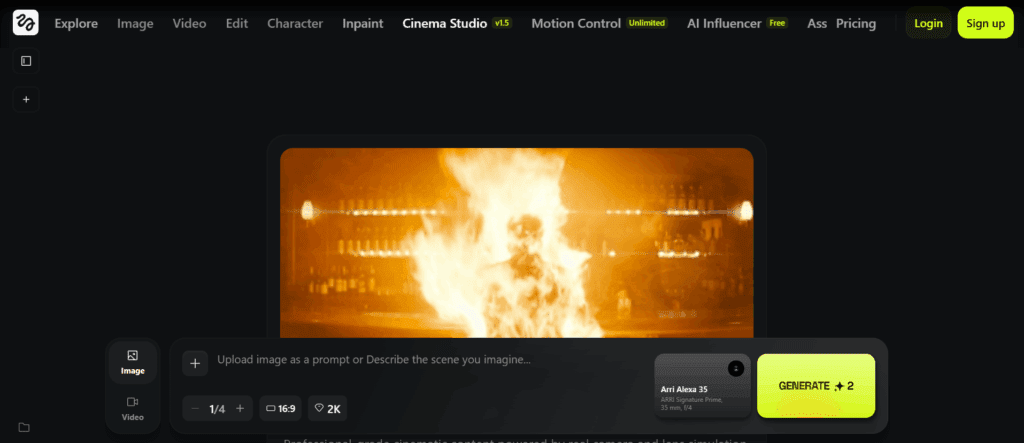
You can generate lip sync videos using Higgsfield AI by uploading a portrait image, choosing a sound reference, and applying prompt-based instructions. The tool syncs realistic mouth movements to match the sound or script provided.
Before starting, ensure your photo is clear, forward-facing, and expressive enough to capture lip and eye movement. Follow these steps:
- Go to Higgsfield AI: Sign in or access the web app.
- Upload a character image with a centered, visible face.
- Choose “Lip Sync” as your motion option. This feature triggers movement of the lips synced with your chosen audio or script.
- Upload your audio file, or paste a short dialogue script.
- Add a prompt that describes mood and style, like “calm narrator talking in soft voice with smile.”
- Click Generate. Click “Render” to export the clip. Wait 30-60 seconds for processing.
- Download and review the result. If the sync isn’t accurate, refine your prompt or adjust audio clarity.
Higgsfield automatically matches the lip movements to the phonemes in the voice, ensuring accurate sync. Lip sync works better when the audio is clean and under 20 seconds. Avoid background noise, and always preview results before moving to final edit.
How to Create AI Videos With Sound in Higgsfield AI
To create AI videos with sound in Higgsfield AI, you need to activate the voice or music integration step after image upload. This allows sound to guide facial expression and pace.
Adding sound brings realism and better storytelling. Here’s how to do it:
- Upload a photo with emotional range (smile, frown, shock).
- Select the “Add Sound” or “Upload Audio” option. This is under the Effects or Motion tab.
- Choose one of three options: prebuilt voice-over, your recorded audio, or a music file.
- Type a style prompt to match sound mood. Example: “energetic narrator, upbeat rhythm.”
- Click Generate Video. Higgsfield aligns expression and background to your audio tone.
- Review and adjust. You can re-upload a different sound file or fine-tune expressions.
Use music with a defined beat if you want head motion synced. For voiceover, slow speech improves mouth movement and reduces motion errors.
How to Use Higgsfield AI on Mobile vs Laptop (Full Workflow)
You can use Higgsfield AI on both mobile and laptop, but the experience differs slightly in interface and performance. Mobile is better for quick tests and previews. Laptop gives you full control and resolution.
Mobile Workflow
Mobile lets you create on the go with a simplified UI. Follow this workflow:
- Open your mobile browser and go to Higgsfield AI.
- Sign in and tap the upload icon.
- Choose a photo from your camera roll.
- Select “Lip Sync” or “Sound Add” mode.
- Record or upload your sound.
- Type your prompt and tap Generate.
- Download the result to your phone gallery.
Use portrait photos only, and keep prompts short to reduce lag.
Desktop Workflow
For full control:
- Log in on a desktop browser.
- Upload high-resolution photos.
- Use full-width prompt box to write expressive descriptions.
- Upload longer audio files (up to 30 sec).
- Preview in 1080p or save in 4K.
- Save multiple drafts for A/B testing.
Laptop gives you sharper detail, while mobile gives speed. For commercial use, always finalize on desktop.
Comparison Table: Higgsfield AI Mobile vs Desktop Workflow
Before you choose your device, here’s a breakdown:
| Feature | Mobile | Laptop |
| Access Method | Mobile Browser | Web Browser |
| UI | Simplified Touch UI | Full Dashboard |
| Max Video Quality | 720p | Up to 4K |
| Audio Upload Limit | 15 sec | 30 sec |
| Ideal Use Case | Quick tests, Reels, Previews | Full edits, YouTube Shorts |
| Prompt Input | Short Text | Long Form Descriptions |
| Processing Speed | Fast (compressed output) | Moderate (full render) |
How Does Higgsfield AI Compare to Other Image-to-Video Tools?
Higgsfield AI focuses on character realism, lip movement accuracy, and story pacing. Most image-to-video tools skip facial animation or rely on motion filters.
VidAU help users generate fully structured videos from scripts or product photos. VidAU works well for ecommerce, UGC-style ads, and tutorials. Higgsfield shines in emotional storytelling and human reactions. You also get a full scene, voiceover, or text-to-video clips.
Creators use Higgsfield for face-driven reactions and VidAU to add context, transitions, captions, and final edits.
Can You Combine VidAU With Higgsfield AI for Better Videos?
Yes, combining Higgsfield AI and VidAU helps you get clean, story-driven, and shareable videos fast. Use Higgsfield for facial scenes, then import into VidAU to generate full videos with CTA, B-roll, and overlays.
Example Workflow:
- Generate a reaction or talking clip on Higgsfield.
- Export the result in MP4.
- Go to VidAU, upload the clip.
- Add text overlays, transitions, or matching video background.
- Generate final cut with captions and voiceovers.
This mix gives creators more content options without switching tools or wasting editing time.
Best Practices for Generating Realistic Videos on Higgsfield AI
The best results on Higgsfield AI come from detailed prompts, sharp image inputs, and clean audio. Consistency across prompt, image, and sound creates believable outcomes.
Before you generate, do this:
- Use photos with neutral lighting and front-facing expression.
- Keep scripts under 30 words.
- Avoid slang or fast speech in audio.
- Add emotion hints in your prompt: happy, serious, nervous, etc.
- Always preview in low res before saving full version.
Most failed results come from rushed inputs. Take time to review, rephrase prompts, or reupload better source files.
Conclusion
Higgsfield AI changes how creators make facial and sound-driven content in 2026. Its motion accuracy, combined with realistic sound sync and emotional expressiveness, helps you generate strong, face-led videos that audiences respond to.
For best results, use it with tools like VidAU to expand reach and polish. VidAU lets you move from raw clips to complete social videos fast. Together, they help anyone create consistent, scalable content workflows for any short-form platform.
Frequently Asked Questions
How long does Higgsfield AI take to generate a video?
Most videos take 30-60 seconds. Higher resolutions may take longer.
Can I use Higgsfield AI for commercial use?
Yes. But always check licensing and platform guidelines before monetizing.
Does Higgsfield AI support background music?
Yes, you can add music files along with dialogue, especially for mood control.
What kind of photos work best on Higgsfield?
Clear, high-resolution, forward-facing portraits with neutral backgrounds.
How can I make my videos stand out more?
Use VidAU after Higgsfield to add captions, transitions, and full video scenes.