How To Use Grok AI To Generate Free And No Watermark Videos
Grok AI is an intelligent chatbot built by xAI and integrated into X (formerly Twitter). It goes beyond answering questions. You can use it to create content, generate media, and even produce free, no-watermark videos when paired with the right workflows.This guide explains how to use Grok AI for that purpose, including setup steps, prompt tips, and proven ways to generate clean, watermark-free results.
How To Use Grok AI To Create Free No Watermark Videos : Step by Step
Here’s how to use grok ai:
Step 1: Start a New Chat in Grok
Open Grok in X and start a conversation. In the prompt box, specify your intent clearly. Example:
“Create a 30-second short video idea for a travel vlog with no watermark.”
Grok generates detailed text-based ideas or storyboards. You can then expand on these concepts using visual or animation tools linked to Grok’s workflow.
Step 2: Request Video Generation Prompts
Grok AI does not yet directly render full videos natively, but you can generate script, scene breakdowns, and visual prompts that external AI tools can use.
Example prompt:
“Write a visual prompt for a 10-second animation of a red panda walking through a neon city with no watermark.”
This integrates well with external video generators such as Runway, Pika Labs, or Kaiber, which can interpret Grok’s detailed scene descriptions.
Step 3: Use Grok’s Image Generation as Frames
Grok AI now supports image generation. You can use it to create keyframes for your videos.
- Ask Grok for 5–10 sequential images describing a scene.
- Export the results.
- Use a video editor or AI animation tool to sequence them.
- Choose export options without watermarks.
Reddit users have shared examples of Grok generating frames for AI companion animations (r/LocalLLaMA).
Step 4: Combine Grok With Free Video Tools
Use Grok’s text and images as creative assets in video editors such as:
- Pika Labs for text-to-video
- Runway ML for image animation
- CapCut for final editing and watermark removal
- DaVinci Resolve for professional output
When prompted by Grok, export assets without watermark and upload them into one of these tools.
Step 5: Optimize Prompts for Clean Results
Follow these tips from GodOfPrompt:
- Write short, specific prompts.
- Add visual details like lighting, setting, or emotion.
- Use verbs that describe motion (walk, spin, pan).
- Avoid vague terms such as “nice,” “beautiful,” or “cool.”
- End with “without watermark” for clarity in output tools.
These tactics improve the accuracy of both Grok and any linked video generator.
How To Get Free And No Watermark Output – How To Use Grok AI
While Grok itself does not charge per prompt, it works best when combined with free AI video platforms that offer watermark-free exports. Try:
- Runway Free Tier (limited exports but no watermark)
- Kaiber Pro Trial (includes watermark-free exports)
- CapCut Desktop (manual watermark removal via blank overlay)
Ensure you credit Grok AI as the prompt source if the platform requires it.
How To Use Grok AI For Creative Characters and Animations
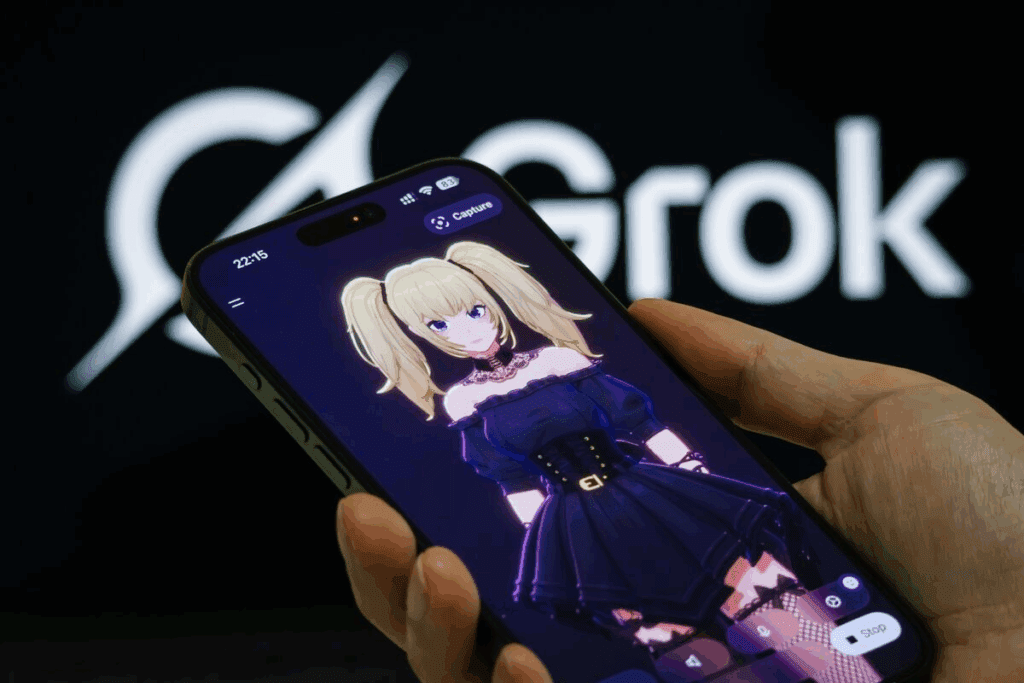
Recent updates introduced AI companions and character generation features. These allow users to generate storylines or video scripts involving fictional personas.
- Euronews reported Grok’s anime companion release, showing how xAI integrates entertainment features.
- Business Insider Africa documented a test of Grok’s AI red panda companion, which generated storylines suitable for animation.
You can use the same technique to script video shorts or anime-style clips.
Advanced Tips for Grok AI Video Creation – How To Use Grok AI
Build Scene Libraries
Ask Grok for reusable scene prompts such as “cyberpunk skyline” or “sunset beach pan.” Save them for later animation workflows.
Create Narration Scripts
Request dialogue or voiceover scripts for your generated videos. Example:
“Write narration for a 20-second travel clip, cheerful tone, ending with a call to follow the channel.”
Generate B-Roll and Background Assets
For how to use Grok AI, ask Grok for background details such as “mountain landscape loop” or “night city ambience.”
These assets enhance your final edits and avoid stock video licensing fees.
Common Challenges and How To Fix Them – How To Use Grok AI
| Challenge | Fix |
| Blurry image sequences | Request higher resolution or re-render keyframes |
| Watermarks from external tools | Use video editors with free, no-logo export |
| Poor scene continuity | Generate scripts and frames in single session |
| Access issues | Ensure X Premium+ and regional access enabled |
Reddit discussions show most users succeed after refining prompt structure and verifying access to Grok’s image generator.
Is Grok AI Safe To Use For Media Creation – How To Use Grok AI

How to use Grok AI follows xAI’s privacy guidelines under X’s data policy. It uses user prompts to improve performance but does not publicly share private data. Always verify before uploading confidential visuals.Learn more in the official Grok help center.
Grok AI is versatile. You can use it for quick research, generating content, or even chatting for fun.
Writing and Editing
- Ask Grok to write short posts, blog intros, or product descriptions.
- Use prompts like “Summarize this X thread into key points” or “Draft a reply to this tweet in a witty tone.”
- According to Voiceflow’s Grok AI guide, clarity and tone in your prompt improve results.
Research and Analysis
- Use Grok for real-time topic analysis by asking “What are people saying about electric vehicles on X right now?”
- It can summarize live X discussions faster than traditional search tools.
- Grok’s Live Search feature gives instant topic context, especially for trending subjects.
Image Generation
Grok AI includes an image generation tool:
- Type “Create an image of a futuristic city skyline.”
- Wait for the AI to render the image.
- Save or share directly to X.
Tips for How To Use Grok AI Successfully Without Watermark
Based on feedback from the Grok Reddit community, users get better results when they:
- Ask direct and specific questions.
- Provide context in prompts (“Summarize this post for a tech audience”).
- Use follow-up questions to refine answers.
- Avoid vague or broad prompts.
- Explore humor settings and tone control for different responses.
Grok AI Prompts Examples
Here are examples of prompts from God of Prompt AI and community tips:
| Task | Example Prompt |
| Summarizing | “Summarize Elon Musk’s latest post on AI into 3 points.” |
| Writing | “Write a tweet about sustainable energy in Grok’s witty tone.” |
| Research | “Compare Grok AI vs ChatGPT features in table format.” |
| Coding | “Write a short Python script that counts words in a text.” |
| Image | “Generate an image of an AI robot reading a newspaper.” |
Use short, action-based phrases. Avoid filler words. Grok responds best to concise inputs.
Grok AI vs ChatGPT – How To Use Grok AI
| Feature | Grok AI | ChatGPT |
| Data Source | Real-time X posts + web | Pre-trained + optional browsing |
| Access | X Premium+ only | Free + paid tiers |
| Personality | Humorous, sarcastic | Neutral, professional |
| Integration | Built into X platform | Multi-platform |
| Image Generation | Yes | GPT-4 Turbo (Pro plan) |
Grok’s humor and live data set it apart. ChatGPT offers broader third-party integrations and plugin access.
Future of Grok AI – How To Use Grok AI
Grok AI continues to expand with personality models and deeper integrations.
xAI plans to merge Grok’s features into the broader X ecosystem, making it part of search, posts, and discovery.
Its ongoing updates suggest more customization, multilingual support, and regional availability for users in Africa and Asia.
How VidAU Comes To Play As A Stunning Image to Video and Image Generator
VidAU complements Grok AI by transforming the visuals Grok helps you create into engaging video content. While Grok AI focuses on conversation, text generation, and static images, VidAU extends those ideas into motion and visual storytelling.
Turning Grok AI Images into Watermark Free Dynamic Videos
Grok AI can generate clear and creative images from prompts. VidAU builds on those results by converting still visuals into short, high-quality videos. You can upload images produced by Grok AI to VidAU and instantly animate them with transitions, sound, and effects.
Enhancing AI Content Creation
Together, Grok AI and VidAU form a full creative workflow:
- Use Grok AI to write a script or generate an image concept.
- Upload that image or text to VidAU.
- Generate a complete video with matching visuals, voiceover, and captions.
Conclusion
Grok AI gives creators new ways to produce video content faster and without watermarks. By combining Grok’s script and image generation with free external tools, you can build short, engaging, and watermark-free videos at no cost.
Use clear prompts, refine them with context, and experiment with companion features to create unique media projects. As Grok AI evolves, its multimodal updates will continue to expand what you can make directly inside X.
FAQ’s
Can I use Grok AI to generate free videos with no watermark?
Yes. You can use Grok AI to create ideas, scripts, and visual prompts for free. To make actual videos without watermarks, connect Grok’s outputs to free editors like Runway, Pika Labs, or CapCut. Export your final videos using their no-logo settings.
What types of prompts should I use with Grok AI for video creation?
Use short, direct prompts with action verbs and clear context. Example:
“Generate a 10-second cityscape animation, neon lights, no watermark.”
Include camera angle, lighting, emotion, and duration for better accuracy.
How can I access Grok AI (platforms, tiers, free vs paid)?
Grok AI is available on X (formerly Twitter). You need an X Premium+ account to use it directly. Some features are free through limited access or region trials. Open the Grok icon in the X sidebar to start chatting.
What is Grok AI and how does it work?
Grok AI is a conversational assistant developed by xAI. It uses real-time web access and multimodal generation to handle text, images, and video prompts. It responds humorously but can also produce professional creative outputs.
Are there region or device limitations when using Grok AI for videos?
Yes. Grok AI is currently limited to users with X Premium+ in specific regions. Access in some countries, such as parts of Africa or Asia, may not yet be active. It works on web, iOS, and Android once available in your area.
What advanced workflows or integrations exist for Grok AI (image + video pipelines)?
You can combine Grok’s image outputs with tools like Runway ML or Pika Labs to convert them into animated clips. Grok generates text prompts, scenes, and frames. Those can be stitched into videos using editing tools for free, no-watermark exports.
What are the common mistakes when using Grok AI and how do I avoid them?
Writing vague prompts (“make a nice video”)
Forgetting to specify “no watermark”
Using unsupported formats
Ignoring lighting or scene details
Avoid these by defining subject, motion, mood, and resolution in every prompt.
How does Grok AI compare with other AI tools (like ChatGPT or Google Gemini) for video creation?
Grok AI connects directly to X and has real-time search, which others lack. ChatGPT and Gemini may offer stronger integrations for full video rendering, but Grok is better for creative ideas, humor, and trending-based content.
What are the licensing or commercial rights when exporting Grok AI videos (no watermark)?
Videos generated through Grok prompts are generally yours to use, but always review the terms of the third-party video platform you export with. Avoid using copyrighted visuals or materials without consent.
How does Grok AI’s data privacy and usage work in video creation?
Grok uses prompts to improve its models but follows X’s privacy policy. Avoid entering private or confidential data. All chats are stored under your X account and can be deleted from settings.