InVideo AI Image to Video Full Tutorial for Beginners and Creators
You don’t need a studio, camera crew, or video editor to start creating high-performing videos. Today, image-to-video tools make content creation faster and easier. One of the most accessible options is InVideo AI Image to Video. It turns static photos into scroll-worthy videos without needing design experience.
From product launches to social media clips, this tool helps beginners and marketers alike save time and money. This tutorial covers everything: setup, templates, editing, exports, and how VidAU complements your process.
What is InVideo AI Image to Video?
InVideo AI Image to Video is a visual automation tool that turns your still images into videos with pre-designed motion and audio. It saves creators time by skipping the traditional editing timeline. You can upload raw photos and get a polished, engaging video in minutes. It supports drag-and-drop workflows, quick styling, and flexible resolutions.
This tool works well for:
- Quick content production
- Product marketing
- Event slideshows
- Reels and ad creatives
It fits into both personal and business content pipelines, especially for creators who want speed without hiring editors.
How to Set Up InVideo AI Image to Video for Your First Project
Getting started with InVideo AI Image to Video is fast. You don’t need any technical experience. The interface walks you through image upload, style selection, editing, and publishing in a few guided clicks.
Step-by-step to get started
- Go to InVideo.io and sign up with your email or Google account.
- Navigate to “AI Tools” on your dashboard and click “Image to Video.”
- Upload your images (JPG/PNG, 1080p or higher is ideal).
- Pick a style or category based on your content goal.
- Add captions, audio, or text-to-speech options.
- Watch your preview and go to final export if satisfied.
The platform saves your projects automatically. You can return anytime to make edits or download different versions.
How to Choose the Right Template in InVideo Image to Video Workflow
Templates decide the mood, pace, and structure of your video. Each one has preset transitions, font layouts, and media effects that align with different use cases.
Template categories you can choose from
- Product Showcase: For ecommerce, with zoom-ins, bold text, and call-to-action areas.
- Slideshows: Great for storytelling or events, with chronological layout and smooth pans.
- Social Ads: Includes bold transitions, music sync, and upbeat framing for maximum engagement.
- Explainers: Balanced, clean structure for educational content with space for voice and steps.
Templates are easy to preview. You can switch between them and see which one fits your images before confirming.
What Editing Tools Are Available After Converting Your Images?
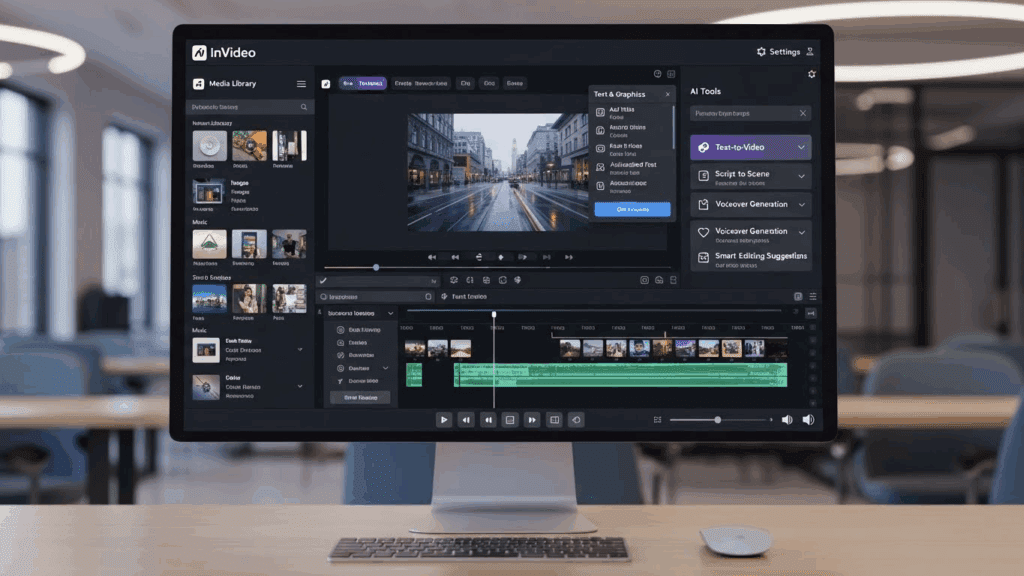
Once your draft video is ready, InVideo opens the editor for refinements. This is where you fine-tune the text, sound, scenes, and overall rhythm.
Key Editing tools to fine-tune your content
- Scene Trimmer: Crop or stretch individual scenes.
- Font Styling: Choose brand fonts, animate text, change alignments.
- Audio Manager: Drag in music, adjust timing, or use stock tracks.
- Transitions: Add new ones between frames or customize existing ones.
- Branding Kit: Set your default logos, color palette, or watermark for all videos.
These options let you turn a raw AI draft into something polished and usable for any platform.
How to Export Final Videos in InVideo Image to Video Editor
After editing, exporting your video is the final step. InVideo lets you render videos in different formats and sizes, suitable for every social platform or device.
Steps to export your video for publishing
- Click the “Export” button in the top-right of the editor.
- Choose your resolution: 720p (standard), 1080p (HD), or 4K (premium).
- Pick a format: MP4 for universal use, or GIF for lightweight sharing.
- Let the video render. Processing time ranges from 2 to 7 minutes.
- Download the file or publish directly to YouTube, Instagram, or Facebook.
InVideo stores your exports in your dashboard. You can return later to duplicate or edit without starting from scratch.
Why InVideo AI Image to Video Is a Smart Pick for Beginners
InVideo simplifies every step. It’s built for beginners who need fast results without complex timelines. Most people finish a video in under 30 minutes.
Key reasons beginners prefer it:
- Intuitive drag-and-drop layout
- Pre-designed motion flows
- Text and sound integration without syncing issues
- Built-in content library and transitions
- Easy sharing and re-editing anytime
It’s an ideal entry point into visual content for creators with no technical background.
Comparison Between InVideo AI Image to Video and VidAU Generator
Understanding the roles of both tools in your workflow makes execution easier. InVideo handles the structure and draft. VidAU refines and multiplies your content with more creativity and output power. Here is the detailed feature breakdown of both tools:
| Feature | InVideo AI Image to Video | VidAU Video Generator |
| Input Type | Static images | Exported images, clips, scripts |
| Template Control | Yes (manual selection) | Not required (auto-styling) |
| Editing Mode | Guided editor | Automated visual flow builder |
| Scene Customization | Yes (manual adjustments) | Auto-mapped scenes from prompts |
| Output Format | MP4/GIF | MP4/Vertical/Shorts-ready |
| Export Speed | 3–10 minutes | 2–5 minutes |
| Creative Depth | Basic transitions, animations | Advanced motion, filters, subtitles |
| Best For | First-time creators | Brands needing volume or polish |
How VidAU Works With InVideo AI Image to Video
InVideo gives you a quick way to build videos from static images, but VidAU helps you go beyond. VidAU lets you take those base videos and rework them into full content systems.
If you start with an InVideo image-to-video ad, VidAU enhances it using visual scripting, automated resizing, subtitle syncing, and stylistic improvements. You can turn one video into 5 or more variants tailored for TikTok, YouTube Shorts, product pages, or ads.
VidAU also supports storyboard upload. You can import your InVideo output, match it with a written script or prompt, and let VidAU generate a full video with transitions, music, and platform-specific edits automatically.
Conclusion
Creating professional videos no longer requires high-end gear or editing skills. InVideo AI Image to Video helps beginners and marketers build content using only photos, templates, and smart transitions. You start with a few images, choose your style, and generate clean, engaging videos that work across channels.
But if you want to go beyond the basics, VidAU takes your image-based videos and transforms them into optimized, platform-specific content with better pacing, animation, and storytelling. It removes the guesswork and gives you multiple variations in minutes.
So you don’t need to choose one over the other. InVideo helps you get started fast. VidAU helps you scale without stress. Together, they turn static assets into dynamic, high-performing videos for your brand, product, or campaign.
Frequently Asked Questions
- How does InVideo AI Image to Video work for beginners?
InVideo uses pre-built templates and automated scene transitions to turn your images into complete videos. Beginners only need to upload photos and pick a style. - Can I reuse the same project in both InVideo and VidAU?
Yes. After exporting your video from InVideo, you can upload it to VidAU. VidAU will enhance the transitions, add motion layers, and generate platform-optimized versions fast. - Is InVideo free to use for image to video conversion?
InVideo offers a free plan with basic features. You can create and export videos in standard resolution. Higher resolutions and premium templates require a paid upgrade. - Why should I use VidAU after generating a video on InVideo?
VidAU gives you more flexibility. It adds glow effects, motion sync, automated subtitles, and social-first formatting,all of which help your video perform better across platforms. - Which is better for social media ads: InVideo or VidAU?
Use both. InVideo is great for fast creation. VidAU is better for polishing, resizing, and tailoring videos for TikTok, Instagram, YouTube Shorts, and ads.