Kling 2.5 : The Next Generation AI Director for Cinematic Video
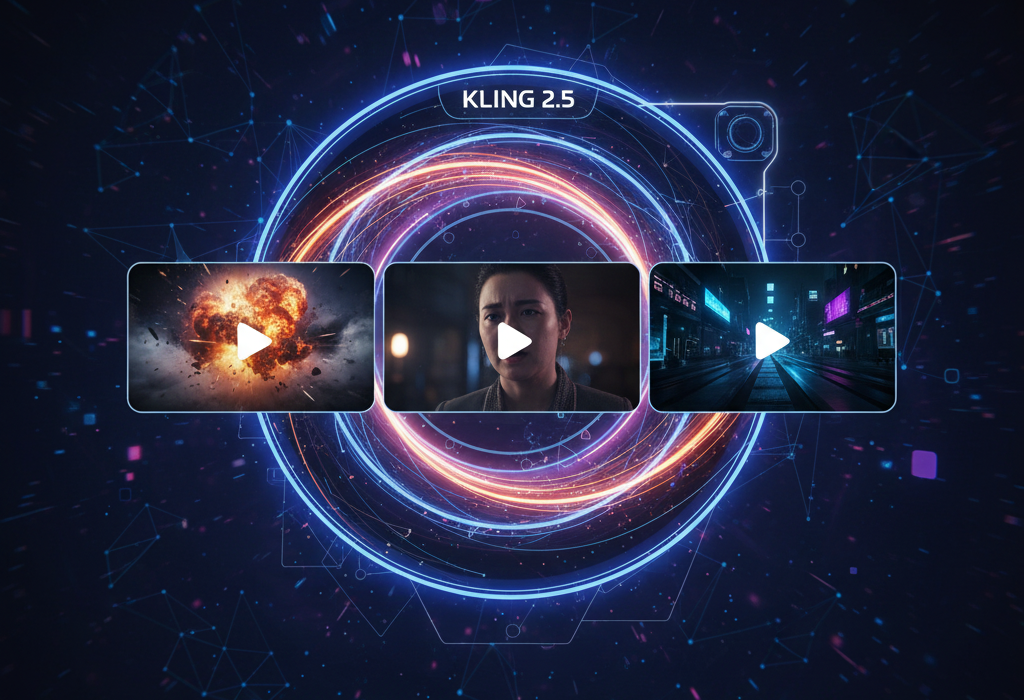
AI video generation is quickly evolving, but a common challenge remains: generating clips that feel truly cinematic, with physically accurate motion, steady camera work, and consistent lighting across time.
Kling 2.5 (developed by Kuaishou Technology) has set a new benchmark to solve this problem. It transforms text prompts and reference images into fluid, high-fidelity video scenes, operating less like a generator and more like an AI Director that understands storytelling and lens language.
This model is a game-changer for filmmakers, marketers, and content creators who need professional-grade motion sequences without the need for filming or complex editing.
What Makes Kling 2.5 Different
Kling 2.5 focuses on the dynamics of the scene, how objects move, how light changes, and how the camera interacts with the environment, making the output feel authentic and filmed.
Expanded benefits include:
- Physics-Based Motion: It utilizes advanced physics simulation to generate realistic movement for characters, water, and objects, eliminating the unnatural “AI shimmer” or rubber-like motion common in older models.
- Advanced Camera Control: It responds to cinematic language, allowing you to prompt for specific moves like dolly shots, tracking, whip pans, and Dutch angles, with geometry remaining stable.
- Temporal Consistency: It maintains remarkable frame-to-frame stability. Character identities, clothing, lighting exposure, and shadow shapes hold consistent across the entire 5–10 second clip.
- Detailed Expression Capturing: It accurately shows subtle facial expressions and micro-emotions, making close-up shots of characters more realistic and emotionally resonant for storytelling.
- Cinematic Aesthetic: The model automatically incorporates professional lighting and composition techniques (like forced perspective, volumetric light, and deep contrast) to deliver a true film aesthetic.
Kling 2.5 is designed not just to create an image, but to direct a seamless, flowing sequence of action.
Best Practices for Results with Kling 2.5
Kling 2.5 performs best when prompts are written like a cinematographer’s brief, focusing on action and the camera’s role.
Example High-Power Prompt
“A charismatic singer delivers an emotional ballad in an intimate jazz club, stage lights creating dramatic atmosphere with smooth camera movements; cinematic close-up of a young woman wearing a black cap, her face glistening with sweat under dramatic, warm lighting, her facial muscles tense with strain, which then releases into a quick, genuine, but weary smile, dolly shot moving slowly forward, 4K UHD, no motion artifacts.”
Practical Tips
- Choreograph the Physics: Specify the way things move (e.g., “fluidly walks,” “bounces with inertia,” “wind carries sand”).
- Lock the Camera: Use cinematic terms for camera work (tracking shot, close-up, wide-angle, slight jolt, handheld feel).
- Define the Light: Be specific about the mood and direction of light, as the model maintains light consistency across the clip (dim amber light, harsh backlight, golden warm lighting).
Step-by-Step Tutorial for Using Kling 2.5 on VidAU
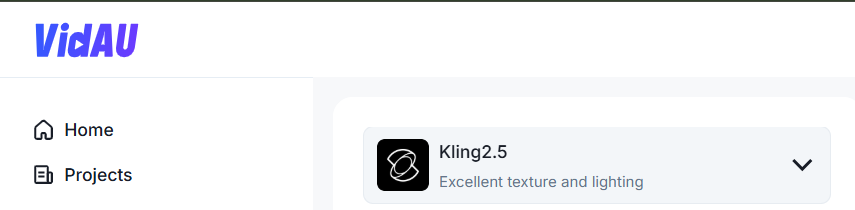
Step 1 — Open Kling 2.5
Begin by signing in to your VidAU dashboard. From the left sidebar, open the Generative AI section and select AI Video. If you are not already on the creation page, click Create AI Video to load the workspace. At the top of the interface, open the model dropdown and switch to Kling 2.5
Once Kling 2.5 is active, the header reflects the model name and the workspace updates to support Kling- based generation. You now see the prompt field, the frame upload area and the full settings panel where you configure aspect ratio, resolution, duration and quantity. This screen is the starting point for building the video.
Step 2 — Choose the Kling 2.5 Model Version
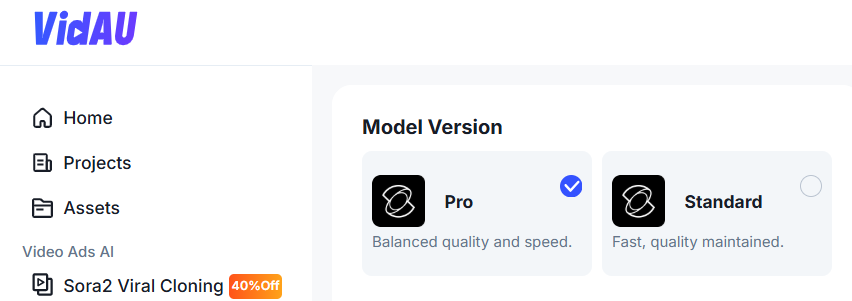
After Kling 2.5 loads, you arrive at the Model Version panel. This is where you decide whether the generation should prioritize realism or speed. The workflow may look simple, but this choice influences the final result more than any other setting.
Selecting Quality tells Kling to focus on cinematic detail. It enhances surface texture, material realism, lighting accuracy, shadows, reflections, and the overall depth of the scene. If you are producing brand campaigns, client work, cinematic storytelling or ads that will run on paid platforms, this is the version built for that outcome. Quality mode takes longer, but the trade-off is a polished look that feels publish-ready.
Selecting Fast shifts the model into an efficiency mode. Instead of pushing visual depth to the limit, it renders quickly and uses fewer credits per attempt. This is the version you use when you are still exploring your idea, trying different visual styles, testing prompts or iterating toward the final direction. Many users treat Fast as the drafting phase and Quality as the finishing phase. You experiment freely without wasting credits, then switch to Quality when you are confident in the prompt and framing you want.
The choice here directly affects realism, render speed and credit usage. For real marketing or commercial work, Quality is the practical option. For experimentation, Fast gives more flexibility while you refine the idea. Once the model version aligns with your goal, you move to the next step, where you describe the video scene in the prompt.
Step 3 — Set Up Your Prompt and Frame Images
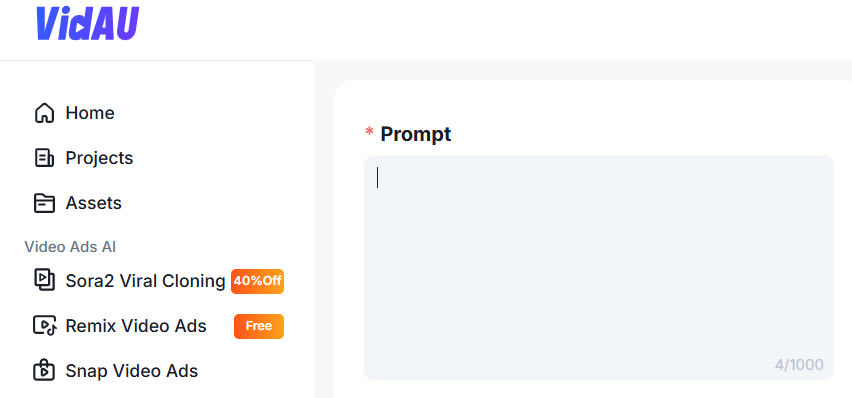
The prompt is where you describe the scene you want Kling to generate. Write what the viewer should see, not what you feel about the video. Focus on the subject, the action taking place, the environment around it, the lighting style and the way the camera should move. Keep sentences short and visual.
An example that fits product advertising would be: “Fitness smartwatch resting on a gym bench, sweat droplets visible, dramatic side lighting, slow camera push-in, shallow depth of field.” This format gives Kling an exact picture instead of an emotional idea. Lines like “make it cinematic” or “make it attractive” do not help the model. The goal is to show the shot with words.
Step 4 — Upload Frame Images
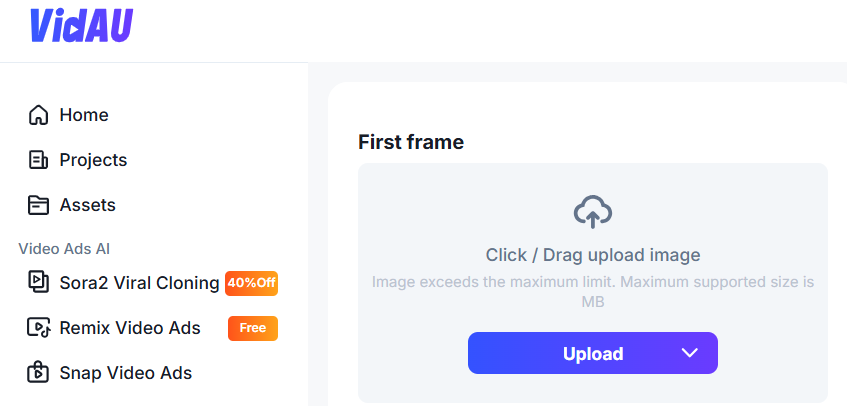
You can upload a start frame to define how the opening shot should look. This is useful when you want Kling to match a specific product photograph, a face, a brand color style or a scene layout. If you upload an end frame as well, Kling will guide the video toward that visual, which creates a clear before-to-after progression. You are not required to upload both frames. Using only a start frame still gives Kling enough structure to shape the scene with high accuracy. If no frame is added, Kling builds the video entirely from the prompt, which gives more creative freedom but less control over precise appearance.
When the prompt reads like a real shot description and the frame images reflect the visuals you want to anchor, Kling will generate a cleaner result in fewer attempts. Once both pieces are ready, you move on to the visual settings such as aspect ratio, resolution and duration.
Step 5 — Set the Aspect Ratio
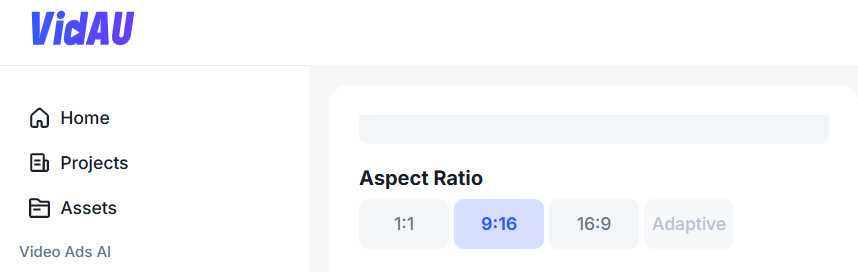
This setting determines how the video will appear on different platforms.
A 9:16 aspect ratio prepares the video for mobile-first feeds such as TikTok, Instagram Reels and YouTube Shorts, filling the full vertical screen.
A 16:9 aspect ratio keeps the video in widescreen format, which fits YouTube, desktop viewing and website embeds. Choosing the correct ratio at this stage prevents black bars, cropping and unwanted scaling during upload.
Step 6 — Set the Resolution
Resolution determines the clarity of the final output.
A 720p render is ideal during testing because it generates faster and uses fewer credits, which helps when you are still refining the prompt.
A 1080p render is best for publishing and paid campaigns because it reveals better textures, sharper edges and more visible depth.
A common workflow is to test ideas in 720p and generate the final approved version in 1080p.
Step 7 — Set the Duration
The duration defines the pacing of the scene.
Short clips feel punchy and are useful for hooks or performance-focused ads.
Longer clips allow space for storytelling, camera movement and environmental buildup.
You choose the duration based on what you want the viewer to feel within the first few seconds.
Step 8 — Set the Quantity
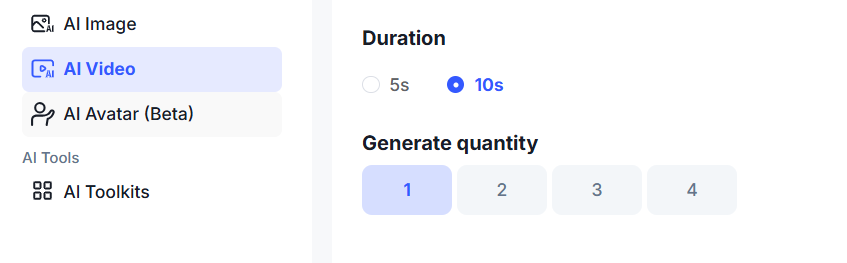
This setting controls how many variations Kling will produce from the same setup.
Generating a single video is useful when you are still shaping the idea and testing the prompt.
Generating multiple versions creates natural variations in motion, framing and timing without rewriting anything.
It shortens the A/B testing process because you get several options instantly instead of repeating the workflow manually.
Step 9 — Generate the Video
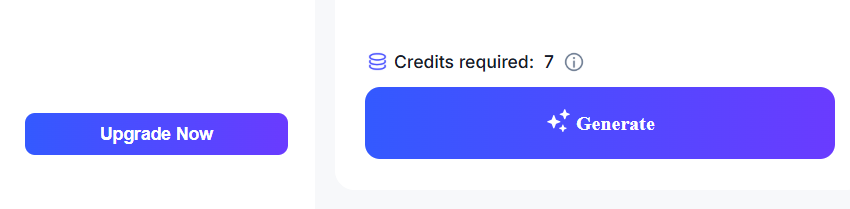
When all settings are ready, look at the credit indicator above the Generate button. It shows the exact number of credits required for the render based on your resolution, duration, model version and quantity. Once the credit requirement matches your plan, click Generate.
Kling 2.5 begins processing the prompt, the frames and the visual settings you selected. The rendering runs in the background, and a preview thumbnail appears when the video is complete. Open the finished clip and watch it fully. Pay attention to the realism of the environment, the accuracy of product or character details, the fluidity of camera motion and the pacing of the scene. If the idea feels right but some details need refinement, update the prompt, swap the frame image, tweak the duration or adjust the aspect ratio, then generate again. Kling works best through iteration rather than starting over.
When the result matches the creative direction, export the video as an MP4 or continue into Smart Editing, Subtitles or AI Voiceover to finalize the clip inside VidAU.
Who Benefits Most
Kling 2.5 is ideal for any user where motion quality, camera control, and emotional depth are critical to their content’s success.
- Performance Marketers: Creating high-impact, emotionally engaging social video ads (Reels/Shorts).
- Filmmakers/Storytellers: Prototyping complex choreography, fight scenes, or testing cinematic camera angles before production.
- Social Media Creators: Generating high-quality visual narrative clips, POV action shots, or stylized animated content.
Kling 2.5 is the tool of choice when your video needs to look and feel like it was directed by a professional.
Conclusion
Kling 2.5 Turbo Pro gives you controlled cinematic output with fast turnaround. You direct motion, light, and timing with simple instructions. The model follows filmmaker terms with precision. It keeps faces, outfits, and lighting stable across the clip. You produce commercial quality video without large crews or long edits. Brands, marketers, and creators get a cost-efficient way to produce polished stories, product demos, and visual ads.
FAQ
What is the maximum video duration
You get 5 second and 10 second clips per generation.
What is the highest resolution available
The model produces up to 1080p Full HD.
Does it support camera moves
Yes. It responds to tracking shots, pans, tilts, and dolly moves with stable output.
How does it handle character consistency
It keeps characters stable across frames. Faces, outfits, and lighting stay steady with low flicker.
Can you start with an image
Yes. You upload a still frame and add a prompt to guide the motion.
Does it generate audio or lip sync
No. You add audio later with a separate tool.
What aspect ratios are supported
You get 16:9, 9:16, and 1:1.