
Object Remover Tutorial · 2026
Object Remover: Easily Remove Subtitles, and Logos from Videos
Use VidAU’s object remover to remove subtitles, and logos from video in minutes. Step-by-step tutorial covering Basic and Advanced modes.
By the VidAU Editorial Team · Updated 2026 · 10 min read
Supplier videos, repurposed clips, and UGC footage often come with baked-in subtitles, or brand logos. VidAU Object Remover detects and removes these overlays frame by frame, rebuilding the background so the edit looks clean. No editing software. No manual masking.
Quick summary
- Removes hardcoded subtitles, logos, and on-screen text.
- Supports multiple languages including Chinese, English, Japanese, Korean, and Arabic.
- Basic mode handles standard overlays, Advanced mode handles complex scenes.
- Batch upload up to 20 videos with consistent overlay positioning.
What VidAU Object Remover Removes
What Is an AI Object Remover?
An AI object remover is a tool that detects and removes unwanted elements from images or videos.
Common removable objects include subtitles, watermarks, logos, text overlays, and background distractions.
AI fills removed areas using surrounding visual data.
- Hardcoded and embedded subtitles
- Object and date stamps
- Brand logos and on-screen text
- AI prompt overlays
Supported languages: Chinese, English, English & Chinese, Japanese, Korean, Arabic.
File requirements: MP4 or MOV, max 400MB per file, max 360 seconds, 1 to 20 videos per session.
Choose Your Mode Before You Start
| Mode | Mask Option | Credits | Best For |
|---|---|---|---|
| Basic | Automatic detection | 4 | Standard subtitles and objects in fixed positions |
| Basic | Draw Selection | 4 | When you want to define the removal zone manually |
| Advanced | Draw Selection | 8 | Complex backgrounds where Basic leaves visible patches |
| Advanced | Full Screen | 16 | Multiple overlays spread across the entire frame |
Start with Basic. Switch to Advanced only if the output shows patches or incomplete removal.
Tip
For the cleanest removal results, match your mask selection closely to the overlay area and keep the duration range precise. When subtitles or object stay in a fixed position, using consistent selections (or “Apply to all videos” in batch processing) helps the AI rebuild backgrounds more accurately and reduces visible artifacts.
Step-by-Step: How to Use VidAU Object Remover
Step 1: Open VidAU Object Remover
Go to VidAU Dashboard and sign in. You need a VidAU paid plan with credits to generate output.
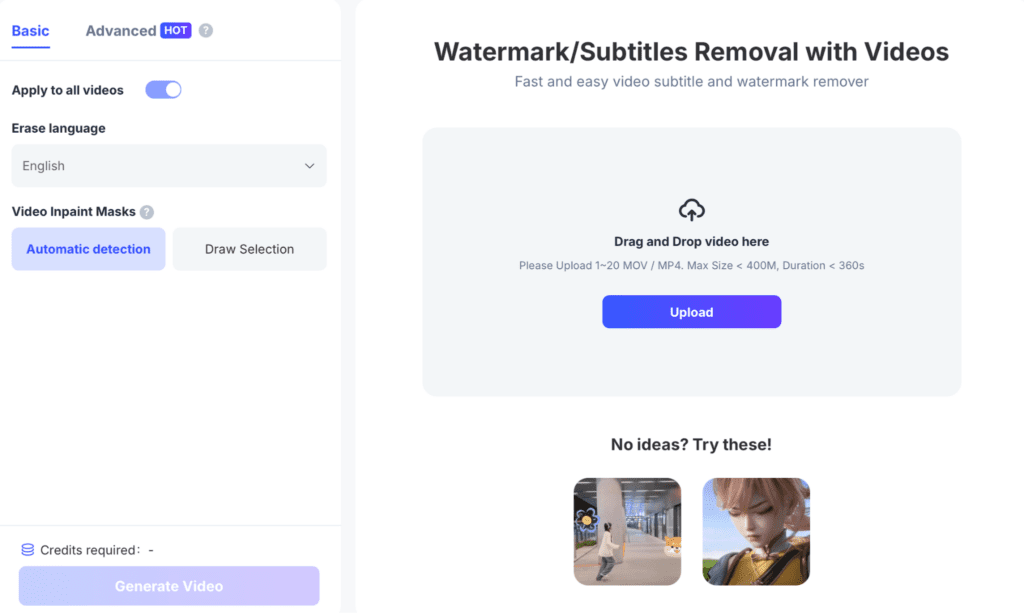
Step 2: Upload Your Video
Drag and drop your file into the upload area or click Upload. You can upload 1 to 20 videos at once. Turn on “Apply to all videos” if you are processing a batch and the overlay appears in the same position across all clips.
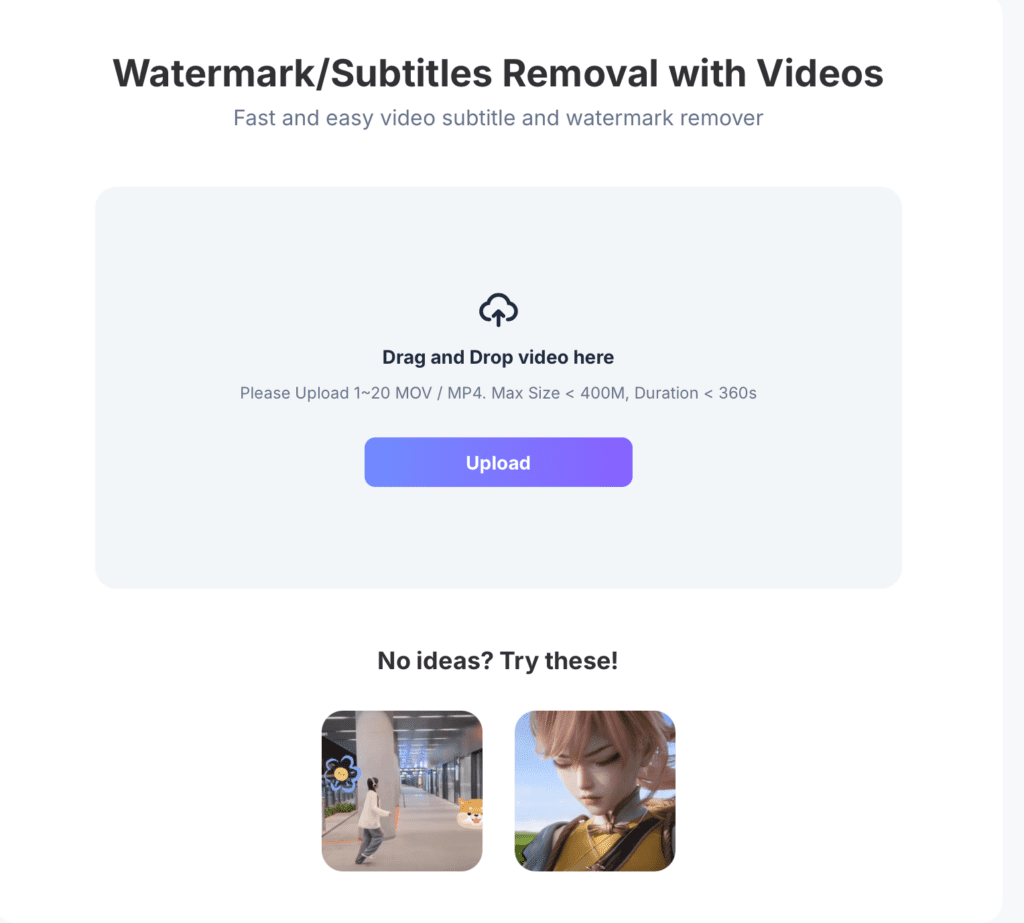
Step 3: Select Basic or Advanced Mode
Click Basic or Advanced at the top of the left panel.
Basic: 4 credits. Good for most subtitle and object removal jobs.
Advanced: 8 to 16 credits. Deeper reconstruction for complex scenes.
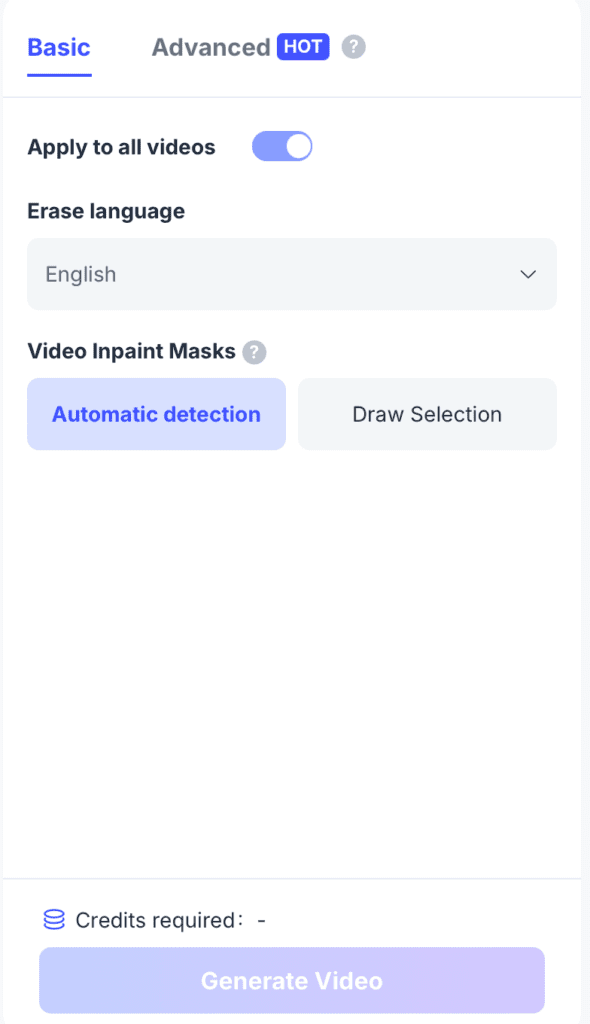
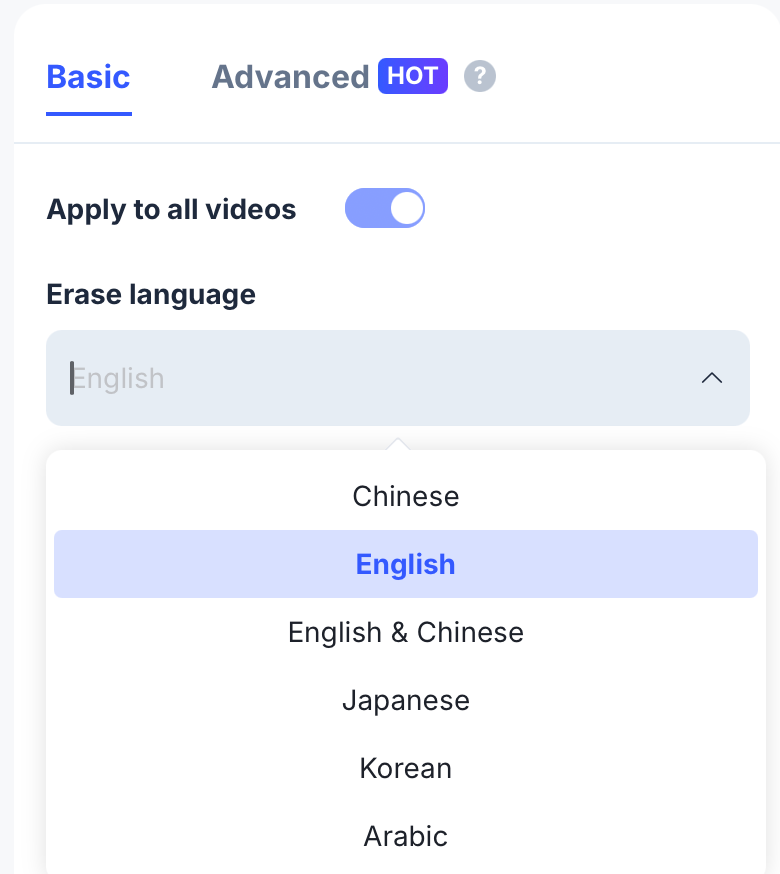
Step 4: Set Your Erase Language
In Basic mode, select the subtitle language from the dropdown: Chinese, English, English & Chinese, Japanese, Korean, or Arabic. In Advanced mode, the tool detects language automatically.
Step 5: Choose Your Inpaint Mask
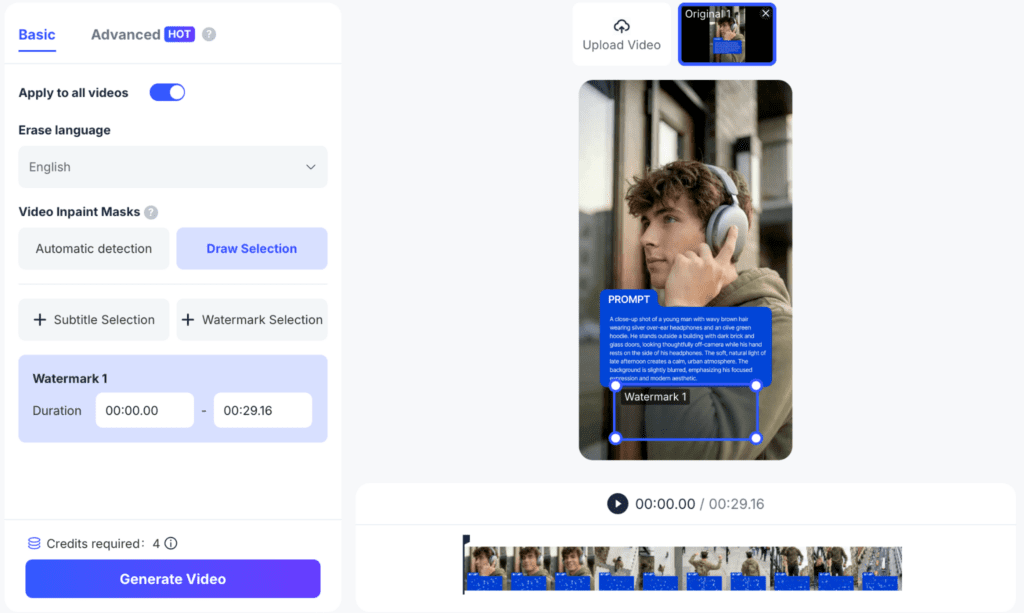
This tells the AI exactly where to remove the overlay.
Automatic detection: The AI finds and targets overlays on its own. Use this for subtitles in standard positions or centered positions.
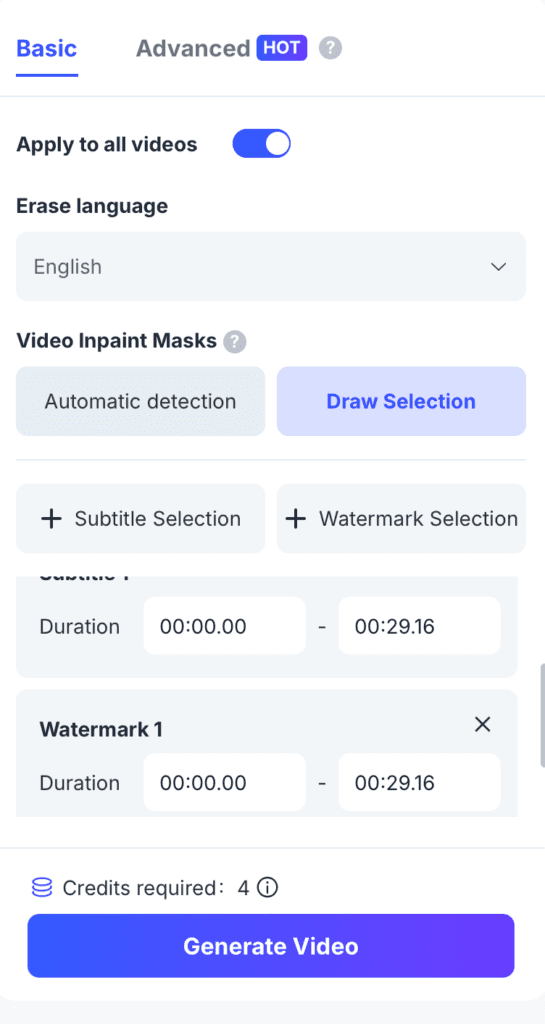
Draw Selection: You draw the removal zone manually on the video. Click “+ Subtitle Selection” or “+ logo Selection,” draw a box around the overlay on the preview, then set the duration range (start and end time) for when that overlay appears. Add as many selections as you need.
Full Screen (Advanced only): Automatically removes all detected overlays across the entire frame. No manual selection needed. Costs 16 credits.
Watch out
Avoid relying only on Automatic detection when dealing with complex backgrounds or multiple overlays across the frame. This can leave visible patches or incomplete removal. In those cases, switch to Advanced mode with Draw Selection or Full Screen to ensure deeper reconstruction and cleaner results.
Step 6: Generate and Download
Check the credits required at the bottom of the left panel. Click “Generate Video.” The AI processes your video frame by frame. Once complete, preview the result. If the removal looks clean, download your video. If you see patches, re-run in Advanced mode with Draw Selection for a deeper pass.
Start Removing Objects from Your Videos
Use VidAU Object Remover to clean subtitles, and logos quickly with AI-powered frame-by-frame processing.
VidAU workflow
From uploaded video to clean final output
- Upload and prepare your video: Start by uploading your MP4 or MOV file. If you’re processing multiple clips with the same overlay position, enable batch upload and “Apply to all videos.”
- Select removal mode and mask: Choose Basic for standard subtitle or object removal, or Advanced for complex scenes. Define the removal area using Automatic detection, Draw Selection, or Full Screen depending on your needs.
- Generate with AI processing: Let VidAU process your video frame by frame, removing overlays and reconstructing the background to match surrounding visuals.
- Review and export clean video: Preview the output for any patches or inconsistencies. If needed, refine using Advanced mode, then download your cleaned, platform-ready video.
Why Remove Subtitles or Watermarks?
Creators remove unwanted overlays to improve content quality and reuse footage.
Common reasons include:
- Cleaner visuals
- Better branding
- Repurposing old videos
- Removing distracting text
This improves audience retention.
Does Object Removal Reduce Video Quality?
Modern AI object removers preserve most video quality.
Results depend on:
- Video resolution
- Background complexity
- Object size
- Motion in scene
Simple backgrounds produce cleaner removal.
Key takeaway
Final thoughts
VidAU Object Remover handles subtitle, object, and logo removal through AI-powered frame-by-frame reconstruction. Start with Basic mode for standard overlays and switch to Advanced when dealing with complex backgrounds or incomplete removal.
Frequently Asked Questions
Does this tool remove moving objects like people or vehicles?
No. The tool targets static overlays: subtitles and logos, and on-screen text. It does not remove physical objects or people from a scene.Do I need a paid plan to use it?
Do I need a paid plan to use it?
Yes. You need credits to generate output. Free users must purchase credits before processing any video.Can I upload multiple videos at once?
Can I upload multiple videos at once?
Yes. Upload 1 to 20 videos per session. Enable “Apply to all videos” to apply the same removal settings to every clip in the batch, as long as the overlay appears in the same position across all videos.What is the difference between Basic and Advanced mode?
What is the difference between VidAU Object Remover Basic and Advanced mode?
Basic (4 credits) handles most standard removal jobs. Advanced (8 to 16 credits) applies deeper reconstruction. Use Advanced when Basic leaves visible patches or the overlay covers a complex background area.
What file formats does the tool support?
MP4 and MOV. Max 400MB per file. Max 360 seconds per video.
Will my video quality drop after removal?
The AI rebuilds the removed area to match the surrounding scene, preserving resolution, color, and motion. Output quality depends on source footage quality and background complexity.


