
AI Video Guide · Pixverse V5
Pixverse V5: How to Create Cinematic AI Videos on VidAU
Turn images and prompts into short cinematic videos on VidAU AI without editing skills, production tools, or a traditional video setup.
By the VidAU Editorial Team · Updated 2026 · 8 min read
Pixverse V5 helps you turn images and prompts into short cinematic videos on VidAU AI. You don’t need editing skills or a production setup. You upload your images, describe the scene, adjust a few settings, and generate a ready-to-use video.
On VidAU AI, this entire process becomes easier to manage. You input your idea, adjust a few settings, and generate a ready-to-use video without editing software or production tools. With the right prompt and visual inputs, Pixverse V5 can produce cinematic AI videos that are ready for social media, ads, and digital campaigns.
Quick summary
- Pixverse V5 creates short AI videos from text prompts and images by generating motion, lighting, and camera movement automatically.
- Start and end frames guide the result by defining where the video begins and where the motion should lead.
- VidAU supports practical controls including aspect ratio, resolution, duration, quantity, and optional negative prompts.
- Better inputs create better videos, so clear prompts, strong images, consistent frames, and multiple variations help improve the final output.
Contents
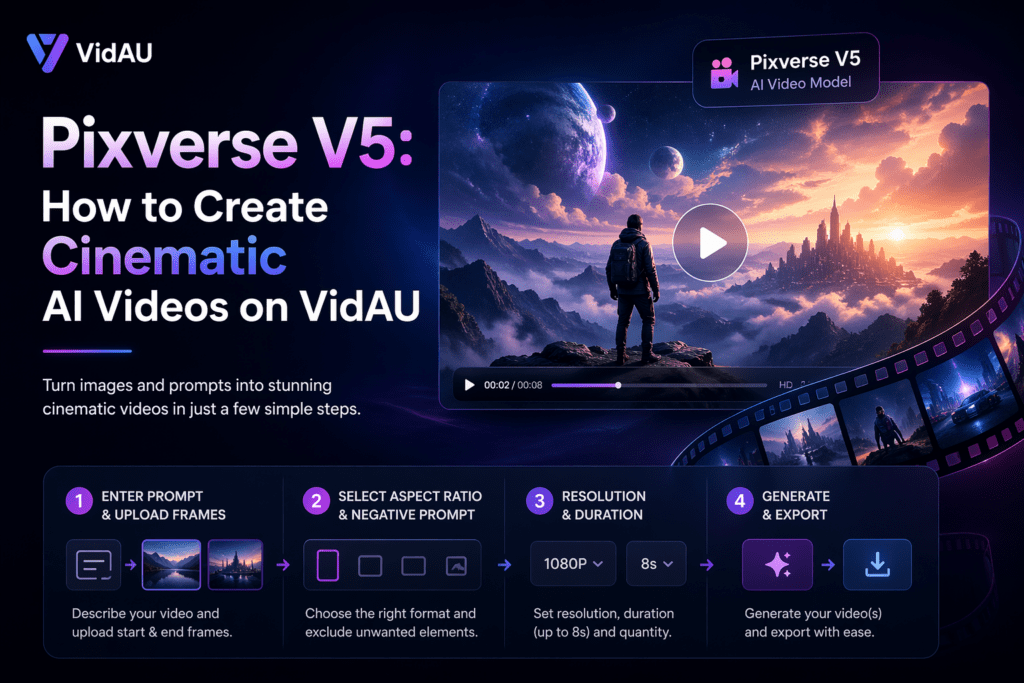
What is Pixverse V5 and how does it create AI videos?
Pixverse V5 is an AI video model that creates short videos using text prompts and images. It combines your written instructions with visual inputs to automatically generate motion, lighting, and camera movement.
Instead of editing clips manually, you guide the system with a prompt and one or two images. The start frame defines how the video begins, while the optional end frame defines where the motion should lead. The model then builds everything in between, creating smooth transitions that keep the scene consistent.
This process allows you to control how your video looks without using advanced editing tools. By adjusting your prompt, frames, and settings, you can shape the final output to match your idea.
Why this matters
Pixverse V5 lets you guide the video with a prompt and visual frames instead of editing clips manually. The start frame, optional end frame, and prompt all work together to shape the final motion, lighting, and camera movement.
Get Started with Pixverse V5 on VidAU
Before you generate your first video, set up a few things.
Start with a clear idea of what you want to create. This could be a product video, a short ad, or a simple animated scene. Then prepare at least one image to act as your starting frame. If you want more control over how the video ends, you can also prepare a second image.
Next, think about your prompt. This is where you describe the motion, lighting, and overall feel of the video. The more specific your prompt, the better the result.
Once you have these ready, you can move into the generation process. Pixverse V5 on VidAU gives you control over how your AI video is generated.
- Prompt limit: supports detailed scene descriptions for better output.
- Reference image formats: JPG, PNG, WEBP.
- Aspect ratios: 1:1, 16:9, 9:16, 4:3, 3:4.
- Video duration: typically 5 to 8 seconds per clip.
- Generate quantity: multiple variations per run.
- Resolution: HD output for social and ad content.
| Setting | Supported option | How it helps |
|---|---|---|
| Prompt | Detailed scene descriptions | Helps guide motion, lighting, camera angle, and mood. |
| Reference images | JPG, PNG, WEBP | Gives Pixverse V5 visual anchors for the video. |
| Aspect ratios | 1:1, 16:9, 9:16, 4:3, 3:4 | Lets you match the format to social, web, mobile, or presentation use. |
| Duration | Typically 5 to 8 seconds per clip | Controls how long the generated scene plays. |
| Generate quantity | Multiple variations per run | Helps you compare outputs and choose the strongest result. |
| Resolution | HD output | Supports social media, ad content, and brand use. |
How to Use Pixverse V5 on VidAU AI Video Generator
Pixverse V5 on VidAU works through a simple four-step process: prompt, frames, settings, and export.
1
Step 1: Enter Prompt & Upload Frames
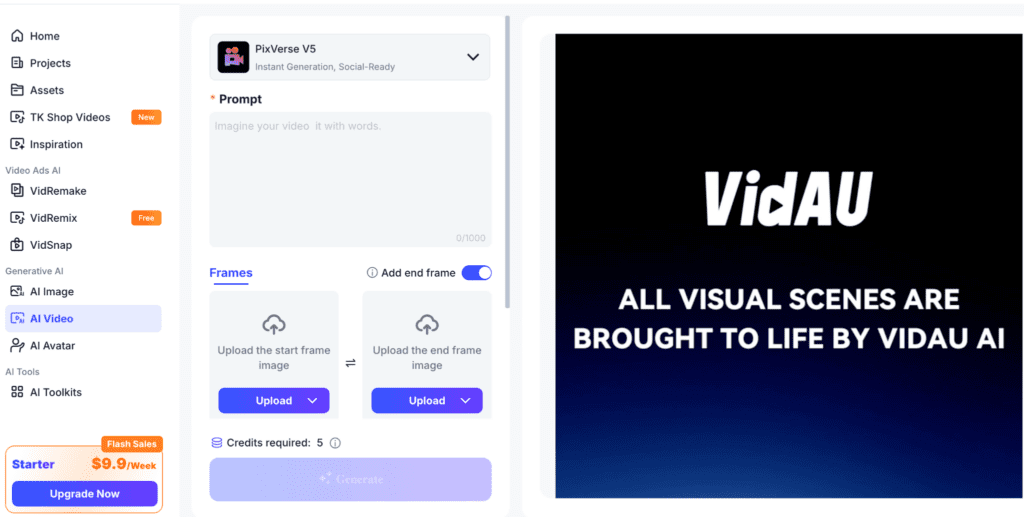
Enter your prompt into the input box on VidAU. Upload your start frame image and add an end frame in order to guide how the scene finishes.
2
Step 2: Select Aspect Ratio & Negative Prompt (Optional)
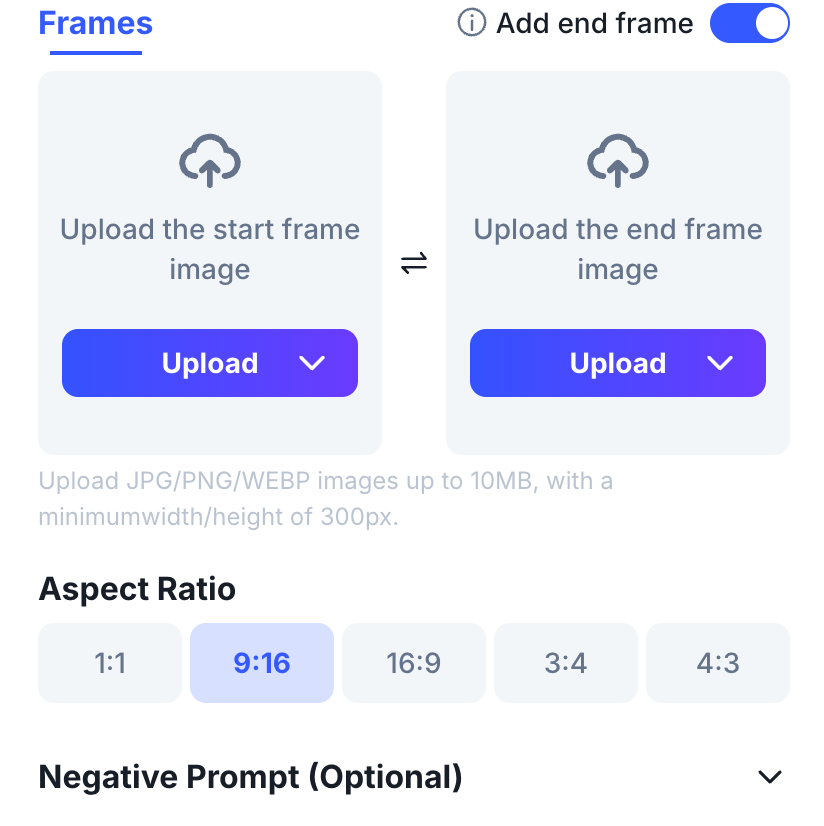
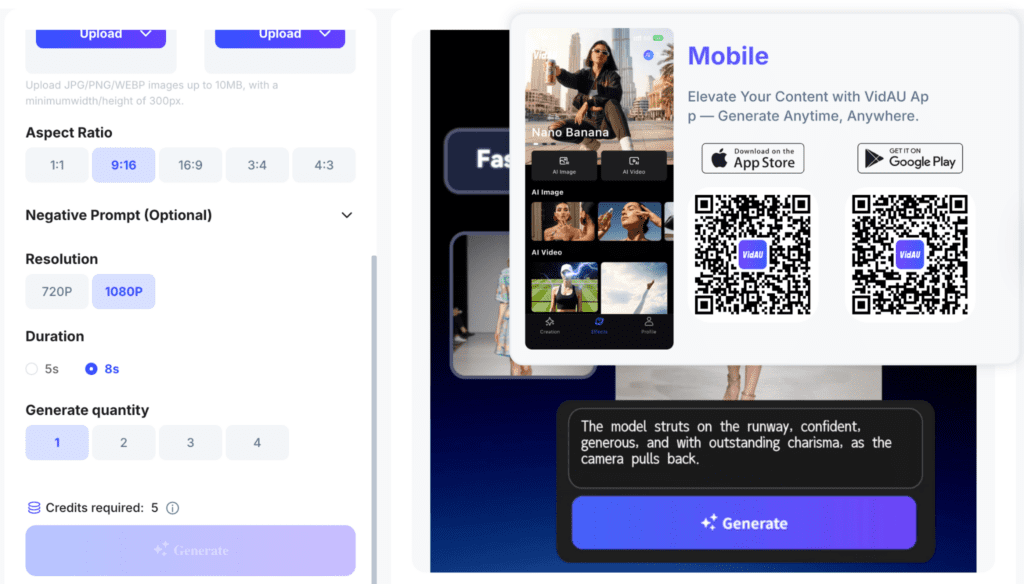
Choose your video aspect ratio from the 5 available options. Add a negative prompt to remove unwanted elements like blur, distortion, or extra objects.
- Select the aspect ratio that fits your publishing platform.
- 1:1 for Instagram posts and general social content
- 9:16 for TikTok, Reels, Shorts, and mobile-first videos
- 16:9 for YouTube, blog embeds, and presentations
- 3:4 for Instagram portrait posts and Pinterest
- 4:3 for Facebook videos and standard display formats
Watch out
Use negative prompts to remove unwanted elements like blur, distortion, or extra objects. They give you another level of control over the final video quality.
3
Step 3: Resolution, Duration & Quantity
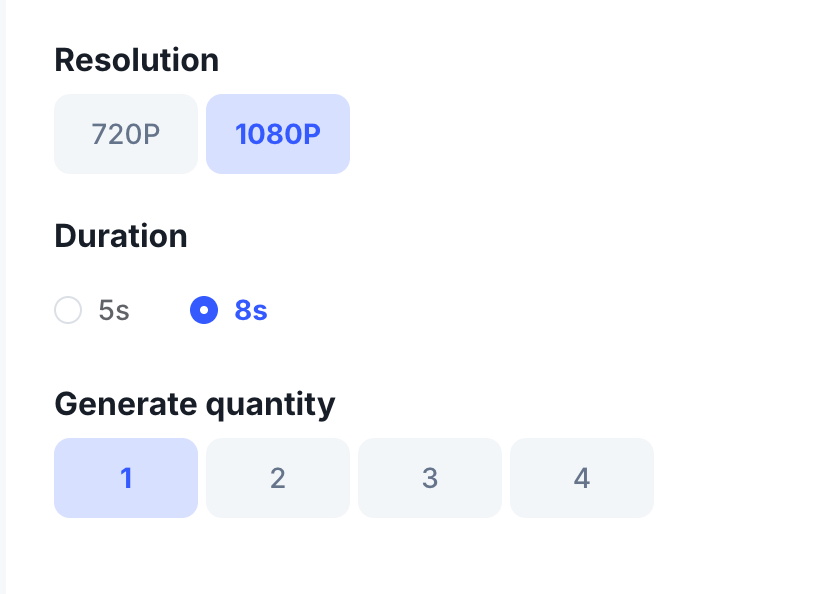
Select your preferred resolution and video duration (of up to 8 seconds). Choose how many variations you want to generate to test different outputs.
4
Step 4: Generate & Export
Click the Generate button to start creating your video. A processing indicator will appear while the system builds your scene.
Once ready, preview the video, adjust your prompt if needed, and export the final version.
How Pixverse V5 Generates Better AI Videos on VidAU
Pixverse V5 works best when you understand how your inputs affect the final video.
Everything starts with your prompt. This tells the model what kind of scene to create. If your prompt is vague, the output will feel random. If your prompt is clear, the video becomes more controlled and usable. You should describe movement, lighting, camera angle, and mood in simple terms.
Your images act as anchors. The start frame defines how the video begins. The optional end frame defines where the motion should lead. The model then fills in everything between these two points. This is what creates smooth transitions and keeps the scene consistent.
The settings you choose also shape the result. Aspect ratio determines where the video will be used. Vertical formats work better for short-form platforms, while horizontal formats fit longer content. Resolution affects clarity, especially if you plan to use the video for ads or brand content. Duration controls how long the scene plays, and shorter clips usually perform better for social media.
Batch generation helps you create multiple versions at once. This is useful when you want to test different creative directions without repeating the entire process. You can compare outputs and choose the strongest one.
Negative prompts give you another level of control. You use them to remove unwanted elements such as blur, distortion, or extra objects. This helps improve the quality of your final video.
When you combine clear prompts, strong images, and the right settings, Pixverse V5 produces videos that feel structured, clean, and ready for use.
High-payoff tip
Describe movement, lighting, camera angle, and mood in simple terms. Clear prompts, strong images, and the right settings help Pixverse V5 produce videos that feel structured, clean, and ready for use.
Tips to Get Better Results with Pixverse V5
Pixverse V5 responds directly to your inputs, so small changes can improve your results.
Focus on writing clear prompts instead of short or vague ones. Use high-quality images so the model has better visual references. Keep your frames consistent so the transition looks natural.
Avoid adding too many elements into one scene. Simpler scenes often produce cleaner results. Use negative prompts to remove unwanted details. Always generate multiple versions and compare them before choosing one.
This approach helps you get more reliable and usable AI videos.
Common mistake
Avoid adding too many elements into one scene. Simpler scenes often produce cleaner results, especially when you want the transition between frames to look natural.
Create cinematic AI videos faster with VidAU
Use Pixverse V5 on VidAU to upload frames, guide motion with prompts, test variations, and export short videos for social media, ads, and campaigns.
VidAU workflow support for Pixverse V5
VidAU supports the Pixverse V5 workflow by keeping the creative process focused on prompt, frames, settings, and export. You can input your idea, upload visual references, adjust generation controls, and create multiple versions without relying on traditional editing software or production tools.
🎬
Prompt-guided video creation
Describe the motion, lighting, and overall feel of the video so Pixverse V5 can generate a more controlled and usable scene.
🖼️
Start and end frame control
Use a start frame to define how the video begins and an optional end frame to guide where the motion should lead.
📱
Platform-ready aspect ratios
Choose 1:1, 16:9, 9:16, 4:3, or 3:4 depending on where the video will be published.
🔁
Multiple variations per run
Generate multiple versions at once so you can test different creative directions, compare outputs, and choose the strongest final video.
Key takeaway
Conclusion
Pixverse V5 gives you a direct way to create AI videos using prompts and images on VidAU AI.
You set your idea, upload your frames, adjust your settings, and generate your video. The process stays simple, and the output works for ads, content, and campaigns.
With the right inputs, you can create videos faster and test more ideas without relying on traditional production.
FAQs
Here are common questions about Pixverse V5, access, app availability, credits, model versions, and how it compares with other AI video tools.
What is Pixverse V5?
Pixverse V5 is an AI video generator that creates short cinematic videos from text prompts and images. It uses start and end frames to generate smooth motion and structured scenes.
Is there a Pixverse app?
Pixverse is mainly available as a web-based tool through platforms like VidAU. Some versions may offer app access, but most users create videos directly in-browser.
How do I access Pixverse login?
You can access Pixverse through supported platforms like VidAU. Simply sign in to your account, select the Pixverse model, and start generating videos.
Can I download Pixverse AI app APK?
There is no official APK recommended for Pixverse. Use trusted platforms like VidAU instead of third-party downloads to avoid security risks.
What is Pixverse swap?
Pixverse swap usually refers to swapping scenes, frames, or visual elements in AI-generated videos. This depends on the platform features available.
Does Pixverse offer unlimited credits?
Most platforms that support Pixverse use a credit-based system. Unlimited usage depends on your subscription plan or provider.
What is Pixverse AI v2?
Pixverse AI v2 refers to an earlier version of the model. Pixverse V5 offers improved motion stability, better prompt accuracy, and higher-quality video output.
Is Pixverse free to use?
Some platforms offer limited free credits for Pixverse. Full access usually requires a paid plan depending on usage and video generation limits.
Can I download Pixverse AI app for free?
Pixverse is typically accessed online. Free access may exist with limited credits, but downloading full-feature apps is not standard.
How does Pixverse compare to Kling AI?
Pixverse focuses on frame-guided motion and structured scenes. Kling AI may differ in rendering style and speed. Choose based on output quality and workflow needs.
Is Pixverse related to Gemini?
No. Pixverse is an AI video generator, while Gemini is an AI model developed by Google for text and multimodal tasks.