21 Best CapCut Professional Tricks | Full Tutorial
CapCut has evolved far beyond a basic mobile editor. Today, CapCut Professional is a powerful video editing platform used by creators, marketers, YouTubers, and even small production teams. With advanced AI tools, cinematic effects, and timeline controls, mastering the right tricks can dramatically upgrade your content quality.
In this full CapCut Professional tutorial, you’ll learn 21 proven professional tricks, including trending edits, cinematic animations, smooth zoom effects, and AI-powered workflows. Whether your goal is viral short-form content, professional branding videos, or monetized YouTube edits.
What Makes CapCut Professional Different From Free Editing?
CapCut Professional stands out because it combines ease of use with professional-grade tools.
Key CapCut Professional Features
- Multi-layer timeline editing
- Advanced keyframe animation
- AI motion tracking & auto captions
- Professional transitions & cinematic effects
- 4K export with no watermark
- Cloud sync and cross-device editing
These features allow creators to produce studio-quality videos without expensive desktop software.
21 Best CapCut Professional Tricks You Must Master
Below are the 21 CapCut Professional tricks used by high-performing creators:
1. Master Keyframe Animation
Use keyframes to animate text, images, and video layers smoothly.
2. Cinematic Motion Blur
Add realism to fast movements using motion blur effects.
3. Professional Color Grading
Use LUTs, curves, and filters to achieve cinematic tones.
4. AI Auto Captions
Boost engagement with accurate, animated captions.
5. Beat Sync Editing
Sync cuts and transitions perfectly to music beats.
6. Masking for Transitions
Create seamless object-based transitions.
7. Advanced Speed Ramping
Combine slow motion and speed-ups for dramatic impact.
8. Layer Blending Modes
Create glow, double exposure, and light leak effects.
9. Cinematic Letterboxing
Add widescreen bars for a movie-style look.
10. Background Removal
Remove backgrounds instantly using AI tools.
11. 3D Zoom Effects
Simulate camera depth using scale and blur.
12. Overlay Transitions
Blend clips creatively using overlays.
13. Sound Design Enhancement
Layer sound effects for professional audio quality.
14. Text Tracking
Attach text to moving subjects with motion tracking.
15. Flash & Light Transitions
Perfect for beat drops and trend edits.
16. Preset Creation
Save custom effects for consistent branding.
17. Professional Typography Animation
Animate text with easing and motion curves.
18. Viral Short-Form Formatting
Optimize for Reels, Shorts, and TikTok.
19. Cinematic Zoom Cuts
Smooth punch-in effects without quality loss.
20. AI Image to Video
Turn static images into motion visuals.
21. Cloud Collaboration
Edit across devices without losing progress.
How To Edit Trend “FENDI” On Capcut | Fendi 2 Slowed Edit – Step by step tutorial
This trending FENDI slowed edit is a perfect example of CapCut Professional’s creative power.
Step 1: Import Clips
- Add your main video clip to the timeline.
- Choose a high-quality vertical video.
Step 2: Apply Speed Control
- Split the clip at beat points.
- Apply speed → curve → custom.
- Slow key moments to create the “Fendi 2 slowed” effect.
Step 3: Add Beat-Based Transitions
- Insert flash or shake transitions at beat drops.
- Adjust intensity for smooth flow.
Step 4: Color & Glow Effects
- Use contrast + saturation.
- Add subtle glow or sharpen effects.
Step 5: Final Sync
- Align visuals perfectly with music beats.
- Export in 1080p or 4K.
How to Create an EPIC War Timeline Animation in Capcut – Step by step tutorial
This war timeline animation is ideal for educational, documentary, or YouTube content.
Step 1: Timeline Setup
- Place images or clips in chronological order.
- Use text layers for dates and events.
Step 2: Animate With Keyframes
- Add zoom-in keyframes for each era.
- Pan slowly to simulate camera movement.
Step 3: Add Motion Effects
- Use blur and vignette for cinematic depth.
- Apply subtle camera shake for impact.
Step 4: Sound Design
- Add background music and war-style sound effects.
- Balance audio levels professionally.
Step 5: Export for YouTube
- Export in landscape 4K for best results.
How To Make Zoom In On Capcut | Capcut Tutorial #capcut #capcuttutorial – Step by step tutorial
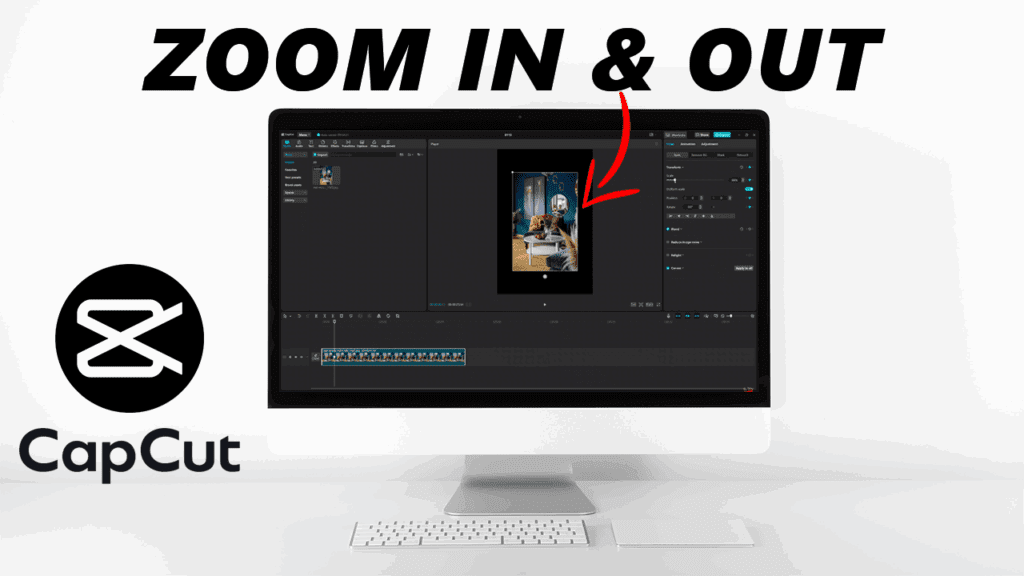
Smooth zoom effects are essential in CapCut Professional editing.
Step 1: Add Keyframes
- Place a keyframe at the start.
- Increase scale gradually at the end.
Step 2: Add Motion Blur
- Apply blur to make zooms cinematic.
Step 3: Use Ease In & Out
- Adjust animation curves for natural motion.
Step 4: Combine With Sound Effects
- Add whoosh sounds for professional polish.
Combining VidAU And CapCut Professional Tricks For Best AI Video Generation
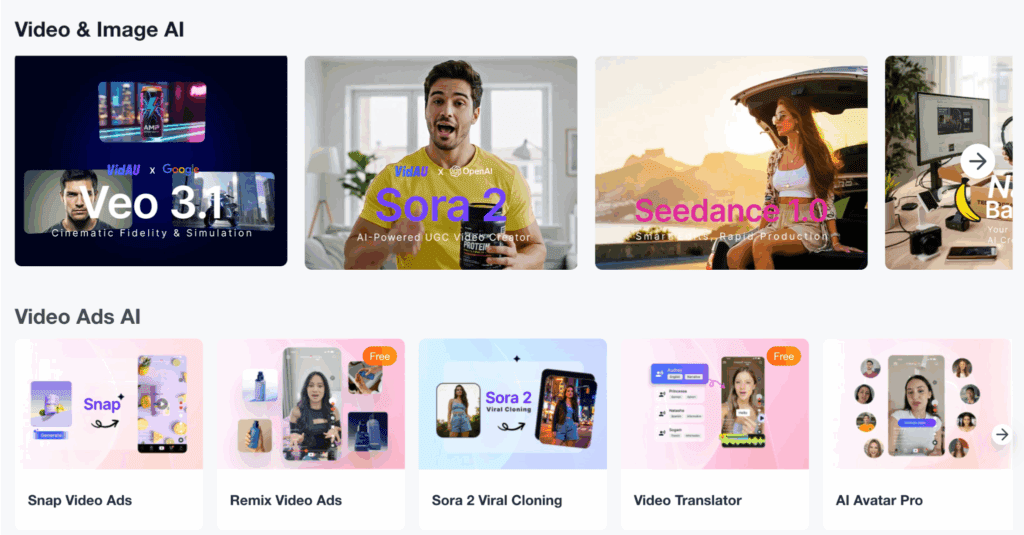
For next-level AI videos, VidAU + CapCut Professional is a powerful workflow.
How This Workflow Works
- Generate AI visuals or scripts in VidAU
- Import outputs into CapCut Professional
- Enhance with transitions, captions, and effects
Benefits of This Combination
- Faster content creation
- AI-powered storytelling
- Professional finishing touches
- Ideal for ads, faceless videos, and automation
Why CapCut Professional Is Ideal for Creators and Businesses
CapCut Professional offers:
- Affordable alternative to desktop editors
- Faster learning curve
- Built-in AI tools
- Mobile and desktop flexibility
This makes it perfect for content creators, freelancers, marketers, and brands.
Frequently Asked Questions
Is CapCut Professional worth it for creators?
Yes, CapCut Professional offers advanced features that significantly improve video quality and workflow efficiency.
Can CapCut Professional replace desktop editing software?
For short-form content and social media, CapCut Professional can fully replace traditional editors.
Does CapCut Professional support 4K export?
Yes, CapCut Professional allows watermark-free 4K exports.
Are CapCut Professional tricks suitable for beginners?
Absolutely. Most professional tricks are beginner-friendly with practice.
Can I use CapCut Professional for commercial projects?
Yes, CapCut Professional supports commercial-ready video production.