JSON Prompts for Google Veo 3: A Complete Beginner’s Guide to Structured AI Video Generation
Want to create cinematic AI videos with Google Veo 3? JSON prompts are your secret weapon.
Most beginners approach Google Veo 3 the same way they approach image generators: by typing a descriptive paragraph and hoping for magic. Sometimes it works. Often, it doesn’t. Shots drift. Characters mutate. Motion feels inconsistent. Camera instructions get ignored.
The difference between random results and production-ready footage often comes down to one thing: structured prompting.
That’s where JSON prompts come in.
In this guide, you’ll learn what JSON prompts actually are, why they matter for AI video tools like Veo 3, and how to write your first structured prompt step by step.
1. Why JSON Prompts Matter for AI Video Generation
What Is a JSON Prompt?
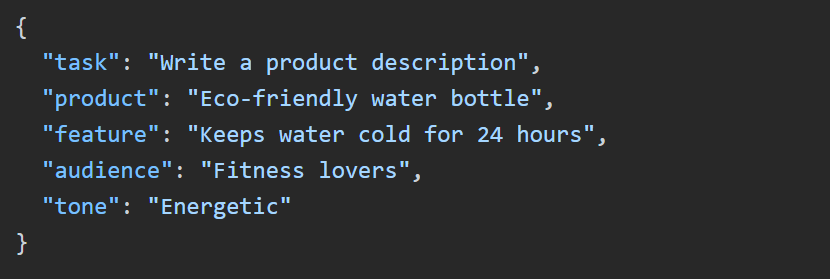
JSON stands for JavaScript Object Notation. In the context of AI video generation, it’s a structured way to define parameters instead of relying on loose natural language.
Instead of writing:
A cinematic shot of a woman walking through neon Tokyo at night, shallow depth of field, dramatic lighting.
You define clearly separated parameters like:
- Scene description
- Camera movement
- Lighting model
- Motion behavior
- Style reference
- Duration
- Seed control
This structure reduces ambiguity inside the model’s latent space.
Why Veo 3 Responds Better to Structured Prompts
Google Veo 3, like other diffusion-based or hybrid transformer-diffusion video models, interprets prompts by mapping them into latent representations. When prompts are messy, token weighting becomes inconsistent.
Structured JSON helps by:
- Reducing prompt token collisions
- Increasing semantic clarity
- Improving latent consistency across frames
- Supporting better temporal coherence
- Enabling seed parity for repeatable shots
In diffusion workflows (including ComfyUI pipelines using Euler a schedulers or DPM++ variants), structured conditioning often improves stability. Veo 3 benefits from the same principle: clearer conditioning = more controllable output.
JSON Prompts vs Natural Language Prompts
Natural language prompting:
- Fast
- Creative
- Unpredictable
JSON prompting:
- Controlled
- Repeatable
- Production-friendly
- Modular
If you plan to:
- Build multi-shot sequences
- Maintain character consistency
- Reuse seeds across scenes
- Match lighting across edits
You need structure.
2. Understanding the Basic JSON Structure for Google Veo 3
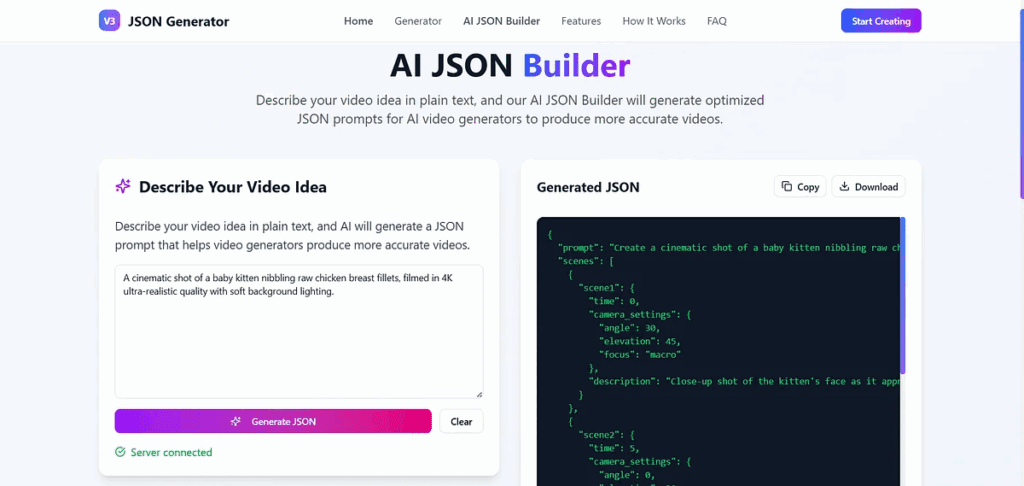
Let’s break down a beginner-friendly JSON template for Veo-style prompting.
Here’s a simplified example:
{
“scene”: {
“description”: “Cyberpunk street market at night in Tokyo”,
“environment”: “wet pavement, neon signs, steam rising from vents”,
“time_of_day”: “night”
},
“subject”: {
“character”: “young woman with short silver hair”,
“wardrobe”: “black futuristic jacket with glowing trim”,
“emotion”: “focused and calm”
},
“camera”: {
“shot_type”: “medium tracking shot”,
“movement”: “slow forward dolly”,
“lens”: “50mm cinematic”,
“depth_of_field”: “shallow”
},
“lighting”: {
“style”: “high contrast cinematic”,
“sources”: “neon rim lighting, soft front fill”
},
“motion”: {
“action”: “walking steadily through the crowd”,
“secondary_motion”: “fabric subtly moving with wind”
},
“style”: {
“aesthetic”: “cinematic, ultra-realistic”,
“color_grade”: “teal and magenta”
},
“technical”: {
“duration”: “6s”,
“resolution”: “4K”,
“seed”: 12345
}
}
Now let’s break down why each block matters.
2.1 Scene Block
Defines the global environment. This anchors the diffusion process in a stable latent context.
If you skip this, Veo may reinterpret your setting mid-generation, causing background drift.
2.2 Subject Block
Character consistency is one of the hardest problems in generative video.
By isolating:
- Appearance
- Clothing
- Emotional tone
You reduce identity instability across frames.
In advanced workflows, you can combine this with:
- Reference images
- Seed locking
- Latent blending
2.3 Camera Block
This is where beginners fail most.
Instead of saying cinematic camera, define:
- Shot type (wide, medium, close-up)
- Lens approximation (35mm, 50mm, 85mm)
- Movement (dolly, crane, handheld, static)
Video models simulate cinematography through learned motion priors. The clearer your motion instruction, the stronger temporal coherence becomes.
2.4 Lighting Block
Lighting dramatically affects diffusion sampling.
High contrast scenes push the model toward stronger shadow modeling in the latent space. Soft lighting creates smoother gradients.
Explicit lighting control reduces flicker artifacts.
2.5 Motion Block
This controls temporal behavior.
Without explicit motion instructions, Veo may:
- Add unnecessary gestures
- Create jittery background motion
- Misinterpret walking speed
Clear motion definitions improve frame-to-frame consistency.
2.6 Technical Block
This is your production control layer.
Seed parity allows you to:
- Recreate shots
- Generate variations
- Maintain cross-shot style consistency
In diffusion terminology, the seed initializes the noise tensor. Same seed + similar prompt = similar latent trajectory.
3. Step-by-Step: Writing Your First JSON Prompt
Now let’s build one from scratch.
Step 1: Define the Core Idea
Start in plain English:
A dramatic sci-fi hero reveal inside a futuristic hangar.
Now we convert it into structured blocks.
Step 2: Build the Scene Object
“scene”: {
“description”: “massive futuristic aircraft hangar”,
“environment”: “metallic walls, holographic displays, light fog”,
“time_of_day”: “interior, dramatic artificial lighting”
}
This prevents Veo from shifting environments mid-shot.
Step 3: Define the Subject
“subject”: {
“character”: “armored sci-fi pilot”,
“wardrobe”: “sleek black exosuit with glowing blue lines”,
“pose”: “standing still facing camera”,
“emotion”: “confident and powerful”
}
Adding pose improves pose stability during sampling.
Step 4: Design the Camera Movement
“camera”: {
“shot_type”: “low angle medium shot”,
“movement”: “slow cinematic push-in”,
“lens”: “35mm anamorphic”,
“depth_of_field”: “moderate”
}
Low angles bias the composition toward dominance. The push-in increases dramatic tension.
Step 5: Control Lighting
“lighting”: {
“style”: “high contrast dramatic”,
“sources”: “strong backlight silhouette, subtle front fill”
}
Backlighting enhances edge separation and reduces subject-background blending artifacts.
Step 6: Define Motion
“motion”: {
“action”: “cape slightly moving from air circulation”,
“secondary_motion”: “light fog drifting slowly”
}
Small environmental motion increases realism without destabilizing the subject.
Step 7: Add Technical Controls
“technical”: {
“duration”: “8s”,
“resolution”: “4K”,
“fps”: 24,
“seed”: 77777
}
24 fps enhances cinematic realism. The fixed seed allows regeneration if artifacts appear.
Final Combined JSON Prompt
Now assemble everything:
{
“scene”: {
“description”: “massive futuristic aircraft hangar”,
“environment”: “metallic walls, holographic displays, light fog”,
“time_of_day”: “interior, dramatic artificial lighting”
},
“subject”: {
“character”: “armored sci-fi pilot”,
“wardrobe”: “sleek black exosuit with glowing blue lines”,
“pose”: “standing still facing camera”,
“emotion”: “confident and powerful”
},
“camera”: {
“shot_type”: “low angle medium shot”,
“movement”: “slow cinematic push-in”,
“lens”: “35mm anamorphic”,
“depth_of_field”: “moderate”
},
“lighting”: {
“style”: “high contrast dramatic”,
“sources”: “strong backlight silhouette, subtle front fill”
},
“motion”: {
“action”: “cape slightly moving from air circulation”,
“secondary_motion”: “light fog drifting slowly”
},
“style”: {
“aesthetic”: “cinematic sci-fi”,
“color_grade”: “cool blue highlights with deep shadows”
},
“technical”: {
“duration”: “8s”,
“resolution”: “4K”,
“fps”: 24,
“seed”: 77777
}
}
—
Pro Tips for Better Results in Veo 3
1. Keep Blocks Modular
You can reuse camera and lighting blocks across multiple scenes to maintain visual continuity.
2. Adjust One Variable at a Time
When refining output:
– Change seed only
– Or adjust motion only
This isolates latent changes.
3. Avoid Overloading the Prompt
Too many stylistic references can create token competition inside the model’s attention layers.
Clarity beats complexity.
4. Think Like a Director, Not a Prompt Writer
Ask yourself:
- What is the emotional goal of this shot?
- Where is the camera?
- What is physically moving?
Then encode those answers into structured JSON.
Final Thoughts
JSON prompting transforms Veo 3 from a creative toy into a controllable production engine.
You gain:
- Cinematic precision
- Repeatable outputs
- Temporal stability
- Professional shot design
For beginners, JSON might look technical.
But once you understand the structure, it becomes your blueprint for cinematic AI filmmaking.
And in AI video, structure is control.
Control is quality.
Quality is everything.
Frequently Asked Questions
Q: Do I need coding experience to use JSON prompts with Veo 3?
A: No. JSON is simply a structured text format. You do not need programming knowledge, just an understanding of key-value pairs and clean formatting. Most creators learn the basics in under an hour.
Q: Why does structured prompting improve temporal consistency?
A: Structured prompts reduce ambiguity in how the model distributes attention across tokens. Clear motion, camera, and subject separation improves latent consistency across frames, reducing flicker and identity drift.
Q: What does the seed parameter actually control?
A: The seed initializes the model’s noise tensor in diffusion-based generation. Using the same seed with similar prompt structure increases the likelihood of reproducing similar compositions, lighting behavior, and framing.
Q: Can JSON prompts be reused across different AI video tools?
A: Yes, conceptually. While syntax may vary between Veo, Runway, Sora, Kling, or ComfyUI pipelines, the structural thinking behind JSON prompting applies across platforms.