
























Blog AI Ads Tools AI Video Generator Veo 3 Prompt No Subtitles For Beautiful Video Outcome

Create Consistent AI Character With Veo 3 Prompt No Subtitles

Veo 3 Prompt No Subtitles

If your AI character changes face every clip, you are not alone. Also, if your videos keep adding random on-screen text, that is annoying. This guide fixes both problems. You will learn how to keep one character consistent and how to use a Veo 3 prompt no subtitles approach for cleaner clips.

How Do You Use A Veo 3 Prompt No Subtitles To Stop Random Text?

Veo 3

You stop random text by telling Veo 3 to avoid subtitles and any on-screen typography. Start simple, then repeat the same “no text” rules every time.

No-Subtitles Prompt Lines That Work

Use one or more lines like these in every prompt, and keep them near the end:

  1. No subtitles.
  2. Remove on-screen text.
  3. Zero captions.
  4. No words, no letters, no typography.
  5. No watermarks, no logos.
  6. Clean frame, text-free.

Also, avoid words like “interview,” “documentary,” “news,” or “tutorial” in the same prompt. Those words often imply captions. Instead, describe the scene as a “cinematic shot” or “commercial shot.”

Common Reasons Veo Adds Subtitles

These are the usual triggers, so remove them early:

  1. You asked for “talking to camera,” and the model tries to help with captions.
  2. You used “voiceover,” and it assumes subtitles should appear.
  3. Described a “screen,” “poster,” or “sign,” and it generated text.
  4. You asked for “social media style,” and it copied caption culture.
  5. You gave too many instructions, so it filled the frame with text-like noise.

So, keep your request focused and keep your Veo 3 prompt no subtitles rules consistent.

How Do You Keep One AI Character Consistent Across Veo 3 Clips?

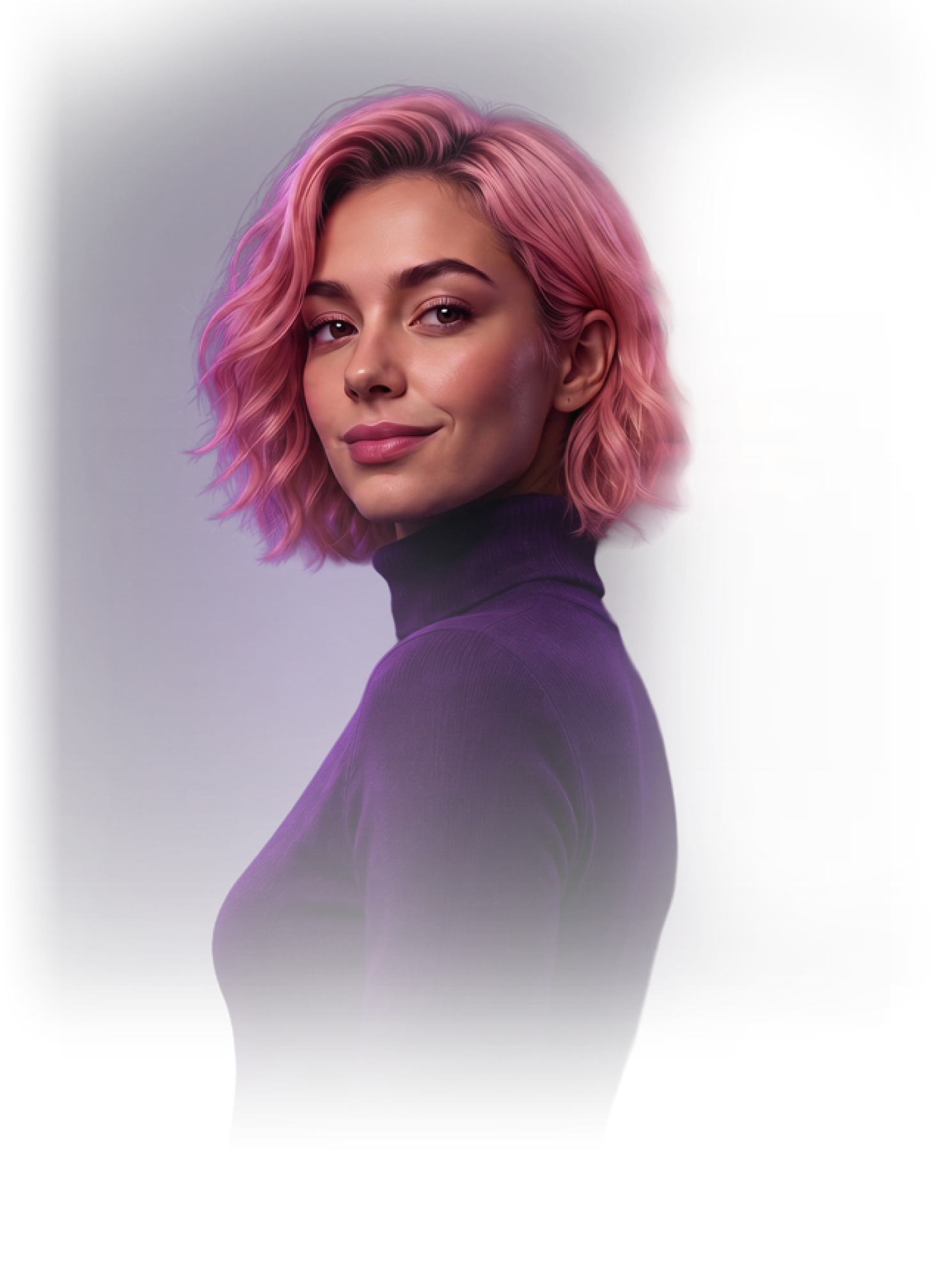
You keep a character consistent by reusing the same identity details and the same reference strategy every time. In other words, you build a “character recipe,” then you stop changing it.

The Character Recipe You Should Reuse

Lock these details and reuse them in every prompt:

  1. Name tag: like CHAR_LUNA or HERO_KAI.
  2. Core face: age range, face shape, skin tone, and key features.
  3. Hair: style, length, and color.
  4. Signature item: one repeating element like a jacket, earrings, or scarf.
  5. Style rule: “realistic cinematic,” “soft studio light,” or “anime clean line.”
  6. No-text rule: your Veo 3 prompt no subtitles lines.

Next, change only one thing per clip, like outfit or background. That way, the character stays stable.

The Best Way To Use Reference Images

If your Veo 3 flow supports image-to-video, do this:

  1. Pick 2–4 “anchor” images of the same character.
  2. Use the best one as the main reference each time.
  3. Keep lighting similar across anchors.
  4. Avoid mixing cartoon and photoreal in one character set.
  5. Reuse the same tag and description every time.

Then, generate variations slowly. As a result, your character drifts less.

What Is The Best Prompt Structure For Consistent Characters In Veo 3?

The best structure is a short scene prompt plus a fixed identity block plus a fixed no-text block. This keeps results predictable and easier to refine.

Prompt Template Table 

Use this table to build your prompt in the same order every time:

Prompt PartWhat To WriteExample
Character TagOne short ID nameCHAR_LUNA
Identity BlockFixed face + hair + signature“25–30, oval face, short curly black hair, small beauty mark on left cheek, brown leather jacket”
Scene BlockOne scene, one action“Walking through a rainy neon street, looking to the right, slow motion”
Camera Block1 camera choice“Medium shot, slow dolly-in, cinematic”
Lighting BlockOne lighting choice“Moody night, soft reflections, realistic”
No-Text BlockYour rule set“No subtitles. No on-screen text. No captions. No logos.”

Keep this structure fixed. Then tweak only one row at a time. This is a strong Veo 3 prompt no subtitles base. Also, it keeps identity stable.

How Do You Fix Character Drift And Unwanted Captions Fast?

You fix drift and captions by tightening the prompt and reducing changes between versions. Small edits beat big rewrites.

Fast Fixes For Character Consistency

Try these fixes in this order:

  1. Repeat the identity block word-for-word.
  2. Remove extra adjectives that change style.
  3. Keep the same camera distance (close-up vs wide).
  4. Keep lighting consistent across clips.
  5. Use fewer scene objects, so focus stays on the face.
  6. Generate 3–5 variants and keep the closest match.

Then, take the best output and use it as your new anchor reference.

Fast Fixes For Subtitles And Text

If text appears, do this:

  1. Add “no words, no letters, no typography” to your no-text block.
  2. Remove “social media style” and “tutorial style” phrasing.
  3. Avoid “talking head interview” wording.
  4. Don’t mention signs, posters, screens, or UI.
  5. Re-run with a shorter prompt and the same Veo 3 prompt no subtitles lines.

As a result, Veo has fewer reasons to invent captions.

How Do You Turn This Into A Repeatable Workflow For Series Content?

You build a repeatable workflow by saving your character recipe and reusing it like a template. This makes your series faster and more consistent.

A Simple 10-Minute Workflow Per Clip

Use this routine for each new scene:

  1. Copy your saved prompt template.
  2. Keep the identity block unchanged.
  3. Keep your Veo 3 prompt no subtitles block unchanged.
  4. Change only the scene block (location + one action).
  5. Generate 3–5 variants.
  6. Pick the best one and save it as the next anchor.

Then repeat. Over time, your character stays stable.

What To Lock vs What To Change

This table helps you avoid accidental drift:

Keep The SameChange Slowly
Character tagOutfit
Identity blockBackground
Hair descriptionTime of day
Camera style (most times)Camera angle (small changes)
Lighting style (most times)Props (one at a time)
No subtitles / no text rulesMotion intensity

This approach feels simple, and it works.

Conclusion

You can get consistent characters in Veo 3 when you reuse the same identity block and move slowly between scenes. Also, you can reduce unwanted text by adding a clear Veo 3 prompt no subtitles rule set in every prompt. Keep your structure fixed, keep your changes small, and save anchors as you go. As a result, your clips look cleaner, your character looks recognizable, and your series becomes easier to produce.

Frequently Asked Questions

1. What does “Veo 3 prompt no subtitles” mean?

It means you add clear instructions that tell Veo 3 to avoid captions, subtitles, and any on-screen text.

2. Why does Veo sometimes add text even when I didn’t ask?

Because certain styles like “tutorial,” “interview,” or “social media” often imply captions.

3. What is the fastest way to keep a character consistent?

Reuse the same identity block word-for-word and change only one scene detail at a time.

4. How many reference images should I use for one character?

Start with 2–4 clean anchors that share similar lighting and angle.

5. What camera choice helps consistency most?

A medium shot or close-up often keeps the face stable better than wide shots.

6. What should I avoid if I keep seeing subtitles?

Avoid words like “tutorial,” “voiceover,” and “talking head,” and add stricter no-text lines.

7. Can I use one character for a whole series?

Yes, if you lock the identity recipe and reuse the same Veo 3 prompt no subtitles block every time.

Scroll to Top