AI Image to Video Generator · Free, WAN 2.1 & Top Picks
Best AI Image to Video Generator Tools: Free, WAN 2.1 & Top Picks
Discover the best AI image to video generator tools, including WAN 2.1, Runway, Higgsfield, Flixier, VEO 3, Sora 2, and VidAU AI for free, cinematic, browser-based, and ad-ready video creation.
By the VidAU Editorial Team · AI image-to-video guide · 13 min read
WAN 2.1 has become the go-to free option for turning still images into short animated clips, but it is one of several strong tools worth comparing before you commit.
The best ai image to video generator for most creators in 2026 is WAN 2.1, a free, open-source model you can install locally with an 8GB GPU. It turns a single image into a short animated clip without subscriptions or watermarks. If you want zero setup, browser tools like Higgsfield, Runway, and Flixier also work well.
This guide is for content creators, social media marketers, YouTube creators, and digital artists who want practical recommendations. We focus on free tools first, then cover paid options, technical requirements, and which tool fits each use case so you can choose without wasting an afternoon testing every platform.
Quick Summary
- WAN 2.1 is the top free ai image to video generator in 2026, installable locally via Pinokio AI with an 8GB GPU and no watermark.
- Higgsfield AI and Runway are the strongest browser-based alternatives, with Higgsfield offering 50+ cinematic effects for product and B-roll clips.
- Most image-to-video tools work best with short 3 to 5 second clips and prompts that describe motion, camera movement, and what to keep static.
- Local open-source tools suit tech-savvy users, while no-login browser tools and platforms like VidAU AI suit marketers who need fast, ad-ready output.
What Is an AI Image to Video Generator?
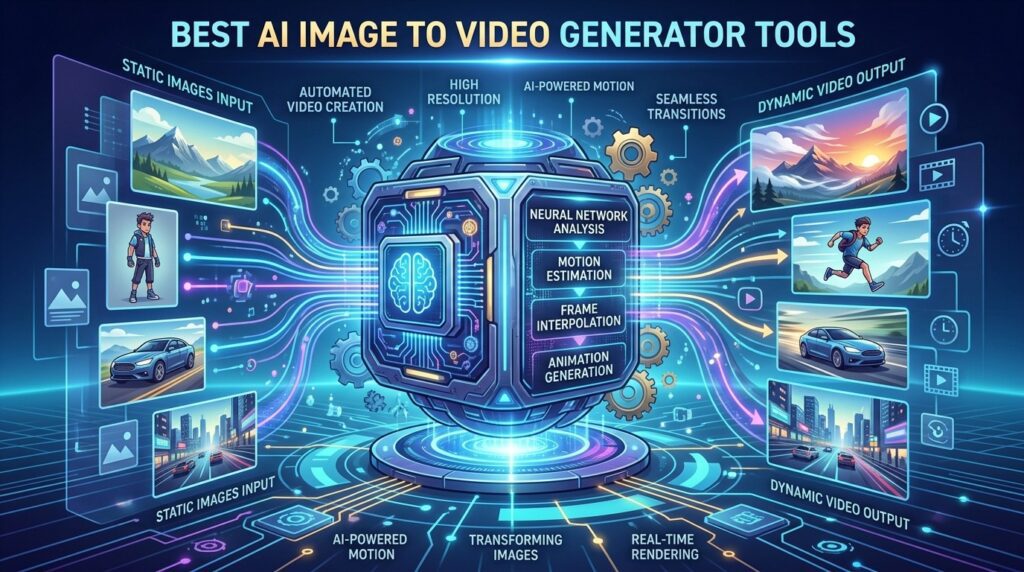
An AI image to video generator is a tool that turns a static image into a short animated video using machine learning. You upload a photo, add a text prompt describing the motion, and the model predicts how the scene should move across a few seconds, adding camera movement, subtle animation, and background dynamism.
These tools sit between text-to-video generation and traditional editing. Instead of typing a full scene from scratch, you start with an image you already control, then guide the motion. That makes results more predictable for product shots, portraits, and B-roll.
Key Takeaways
- Image-to-video starts from a real photo, so you keep more control over the final look.
- Prompts should describe motion, not just the scene.
- Output clips are usually short, often 3 to 5 seconds.
Why Does WAN 2.1 Lead the Free Image to Video Options in 2026?
WAN 2.1 leads because it is genuinely free, open-source, and produces clean output without watermarks. Based on the surge of March 2026 tutorials, with one install guide passing 420,000 views, demand for a free, locally installable image-to-video model is clearly high.
The appeal is simple. You are not paying per generation, you are not capped by credits, and your clips do not carry a logo. For creators producing daily content, that removes the two biggest friction points with paid platforms.
WAN 2.1 handles both image-to-video and text-to-video, so a single setup covers most short-form needs. The trade-off is that you need decent hardware and some patience with setup, which I cover next.
Key Takeaways
- WAN 2.1 is 100% free with no watermark.
- It supports both image-to-video and text-to-video.
- Setup and hardware are the main barriers, not cost.
How Do You Install and Use WAN 2.1 for Image to Video?
You install WAN 2.1 using Pinokio AI, a free installer that handles the technical setup for you. Most popular tutorials follow this same path because it avoids manual command-line work. Here is the core workflow.
Step 1: Check your hardware first.
WAN 2.1 runs best with at least an 8GB GPU, a requirement noted repeatedly across recent guides.
Step 2: Download and install Pinokio AI from its official site.
Step 3: Use Pinokio to install WAN 2.1 locally on Windows.
Mac options are limited depending on your setup.
Step 4: Open the wan2.1 image to video module and upload your image or paste a URL.
Step 5: Write a clear prompt describing the motion you want.
Then adjust resolution and inference steps.
Step 6: Generate, preview, and re-run with adjusted settings if the motion looks off.
If you do not want a local install, you can try WAN 2.1 through hosted versions on Hugging Face. Those spaces are often congested, so generation can fail or queue during busy periods. Fal AI offers a paid hosted version for heavier use.
Setup note
WAN 2.1 removes cost, watermark, and credit limits, but the trade-off is local setup, GPU requirements, and more patience than a browser-based tool.
What Are the Best Free Image to Video AI Tools Without Login?
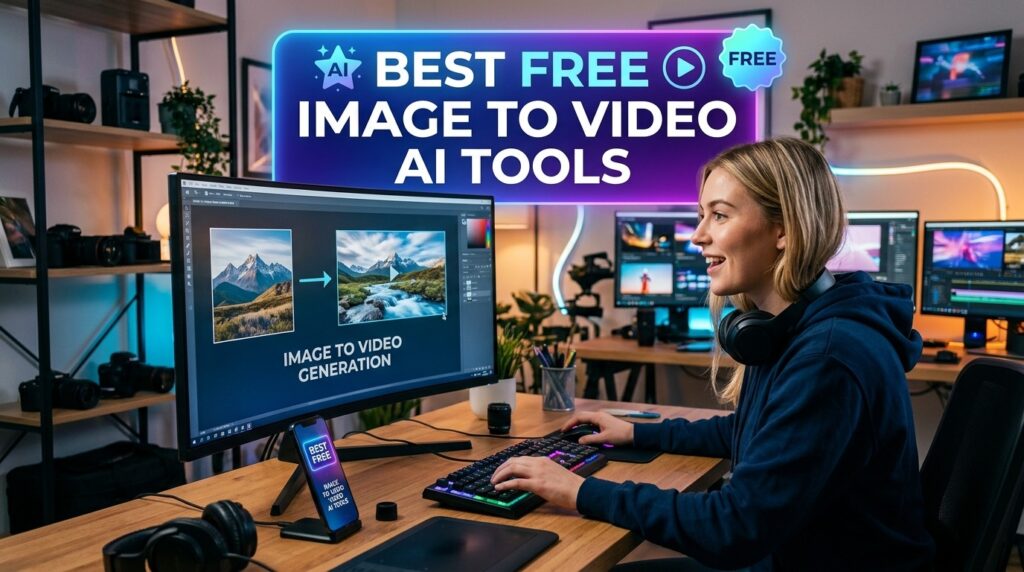
The best image to video ai without login options let you generate clips directly in the browser with no account. Several free tools and trial-based platforms fit this need, though most require a login once you want to download or save work.
Fully no-login workflows are rare for video because rendering is resource-heavy. WAN 2.1 run locally is the closest to truly unlimited and login-free once installed. Browser tools like Flixier let you start instantly, then prompt for an account when you download or open the editor.
Google VEO 3, accessed through certain free workflows, also produces strong image-to-video and text-to-video results, but availability and access methods change often, so treat any free unlimited claim with caution.
If you are creating AI video ads from product images, a dedicated platform may save more time than chaining free tools together.
No-login reality check
Truly no-login video generation is rare because rendering is resource-heavy. Running WAN 2.1 locally is the closest option to unlimited, login-free image-to-video generation after installation.
Best AI Image to Video Generators Compared
Here is a quick comparison of the main options based on how each is positioned in current tutorials and product pages. Use it to match a tool to your priorities rather than chasing the single best image to video ai generator.
| Tool | Cost & Access | Best For |
|---|---|---|
| WAN 2.1 | Free, local install | No-cost, no-watermark clips |
| Higgsfield AI | Paid, browser | Cinematic effects and product video |
| Runway | Paid, browser | Polished creative control |
| Google VEO 3 | Varies | High-quality short clips |
| Sora 2 | Paid platforms | Cinematic AI video |
| VidAU AI | Browser | Ad-ready marketing video |
A few notes from reviewing how these tools are presented. Higgsfield leans into 50+ cinematic effects and product imagery, which suits eCommerce B-roll. Runway is a steady choice for creators who want fine control. Sora 2 sits at the high-quality, more expensive end, usually accessed through third-party platforms.
VidAU is an AI video ad platform that generates video ads from product URLs, images, or scripts in 49 languages. It is less of a raw image-to-video model and more of a workflow tool, so it fits marketers who need finished ads rather than a single animated clip. If you only want to animate one portrait, a focused model like WAN 2.1 is the simpler pick.
If your goal is turning product shots into short marketing clips, the VidAU AI Video and URL to Video tools are built around that exact job, while UGC Avatars help when you need a spokesperson on camera.
Generate With VidAU Now
Use VidAU AI Video, URL to Video, Product Sample to Video, Text to Video, Text to Speech, UGC Avatars, Video Enhancer, and Object Remover when you need product-focused clips, ad-ready output, narration, cleaner footage, and repeatable marketing workflows.
VidAU workflow
Where VidAU fits beside raw image-to-video generators
- Use WAN 2.1 for raw free clips: Choose WAN 2.1 when you want no-cost, no-watermark image-to-video output and you have the GPU for local setup.
- Try browser tools for speed: Choose Higgsfield, Runway, Flixier, or VEO 3 when you want fast browser-based clips and accept credits, plans, or login limits.
- Use VidAU for ad-ready marketing video: Choose VidAU AI Video when the goal is finished marketing video rather than one animated clip.
- Turn product assets into campaign content: Use Product Sample to Video and URL to Video when product images or URLs need to become short ad creatives.
- Add voice, people, and cleanup: Use Text to Speech for narration, UGC Avatars for spokesperson content, Video Enhancer for soft clips, and Object Remover when distracting elements need cleanup.
What Are the Technical Requirements and Ease of Use for Each Tool?
Technical requirements vary widely, and this is where most creators choose wrong. Local tools like WAN 2.1 need real GPU power, while browser tools need almost nothing beyond a stable connection.
- WAN 2.1: needs roughly an 8GB GPU and a Windows setup through Pinokio. Higher skill, zero cost.
- Higgsfield and Runway: run in the browser, low technical barrier, paid plans.
- Google VEO 3: browser-based, quality is strong, access methods shift over time.
- Flixier: browser-based, beginner-friendly, login needed to download.
- VidAU: browser-based, built for ad workflows, no local hardware needed.
My general read: if you are comfortable installing software and have the GPU, WAN 2.1 gives the best cost-to-output ratio. If you want to start in five minutes, pick a browser tool and accept the trade-off of credits or watermarks on free tiers.
| Tool | Technical Requirement | Ease of Use |
|---|---|---|
| WAN 2.1 | Roughly an 8GB GPU and Windows setup through Pinokio | Higher skill, zero cost |
| Higgsfield | Browser-based | Low technical barrier, paid plans |
| Runway | Browser-based | Low technical barrier, paid plans |
| Google VEO 3 | Browser-based with shifting access methods | Strong quality, access varies |
| Flixier | Browser-based | Beginner-friendly, login needed to download |
| VidAU | Browser-based, no local hardware needed | Built for ad workflows |
Tip
Choose WAN 2.1 when your hardware and patience can support local setup. Choose browser tools when speed matters more than unlimited free generations.
What Common Mistakes Do Creators Make With Image to Video Tools?
The most common mistake is writing vague prompts. Image-to-video models need motion direction, not just a scene description. Tell the tool what moves, what stays still, and how the camera should behave.
Other frequent issues:
- Ignoring hardware limits, then blaming the model when WAN 2.1 fails on a weak GPU.
- Expecting long clips. Most tools generate short segments, so plan to stitch them in an editor.
- Using busy source images. Clean, single-subject images animate more reliably.
- Skipping resolution and inference-step settings, which directly affect quality and render time.
- Relying on congested free Hugging Face spaces during peak hours, then assuming the tool is broken.
If your clips look soft after generation, run them through a video enhancer or remove distracting elements with an object remover before final export.
Watch out
Do not write vague prompts, ignore GPU limits, expect long clips from short-video models, use overly busy source images, skip resolution settings, or rely on congested hosted spaces as if they were always stable.
How Do You Choose the Right Tool for Your Workflow?
Choose based on three factors: budget, hardware, and output type. There is no single best image to video ai generator for everyone, so match the tool to the job in front of you.
If you want free and unlimited and you have a capable GPU, install WAN 2.1. If you want fast cinematic clips and do not mind paying, use Higgsfield or Runway. If you are producing repeated marketing videos from products, a workflow platform saves more time than a raw model.
For scripted clips, text to video tools pair well with image-to-video output, and text to speech can add narration without recording. The point is to build a short pipeline rather than expect one tool to do everything.
Tip
Pick by budget, hardware, and output type. Free local generation, fast browser generation, and finished marketing-video workflows solve different problems.
Key takeaway
Final Thoughts
For 2025, WAN 2.1 is the clear free leader if you can meet the 8GB GPU requirement and handle a short setup through Pinokio. For instant, no-install work, Higgsfield, Runway, Flixier, and VEO 3 cover most browser-based needs, each with its own cost and quality trade-offs.
If your real goal is finished marketing video rather than a single animated image, start with a workflow built for it. Try VidAU AI Video to turn product images or URLs into ad-ready clips, then reach for a dedicated image-to-video model when you need a specific cinematic shot.
FAQ
Here are answers to common questions about the best AI image to video generator tools, WAN 2.1, image to video AI without login, browser-based generators, watermarks, clip length, product video workflows, and hardware requirements.
What is the best image to video AI generator in 2026?
For free use, WAN 2.1 is the strongest image to video AI generator in 2026 because it is open-source, watermark-free, and supports both image and text input. For browser-based work, Higgsfield, Runway, and Google VEO 3 are top picks, with the right choice depending on budget and hardware.
Is WAN 2.1 image to video really free?
Yes, WAN 2.1 image to video is free and open-source. You can install it locally through Pinokio AI at no cost and generate clips without watermarks or credits. You only need suitable hardware, ideally an 8GB GPU, and some patience during the initial setup process.
Can I use an image to video AI without login?
Truly no-login video tools are rare because rendering is resource-heavy. WAN 2.1 run locally is the closest to login-free unlimited use after install. Browser tools like Flixier let you start instantly but usually require an account before you can download or save your finished clip.
What hardware do I need to run WAN 2.1?
WAN 2.1 runs best with at least an 8GB GPU, a requirement noted across multiple recent install guides. Windows is the most documented setup path through Pinokio AI. Lower-spec machines may face slow renders or failed generations, so check your GPU before installing the model locally.
Do free AI image to video generators add watermarks?
It depends on the tool. WAN 2.1 produces watermark-free output since it runs on your own machine. Many browser-based free tiers add watermarks or restrict downloads until you upgrade. Always check the free plan terms before relying on a tool for client or commercial content.
How long are clips from AI image to video tools?
Most AI image to video tools generate short clips, often around 3 to 5 seconds per render. For longer videos, you generate several clips and stitch them together in an editor. Planning your shots in short segments leads to cleaner, more controllable results than expecting one long output.
Which AI image to video tool is best for product videos?
For product and B-roll, Higgsfield AI is strong thanks to its cinematic effects, and platforms built for ads can speed up repeated work. VidAU AI focuses on turning product URLs, images, or scripts into video ads, which suits eCommerce marketers who need finished, ad-ready output rather than single clips.
Can AI turn any photo into a good video?
Not every photo works well. Clean, single-subject images with clear lighting animate more reliably than busy or cluttered scenes. Prompts that describe motion, camera movement, and what should stay static produce better results. Low-resolution or crowded source images often lead to distorted or unstable generated motion.