AI Photo Batch Editing · Photoshop, ChatGPT Prompts & BeFunky Workflows
Best AI Photo Batch Editor: Top Tools and Prompt-Powered Workflows
Find the best AI photo batch editor workflow for consistent, on-brand edits across large image sets using ChatGPT prompt templates, Adobe Photoshop generative tools, and BeFunky Photo Editor.
By the VidAU Editorial Team · AI photo batch editing guide · Photoshop + ChatGPT workflow, Generative Fill, Generative Remove, Background Replace, and BeFunky
If you’re searching for the best AI photo batch editor, start with a short list built for consistency at scale. This guide shows exactly how to lock repeatable looks with copyable ChatGPT photo editor prompts and Adobe Photoshop’s Generative Fill, Generative Remove, and Background Replace, plus a quick, beginner-friendly path in BeFunky Photo Editor.
Creators who need consistent, on-brand results across large image sets ask one thing: what is the best AI photo batch editor for reliable, repeatable looks? In 2026, the most dependable path pairs ChatGPT prompt templates with Adobe Photoshop’s Generative Fill, Generative Remove, and Background Replace, with BeFunky as a fast-start option for beginners.
Our team reviewed recent tutorials showing Photoshop controlled inside ChatGPT with post-edit sliders, plus community advice that simple cleanup is often steadier with deterministic tools. This guide blends both: prompt consistency for scale and mask-aware, artifact-smart steps for quality.
Quick Summary
- Photoshop plus ChatGPT is the best AI photo batch editor workflow for consistent, mask-aware edits across large sets in 2026.
- BeFunky Photo Editor is the strongest beginner-friendly alternate for quick batch presets, tone, and background tasks.
- Batch reliability depends on prompt templating, mask-aware edits (Generative Fill/Remove/Background Replace), and fixed export presets.
- US photographers, social teams, and ecommerce marketers benefit most when they need fast, repeatable looks for campaigns and catalogs.
What Is an AI Photo Batch Editor?
An AI photo batch editor is a tool or workflow that applies consistent, AI-assisted edits to many images at once using prompts, presets, or recorded actions. The key is repeatability: the same style, color grade, cleanups, and background rules run across a folder without hand-retouching every file.
Definition
An AI photo batch editor applies consistent AI-assisted edits to many images at once using prompts, presets, recorded actions, mask-aware edits, and fixed export rules.
What Is the Best AI Photo Batch Editor for Consistent Looks?
The best AI photo batch editor for consistent looks is a hybrid: ChatGPT prompt templates guiding Adobe Photoshop’s Generative Fill, Generative Remove, and Background Replace, then saving the steps as reusable actions and export presets. This pairing balances creative flexibility with mask-aware precision and stable results across a set.
I reviewed and analysed current tutorials that demonstrate Photoshop inside ChatGPT with adjustable sliders after a generative step; that slider control helps lock intensity for consistency from image to image. Our team also noted community guidance that when a cleanup is simple, deterministic Photoshop steps can reduce artifacts versus fully generative fills.
Best workflow
Use ChatGPT prompt templates to keep the creative direction fixed, then use Photoshop’s mask-aware tools and saved actions to keep edges, backgrounds, and exports consistent across the full batch.
Which Buyer Criteria Define the Best AI Photo Batch Editor?
The best ai photo batch editor must meet five criteria that keep looks consistent and scalable.
- Prompt templating: one repeatable style language, not ad hoc phrasing per image.
- Queue/automation: run a folder or list without manual babysitting.
- Mask-aware edits: Generative Fill, Generative Remove, Background Replace used with selections for predictable edges.
- Export presets: fixed sizes, color spaces, filenames for social, marketplaces, or ads.
- Cinematic color grading: consistent contrast curves, film-like roll-off, and tasteful grain when aesthetic AI photo prompts call for it.
Key Takeaways
- Consistency comes from fixed prompts plus saved actions.
- Mask-aware edits beat global effects for edge fidelity.
- Export presets prevent last-mile drift in look or compression.
How Does the Photoshop + ChatGPT Photo Editor Workflow Deliver Consistency?
The photoshop chatgpt photo editor pairing works by turning your aesthetic instructions into structured prompts while Photoshop applies mask-aware, generative, or deterministic steps that can be saved and reused.
Step-by-step workflow overview
Step 1: Calibrate a base look
In Photoshop, set a baseline tone curve and color grade you like; save as a preset or action.
Step 2: Build prompt templates
In ChatGPT, write one compact, parameterized prompt that references your look, cleanup targets, and background rules.
Step 3: Apply selective edits
Use selections or subject masks so Generative Fill, Generative Remove, and Background Replace only affect intended regions.
Step 4: Fine-tune with sliders
After each AI step, use intensity sliders to match the baseline; this is where consistency locks in.
Step 5: Save as actions
Record the sequence so you can batch-run the same steps on a folder.
Step 6: Export with presets
Fix aspect ratios, sizes, and naming for the final delivery channels.
Copyable ChatGPT Photo Editor Prompt Templates
Cinematic color grade baseline:
Apply cinematic color grading with gentle contrast, soft shoulder highlights, natural skin tone preservation, film grain 6%, halation 4%, keep midtones neutral, no crushed blacks; match across the entire set.
Cleanup and pop:
Perform Generative Remove on tiny distractions near subject edges, lift exposure by 0.2 stops, add subtle clarity, retain skin texture, avoid plastic smoothing, respect hair flyaways.
Background rule:
Background Replace with a soft paper texture in brand hex #0D1B2A to #1B263B vertical gradient, 8% blur, retain subject shadow contact; no haloing at edges.
Prompt stability tip
Keep wording identical across sets; only change numeric intensities. That keeps edits batch-stable.
How Do You Batch Generative Fill, Generative Remove, and Background Replace?
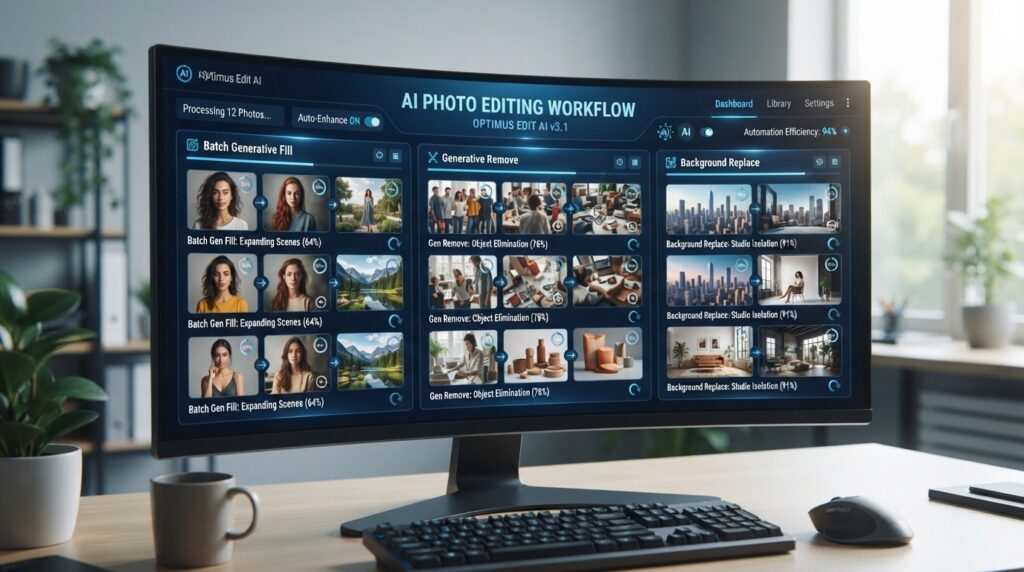
You batch Photoshop’s generative tools by combining consistent selections, fixed prompts, and recorded actions, then running them on a folder.
- Selections first: Define subject or region masks to control Generative Fill and Generative Remove. This prevents AI from affecting the subject when only the background should change.
- Fixed prompts: Reuse the same wording for the same outcome. Small numeric tweaks are safer than new adjectives each run.
- Recorded actions: Record selection loading, generative step, slider adjustment, and saving. Then apply the action to a batch.
- Deterministic fallbacks: For simple patches, consider content-aware or healing brushes. In our review of community troubleshooting, editors often prefer deterministic fixes for minor artifacts because they behave predictably in batch.
Batch editing caution
Do not treat every fix as a fully generative task. For simple repeated patches, deterministic content-aware or healing actions can reduce artifacts and behave more predictably in batch.
Is BeFunky Photo Editor Good for Beginners? Quick-Start Steps
BeFunky Photo Editor is a solid beginner-friendly option for quick batch work when you do not need complex masks or multi-step generative edits.
- Apply preset looks: Choose a preset tone or style and apply it to many images for a unified aesthetic.
- Batch background cleanup: Use background tools to simplify or standardize skies and flat backdrops.
- Consistent tone adjustments: Fix exposure, contrast, and temperature with the same values, then run the batch.
- Export sets: Save outputs with one-size and naming preset to finish fast.
Verdict: BeFunky trades deep control for speed. It is a practical on-ramp for teams who want consistent tone and simple backgrounds without heavy setup.
Beginner path
BeFunky is useful when your batch needs fast preset-based tone, simple backgrounds, and predictable exports instead of complex masks or multi-step generative edits.
Who Should Choose Which Tool? Use-Case Fit
| Stage | Recommended Tools | Why |
|---|---|---|
| Product catalogs | Photoshop + ChatGPT | Mask-aware edits and stable prompts |
| Social aesthetics | Photoshop + ChatGPT | Cinematic color grading, sliders for consistency |
| Quick presets | BeFunky Photo Editor | Fast batch tone and background tasks |
| Mixed complexity sets | Photoshop + ChatGPT | Generative Fill/Remove with actions |
| Non-technical teams | BeFunky Photo Editor | Minimal setup, predictable exports |
Key Takeaways
- Use Photoshop + ChatGPT for selective, brand-locked looks.
- Use BeFunky for fast, light-touch batches.
- Save actions and export presets to avoid last-mile drift.
Common Mistakes and How Do You Avoid Them in AI Batch Editing?
The most common mistakes come from inconsistent instructions and overusing global effects.
- Changing prompt wording mid-set: Lock one template and only adjust numeric intensities.
- Global edits instead of masks: Use selections so generative steps respect edges and hair.
- Over-relying on Generative Fill: For tiny fixes, deterministic content-aware or healing actions are cleaner in batch.
- Skipping export presets: Fix size, color space, and compression so outputs match platforms or marketplaces.
- Ignoring preview checks: Spot-check every 10–20 images to catch drifts early.
Mistake to avoid
Do not change prompt wording mid-set. Lock one template, adjust only numeric intensities, and spot-check every 10–20 images to catch drift early.
Mid-Workflow Tip: Turn Consistent Photos into Ads Fast
If you need ad-ready motion after batch editing, assemble your images into short videos with VidAU AI Video or generate fresh visuals with VidAU AI Image. For cleanup in visuals, try Object Remover. When you want to auto-build promos from product pages, use URL to Video or prompt-first stories with Text to Video.
Our in-house marketing team often turns consistent product stills into quick promo loops for social using these steps before launch.
Turn Batch-Edited Photos Into Promo Videos
Use VidAU AI Image to generate fresh campaign visuals, then turn consistent edited photos into short videos with VidAU AI Video, Object Remover, URL to Video, and Text to Video.
VidAU workflow
Where VidAU Fits After AI Photo Batch Editing
- Use Photoshop + ChatGPT for consistent image sets: Lock a base look, write a fixed prompt template, apply mask-aware edits, save actions, and export with presets.
- Use BeFunky for fast starter batches: Apply quick preset looks, tone adjustments, simple background cleanup, and predictable exports when deep masking is not needed.
- Use VidAU AI Image for fresh campaign visuals: Generate new assets when batch editing existing photos is not enough for the next creative set.
- Use Object Remover for visual cleanup: Clean distractions in assets before turning them into ads, loops, or product content.
- Use VidAU AI Video, URL to Video, and Text to Video for motion: Convert consistent edited stills, product pages, or prompt-first story ideas into short promotional videos for social and campaigns.
Why Does This Chat-Based Approach Work Now?
This approach works because creative tools are moving into assistant-style, conversational surfaces. Based on our Information Gain Center research, vendors are integrating generative features into chat and agent ecosystems, which aligns with the photoshop chatgpt photo editor workflow and makes slider-based fine-tuning practical at scale.
Workflow shift
Creative tools are moving into assistant-style, conversational surfaces, making structured prompt templates and slider-based fine-tuning easier to repeat across large photo sets.
Final Recommendations: Who Should Use Which Option?
For on-brand catalogs, social sets, and campaigns needing precise edges and repeatable style, choose Photoshop guided by ChatGPT prompt templates and save everything as actions. For teams prioritizing simplicity and speed over selective control, BeFunky Photo Editor is the best photo editor starting point.
Key takeaway
Final Thoughts
For most teams seeking the best AI photo batch editor, a prompt-templated ChatGPT workflow controlling Photoshop’s Generative Fill, Generative Remove, and Background Replace is the most consistent path. Save your steps as actions, keep prompts fixed, and export with presets.
When you want quick wins with minimal setup, BeFunky Photo Editor is a dependable starter for batch tone and background tasks. After you finalize images, you can turn them into short promos with VidAU AI Video or create new visuals with VidAU AI Image.
FAQ
Here are answers to common questions about the best AI photo batch editor, Photoshop + ChatGPT workflows, ChatGPT photo editor prompts, BeFunky Photo Editor, Generative Fill, Generative Remove, Background Replace, cinematic color grading, export presets, and turning edited photos into promo videos.
What is the best AI photo batch editor for consistent looks?
The most reliable setup is ChatGPT prompt templates driving Adobe Photoshop’s Generative Fill, Generative Remove, and Background Replace, saved as reusable actions with fixed export presets. This pairing balances creative flexibility with mask-aware control, producing stable results across large image sets.
How do I write a chatgpt photo editor prompt that stays consistent?
Use a short, fixed template and only vary numeric intensities. Include the style (cinematic color grading), cleanup targets (Generative Remove for small distractions), and background rules (Background Replace with a specific gradient). Avoid changing adjectives mid-batch; stable phrasing prevents look drift.
Is the photoshop chatgpt photo editor workflow hard to set up?
It is straightforward once you define a base look. Create selections, run generative steps guided by a single prompt, fine-tune with sliders, then save the sequence as an action. The learning curve is mainly in deciding a repeatable look and writing a compact, parameterized prompt.
When should I prefer deterministic tools over Generative Fill?
For simple patches like tiny blemish removals or flat background nicks, deterministic content-aware or healing actions are faster and more predictable in batch. Our team’s review of editor discussions shows many prefer these for minimal artifacts when changes are small and repetitive.
Is BeFunky Photo Editor good for batch work?
Yes. BeFunky Photo Editor is practical for beginners who need fast, consistent tone adjustments and basic background cleanup. It is ideal when you do not require complex masks or multi-step generative edits and want a predictable preset-driven flow with simple exports.
How do I keep cinematic color grading consistent across a set?
Start with one baseline grade saved as a preset or action. In prompts, describe the same grade with numeric guidance, such as grain 6% or halation 4%. After AI steps, use intensity sliders to match the baseline, then export through the same preset for every image.
Can I batch replace backgrounds without haloing or edge issues?
Yes, if you use subject masks and keep the background prompt stable. Apply Background Replace only to the background selection, keep gradients simple, and apply a small blur to avoid banding. Inspect hair and edge detail every 10–20 images to catch issues early.
What export settings matter most for large social or catalog batches?
Use fixed export presets for size, color space, and compression. Keep naming patterns uniform for upload tools and ensure aspect ratios match platforms or marketplace requirements. Consistent export settings prevent last-mile shifts that make otherwise identical images look different.
How do I scale the workflow to hundreds of images?
Lock prompts, record actions, and process in chunks with regular spot-checks. Keep a single source of truth for presets and version them. If you add a new step, update the action and rerun only the affected subset to avoid reprocessing everything.
Can I turn edited photos into short promo videos quickly?
Yes. After batch edits, assemble images into short ads or loops using tools like VidAU AI Video (https://www.vidau.ai/vidau-ai-video/) or build promos from product pages with URL to Video (https://www.vidau.ai/url-2-video/). Keep durations tight and reuse the same color grade for visual continuity.