Image-to-Video AI Without Watermarks: Best Free Tools for Creators in 2026
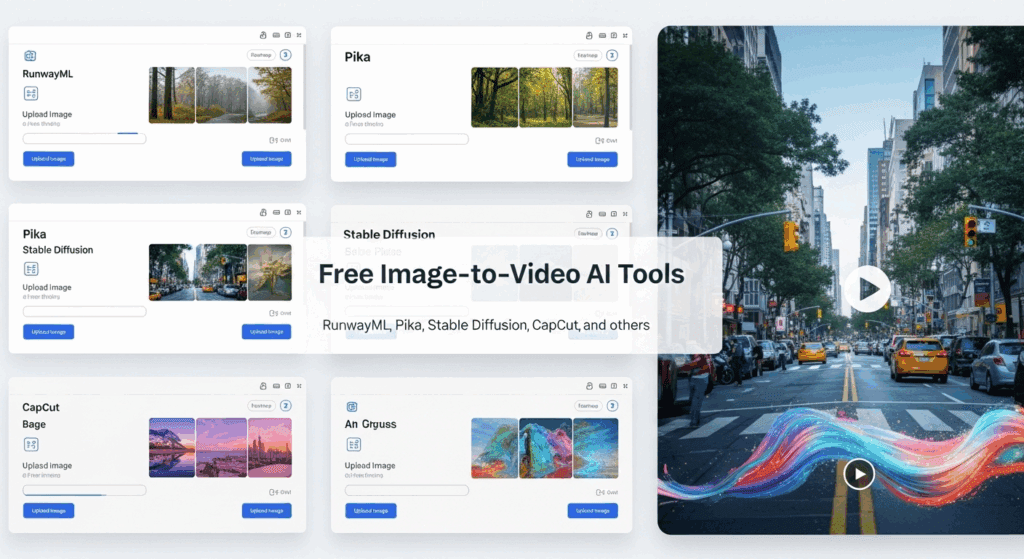
Turn any image into professional video content completely free, no watermark. Image to video AI solves this, if you know which tools actually let you export clean videos without watermarks or paywalls.
Static images don’t perform anymore. Platforms like TikTok, Reels, and Shorts aggressively prioritize motion. The problem? Traditional animation software is expensive, slow, and overkill for creators who just want eye-catching motion.
Below is a creator-focused, technical breakdown of the best free image-to-video AI workflows, how their animation quality compares, and how to turn still graphics into viral video content.
1. Free Image to Video AI Tools That Actually Remove Watermarks
Let’s be clear: most hosted AI video platforms monetize with watermarks. The workaround is using open-source or local pipelines where you control the render output.
✅ ComfyUI + Stable Video Diffusion (SVD)
Best overall free solution with zero watermarking.
ComfyUI is a node-based visual engine that runs locally and supports:
– Stable Video Diffusion
– AnimateDiff
– ControlNet motion guidance
Why it works:
– No cloud paywall
– Usage not limited
– No watermark ever
Technical advantages:
– Latent Consistency Models (LCM) for fast generation
– Seed parity for consistent motion across multiple renders
– Euler A or DPM++ schedulers for smooth temporal transitions
This setup is ideal for creators who want cinematic motion from product shots, posters, or thumbnails.
⚠️ Runway, Kling, Sora (Why They’re Limited for Free Users)
These tools are powerful but constrained:
– Runway Gen-3: Free tier adds watermark
– Kling: High-quality motion, but watermark on free exports
– Sora: Not publicly available or free for creators
They’re great for testing ideas, but not for publishing clean content without paying.
✅ Open-Source AnimateDiff (via ComfyUI)
AnimateDiff converts still images into motion using diffusion-based temporal modeling.
Key features:
– Frame-consistent motion
– Prompt-controlled animation styles
– Works with ControlNet for camera pans, zooms, and parallax
When paired with:
– Depth maps (MiDaS)
– Edge detection (Canny ControlNet)
you can simulate 2.5D motion that looks hand-animated.
2. Animation Quality, Motion Control, and Style Comparison
| Tool | Motion Quality | Style Control | Watermark | Learning Curve |
| ComfyUI + SVD | High | Very High | None | Medium |
| AnimateDiff | Medium–High | High | None | Medium |
| Runway | High | Medium | Yes (Free) | Low |
| Kling | Very High | Medium | Yes | Low |
Key technical differentiator:
Open-source tools allow latent-space control, meaning motion is generated inside the diffusion process instead of being post-processed. This results in smoother transitions and fewer artifacts.
Using Euler A schedulers* produces more organic motion, while *DPM++ is better for sharp, commercial visuals.
3. Turning Static Images into Viral Social Content with AI Video
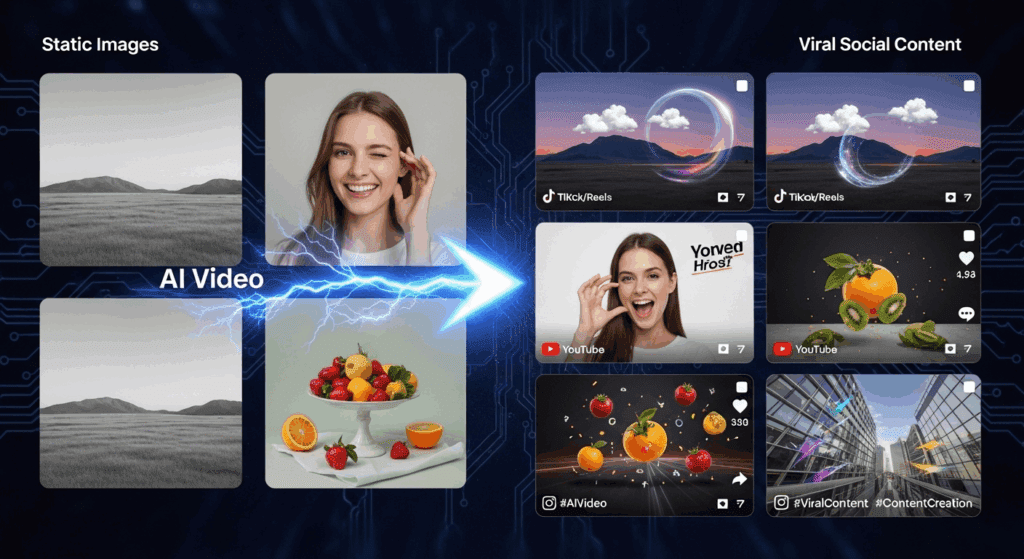
Here’s a proven workflow used by social media marketers:
Step 1: Prepare the Image
– High-resolution (1024×1024 or higher)
– Clear subject separation
– Strong lighting contrast
Step 2: Animate with Intent
Instead of “make it move,” use prompts like:
> Slow cinematic push-in, subtle ambient motion, parallax depth, professional commercial style
This guides the latent motion field rather than random animation.
Step 3: Optimize for Platform Ratios
In ComfyUI:
– Generate square
– Crop to 9:16 or 4:5 in post
– Preserve subject center to avoid cropping artifacts
Step 4: Loop for Virality
Use:
– 12–16 frames
– Seed parity
– Loop-aware prompting
This creates seamless loops perfect for Reels and Shorts.
How to Use VidAU for Image-to-Video AI Without Watermarks
VidAU gives creators a quick way to turn static images into vertical videos without learning complex tools. Here’s how to use it to create clean, watermark-free content:
Step 1: Upload or Select an Image
Start with a product shot, AI-generated image, or social graphic. Use PNG or JPG formats with good lighting and subject clarity.
Step 2: Choose a Video Format
Select vertical (9:16), square (1:1), or landscape (16:9). For TikTok and Reels, 9:16 works best. VidAU auto-crops and centers content to fit the frame.
Step 3: Add Motion
Use built-in animation presets like zoom-in, pan, or parallax. VidAU applies these smoothly to simulate movement without any editing or timeline work.
Step 4: Add Text and Audio
Write a short caption, add product labels, or insert a voiceover. You can also upload your own audio or choose from built-in templates.
Step 5: Export Without Watermark
On free or trial plans, VidAU allows a set number of clean exports. Choose high-resolution MP4 format for best quality.
What Makes It Work:
- No video editing skills needed
- Everything runs in-browser
- Fast exports ready for social upload
- No watermark on eligible plans
This method is ideal for creators who want clean, scroll-stopping videos without managing open-source setups or navigating watermark-heavy tools.
Final Takeaway
If you want true image to video AI without watermarks*, the answer isn’t a flashy web app, it’s *open-source pipelines like ComfyUI with Stable Video Diffusion and AnimateDiff.
They give you:
– Full creative control
– No branding
– No limits
– Professional-grade motion
For creators repurposing static graphics, this is the fastest path from image to scroll-stopping video without spending a dollar.
Frequently Asked Questions
Q: Can I really export image-to-video AI without watermarks for free?
A: Yes. Open-source tools like ComfyUI with Stable Video Diffusion or AnimateDiff allow unlimited exports with no watermarks because everything runs locally.
Q: Is ComfyUI too technical for social media creators?
A: There is a learning curve, but prebuilt workflows make it accessible. Once set up, it’s faster than most paid platforms.
Q: Which scheduler is best for smooth animation?
A: Euler A is ideal for organic, cinematic motion. DPM++ works better for sharp, commercial-style animations.
Q: Can I create vertical videos for TikTok and Reels?
A: Yes. Generate square or horizontal videos and crop to 9:16 while keeping the subject centered to avoid quality loss.