CapCut Export Settings · TikTok AI Videos
How to Export AI Videos from CapCut for TikTok: Settings and Best Practices
Use the correct CapCut export settings for TikTok AI videos, including 1080×1920 resolution, 9:16 aspect ratio, MP4, H.264, 30fps, and high bitrate.
By the Sarah Iruoje · CapCut TikTok export guide · 13 min read
If your AI video looks sharp in CapCut but soft or letterboxed on TikTok, the problem is almost always your export settings, not the AI clip itself.
The correct capcut settings to export ai videos for tiktok are 1080×1920 resolution, a 9:16 vertical aspect ratio, MP4 format with the H.264 codec, and a frame rate of 30fps. Set bitrate to high, keep the file under TikTok’s limits, and your AI clip will upload without TikTok recompressing it into a blurry mess. Get these wrong and your generated video looks soft, cropped, or stretched.
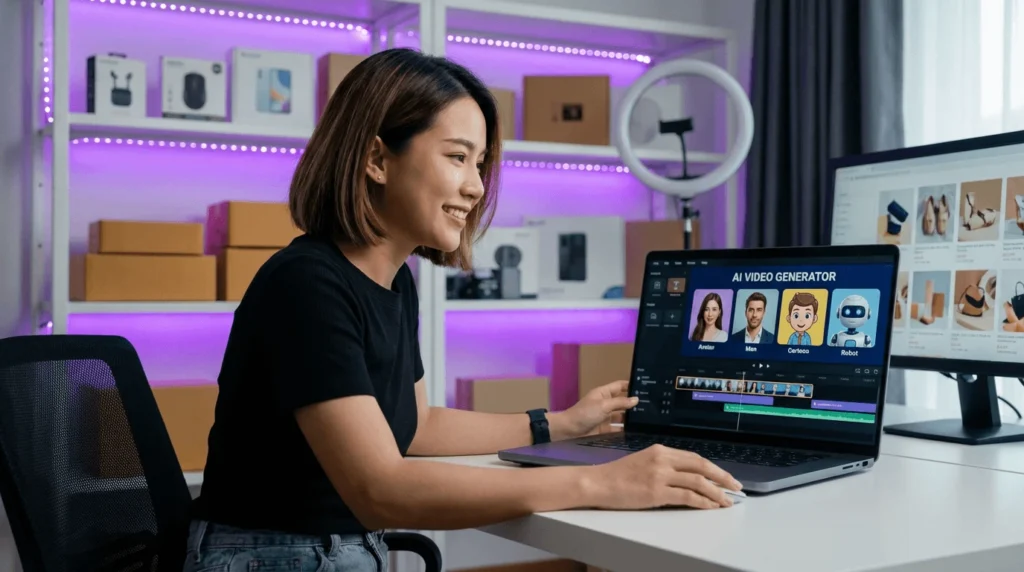
This guide is for content creators, social media managers, and TikTok users who build clips with CapCut’s AI Video Generator and need a clean handoff to TikTok. We cover the exact export menu options, quality-versus-file-size tradeoffs, the long-to-shorts reframing step, and the most common export bugs that ruin AI videos.
Featured image placeholder for CapCut TikTok export settings, AI video export quality, 1080×1920 resolution, 9:16 vertical aspect ratio, MP4, H.264, 30fps, bitrate, and VidAU AI video workflows.
Quick Summary
- The best CapCut export setting for TikTok is 1080×1920 resolution, 9:16 aspect ratio, MP4 format, H.264 codec, and 30fps for clean playback.
- For sharper detail on text-heavy AI videos, set bitrate to High (or a custom 8-12 Mbps) to reduce TikTok’s compression damage.
- TikTok favors vertical 9:16 video uploaded as MP4 under roughly 287.6MB on mobile, so keep file size in that range.
- Faceless creators using CapCut’s AI Video Generator for daily TikToks benefit most from saving a reusable export preset.
What Are the Best CapCut Export Settings 2026 for TikTok?
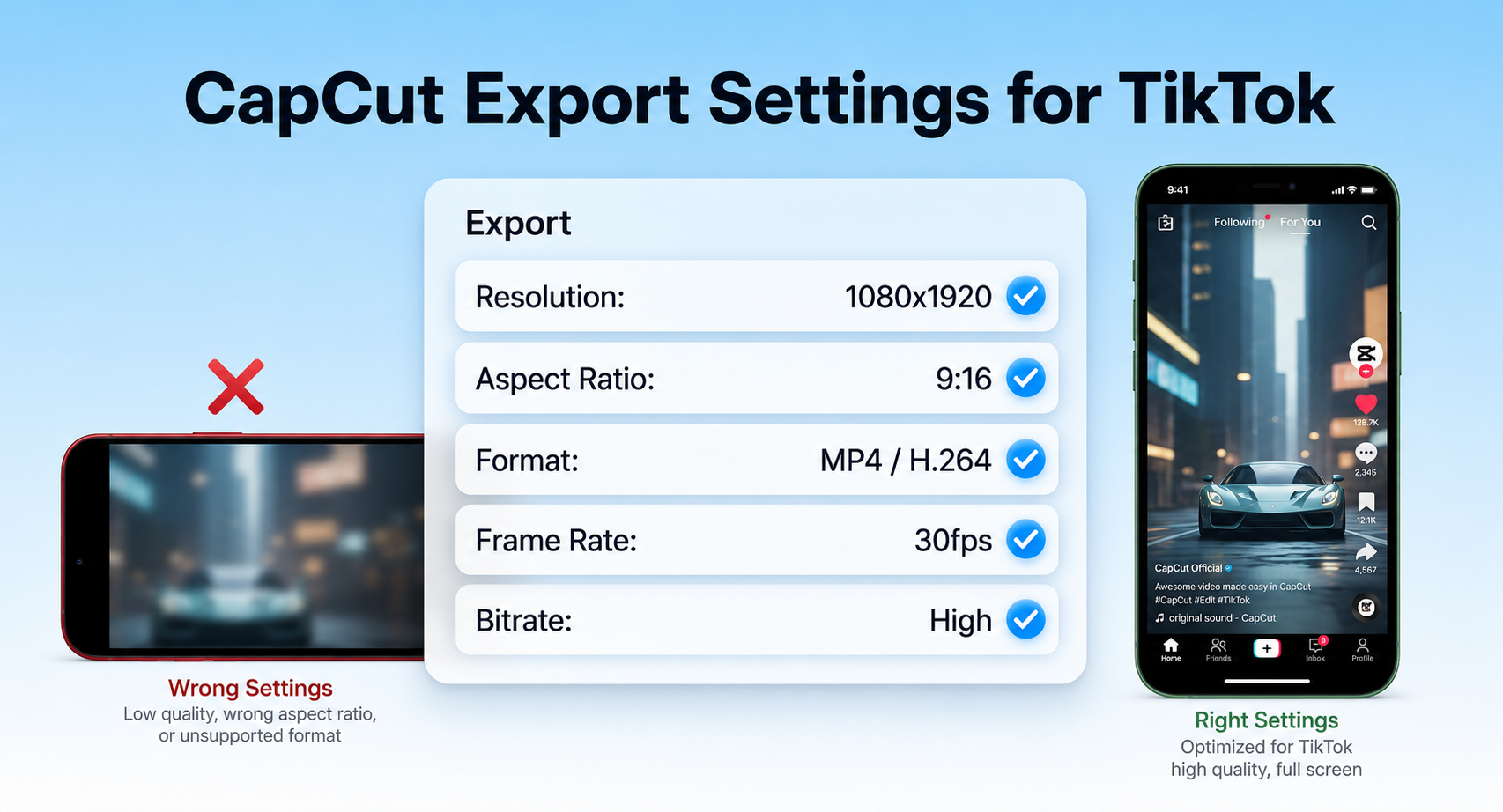
The best CapCut export settings for TikTok are 1080×1920 resolution, a 9:16 vertical aspect ratio, MP4 container, H.264 codec, and 30fps frame rate, with bitrate set to High. These match TikTok’s vertical feed and stop the app from heavily recompressing your file.
These settings apply whether your clip came from a camera, stock footage, or CapCut’s AI Video Generator. AI videos in particular suffer from double compression, so a strong starting export helps.
Recommended export settings table
| Setting | Recommended Value | Why It Matters |
|---|---|---|
| Resolution | 1080×1920 | Matches TikTok full vertical screen |
| Aspect ratio | 9:16 | Avoids black bars and cropping |
| Format and codec | MP4, H.264 | Best TikTok compatibility |
| Frame rate | 30fps | Smooth playback, smaller files |
| Bitrate | High (8-12 Mbps) | Keeps AI detail sharp |
Best settings
Use 1080×1920 resolution, 9:16 vertical aspect ratio, MP4 container, H.264 codec, 30fps, and High bitrate for the cleanest CapCut-to-TikTok AI video export.
Why Do Export Settings Matter for AI Videos?
Export settings matter for AI videos because generated footage often carries fine detail, fast motion, or on-screen captions that compress badly when settings are wrong. The wrong resolution forces TikTok to upscale or downscale, which softens AI faces and text.
AI clips from the [CapCut AI Video Generator] are already encoded once. When you export at low bitrate and TikTok compresses again, you stack two rounds of quality loss. Picking 1080×1920 at high bitrate gives TikTok a clean source so its final pass does less damage.
If you create AI ad-style videos at scale, tools like VidAU AI Video and Text to Video export directly in vertical 9:16, which removes part of this guesswork before you ever touch CapCut.
Compression warning
AI videos can suffer from double compression: once during AI generation or CapCut export, then again when TikTok processes the upload. High-quality export settings reduce the damage.
Step-by-Step: How to Export AI Videos from CapCut for TikTok in 2026
Follow these steps to export an AI video for TikTok with the correct settings.
1. Open your AI project in CapCut and confirm the canvas is set to 9:16.
2. Tap or click the Export button in the top-right corner.
3. Set resolution to 1080p (1080×1920 for vertical projects).
4. Set frame rate to 30fps for most TikTok content.
5. Set bitrate or quality to High, or choose a custom value around 8-12 Mbps.
6. Confirm the format is MP4; on desktop, check the codec is H.264.
7. Export the file, then check the saved video plays cleanly at full screen.
8. Upload directly to TikTok from the same device for the most reliable result.
On mobile CapCut, the export menu shows simple sliders for resolution and frame rate plus a quality estimate. On desktop CapCut, you get an explicit codec field, bitrate field, and a clearer file-size preview, which is better for fine control.
Suggested Visual: Annotated CapCut export screen showing resolution, frame rate, and bitrate fields. Filename idea: capcut-tiktok-export-settings.png
Tip
Desktop CapCut gives finer export control because it exposes codec, bitrate, and file-size fields. Mobile CapCut can still produce the same 1080×1920 MP4 H.264 TikTok-ready export.
How to Set the Right Resolution and Aspect Ratio
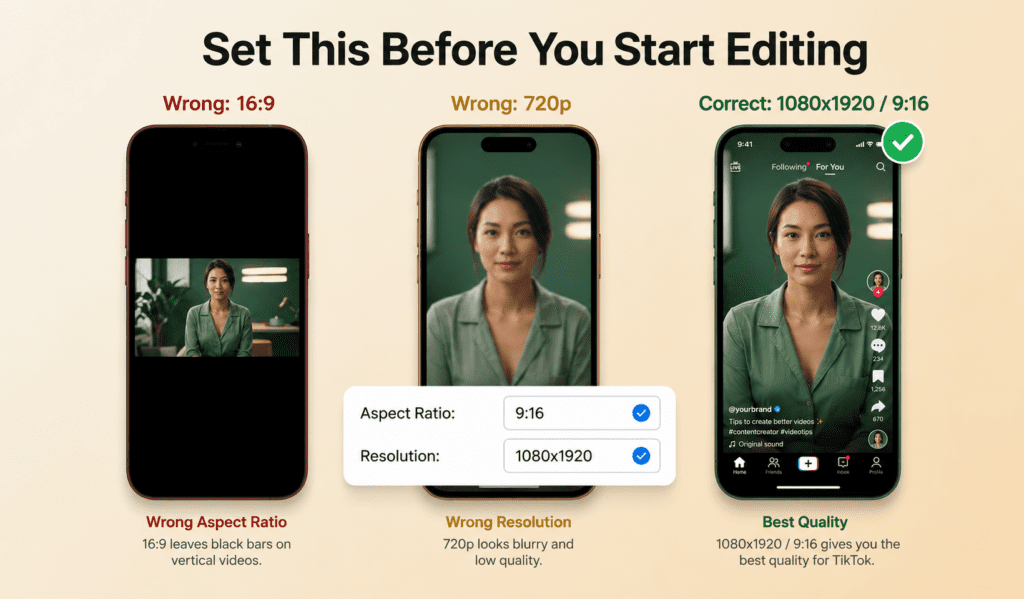
Set your CapCut project to a 9:16 aspect ratio first, then export at 1080×1920 resolution. This produces a full-screen vertical TikTok with no black bars and no awkward cropping of your AI subject.
Do the aspect ratio choice early. If you generate an AI video in another shape and only fix it at export, parts of the frame get cut. Adjust the canvas ratio in the project settings, then reposition your clips inside it.
Key Takeaways
- Choose 9:16 in project settings before editing, not after.
- Export at 1080×1920 for native TikTok playback.
- Avoid 720p unless file size is a hard problem; 1080p looks noticeably sharper on phones.
How to Use Bitrate Settings for Quality Control
Bitrate controls how much data CapCut keeps per second of video, so higher bitrate means more detail and larger files. For TikTok AI videos, set quality to High or a custom bitrate around 8-12 Mbps to protect captions, fast cuts, and AI textures.
This is a tradeoff. Higher bitrate looks better but creates bigger files that take longer to upload. Lower bitrate uploads faster but shows more blocking on busy scenes. For most AI shorts, High quality at 1080p is the right balance.
If your file gets too large for mobile upload, drop frame rate to 30fps before you drop resolution. Cutting resolution hurts sharpness more than a small bitrate reduction.
Create TikTok-Ready AI Videos With VidAU
Use VidAU AI Video, Text to Video, URL to Video, Vid Remix, and Video Enhancer to generate vertical AI clips, improve quality, and prepare repeatable TikTok export workflows before final polish in CapCut.
VidAU workflow
Where VidAU fits before your CapCut export
- Generate vertical AI clips first: Use VidAU AI Video or Text to Video to create AI ad-style or short-form clips directly in vertical 9:16 before sending them into CapCut.
- Turn sources into repeatable videos: Use URL to Video when you need multiple TikTok variants from product URLs, images, or scripts.
- Repurpose long or horizontal footage: Use VidAU Vid Remix and Auto-reframe-style workflows to convert one source into multiple aspect ratios.
- Improve weak source clips: Use Video Enhancer when the AI clip looks soft before export, then finish with CapCut settings for TikTok.
- Use CapCut for final polish: Bring the VidAU-generated clip into CapCut, confirm 9:16, export at 1080×1920 MP4 H.264, and upload directly to TikTok.
How to Convert Long Videos to Shorts and Reframe for TikTok
To convert a long horizontal video into a TikTok short, change the canvas to 9:16, then use CapCut’s auto-reframe to keep the subject centered. This is how you handle capcut long to shorts workflows without manual repositioning on every clip.
When you learn how to convert videos for tiktok, the core move is the same each time: vertical canvas, reframe the action, trim to a tight length, then export with the settings above. CapCut’s auto-reframe tracks the main subject, which saves time on talking-head or product clips.
For turning existing horizontal footage or full ads into vertical shorts at scale, VidAU Vid Remix and the Auto-reframe-style workflow in VidAU can repurpose one source into multiple aspect ratios.
Suggested Visual: Side-by-side comparison showing a long horizontal video reframed into a vertical TikTok short using CapCut auto-reframe.
Tip
For long-to-shorts workflows, set a vertical canvas first, use auto-reframe to follow the subject, trim tightly, then export with the same TikTok-safe CapCut settings.
Troubleshooting Common CapCut Export Problems
Most CapCut export problems come from mismatched settings, low storage, or app glitches. Here are the frequent issues and quick fixes.
- Blurry video after upload: export at 1080×1920 High bitrate, then upload as a file rather than re-recording.
- Black bars on TikTok: your project was not 9:16; reset the canvas ratio and re-export.
- Export fails or freezes: close other apps, free up storage, and update CapCut.
- Audio out of sync: re-export at the same frame rate used in the timeline, usually 30fps.
- File too large to upload: lower frame rate to 30fps or trim length before reducing resolution.
- Watermark on the export: remove the default outro element and check your export options before saving.
If your AI clip itself looks soft before export, the source generation is the limit, not CapCut. Cleaning it up with a tool like Video Enhancer before export can help, but it cannot recover detail that was never generated.
Watch out
If the source AI clip is already soft before export, CapCut settings cannot fully restore detail. Use a cleaner generation or run the clip through a video enhancer before final export.
Advanced Tips for Repeat TikTok Exports
If you post AI shorts daily, save your export preset once so every TikTok ships at 1080×1920, 9:16, MP4, H.264, and High bitrate without re-checking each field. Consistent settings keep your feed looking uniform and reduce upload errors.
Keep your AI generation, captions, and music inside a template project, then duplicate it for each new video. For larger volumes, batch-style platforms such as VidAU AI Video and URL to Video generate multiple vertical clips at once, which pairs well when you only use CapCut for final polish.
Tip
Save one reusable TikTok export preset and duplicate a template project for daily AI shorts. This keeps quality consistent and reduces repeated export mistakes.
Key takeaway
Final Thoughts
The right capcut settings to export ai videos for tiktok come down to a short checklist: 9:16, 1080×1920, MP4 with H.264, 30fps, and High bitrate. Set the aspect ratio before editing, protect quality with bitrate, and upload the exported file directly to TikTok.
If you want vertical AI videos that already export in TikTok-ready formats with less manual setup, try generating your base clips on VidAU AI Video , then finish them in CapCut. VidAU is an AI video ad platform that generates video ads from product URLs, images, or scripts in 49 languages, which makes it useful when you need many TikTok variants fast.
FAQ
Here are answers to common questions about CapCut export settings for TikTok, AI video resolution, 9:16 aspect ratio, MP4 and H.264 exports, bitrate, blurry TikTok uploads, CapCut long to shorts, mobile versus desktop CapCut, watermark removal, and frame rate.
What resolution should I export AI videos in for TikTok?
Export AI videos at 1080×1920 resolution for TikTok. This is the native vertical size, so the video fills the full screen without upscaling or cropping. Avoid 720p unless your file size is too large to upload, since 1080p looks noticeably sharper on phone screens.
What aspect ratio does TikTok use in CapCut?
TikTok uses a 9:16 vertical aspect ratio. In CapCut, set the project canvas to 9:16 before editing, not at export. Setting it early keeps your AI subject framed correctly and prevents black bars or unwanted cropping when the clip plays in the TikTok feed.
What is the best format and codec for CapCut TikTok exports?
The best format is MP4 with the H.264 codec. MP4 with H.264 is widely supported by TikTok, uploads reliably, and balances quality with file size. On desktop CapCut you can confirm the codec directly; on mobile, MP4 is the default export container.
What bitrate should I use for AI videos on TikTok?
Use a High bitrate setting, or a custom value around 8-12 Mbps for 1080p vertical video. Higher bitrate keeps captions and AI detail sharp before TikTok applies its own compression. If files get too large, lower frame rate to 30fps before reducing resolution.
Why does my CapCut AI video look blurry on TikTok?
Your AI video looks blurry on TikTok usually because of low export bitrate or wrong resolution, which forces TikTok to compress again. Export at 1080×1920 with High bitrate and upload the file directly. If the source AI clip was already soft, the export cannot fully restore detail.
How do I convert a long CapCut video into a TikTok short?
Change the project canvas to 9:16, then use CapCut’s auto-reframe to keep the subject centered while it crops to vertical. Trim the timeline to a tight length, then export at 1080×1920, MP4, H.264, and 30fps so the short uploads cleanly to TikTok.
Do CapCut export settings differ on mobile and desktop?
Yes. Mobile CapCut shows simplified resolution and frame-rate sliders with a quality estimate, while desktop CapCut exposes explicit codec, bitrate, and file-size fields. Desktop gives finer control for AI videos, but both can produce the same 1080×1920 MP4 H.264 output for TikTok.
How do I remove the watermark when exporting from CapCut?
Remove the default CapCut outro element from your timeline and check your export and account options before saving. Watermarks usually appear from an automatic end-card clip or a free-export setting, so deleting that element and reviewing the export screen prevents it on the final file.
What frame rate is best for TikTok AI videos?
30fps is best for most TikTok AI videos because it plays smoothly and keeps file sizes manageable. Use 60fps only when your source footage is genuinely high frame rate and motion is fast. Match your export frame rate to your timeline to avoid audio sync problems.