AI Image Generation · ChatGPT Image 2.0 Guide
ChatGPT Image 2.0 : Features, Use Cases & How to Get Started
Explore improved text rendering, thinking mode, batch generation, aspect ratio control, 2K output, image-to-image editing, and practical workflows for creators and marketers.
By the VidAU Editorial Team · Updated 2026 · 24 min read
ChatGPT image 2.0 represents a significant advancement in AI image generation technology, launched in April 2026 by OpenAI. The new version addresses many of the limitations that plagued earlier AI image generators, particularly around text accuracy, design control, and professional output quality. The model immediately topped the Arena leaderboard upon release, demonstrating its technical superiority over competing solutions.
The release comes at a crucial time for content creators and marketers who need to produce professional visual assets quickly without extensive design expertise. ChatGPT Image 2.0 delivers on the promise of accessible design tools by combining improved AI capabilities with intuitive controls that allow users to generate social media ads, infographics, UI mockups, and professional presentations in minutes rather than hours.
What sets this version apart is its practical focus on real-world design applications. Rather than simply generating artistic images, ChatGPT Image 2.0 excels at creating functional design work that meets professional standards for typography, layout, and visual hierarchy.
Quick summary
- ChatGPT Image 2.0 focuses on practical design work, including social media ads, infographics, UI mockups, posters, presentations, and other professional visual assets.
- Major improvements include text rendering, thinking mode, batch generation, native aspect ratio control, 2K output, image-to-image editing, and multilingual text support.
- Content creators can use it for social media content, YouTube thumbnails, advertising materials, infographics, presentations, and UI or web design mockups.
- For video campaigns, static assets generated in ChatGPT Image 2.0 can support thumbnails, title cards, ads, product visuals, and visual foundations for AI video tools like VidAU AI.
Contents
- What’s New in ChatGPT Image 2.0
- Getting Started with ChatGPT Image 2.0
- Practical Use Cases for Content Creators
- Advanced Features and Techniques
- Troubleshooting Common Issues
- Comparing ChatGPT Image 2.0 to Alternatives
- Integration with Video Creation Tools
- Best Practices for Professional Results
- Conclusion
- FAQ
What’s New in ChatGPT Image 2.0
ChatGPT Image 2.0 introduces several transformative features that address the core limitations of previous AI image generators. Understanding these improvements helps you leverage the tool effectively for your specific design needs.
Improved Text Rendering Accuracy
The most significant advancement in ChatGPT Image 2.0 is its ability to render text accurately within images. Earlier AI image generators struggled with typography, often producing garbled letters, incorrect spellings, or visually inconsistent text elements. This limitation made them impractical for any design work requiring readable text, such as posters, ads, or infographics.
ChatGPT Image 2.0 solves this problem through enhanced text understanding and rendering capabilities. The system can now handle multiple fonts, sizes, colors, and styles within a single image while maintaining accuracy. Users have successfully tested the model on extreme challenges, including writing text on individual grains of rice, demonstrating the precision of its text rendering engine.
Why this matters
Readable text turns AI image generation from a mostly artistic tool into a practical design workflow for posters, ads, infographics, thumbnails, presentations, and localized campaign assets.
Thinking Mode for Complex Designs
Thinking mode represents a fundamental shift in how AI approaches image generation. This feature, available to paid users, allows ChatGPT Image 2.0 to analyze complex design requests before generating images.
Batch Generation Capabilities
ChatGPT Image 2.0 allows you to generate up to eight images in a single prompt, maintaining consistent style and formatting across all outputs. This batch generation capability dramatically improves workflow efficiency for projects requiring multiple variations or a series of related images.
The system uses generation IDs (Gen_IDs) to maintain consistency across batches. When you create a batch, ChatGPT assigns a unique identifier that preserves style elements, color schemes, typography choices, and visual treatment. You can reference this Gen_ID in subsequent prompts to maintain the same aesthetic across different designs.
Native Aspect Ratio Control
Previous versions of AI image generators typically produced square images or required awkward workarounds to achieve different dimensions. ChatGPT Image 2.0 includes native support for multiple aspect ratios, allowing you to specify the exact format needed for your use case.
You can generate images in 16:9 widescreen format for YouTube thumbnails, presentations, and website headers, or 9:16 vertical format for Instagram Stories, TikTok content, and mobile-first designs. The system also supports standard square formats and other common dimensions used in digital marketing.
2K Resolution Output
ChatGPT Image 2.0 generates images at 2K resolution, providing sufficient quality for most digital and many print applications. This resolution represents a significant upgrade from earlier versions and competing tools that often produced lower-quality outputs unsuitable for professional use.
Higher resolution means sharper text, clearer details, and more professional-looking results. The 2K output works well for social media posts, website graphics, presentation slides, digital advertisements, and small to medium print projects. While not suitable for large-format printing, the resolution meets the needs of most content creators and marketers.
Image-to-Image Editing Features
ChatGPT Image 2.0 includes powerful image-to-image editing capabilities that allow you to refine and modify existing images. You can upload an image and request specific changes, or use the in-painting editor to select and modify particular regions while leaving the rest untouched.
The in-painting feature provides surgical precision for image editing. You can select a specific element—like a product in a mockup or text in a poster—and ask ChatGPT to modify just that element while preserving everything else. This capability reduces the need for external editing tools and allows for rapid iteration on design concepts.
Image-to-image editing also enables you to transform reference images into new designs. You can upload a website screenshot and ask ChatGPT to recreate it with different branding, or provide a product photo and request it be placed in various mockup contexts. The system understands the structure and intent of the original image, allowing it to make intelligent modifications rather than simple overlays.
Getting Started with ChatGPT Image 2.0
The Ultimate Video Ads Solution for Your Brand
Accessing and using ChatGPT Image 2.0 requires understanding the available options and setting up your workflow properly. The process differs slightly depending on whether you use a free or paid account.
Access Requirements and Account Options
ChatGPT Image 2.0 is available to both free and ChatGPT Plus subscribers, though with different feature sets and usage limits. Free users can access the basic image generation capabilities but face restrictions on the number of images they can create within a given timeframe and may not have access to thinking mode or advanced features.
Step-by-Step Setup Process
Setting up ChatGPT Image 2.0 for optimal use involves a few straightforward steps that ensure you can access all available features and generate the best possible results.
- First, log into your ChatGPT account at chat.openai.com. If you don’t have an account, create one by clicking the signup option and following the registration process. Once logged in, you’ll see the standard ChatGPT interface.
- To generate an image, simply describe what you want in the chat interface. You don’t need to activate a special mode or navigate to a different section. ChatGPT automatically recognizes image generation requests and routes them to the appropriate system.
- For standard generation, describe your desired image in detail. Include information about style, content, colors, text elements, composition, and any other relevant details. The more specific your description, the better the AI can match your intent.
- To activate thinking mode (if available with your account), specify in your prompt that you want the system to use thinking mode or provide a complex, detailed prompt that naturally triggers it. Thinking mode engages automatically for sufficiently complex requests, but you can explicitly request it for better results on important projects.
- For batch generation, state clearly how many images you want and describe the consistent elements that should appear across all outputs. You can also specify which elements should vary between images.
- To control aspect ratio, include the desired dimensions or format in your prompt. Phrases like “16:9 widescreen format” or “vertical format for Instagram Stories” help the system generate appropriately sized images.
Tip
For important projects, include the purpose, audience, platform, format, visual style, text hierarchy, color preferences, and any elements that should vary across batches. The more specific the creative brief, the more useful the output.
Prompt Engineering Best Practices
Effective prompting makes the difference between mediocre AI outputs and professional-quality designs. ChatGPT Image 2.0 responds well to clear, detailed instructions that specify both what you want and why you want it.
Start with a clear description of the image type and purpose. Instead of “create a poster,” specify “create a promotional poster for a jazz concert.” This context helps the AI make appropriate choices about style, composition, and visual treatment.
Include specific details about text elements. Specify the exact words that should appear, where they should be positioned, what size they should be relative to other elements, and what style or font characteristics would be appropriate. For example: “Place the headline ‘Summer Jazz Festival’ in large, bold letters at the top, with the date ‘July 15-17’ in smaller text below.”
Create AI Video Campaign Now
Use VidAU AI to turn static campaign visuals, product assets, thumbnails, avatar concepts, and AI-generated designs into dynamic marketing videos.
Advanced Features and Techniques
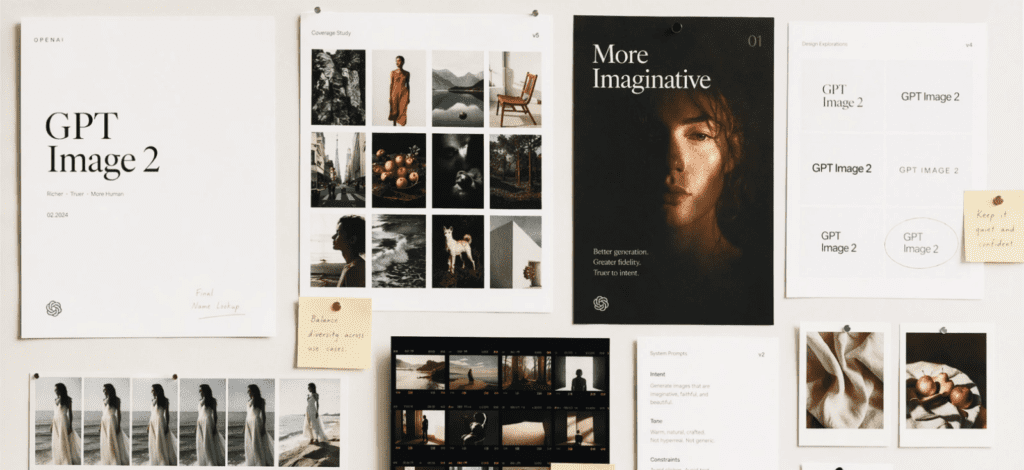
Beyond basic image generation, ChatGPT Image 2.0 offers sophisticated capabilities that enable more complex creative work when you understand how to leverage them effectively.
Mastering Thinking Mode
Thinking mode represents the most significant capability enhancement for complex design work. Understanding when and how to use it maximizes the value you get from ChatGPT Image 2.0.
Thinking mode activates when you submit prompts that require analysis, planning, or web research before image generation. The system recognizes certain complexity indicators: prompts exceeding several hundred words; requests involving multiple distinct elements with specific relationships; designs requiring cultural, historical, or technical accuracy; and tasks that benefit from reference research.
You can explicitly request thinking mode by including phrases like “use thinking mode” or “take time to plan this carefully” in your prompt. This ensures the system engages the deeper analysis process even if your prompt might not automatically trigger it.
When thinking mode activates, you’ll notice longer processing times as the AI analyzes your request. This delay is intentional and productive—the system is breaking down your requirements, considering design principles, searching for reference information, and planning the composition before generating the image.
Image-to-Image Editing Workflows
The image editing capabilities in ChatGPT Image 2.0 enable iterative design refinement and creative reinterpretation of existing visuals. Understanding the available workflows helps you incorporate editing into your creative process.
The basic editing workflow involves uploading an existing image and describing desired changes in text. ChatGPT Image 2.0 analyzes the image, understands its structure and content, and generates a modified version based on your instructions.
You can request global changes that affect the entire image: style transformations like “make this look like a vintage photograph” or “convert this to a minimalist design”; color adjustments like “change the color scheme to earth tones” or “make this more vibrant”; addition of elements like “add text that says [message] in the upper right”; or atmospheric changes like “make this feel more dramatic.”
The in-painting editor enables localized edits where you modify specific regions while preserving the rest. This tool works by allowing you to describe or select the area you want to change, then specify what modification should occur in that area only.
Common in-painting applications include object removal (deleting unwanted elements from photos), object replacement (swapping one element for another), background changes (keeping the subject while altering the environment), text updates (changing specific text elements while preserving layout), and detail refinement (improving specific sections without regenerating the entire image).
Image-to-image workflows also enable creative reinterpretation. You can upload a rough sketch and ask ChatGPT to transform it into a polished design, maintaining your composition but adding professional finish. Or upload a photo and request it be reimagined in different artistic styles, contexts, or with different subjects.
Product mockup creation particularly benefits from image editing. Upload a product photo and describe the mockup context—t-shirt, coffee mug, poster, packaging—and ChatGPT Image 2.0 will place your product in realistic mockup presentations without requiring specialized mockup tools.
One documented test showed successful removal of multiple objects from an image with a single prompt, demonstrating that the system can handle complex editing requests that affect multiple regions simultaneously.
Multi-Language Support Applications
ChatGPT Image 2.0’s support for non-Latin scripts opens possibilities for creating content in Japanese, Korean, Hindi, Arabic, Chinese, and other languages that previous AI image generators handled poorly.
This capability matters for global marketing campaigns where you need localized visual content for different markets. Instead of creating designs only in English and hoping they translate well, you can generate native-language versions with appropriate typography and layout considerations.
The text rendering accuracy extends to these writing systems, ensuring characters display correctly with appropriate spacing, directionality, and stylistic treatment. This is particularly important for languages like Arabic that read right-to-left, or East Asian languages that may use vertical text layouts in traditional contexts.
Watch out
Even when text rendering improves, always review spelling, numbers, labels, and calls-to-action before publishing. Professional visual assets still need human quality control.
Comparing ChatGPT Image 2.0 to Alternatives
Understanding how ChatGPT Image 2.0 compares to other AI image generators helps you choose the right tool for specific projects and understand where each excels.
ChatGPT Image 2.0 vs DALL-E
DALL-E is OpenAI’s previous AI image generation model, and ChatGPT Image 2.0 represents a significant evolution. The primary differences lie in capability and integration.
ChatGPT Image 2.0 offers superior text rendering compared to earlier DALL-E versions. The improvement in typography accuracy and multi-language support marks a substantial leap forward. Where DALL-E often produced garbled text that made it unsuitable for designs requiring readable words, ChatGPT Image 2.0 handles text reliably.
Resolution increased to 2K in ChatGPT Image 2.0, providing better quality for professional applications. Earlier DALL-E outputs sometimes felt too low-resolution for serious design work.
The thinking mode feature is exclusive to ChatGPT Image 2.0, enabling more sophisticated handling of complex design requests. This capability didn’t exist in previous DALL-E implementations.
Integration differs significantly. ChatGPT Image 2.0 exists within the broader ChatGPT interface, allowing you to discuss design concepts, iterate on ideas, and refine outputs through conversation. DALL-E standalone implementations lacked this conversational context.
When to Use Each Tool
Different AI image generators excel at different tasks. Choosing the right tool for each project improves results and efficiency.
Use ChatGPT Image 2.0 for social media posts requiring text overlays; advertising materials with headlines and copy; infographics and educational visuals; presentation slides and business graphics; UI mockups and web design concepts; any design work requiring accurate text in multiple languages; projects needing batch generation of consistent designs; and workflows where conversational iteration improves outputs.
Consider Midjourney for concept art and creative visualization; highly stylized artistic images; fantasy or science fiction illustrations; projects prioritizing aesthetic beauty over functional text; creative exploration without specific text requirements; and artwork where the artistic interpretation matters more than precise control.
| Tool | Strength described in the article | Best fit |
|---|---|---|
| ChatGPT Image 2.0 | Readable text, functional design, thinking mode, batch generation, Gen_ID consistency, and conversational iteration | Ads, social posts, thumbnails, infographics, presentations, UI mockups, and multilingual design assets |
| DALL-E | Earlier OpenAI image generation model with less capability compared to Image 2.0 | General image generation, but less suited for text-heavy design work |
| Midjourney | Highly aesthetic, stylized, and artistic image generation | Concept art, fantasy visuals, creative exploration, and image-first projects without precise text needs |
| Canva or Adobe Express | Template-based design, brand asset management, collaboration, and fast layout work | Social posts, branded graphics, team workflows, and quick marketing templates |
| Photoshop or Figma | Pixel-perfect manual control and production-level precision | Final production, complex layouts, advanced UI design, print prep, and exact technical requirements |
Integration with Video Creation Tools
While ChatGPT Image 2.0 focuses on static image generation, these outputs can be integrated into video workflows, particularly when working with AI video generation platforms.
For content creators building video content, the images generated by ChatGPT Image 2.0 serve as valuable assets for thumbnails, title cards, lower thirds, and B-roll visuals. The 2K resolution and clean designs make them suitable for integration into video projects.
When working with AI video platforms like VidAU AI, images created in ChatGPT Image 2.0 can be incorporated into video advertisements, social media content, explainer videos, and product demonstrations. VidAU AI specializes in AI-powered video creation for advertising and marketing applications, allowing you to combine static assets with AI avatars, voiceover, and motion elements.
VidAU workflow
From ChatGPT Image 2.0 assets to AI video campaigns
- Create the static campaign assets: Generate thumbnails, product visuals, ad layouts, infographics, title cards, and social-ready graphics in ChatGPT Image 2.0.
- Keep the visual system consistent: Use batch generation, Gen_IDs, consistent colors, and clear prompt templates so the campaign has a unified look.
- Bring assets into VidAU AI: Turn static visuals into video ads, explainer content, product demonstrations, avatar-led messages, or short-form social videos.
- Repurpose across channels: Use one visual concept for static ads, vertical videos, YouTube thumbnails, social campaigns, and localized marketing assets.
Best Practices for Professional Results
Achieving consistently professional outputs from ChatGPT Image 2.0 requires understanding not just the tool’s capabilities but how to apply design principles through AI prompting.
Design Principles for AI-Generated Images
Even when AI handles the technical execution, underlying design principles remain important. Incorporating these into your prompts produces better results.
Visual hierarchy determines what viewers notice first, second, and third. Specify which elements should dominate your designs: “The headline should be the most prominent element, followed by the product image, with the call-to-action button as the third focal point.” This guidance helps the AI create appropriate emphasis.
White space improves readability and professional appearance. Rather than cluttered designs, request layouts with breathing room: “Use generous white space around elements” or “keep the layout clean and uncluttered.” This prevents the AI from cramming too many elements into the composition.
Color psychology affects emotional response. Consider the feelings you want to evoke and choose colors accordingly. Blues suggest trust and professionalism, reds create urgency or excitement, greens imply growth or nature, yellows convey optimism and energy. Specify colors that match your intent.
Contrast ensures readability, especially for text elements. Request “high contrast between text and background” or “ensure all text is easily readable” to avoid designs where text disappears into busy backgrounds.
Alignment creates order and professionalism. Most designs benefit from clear alignment systems. Specify “align all elements to a clean grid” or “use centered alignment for formal appearance” based on your needs.
Typographic hierarchy establishes information structure. When designs include multiple text elements, specify their relationship: “headline in large bold text, subheadline at half that size, body text much smaller and lighter weight.”
Workflow Optimization Strategies
Efficient workflows maximize the value you extract from ChatGPT Image 2.0 while minimizing time spent on iteration and refinement.
Batch similar work together. When you need multiple social media posts, generate them all in one session rather than sporadically over time. This maintains creative consistency and uses your prompting momentum efficiently.
Start broad, then refine. Generate initial concepts quickly without overthinking every detail. Review the outputs, identify what works and what doesn’t, then refine your approach for the next iteration. This iterative process often reaches good results faster than trying to perfect the first prompt.
Save successful prompts. When a prompt produces excellent results, save it as a template for future similar projects. Build a library of proven prompts for common design needs: social media posts, advertisements, thumbnails, infographics, presentations.
Quality Control Checklist
Before using AI-generated images professionally, verify they meet essential quality standards.
- Text accuracy: Read every word in the image carefully. Verify spelling, grammar, numbers, and any factual information. Even with improved text rendering, occasional errors occur.
- Brand consistency: Compare the design to established brand guidelines. Check colors, typography, tone, and overall aesthetic. Ensure the design would be recognizable as your brand.
- Resolution and quality: Zoom in to verify the image quality meets your needs. Check that text remains sharp, edges are clean, and there are no visual artifacts or distortions.
- Intended use fit: Confirm the image works for its specific purpose. Is the aspect ratio correct for the platform? Is important information visible at the size it will be displayed? Does the design meet technical requirements for its intended use?
- Appropriate messaging: Verify the image communicates the intended message clearly. Could the design be misinterpreted? Does it align with your campaign or content goals?
- Legal and ethical considerations: Ensure the image doesn’t inadvertently use protected visual elements, inappropriate content, or elements that could be considered offensive or misleading.
- Accessibility: Consider whether text has sufficient contrast for readability, key information is communicated visually and not just through color, and the design works for viewers with different accessibility needs.
- Performance prediction: Based on experience and testing, evaluate whether the design is likely to perform well with your target audience. Does it follow proven design principles? Does it match what has worked previously?
Watch out
ChatGPT Image 2.0 can accelerate professional design work, but final publishing decisions still require human review for message accuracy, brand fit, technical quality, legal risk, and accessibility.
Key takeaway
Conclusion
ChatGPT Image 2.0 represents a major step forward for AI-driven design because it focuses on practical, professional visual outputs rather than only artistic image generation. Improved text rendering, thinking mode, batch generation, Gen_ID consistency, native aspect ratio control, 2K output, multilingual text support, and image-to-image editing make it useful for creators, marketers, educators, and business teams that need visual assets quickly.
The strongest workflows combine clear prompt engineering, thoughtful design principles, human quality control, and the right tool for the job. ChatGPT Image 2.0 can generate the static assets, while tools like VidAU AI can help turn those visuals into dynamic video campaigns, product demonstrations, social content, avatar-led videos, and advertising materials that work across platforms.
FAQ
Here are answers to common questions about ChatGPT Image 2.0, access, thinking mode, usage limits, upload problems, text rendering, commercial use, image formats, brand consistency, alternatives, use cases, and professional design workflows.
What is ChatGPT Image 2.0 and how is it different from previous versions?
ChatGPT Image 2.0 is OpenAI’s latest AI image generation model, launched in April 2026. It differs from previous versions through dramatically improved text rendering accuracy, 2K resolution output, thinking mode for complex designs, batch generation up to 8 images, native aspect ratio control, multi-language support including non-Latin scripts, and advanced image-to-image editing capabilities.
How do I access ChatGPT Image 2.0?
ChatGPT Image 2.0 is available through the standard ChatGPT interface at chat.openai.com. Both free and ChatGPT Plus accounts can access the feature, though paid accounts receive higher usage limits, access to thinking mode, and priority generation. No separate activation or signup is required—simply describe the image you want to create in the chat interface and ChatGPT automatically routes the request to the image generation system.
What is thinking mode and when should I use it?
Thinking mode is an advanced feature for ChatGPT Plus subscribers that allows the AI to analyze complex design requests before generating images. The system takes additional time to break down your prompt, research relevant information, consider design principles, and plan the composition carefully. Thinking mode activates automatically for sufficiently complex prompts or can be explicitly requested. Use thinking mode for detailed infographics requiring accuracy, complex multi-element layouts, designs needing cultural or historical accuracy, projects requiring brand consistency across multiple elements, and any situation where thoughtful planning improves the final result more than speed of generation.
How many images can I generate with ChatGPT Plus?
ChatGPT Plus provides substantially higher image generation limits compared to free accounts, though exact numbers vary based on system capacity and may change over time. Most users report that Plus limits are generous enough for typical professional daily needs without restrictions. Batch generation counts each image toward your limit, so requesting 8 images in one batch consumes 8 credits.
How long does ChatGPT take to make an image?
Generation time varies based on complexity and mode. Standard generation typically completes within 10-30 seconds. Thinking mode takes longer—often 1-2 minutes—because the system analyzes your request thoroughly before generating. Batch generation of multiple images takes proportionally longer than single images.
Why can’t I upload images to ChatGPT?
Image upload limitations typically result from account restrictions, browser compatibility issues, file format problems, or file size exceeding limits. Free accounts may have limited or no image upload access, while ChatGPT Plus subscribers generally have full access to upload features.
How do I get past ChatGPT image generation limits?
If you hit free account limits, upgrading to ChatGPT Plus provides substantially higher caps. For Plus users who hit limits during intensive projects, you can wait for the limit reset period indicated in the system message, space generation requests over time rather than creating everything simultaneously, use thinking mode selectively for only the most complex designs, generate fewer variations per concept and choose the best results, or plan batches carefully to avoid wasted generations.
Can I use ChatGPT Image 2.0 for commercial projects?
ChatGPT Image 2.0 outputs can generally be used for commercial purposes according to OpenAI’s terms of service, which grant users rights to images they generate. However, you should review OpenAI’s current terms to understand specific usage rights, restrictions, and attribution requirements. For critical commercial projects, verify that generated images don’t inadvertently incorporate protected visual elements or trademarked content.
What image formats and sizes does ChatGPT Image 2.0 support?
ChatGPT Image 2.0 generates images at 2K resolution with support for multiple aspect ratios including 16:9 widescreen, 9:16 vertical, and standard square formats. Outputs are typically provided in common web-friendly formats like PNG or JPG. When uploading images for editing, the system accepts common formats including JPG, PNG, and WebP.
How accurate is text rendering in ChatGPT Image 2.0?
Text rendering in ChatGPT Image 2.0 represents a major improvement over previous AI image generators, with users reporting high accuracy for English and supported non-Latin scripts. The system successfully handles multiple fonts, sizes, and styles within single images while maintaining legibility. Tests demonstrated extreme accuracy including text written on individual grains of rice and complex layouts like periodic tables with hundreds of labels.
Can ChatGPT Image 2.0 maintain consistent style across multiple images?
Yes, through the Gen_ID system. When ChatGPT Image 2.0 generates an image, it assigns a unique identifier that captures the style characteristics, color palette, typography, and visual treatment. You can request this Gen_ID and reference it in future prompts to maintain the same aesthetic across different designs.
What are the best use cases for ChatGPT Image 2.0?
ChatGPT Image 2.0 excels at social media content creation across all platforms, YouTube thumbnail design, digital advertising and marketing materials, infographic development for data visualization and education, presentation and slide design for business contexts, UI and web design mockups for concept communication, product mockups and lifestyle imagery, event posters and promotional materials, educational diagrams and instructional graphics, and newsletter headers and blog post visuals.
How does ChatGPT Image 2.0 compare to hiring a professional designer?
ChatGPT Image 2.0 provides rapid, cost-effective design asset creation suitable for many applications, but doesn’t replace professional designers for all needs. The AI excels at generating concepts quickly, creating multiple variations for testing, producing routine marketing assets at scale, and handling straightforward design work without specialized requirements.