Gemini AI Photos · Twin-Style Prompts, Portrait Edits & Social Visuals
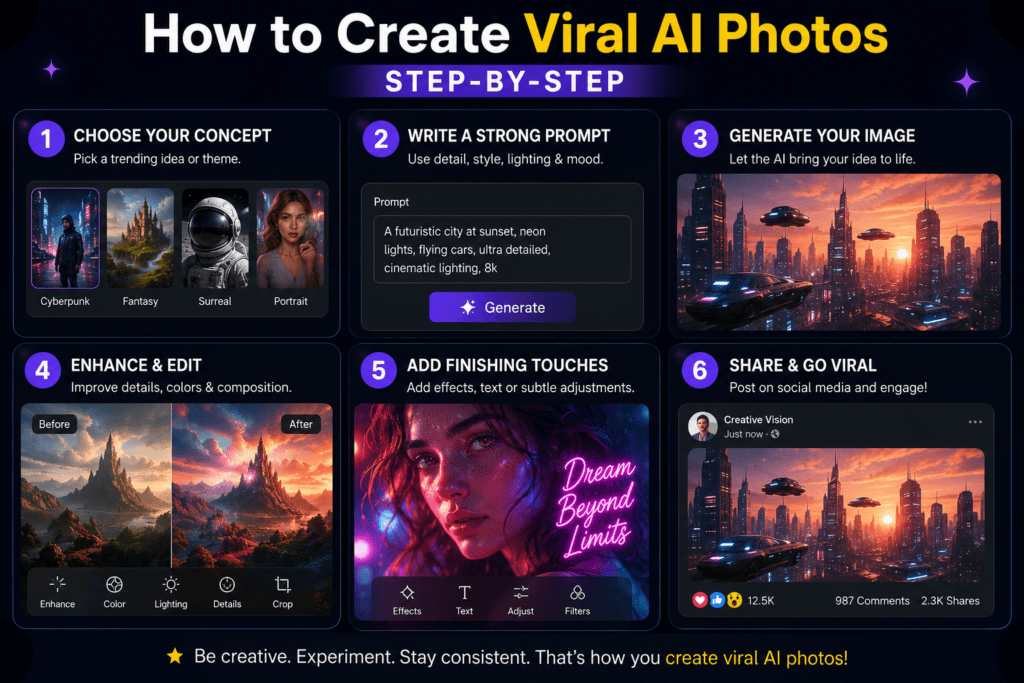
Gemini AI Photo Prompt: How to Create Viral AI Photos Step-by-Step
Learn how to write Gemini AI photo prompts, create dual-persona twin-style photos, edit existing portraits, extract style prompts from references, and prepare visuals for Instagram, TikTok, and VidAU video workflows.
By the VidAU Editorial Team · Gemini AI photo prompt guide · Google AI Studio, twin photoshoots, image-to-prompt extraction, and VidAU motion workflows
Discover how to harness the power of Gemini AI for generating twin-style photos that are popping on TikTok and Instagram. This tutorial shows exactly how to write a Gemini AI photo prompt, extract style prompts from example images, and edit your own portrait into a dual-persona shot, no design skills needed.
Want to join the trending Gemini twin photoshoot without design experience? This tutorial shows how to write a Gemini AI photo prompt to generate dual-persona photos, and how to edit an existing portrait using Google Gemini AI. You will get a copy-paste prompt, step-by-step workflows, and posting tips for Instagram and TikTok.
I reviewed and analysed top-ranked Gemini twin tutorials and creator threads; the consistent pattern is simple: define subject, dual-persona contrast, pose symmetry, and lighting. From our internal analysis of creator Q&A, better source lighting beats stacking adjectives when you want realistic skin and fashion-shoot vibes.
Quick Summary
- Gemini AI in Google AI Studio with a structured prompt and an optional reference image is the fastest way to create dual-persona photos in 2026.
- A strong alternative is the image-to-prompt workflow: extract style tokens from a reference, then regenerate or edit with those details.
- For social posting, export 9:16 for TikTok and 4:5 for Instagram, and keep faces centered to avoid crop.
- Creators, influencers, and beginners who want viral twin-style portraits benefit most from this workflow.
What Is a Gemini AI Photo Prompt?
A Gemini AI photo prompt is a short, structured instruction you give to Google Gemini AI to generate or edit a photo. Good prompts specify the subject, style, lighting, pose, composition, and quality notes. For the Gemini twin photoshoot trend, the prompt should also define the dual-persona contrast and mirrored or split composition.
Definition
A Gemini AI photo prompt is a short, structured instruction you give to Google Gemini AI to generate or edit a photo, including subject, style, lighting, pose, composition, quality notes, and for twin photos, dual-persona contrast.
Who Is This Tutorial For?
This guide is for social media users, content creators, and beginners who want realistic dual-persona photos with minimal setup. If you want trending Instagram or TikTok results quickly and do not have design skills, the step-by-step prompts here will get you there.
Best fit
This tutorial fits creators, influencers, beginners, and social media users who want realistic Gemini twin-style portraits for Instagram or TikTok without design experience.
How Do I Write a Gemini AI Photo Prompt for Twin-Style Images?
The fastest way is to use a proven template, then swap the variables for your look and platform.
Step 1: Choose your vibe
- Decide on high-fashion, street, minimal studio, or cinematic.
- Pick a contrast for the twins: light vs dark, glam vs casual, warm vs cool.
Step 2: Lock the composition
- Use “mirror pose”, “split-screen”, or “two figures side by side”.
- For Reels/TikTok, plan 9:16 vertical; for Instagram posts, 4:5 or 1:1.
Step 3: Define lighting
- Use “cinematic lighting”, “softbox studio”, or “hard rim light with soft fill”.
- Keep it consistent so both personas feel like one shoot.
Step 4: Add camera and quality cues
- Include “fashion photoshoot aesthetic”, “editorial composition”, “ultra-detailed skin”.
- Avoid stacking too many buzzwords; clarity beats adjective soup.
Copy-Paste Prompt (From a Top-Ranked Example)
“A stunning dual-persona portrait of the same woman as Gemini twins, one light and one dark version, mirror pose, cinematic lighting, ultra-detailed, fashion photoshoot aesthetic, 8K quality, Vogue-style composition.”
Where to Run It
- Open Google AI Studio and start a new image generation.
- If available, select Gemini 2.5 Flash image for faster drafts; the same prompt works.
- Generate 3–5 versions, then refine the best one with tighter lighting or pose notes.
Key Takeaways
- Use a proven prompt template, then swap the variables for your look.
- Define the twin contrast, pose symmetry, lighting, and platform aspect ratio early.
- Generate multiple versions, then refine the strongest one instead of rewriting from scratch.
How Do I Use a Gemini AI Photo Prompt to Edit an Existing Photo?
You can guide Gemini with your portrait as context and ask for a dual-persona output.
Step 1: Prepare your source photo
- Use a well-lit portrait with clean background and sharp eyes.
- Crop to 9:16 (Reels/TikTok) or 4:5 (Instagram) before upload to keep framing.
Step 2: Upload and instruct
- In Google AI Studio, add your photo as input.
- Prompt example: “Create a dual-persona version of this person: split-screen mirrored pose, left persona light and elegant, right persona dark and edgy, consistent studio lighting, editorial fashion style.”
Step 3: Iterate
- If identity drift appears, add: “Match the same face identity and bone structure.”
- If backgrounds clash, add: “Uniform studio backdrop, subtle gradient, no clutter.”
If you need tiny fixes after generation, an ai image editor is useful. Community answers often suggest quick editors like Canva or Photopea for spot cleanup. Some users even search “google nano banana ai” for micro-edits; in Gemini, you can mimic this with precise edit instructions rather than chasing another tool.
Key Takeaways
- Start with a sharp, well-lit source photo for best edits.
- Use clear identity and lighting constraints to reduce glitches.
- Keep the background simple to focus attention on both personas.
Prompt Extraction: Turn Any Image Into a Reusable Style
Prompt extraction helps you replicate the vibe of a reference photo without guessing.
- Upload a reference image in AI Studio and ask: “Describe the full prompt and style tokens of this image: subject, lighting, pose, composition, fashion, color grade.”
- Copy the returned style phrases into your next Gemini AI photo prompt.
- Example follow-up: “Regenerate with the same style tokens but with [your subject], dual-persona mirror pose, and editorial studio lighting.”
I reviewed multiple image-to-prompt examples; asking specifically for “lighting, pose, composition, and color grade” returns cleaner style tokens than a generic “describe this”.
Prompt extraction tip
Ask Gemini to identify lighting, pose, composition, fashion, and color grade specifically. That gives cleaner reusable style tokens than a generic “describe this” request.
Real-World Tips for Lighting, Posing, and Styling
Our team reviewed creator threads and found results jump when you fix on-set basics instead of adding more adjectives.
- Lighting: Aim for one key light at 45 degrees with soft fill to keep both personas consistent; avoid mixed color temperatures.
- Posing: Use opposing head tilts or hand placement to differentiate twins while keeping a mirrored stance.
- Styling: Choose two palettes that contrast clearly (e.g., cream vs charcoal) and repeat accessories on both sides for cohesion.
- Framing: Leave safe margins so Reels/TikTok captions do not cover faces.
Suggested mini-workflow table
| Stage | Recommended Tools | Why |
|---|---|---|
| Style planning | Google AI Studio | Extract and refine style tokens |
| Generation/edit | Google Gemini AI | Dual-persona prompting and variations |
| Motion/ads | VidAU AI Video | Turn photos into short ads |
Mid-article tip: If you later want to animate or commercialize the result, you can take your exported twins into VidAU AI Video to build vertical reels, or use VidAU AI Image to create matching campaign visuals. For UGC spokespeople, see UGC Avatars. You can also repurpose clips with VidAU Vid Remix and enhance clarity with Video Enhancer. To turn blog links into teasers, try URL to Video.
Realism tip
Better source lighting beats stacking adjectives. Use one clear lighting scheme, a clean background, and platform-safe framing before you generate.
Generate AI Photos and Turn Them Into Social Videos
Use Gemini AI for twin-style portraits, then bring exported images into VidAU AI Video, VidAU AI Image, UGC Avatars, Vid Remix, Video Enhancer, and URL to Video when you want vertical reels, ads, matching campaign visuals, or teaser clips.
VidAU workflow
Where VidAU Fits After Gemini AI Photo Generation
- Use Google AI Studio for style planning: Extract style tokens from reference images and refine subject, lighting, pose, composition, fashion, and color grade before generating.
- Use Google Gemini AI for generation and edits: Create twin-style dual-persona photos from prompts or edit an uploaded portrait with mirrored composition and consistent studio lighting.
- Use VidAU AI Video for motion: Take exported Gemini twins into VidAU AI Video to build vertical reels or short ads from the generated portraits.
- Use VidAU AI Image for matching campaign visuals: Create additional visuals that match the Gemini style when you need a fuller social or ad campaign.
- Use UGC Avatars, Vid Remix, Video Enhancer, and URL to Video for scale: Add spokesperson formats, repurpose clips, enhance clarity, or turn blog links into teaser videos after the Gemini image workflow.
Common Mistakes and Fast Fixes
- Overstuffed prompts: Too many style words confuse composition. Fix by prioritizing subject, contrast, pose, and lighting only.
- Inconsistent lighting: Mixed warm/cool light breaks realism. Fix by stating one lighting scheme.
- Identity drift: Faces change between personas. Fix by adding “match same face identity”.
- Busy backgrounds: Clutter steals attention. Fix with “clean studio backdrop” or “subtle gradient”.
- Wrong aspect ratio: Crops faces on social. Fix by generating at 9:16 or 4:5 from the start.
Mistake to avoid
Do not overstuff the prompt with too many style words. Prioritize subject, dual-persona contrast, pose, lighting, and aspect ratio first.
Key Takeaways
- Clarity beats complexity in prompts.
- Control lighting and background to sell realism.
- Design for the final platform before you generate.
Key takeaway
Final Thoughts
You do not need design skills to join the Gemini twin photoshoot trend. Start with a clear Gemini AI photo prompt, keep lighting consistent, and iterate a few times to lock identity and composition. When you are ready to turn your twins into motion or ads, build short vertical videos in VidAU AI Video and round out your visuals in VidAU AI Image.
FAQ
Here are answers to common questions about Gemini AI photo prompts, the Gemini twin photoshoot trend, Gemini 2.5 Flash image, extracting style prompts from references, AI image editors, social aspect ratios, facial glitches, and the “google nano banana ai” search phrase.
What is a Gemini AI photo prompt?
A Gemini AI photo prompt is a structured instruction for Google Gemini AI that defines a photo’s subject, style, lighting, pose, and composition. For the twin photoshoot trend, it specifies the same person as two contrasting personas, often in a mirrored or split composition with consistent studio lighting.
How do I write prompts for the Gemini twin photoshoot?
State the subject, dual-persona contrast, and composition first, then add lighting and fashion cues. For example: “Same person as Gemini twins, mirror pose, one light and one dark persona, cinematic lighting, editorial fashion style, clean studio backdrop.” Generate several versions and refine the best one.
Can Gemini 2.5 Flash image handle twin-style photos?
If you have access to Gemini 2.5 Flash image in Google AI Studio, you can use the same dual-persona prompt template. It supports multimodal input and is suitable for fast drafts. Focus your prompt on subject, contrast, mirrored pose, and lighting; then iterate to reduce identity drift.
How do I extract a style prompt from a reference image?
Upload a reference and ask Gemini to describe the full prompt: subject, lighting, pose, composition, fashion, and color grade. Copy the returned style tokens, then regenerate with your subject and a dual-persona instruction. This image-to-prompt method helps you recreate a specific aesthetic without guessing.
Do I still need an ai image editor after generating with Gemini?
Often yes, for minor cleanup such as flyaway hair, background dust, or edge artifacts. Quick editors like Canva or Photopea work for spot fixes. You can also re-prompt Gemini with precise edit instructions if you prefer staying inside AI Studio rather than switching tools.
What aspect ratio should I use for Instagram or TikTok?
Use 9:16 vertical for TikTok and Reels, and 4:5 for Instagram feed posts. Keep eyes and key details inside the center-safe area to prevent UI overlays from covering faces. Planning the final aspect ratio before generation reduces cropping or composition issues later.
How can I reduce weird hands or facial glitches in dual-persona photos?
Add constraints like “match same face identity and bone structure” and “clean studio backdrop”. Simplify the background and avoid extreme hand poses. Generate multiple variations and pick the cleanest base, then do small touch-ups in an ai image editor if needed.
What is “google nano banana ai” and does it matter here?
It is a phrase some users search when looking for micro-edit tools or simple AI fixes. For twin-style photos in Gemini, you can achieve similar results by giving concise edit instructions or using a lightweight ai image editor for spot corrections, rather than chasing another tool name.