Learn to Use Canva Pro Animation for Scroll-Stopping Image Transitions
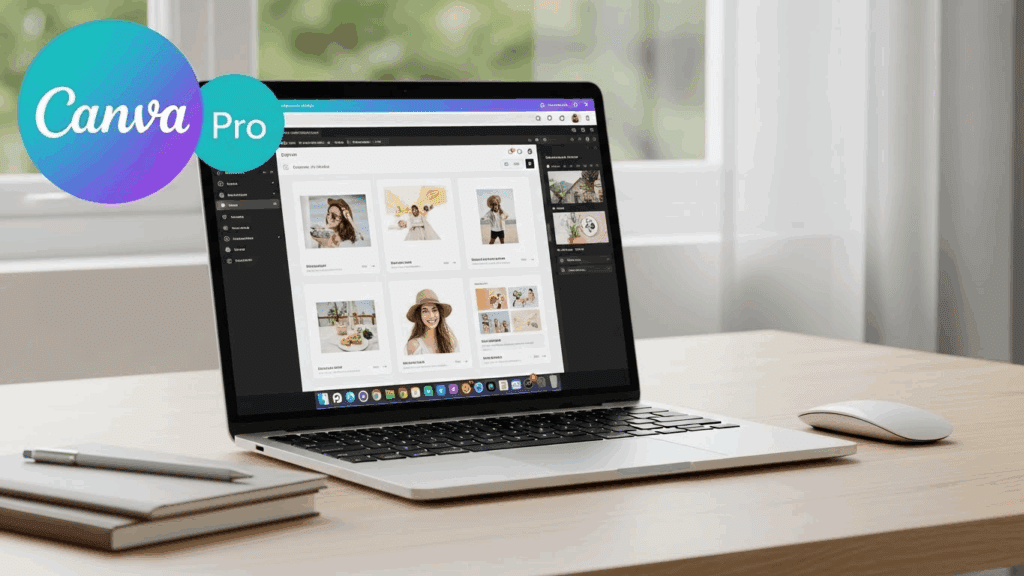
Most online content gets ignored in under three seconds. But Canva Pro users are flipping that script by adding clean, scroll-stopping image transitions that make people pause. Canva Pro animation tools help you keep attention on your posts, reels, videos, or slides without needing editing experience. Even better, when combined with VidAU, your images can transform into consistent, high-quality videos ready to publish.
In this guide, you’ll learn how to animate with Canva Pro, how it outperforms the free version, and how to enhance your workflow using VidAU.
How to Use Canva Pro Animation for Scroll-Stopping Image Transitions
You can create eye-catching animations in Canva Pro by using simple steps that take less than five minutes. These animations help your designs stand out by adding subtle motion, timed entrances, or dramatic effects. They’re ideal for social media, online ads, or digital storytelling.
Steps to animate inside Canva Pro:
- Open your design: Choose a template or upload your own.
- Click on the element: Select a photo, text, or graphic you want to animate.
- Tap the ‘Animate’ button: It appears on the top toolbar.
- Choose a Pro animation: Use effects like “Photo Zoom,” “Pop,” “Drift,” or “Tectonic.”
- Adjust timing: Set how long you want each frame or page to animate.
- Preview and export: Click “Play” to review. Export as MP4 or GIF.
These animations help tell a visual story without needing full video production. If you’re running an Instagram ad, animated motion draws more eyes than static content.
Canva Pro Animation Templates for Faster Workflows
Canva Pro templates give you pre-built animated layouts designed for specific platforms like Instagram Reels, TikTok ads, YouTube intros, and more. These templates include default transitions and timing, allowing you to skip manual animation setup. You simply swap out the text, images, or colors and download the result.
How to Use Canva Pro Templates for Animated Designs
To use Canva Pro’s animation templates efficiently, follow these steps:
- Tap “Templates” on the home screen
- Search for “Animated Instagram,” “Reels,” “Stories,” or “Video Ads”
- Select a Pro-only layout with animation already applied
- Replace text, swap images, adjust colors
- Export or schedule directly to social platforms
Templates save time while keeping your content visually engaging.
What Are the Key Animation Features Available Only in Canva Pro?
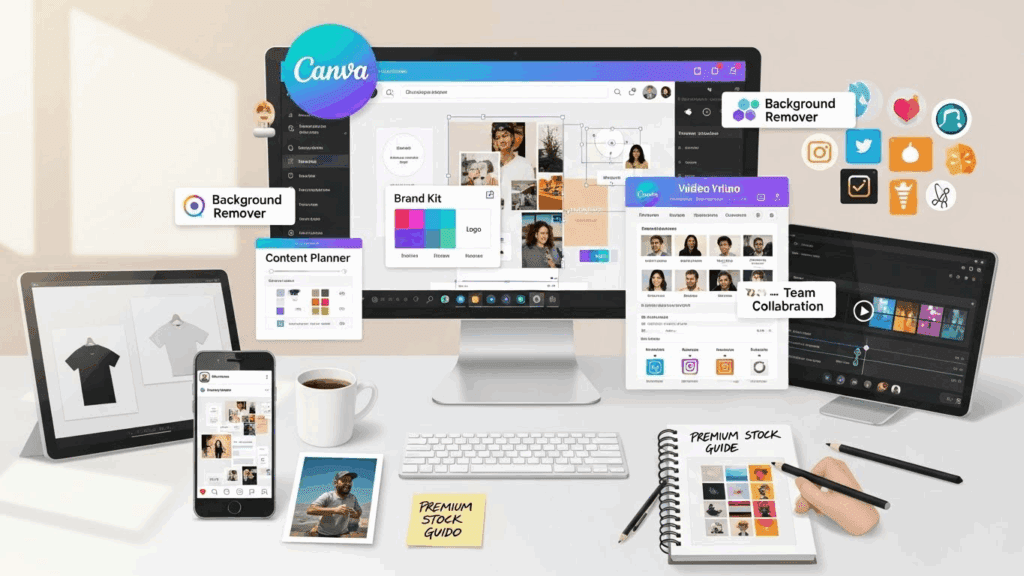
The free version of Canva limits your creative control. Canva Pro unlocks a full set of animation features designed for marketing, design teams, and content creators.
Canva Pro gives you more than 20 animation styles, while the free version offers only a handful. These advanced animations add polish, flow, and motion to your content.
Pro-exclusive features include:
- Page-level animation: Animate entire slides or sections with one click.
- Layered motion effects: Animate individual elements differently for dynamic movement.
- Match movement tool: Ensure motion is synchronized across multiple objects.
- Precision timing: Customize when and how each element appears.
- Build-style text animation: Reveal your copy letter-by-letter or line-by-line.
These features help you produce Instagram stories with animated transitions, Facebook ads with timed text, or brand assets with synced logo animations. If you’re creating content regularly, these animations save you hours.
How Does Canva Pro Compare to the Free Version for Animation Projects?
Canva Free is a good starting point, but it’s limited for content-heavy users. Canva Pro gives you access to premium animations, more control over timing, and better export formats.
Comparison Table:
| Feature | Canva Free | Canva Pro |
| Number of Animation Styles | 6–8 | 20+ |
| Page-Level Animations | No | Yes |
| Brand Kit Support | No | Yes |
| Export Options | PNG, basic MP4 | Transparent PNG, MP4, GIF |
| Templates | Limited | Unlimited |
| Background Remover | No | Yes |
| Magic Resize | No | Yes |
If your work includes TikTok animations, YouTube slides, or UGC content, Pro is a smarter choice. You get control and creative flexibility that isn’t available in the free plan. Free plans are fine for testing. But if you’re serious about visual storytelling, Canva Pro is essential.
Why Should You Upgrade to Canva Pro for Better Content Production?
You should upgrade if you want to scale your content and keep your brand consistent across platforms. Free users are stuck with generic effects and fewer export options. Canva Pro adds workflow automation, advanced features, and higher export quality.
Benefits of upgrading:
- Access to premium content: Over 100 million stock photos, music, and videos.
- One-click resizing: Repurpose designs for Instagram, Pinterest, TikTok, and YouTube Shorts.
- No watermarks: Download clean, professional designs.
- Brand Kit: Lock in brand colors, fonts, and logos.
- Content Planner: Schedule and post designs directly to platforms.
If you create content weekly, the Pro version pays for itself with time saved. It’s the fastest way to create polished videos, thumbnails, and presentations that look custom-built.
You also get storage for up to 1TB, which is helpful if you work with video-heavy or large animation files. For solo creators, Pro allows you to move from idea to publish-ready visuals without switching tools.
What Type of Creators and Marketers Use Canva Pro for Animations?
Canva Pro is used by social media managers, product marketers, educators, small business owners, and video editors. If you need fast, high-quality visuals, this tool helps speed up your creative workflow.
- Freelance designers managing client assets
- Social media managers running short-form campaigns
- Course creators designing animated slides
- E-commerce marketers building product posts
- Real estate agents making listing presentations
These professionals value Canva Pro because it simplifies content production. Instead of bouncing between tools, they use Canva to design, animate, and export videos from one place. It’s especially useful for anyone working with short timelines or no editing background.
What Are the Top Benefits of Using Canva Pro for Animation-Based Marketing?
For marketing purposes, Canva Pro is unmatched for quick content production and brand alignment. You don’t need extra software or design skills.
Marketing benefits include:
- Higher content velocity: Create and publish faster.
- Stronger branding: Every animation aligns with your brand kit.
- Platform-ready assets: Create once, export for many formats.
- Integrated campaign visuals: Use templates across platforms and maintain flow.
- No designer dependency: In-house teams handle animation internally.
With Canva Pro, marketing teams can scale content for Facebook Ads, Pinterest pins, Instagram carousels, or TikTok slides. It helps maintain momentum without sacrificing quality.
What Makes Canva Pro Animation a Smart Choice for Digital Campaigns?
Canva Pro animations support all digital campaign types. They are fast to make, visually appealing, and easy to repurpose.
You can use Canva Pro animation for:
- Sales campaigns: Announce discounts with animated graphics.
- Awareness campaigns: Share stories using motion slides.
- Product launches: Build reveal videos with animated effects.
- Seasonal marketing: Animate holiday posts, emails, and website banners.
Animations make your content more interactive, and with Pro’s animation presets, you don’t need to animate from scratch. You select a motion style and apply it instantly.
Conclusion
If your images aren’t moving, they’re being ignored. Canva Pro helps you animate with precision, edit smartly, and export fast. These animations improve your content’s ability to grab attention, drive interaction, and deliver brand messages.
Add VidAU to your workflow to turn your Canva animations into professional videos with voice, transitions, and branded style. You don’t need extra editing tools—this combo gives you everything.
FAQs
1. How do I access animation tools in Canva Pro?
Click on any design element, then select “Animate” from the top bar. Canva Pro unlocks more animation styles than the free version.
2. Can I export my Canva Pro animation as a video?
Yes. Export as MP4 to get smooth video-ready animation. You can also use VidAU to turn those files into full video content.
3. What’s the best Canva Pro animation for social media?
Use “Drift,” “Pop,” or “Tectonic” for eye-catching effects. They work well in Instagram stories, TikTok ads, and Facebook reels.
4. Is Canva Pro worth it for small business content production?
Yes. Canva Pro helps small teams produce high-quality animated visuals and videos without design experience.
5. How does VidAU enhance my Canva Pro animation workflow?
VidAU transforms your animated Canva designs into full videos with voice, transitions, and export-ready formats for platforms like YouTube or TikTok.