Mobile Text to Video AI: Complete Phone Workflow for Viral Shorts Without a PC
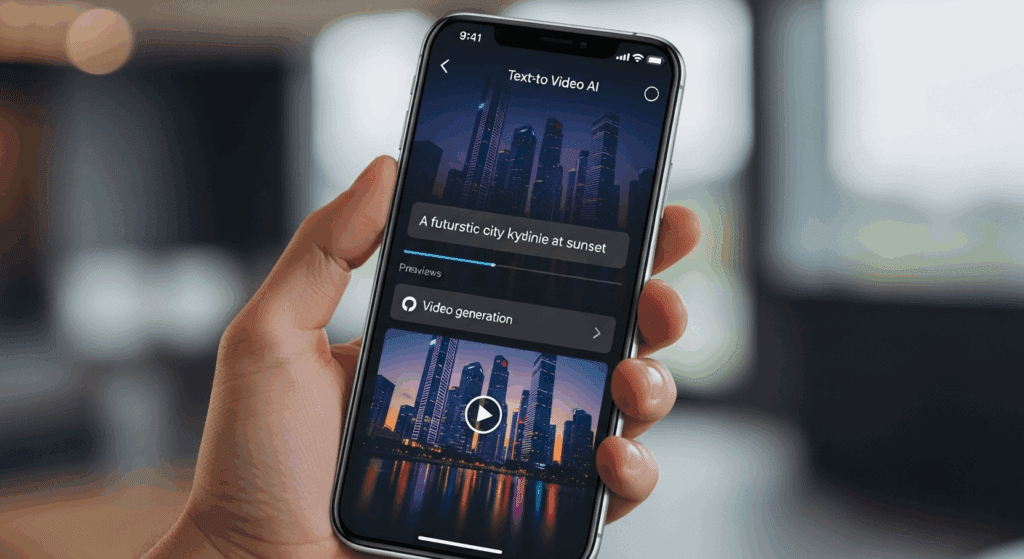
Make viral AI videos from your phone using these free tools — no laptop, no GPU, no desktop software required. Mobile-only creators are no longer locked out of advanced AI video generation. In 2026, text to video ai and image-to-video models have become accessible through mobile-first apps, cloud inference platforms, and browser-based AI studios that work perfectly on smartphones. The real challenge isn’t access anymore, it’s knowing how to chain the right tools together to achieve professional results with limited screen space, touch controls, and mobile compute.
This guide solves that problem by walking you through a complete mobile AI video workflow, from raw text prompt to YouTube Shorts upload, using free or freemium tools optimized for phones. We’ll cover text-to-video generation, image animation, motion control, consistency tricks (like seed parity and latent reuse), and final export all without touching a PC.
Pillar 1: Best Mobile Apps for Text-to-Video AI Generation
Text-to-video AI is the foundation of mobile video creation. While many models run on powerful servers, several platforms now expose mobile-friendly interfaces that abstract away heavy compute.
1. Runway (Mobile Browser + App)
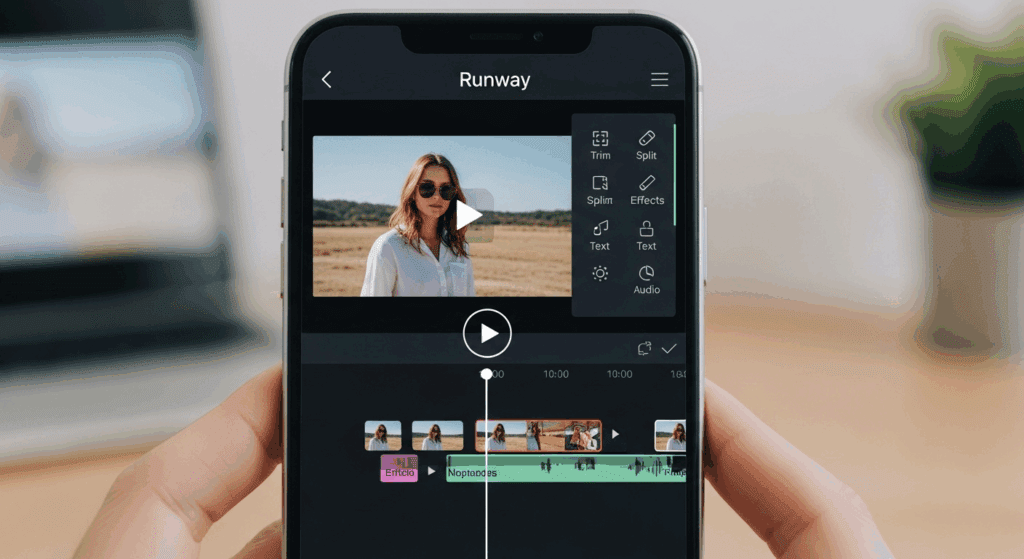
Runway’s Gen-3 and Gen-2 video models remain among the most reliable for short-form AI clips, and the mobile experience has improved significantly.
Why it works on mobile:
– Fully responsive web interface
– Touch-friendly timeline trimming
– Cloud-based inference (no device strain)
Key technical controls to use:
– Prompt weighting: Use short, concrete phrases rather than long paragraphs (mobile UI truncates text visually).
– Seed locking: If available, reuse the same seed to maintain visual consistency across shots.
– Camera motion tokens: Terms like `slow dolly in`, `handheld shake`, or `cinematic pan` strongly influence motion without extra controls.
Mobile prompt example:
A cinematic cyberpunk alley at night, neon reflections, rain, shallow depth of field, slow forward camera movement, ultra-detailed
Export clips at 4–6 seconds. Mobile workflows perform best when videos are stitched later rather than generated long-form.
2. Kling AI (Mobile Web)
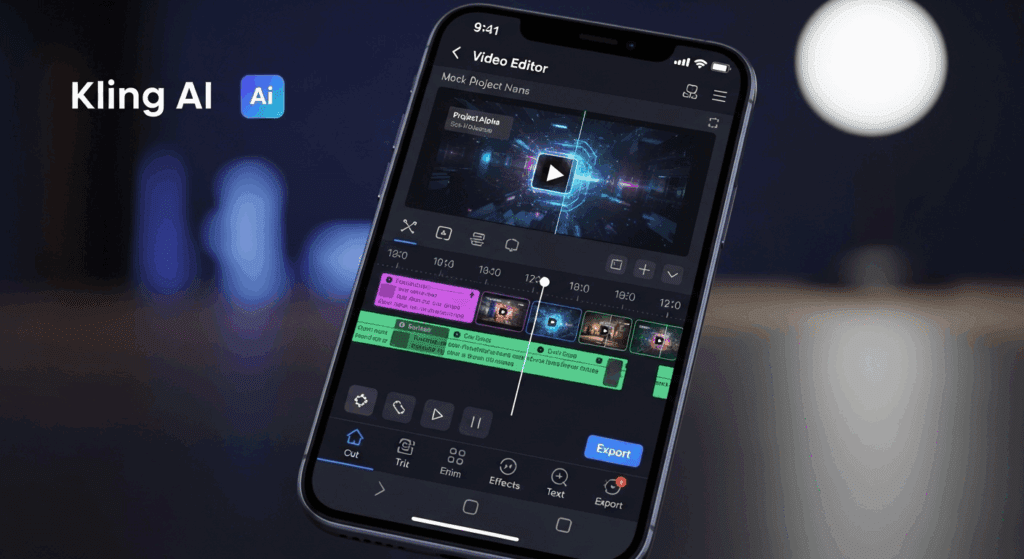
Kling’s text-to-video model excels at realistic motion and physics, making it ideal for viral Shorts and Reels. It runs smoothly in mobile browsers.
Strengths:
– Strong temporal coherence (less flicker)
– Natural human movement
– Better object permanence than many competitors
Advanced mobile tips:
– Use latent consistency by repeating key nouns and visual descriptors across prompts.
– Keep aspect ratio locked to 9:16 from the start to avoid mobile cropping artifacts.
Example prompt:
A person walking through foggy forest, soft morning light, cinematic realism, steady camera, realistic motion
3. Sora (When Available via Mobile Access)
When accessible through mobile browsers or partner apps, Sora provides high-level text-to-video generation with complex scene understanding.
Mobile usage strategy:
– Generate one strong hero clip instead of multiple variations (longer inference times).
– Use Sora for establishing shots, then supplement with Runway or Kling for faster iterations.
4. Mobile-Friendly ComfyUI Alternatives
While native ComfyUI is not mobile-friendly, several cloud-hosted interfaces expose node-based workflows through simplified UIs.
These platforms often include:
– Euler A schedulers
– CFG scale control
– Motion modules similar to AnimateDiff
For beginners, stick to presets. Advanced users can tweak:
– Steps: 20–30 for mobile balance
– Scheduler: Euler or DPM++ for smoother motion
Pillar 2: Image-to-Video Animation on Smartphone
Image-to-video is where mobile creators gain massive control. Instead of relying entirely on text generation, you animate a single high-quality image.
Step 1: Generate or Import a Base Image
Use mobile image generators like:
– Leonardo AI (mobile web)
– Playground AI
– Midjourney via Discord mobile
Image tips for animation:
– Center subject with headroom (prevents crop issues)
– Avoid extreme detail at edges
– Use consistent lighting cues
Step 2: Animate the Image
Use image-to-video tools inside:
– Runway (Image to Video)
– Kling (Image-driven motion)
– Pika (mobile-friendly animation)
Motion control keywords:
– `subtle motion`
– `cinematic breathing`
– `slow zoom`
– `environmental movement`
These prompts act like motion vectors without manual keyframing.
Step 3: Maintain Character Consistency
One of the biggest challenges in AI video is character drift. On mobile, you can reduce this by:
– Reusing the same base image for multiple clips
– Locking seed values when available
– Keeping clothing, colors, and descriptors identical
This mimics seed parity, a technique commonly used in desktop workflows, but achievable through repetition on mobile.
Step 4: Loopable Micro-Clips
Generate 3–4 second clips designed to loop. These perform exceptionally well on Shorts.
Prompt add-on:
seamless loop, continuous motion
Pillar 3: Complete Mobile Workflow for YouTube Shorts
This is the full start-to-finish pipeline optimized for phone creators.
Step 1: Script Generation (Mobile AI Writing)
Use:
– ChatGPT mobile
– Gemini
– Claude
Ask for:
– 60–90 word narration
– Strong hook in first 2 seconds
– Visual cues per sentence
Step 2: Voiceover Generation
Mobile-friendly TTS tools:
– ElevenLabs mobile web
– PlayHT
– CapCut AI voice
Export audio first — this defines your video timing.
Step 3: Generate Video Clips
Break your script into 4–6 visual beats.
For each beat:
– Generate a 4–6 second clip
– Match tone and lighting
– Keep aspect ratio 9:16
This modular approach avoids long renders and gives more control.
Step 4: Mobile Editing
Use:
– CapCut
– VN Editor
– InShot
Editing best practices:
– Cut on narration breaths
– Add subtle motion blur
– Use hard cuts instead of transitions
CapCut’s mobile AI features now include:
– Auto captions
– Beat detection
– AI zooms
Step 5: Caption Engineering
Captions drive retention.
Rules:
– 2 lines max
– High-contrast text
– Animate every 2–3 seconds
Use kinetic typography presets sparingly.
Step 6: Export and Upload
Export settings:
– 1080×1920
– 30fps
– High bitrate
Upload with:
– Keyword-rich title
– 3–5 hashtags
– Short description
Mobile AI Limitations (And How to Beat Them)
Limitation: Small screen
– Solution: Generate short clips, edit zoomed-in
Limitation: Limited manual control
– Solution: Prompt engineering + repetition
Limitation: Inconsistent results
– Solution: Image-to-video over text-only
Final Thoughts
Mobile AI video creation is no longer a gimmick, it’s a legitimate production pipeline. By combining text-to-video for ideation, image-to-video for control, and mobile editors for polish, you can produce content that competes with desktop workflows.
The key isn’t more tools. It’s workflow discipline, prompt precision, and understanding how AI models behave under mobile constraints.
If you master this stack, your phone becomes a full AI video studio.
Frequently Asked Questions
Q: Can I really make professional AI videos without a PC?
A: Yes. Because all heavy computation runs in the cloud, your phone acts as a control interface. With the right apps and workflow, results are comparable to desktop pipelines.
Q: Which AI video app is best for beginners on mobile?
A: Runway and Kling are the most beginner-friendly due to their responsive mobile interfaces and strong default presets.
Q: How do I keep characters consistent across clips on mobile?
A: Runway and Kling are the most beginner-friendly due to their responsive mobile interfaces and strong default presets.
Q: How do I keep characters consistent across clips on mobile?
A: Reuse the same base image, repeat exact descriptors, and lock seeds when possible. This approximates seed parity used in desktop workflows.
Q: Are these tools really free?
A: Most operate on freemium models with daily credits. Strategic short clip generation allows you to stay within free limits.
Q: What type of content works best for mobile AI videos?
A: YouTube Shorts, Instagram Reels, and TikTok-style looping videos perform best due to short duration and vertical framing.