How to Use Video to Video Tools Like a Pro With No Editing Skills
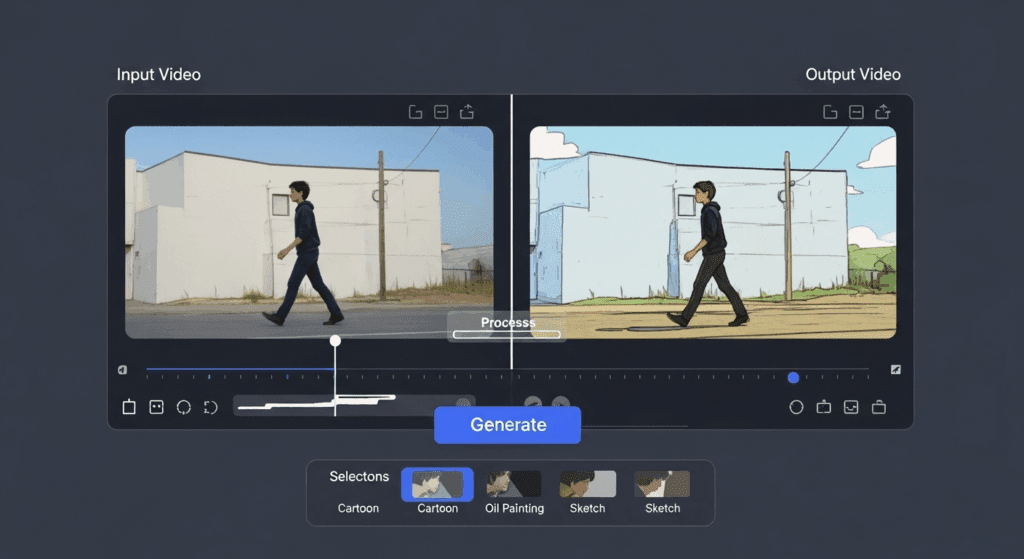
You shoot a video. You want it in a different format. Or you need to trim, compress, or share it as a GIF. That means you need a smart way to manage and transform your files. Video to video tools make this job easier. They help you switch formats, change quality, or compress clips fast. And when you use a tool like VidAU, you skip complicated editing steps entirely. You get professional results in less time. This guide breaks down how to use video to video tools correctly.
What Does Video to Video Mean and Why Should You Care?
Video to video tools help you turn one type of video into another without hassle. You can compress, convert, or optimize a file so it matches the platform or device you’re targeting. Instead of editing each video from scratch, you repurpose what you already made.
This matters because video formats aren’t universal. A file that works on Android might not play well on Apple. A high-res clip may look amazing but be too large for email. Video to video tools fix these problems.
Everyday Uses of Video to Video Tools
Before you choose a tool, understand how these features help real users. Many people need video to video converters for tasks like:
- Changing MP4 clips to MOV for smoother Mac playback
- Resizing content to fit Instagram, TikTok, or YouTube Shorts
- Cutting webinars into bite-sized reels for republishing
- Reducing video size to meet WhatsApp, Gmail, or Dropbox limits
Comparison of Popular Video to Video Tasks
| Task | Format Needed | Best Use Case | Tool to Use |
| Video Compression | MP4, MOV | Storage, Email, Uploads | VidAU |
| Format Conversion | MP4, AVI, MKV | Device Compatibility | VidAU |
| Video to GIF | GIF | Social Media, Reactions | VidAU |
| Resizing for Shorts | MP4 (9:16) | TikTok, YouTube Shorts | VidAU |
| Image to Video | MP4 | Storytelling, Slideshows | VidAU |
How to Use a Video to Video Tool in 5 Simple Steps
To get the most out of any video to video tool, you need a clear workflow. These tools help you convert formats, compress files, or generate quick clips without needing editing knowledge. Here’s a short, simple step-by-step guide anyone can follow.
- Open the Tool and upload your video
Go to VidAU.ai, click “Upload,” and select your file. VidAU supports MP4, MOV, AVI, and more. - Choose what you want to do
Select from video compression, format conversion, resizing for social platforms, or turning clips into GIFs all in one dashboard. - Adjust your settings
Set your output format (MP4, GIF, etc.), resolution (1080p, 720p), and bitrate. VidAU simplifies this with pre-set options that match your needs. - Preview the video
Watch a quick preview to make sure your changes are accurate. No complex timelines or editing tools needed. - Export and download
Click “Export,” let VidAU process your video, and download a clean, ready-to-use file, no watermarks, no hassle.
Top 10 Video to Video Tools You Should Be Using
Video to video tools help you convert, compress, and reformat your clips without needing heavy editing software. These tools are useful when you want to change a video’s format, trim its size, or prepare it for different platforms like YouTube, Instagram, or TikTok. Here are 10 of the best tools, explained in simple terms:
1. CloudConvert
Converts video files to multiple formats like MP4, MOV, AVI, and more. You can also control resolution, bitrate, and aspect ratio before downloading.
2. FreeConvert
A simple online tool that lets you upload videos and convert them into various formats. It supports compression and basic video settings too.
3. Online-Convert
Handles more than just video formats. This tool also offers resizing, trimming, and frame rate control for full file optimization.
4. Video2Edit
A multifunctional platform where you can convert, cut, rotate, or mute video clips before saving them in your desired format.
5. Video Converter (by video-converter.com)
Clean interface with drag-and-drop support. Converts videos between major file types and allows fast downloads with no extra features.
6. Veed Video Converter
Great for creators who need format changes without full editing. Includes options for quick MP4 conversions and social-friendly exports.
7. AVS Video Converter
Desktop tool that supports batch conversions. It offers profile presets for devices like smartphones, TVs, and game consoles.
8. MiniTool Video Converter
Supports over 1,000 formats and lets you convert multiple files at once. It keeps high quality during conversion.
9. Video to Video Converter
A lightweight desktop app with advanced format support, DVD ripping, and subtitle integration.
10. VidAU
Browser‑based platform that goes beyond conversion. It lets you transform videos, script or link inputs into new videos, apply brand elements, and export clean high‑quality results without extra tools.
These tools save time and simplify content creation. If you’re working with multiple video formats, they help you prepare files for upload, sharing, or editing without any hassle.
How to Compress a Video Without Losing Quality
Learning how to compress a video properly helps you balance size and clarity. You don’t need to sacrifice visuals to save space. The goal is to reduce file weight while keeping your footage clean and sharp. This makes sharing faster, uploads smoother, and storage easier. Tools like VidAU simplify this process, giving you control over bitrate, resolution, and output format without technical stress.
Steps on How to Compress a Video Easily
Before starting, think about where your video will go. Each platform demands different resolutions and sizes. YouTube prefers high definition, while WhatsApp favors small, quick files. Once you know your goal, follow these steps:
- Open a reliable video compression tool like VidAU.
- Upload your original file.
- Set a lower bitrate to shrink file size while keeping clarity.
- Pick the right resolution (720p for mobile, 1080p for web).
- Preview the result to check that visuals stay smooth.
- Export your final file and share instantly.
When you master how to compress a video, you save both time and space. VidAU helps you do this effortlessly with clean output and consistent quality every time.
What’s the Best Way to Pick a Video to Video Converter That Works?
Choosing a reliable video to video converter can make or break your editing flow. The best tools simplify tasks, preserve quality, and support all major formats. Whether you publish videos daily or just need the occasional file change, you need something that saves time and handles your content smoothly. Start by asking what features match your workflow.
What to Look For in a Video Converter
Before selecting a video to video converter, you need to know which features will make your work easier and faster. These are the most important things to check:
- Supported formats (MP4, MOV, AVI, MKV)
- File size limits and compression options
- Batch processing capabilities for multiple videos
- Retention of original quality during conversion
- Watermark policy, especially for free tools
A good converter gives you control without confusion. It should work with most devices, preserve quality, and not slow you down with extra steps.
Free vs Paid Tools: What Makes Sense for You?
Some users get by with free tools for quick conversions. But many of these tools limit resolution, add watermarks, or restrict file sizes. If you’re working with video often, investing in a paid video to video converter like VidAU brings serious advantages:
- No file size limits
- Clean, watermark-free exports
- More output formats and resolutions
- Support and faster processing
Paid converters help you move faster and deliver professional-quality files without surprises. If you’re creating at scale, they’re worth it. With tools like VidAU, you move faster from concept to publish. You keep the quality, save hours and make videos that match any platform.
How Do You Convert a Video to GIF in Seconds?
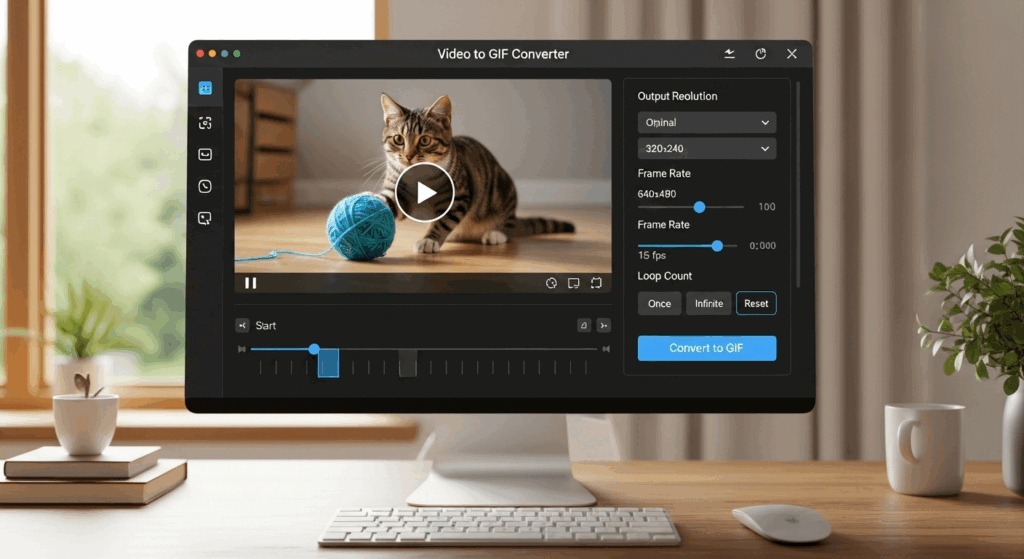
Turning a video to GIF is great for reactions, tutorials, and social media. You don’t need to download heavy tools. With smart platforms like VidAU, you get this done in clicks.
When to Use a Video to GIF Tool
GIFs work best when you want quick attention without sound. Use them for:
- Reaction snippets
- How-to moments
- Promo highlights
- Animated blog visuals
Easy Workflow for Turning Clips Into Shareable GIFs
Here’s what to do:
- Trim your video to under 10 seconds
- Upload it into a video to GIF converter
- Choose frame rate and resolution
- Export the file in .gif format
How VidAU Helps You Handle All Your Video to Video Needs

VidAU gives you an all-in-one system built for creators, marketers, and anyone who works with videos. It allows you to convert files into different formats instantly without dealing with slow export times or technical settings. Beyond that, VidAU lets you create animated clips using text or static images, which helps you repurpose content fast.
When you’re ready to publish, you can export your videos in the right specs for TikTok, Instagram, or YouTube, all from one dashboard. You don’t need advanced editing skills or multiple apps. VidAU removes the extra steps, giving you speed, clarity, and control every time you create.
Conclusion
Smart creators don’t redo work. They repurpose. With the right video to video converter, you create once and distribute everywhere. You simplify editing. You meet format rules without manual fixes. And with VidAU, you do it all without stress.
Video to video tools remove the friction that holds your content back. You upload, tweak and export. The result? Faster publishing, lighter files, more reach. You save time, stay consistent, and show up where your audience is.
FAQs
1. What is the easiest way to convert video to video?
Use a converter that accepts your file, lets you choose a format, and exports fast. VidAU handles this quickly with no setup.
2. How do I compress a video without destroying the visuals?
Pick a mid-range bitrate, keep the original resolution, and use a tool like VidAU with smart compression settings.
3. Which tool converts video to GIF instantly?
You can use many online tools, but VidAU lets you trim, adjust, and export GIFs from clips in seconds.
4. What’s the best video to video converter for beginners?
Look for one with a simple UI, drag-and-drop upload, and clear export options. VidAU is one of the easiest for new users.
5. Can VidAU help me create and compress videos together?
Yes. You can generate, resize, compress, and even export in different formats with no extra plugins or steps.