AI Video Creation From Images (2026 Guide): Image-to-Video Workflow, Tools, and Best Practices
Everything you need to know about AI Image-to-Video tools and conversion in 2026.
AI image-to-video generation has moved from experimental demos to production-ready pipelines used by YouTubers, digital marketers, and solo creators. In 2026, the challenge is no longer whether AI can animate an image, but how to control motion, consistency, and realism across frames. This guide breaks down the full Image-to-Video tools workflow—from choosing the right platform to avoiding the most common beginner mistakes—using modern AI video terminology and tools.
Understanding Image-to-Video AI in 2026
At its core, image-to-video AI uses diffusion-based or transformer-based video models to extrapolate motion from a single frame or a small set of reference images. These models operate in latent space, meaning your image is encoded into a compressed representation where motion, lighting, and depth are inferred.
Key concepts you will encounter:
- Latent Consistency: Ensures that objects remain stable across frames instead of morphing or drifting.
- Seed Parity: Reusing the same random seed across generations to maintain visual continuity.
- Schedulers (Euler, Euler a, DPM++): Control how noise is removed during generation, directly affecting motion smoothness.
Understanding these concepts is essential to mastering AI video creation rather than relying on trial and error.
Comparison of Top AI Image-to-Video Platforms
Runway (Gen-3 and beyond)
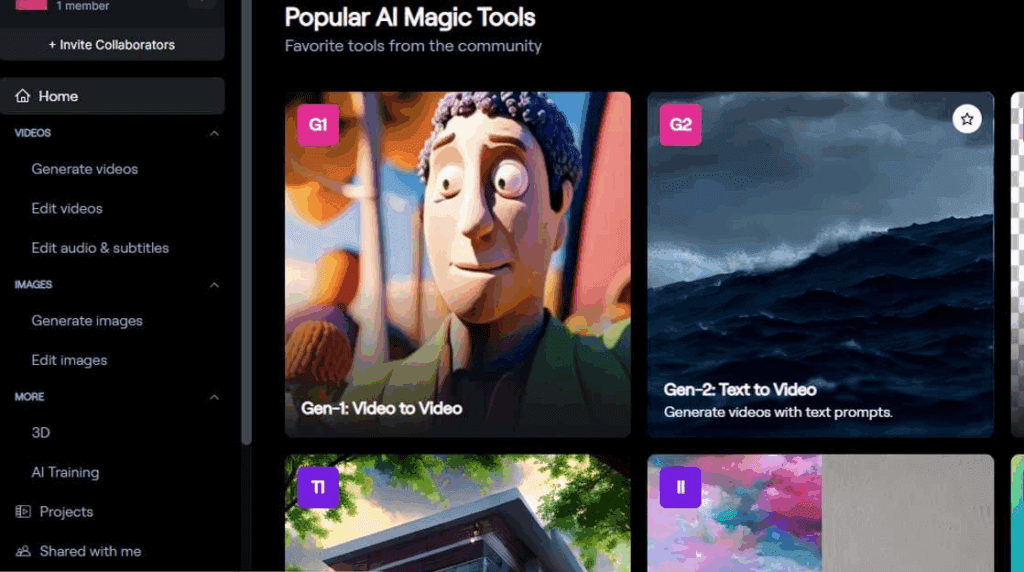
Runway remains one of the most beginner-friendly AI image-to-video tools.
Strengths:
- Simple UI with strong prompt-to-motion mapping
- Built-in camera motion controls (pan, tilt, zoom)
- Good latent consistency for short clips (3–6 seconds)
Limitations:
- Limited control over schedulers and seeds
- Can struggle with complex character motion
Best for: YouTubers creating short cinematic b-roll or marketing visuals.
OpenAI Sora
Sora represents the high-end of AI video generation, capable of understanding real-world physics and long-term motion coherence.
Strengths:
- Exceptional temporal consistency
- Realistic object interaction and lighting
- Strong prompt adherence
Limitations:
- Limited public access
- Less manual control compared to node-based systems
Best for: High-quality storytelling and brand-level content.
Kling AI
Kling is known for its cinematic motion interpolation and character animation.
Strengths:
- Smooth motion synthesis
- Strong facial animation from portraits
- Competitive quality with minimal setup
Limitations:
- Less transparent model settings
- Occasional over-smoothing
Best for: Social media creators and short-form video platforms.
ComfyUI (Advanced Users)
ComfyUI is a node-based interface that gives you full control over the image-to-video tools pipeline.
Strengths:
- Full access to seeds, schedulers, and latent settings
- Compatible with open-source video models
- Ideal for repeatable workflows
Limitations:
- Steep learning curve
- Requires GPU setup
Best for: Creators who want precision, automation, and scalability.
Image Quality and Preparation for Best Results
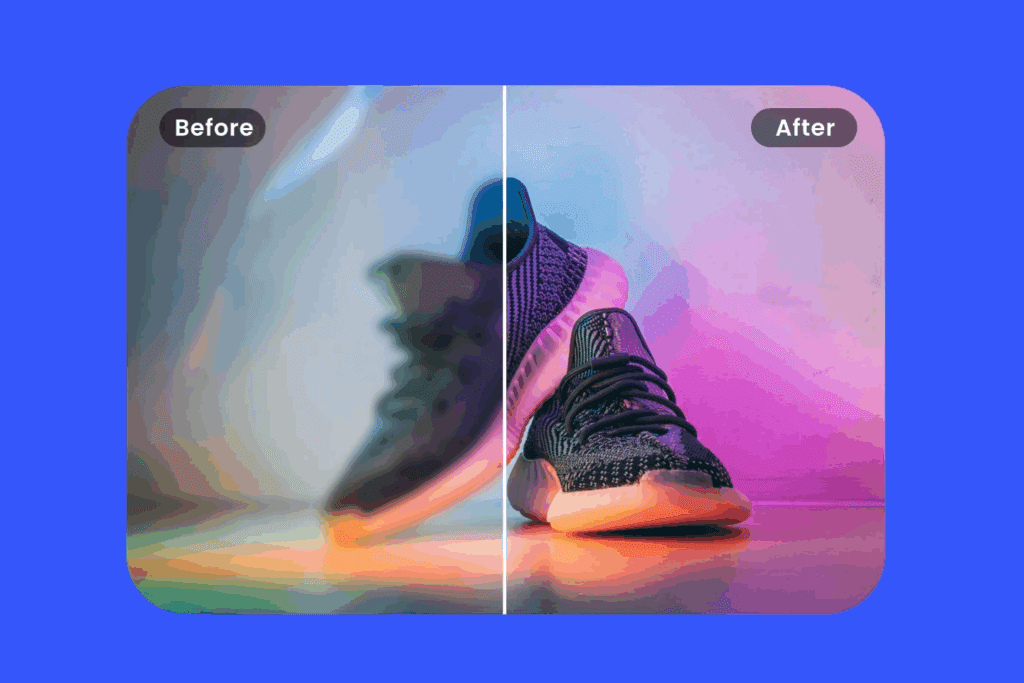
The quality of your source image determines up to 70% of your final video output. AI video models do not “fix” bad images—they amplify them.
Resolution and Aspect Ratio
- Minimum recommended resolution: 1024×1024
- Match your target video aspect ratio (16:9, 9:16) before generation
- Avoid upscaling after video generation when possible
Lighting and Depth
- Use images with clear lighting direction
- Avoid flat, overexposed images
- Depth cues (foreground/background separation) help AI infer motion
Subject Framing
- Centered subjects are easier for models to animate
- Avoid cropped limbs or partially visible faces
- For characters, neutral poses animate better than extreme angles
Preprocessing Tips
- Light denoising improves latent stability
- Use AI upscalers before video generation
- Remove background clutter when possible
Step-by-Step Image-to-Video Workflow
Step 1: Choose the Right Platform
Beginners should start with Runway or Kling. Advanced users can move to ComfyUI once they understand motion control concepts.
Step 2: Import and Lock Your Reference Image
Enable image-lock or reference-strength settings to preserve composition. This directly impacts latent consistency.
Step 3: Define Motion with Prompts
Instead of describing the image, describe motion:
– “Slow cinematic camera push-in”
– “Subtle wind movement in hair”
– “Natural walking motion”
Step 4: Control Seeds and Schedulers
- Use fixed seeds for consistent outputs
- Start with Euler a for more organic motion
- Switch to DPM++ for smoother transitions
Step 5: Generate Short Clips First
Generate 2–4 second clips to test motion before committing to longer sequences. This saves time and compute.
Advanced Techniques: Motion Control, Seeds, and Schedulers
Motion Intensity
High motion values often cause distortion. Aim for subtle movement and enhance motion in post-production.
Seed Chaining
In ComfyUI, reuse seeds across clips to create longer sequences with consistent characters and environments.
Frame Interpolation
Use AI frame interpolation tools to smooth motion instead of increasing generation length.
Common Mistakes and How to Avoid Them
Mistake 1: Using Low-Quality Images
Low-resolution images lead to flickering and unstable frames. Always upscale first.
Mistake 2: Overloading Prompts
Too many adjectives confuse motion prediction. Focus on action and camera movement.
Mistake 3: Ignoring Seed Control
Random seeds cause inconsistent results. Lock your seed whenever possible.
Mistake 4: Expecting Perfect Physics
Even in 2026, AI video is probabilistic. Minor artifacts are normal and should be fixed in editing.
Use Cases for YouTubers and Digital Marketers
- AI-generated b-roll for faceless channels
- Product animations from static images
- Social media ads with cinematic motion
- Brand storytelling without filming costs
By mastering image-to-video workflows, creators can dramatically reduce production time while increasing visual impact.
Future Trends in AI Image-to-Video Tools
- Longer temporal consistency (30+ seconds)
- Real-time motion editing in latent space
- Multi-image reference blending
- Direct integration with video editors
Image-to-video AI is becoming a core skill for digital creators. Those who understand the workflow—not just the Image-to-Video tools—will stand out in 2026 and beyond.
Frequently Asked Questions
Q: What is the best AI tool for beginners in image-to-video creation?
A: Runway and Kling are the best starting points due to their simple interfaces and strong default motion settings.
Q: Why do my AI videos flicker or warp?
A: This is usually caused by low-quality source images, unlocked seeds, or excessive motion intensity.
Q: What scheduler should beginners use?
A: Euler a is a good default for organic motion, while DPM++ offers smoother transitions for cinematic shots.
Q: Can I create long videos from a single image?
A: Yes, but it’s best to generate multiple short clips and stitch them together using seed parity for consistency.