Viggle AI

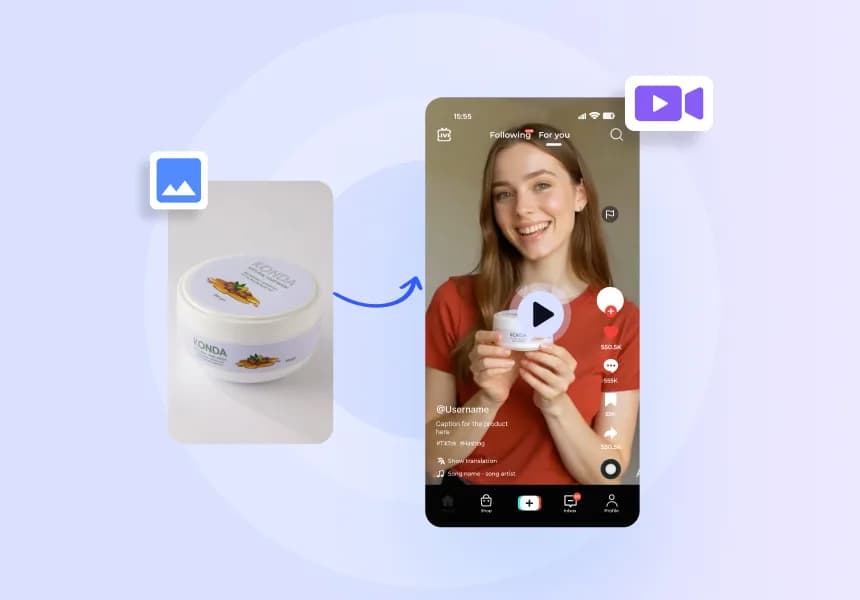
Use VidAU mimic motion to animate a still person or character with movement from a template or reference clip. Upload a clear image, choose the action you want, and create a motion-led video without manually keyframing every pose.
Create a Motion VideoViggle AI
Seedance
Wan
Kling
Creators and Personal Brands

Start with a photo you already like and apply a dance, reaction, gesture, or character movement to it. Create fresh TikTok, Reels, Shorts, or community content without recording yourself again.
Social and Campaign Teams
Take approved campaign images, mascots, or characters and introduce movement for a product launch, social post, seasonal campaign, or creative concept. One static asset can become several motion-led ideas.
A clear image and motion source can become a shareable animation in three steps.
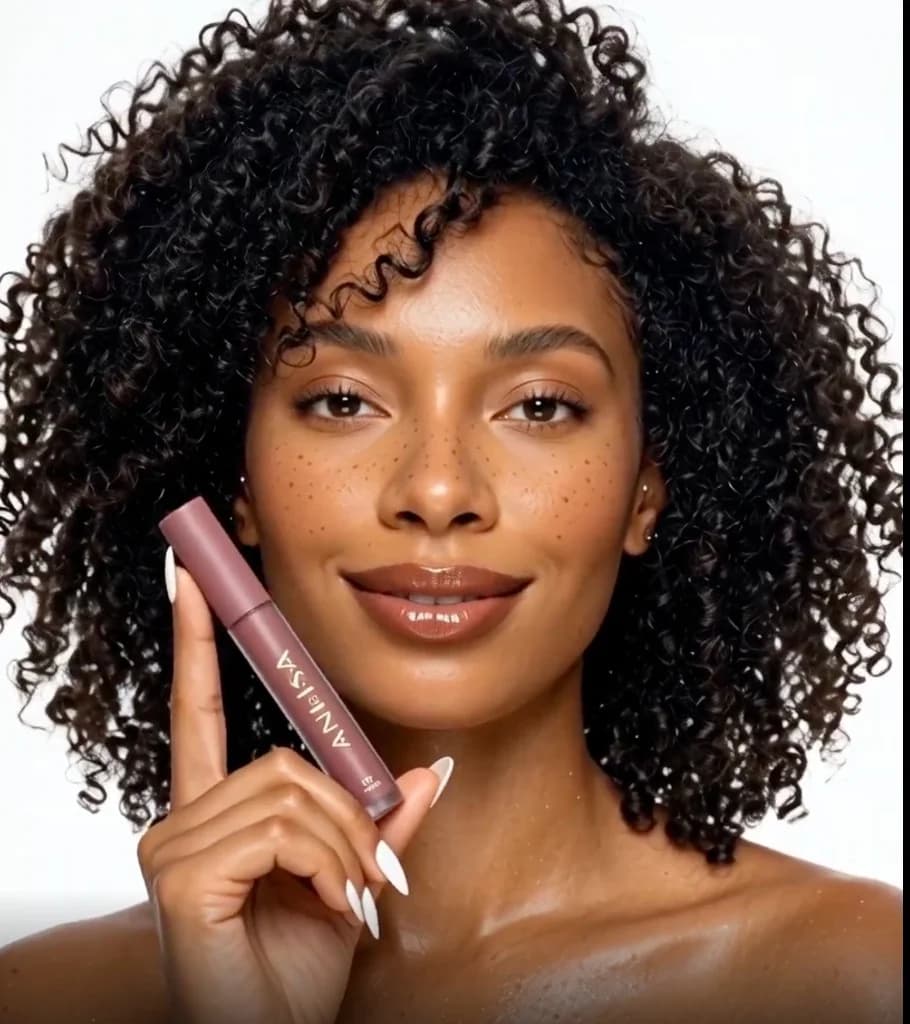

Creators, marketers, and content teams use VidAU to turn static photos into movement-led videos for social content, character ideas, and campaigns.
“I used to record new videos every time I wanted to join a dance or reaction trend. With VidAU Mimic Motion, I can start with a photo I already like, apply the movement I want, and turn it into a fresh short-form video. It has given me a much easier way to experiment with trends without filming everything from scratch.”

“We had plenty of approved campaign images, but most of them stayed static after the original post. I started using VidAU Mimic Motion to add gestures and movement to those same visuals. Now we can turn one campaign image into several motion-led ideas for Reels, TikTok, and other social content.”

“I was creating character concepts as still images, but showing how they would actually move usually meant a much longer animation process. I used VidAU Mimic Motion with a movement reference and could quickly see the character perform the action. It made testing poses, gestures, and performance ideas much faster before I committed to a full animation.”
Choose the subject, bring the movement, and use VidAU mimic motion to create dance clips, character scenes, social content, and campaign ideas from a still image.
Create a Motion Video ↗