Video Cleanup · Subtitle Removal Workflow
How to Remove Subtitles From Video: Easy Methods
Learn how to remove subtitles from video, from soft caption tracks to burned-in text, using simple methods that keep your video quality intact.
By the Sarah Iruoje · Subtitle cleanup guide · Soft tracks, burned-in text, and AI object removal
If your video has subtitles you no longer want, the removal method depends entirely on whether those captions are a separate track or burned directly into the picture.
To remove subtitles from video, first check whether the captions are a separate soft track or burned into the picture. Soft subtitles can be switched off or deleted in seconds. Hardcoded subtitles are part of the image and need cropping, masking, or AI-based cleanup. The right approach depends on this one detail.
This guide is for editors, marketers, and creators who need clean footage for reuse, translation, or re-editing. Most people waste time on the wrong tool because they skip the soft-versus-burned check. We will cover both cases, with simple steps and honest limits on quality.
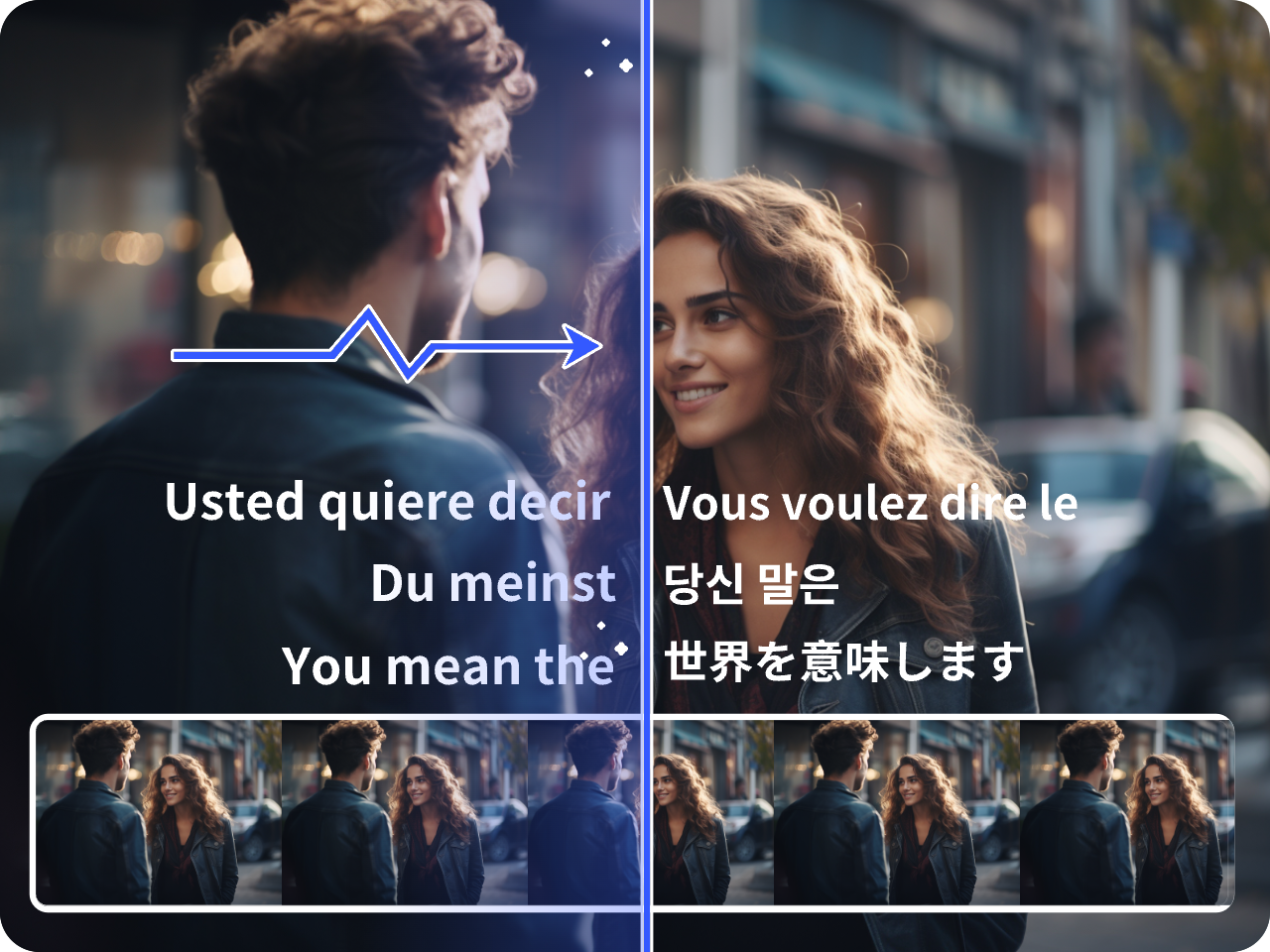
Featured image placeholder for removing subtitles from video, soft subtitle tracks, hardcoded captions, burned-in text, VLC, HandBrake, MKVToolNix, AI caption removal, Object Remover, Vid Remix, Vid Remake, Text to Speech, AI Video, and Video Enhancer workflows.
Quick Summary
- The fastest way to remove subtitles from video is deleting the soft subtitle track in a player or editor like VLC, HandBrake, or any timeline editor.
- For burned-in captions, AI-based caption removers and tools like an Object Remover (https://www.vidau.ai/object-remover/) repair the image frame by frame instead of just covering it.
- Soft subtitles live in formats like SRT, VTT, or muxed MKV tracks, while hardcoded subtitles are baked into the pixels and cannot be toggled off.
- Editors repurposing short-form clips, translators, and teams cleaning archive footage benefit most from learning both removal paths.
What Does Removing Subtitles From Video Mean?
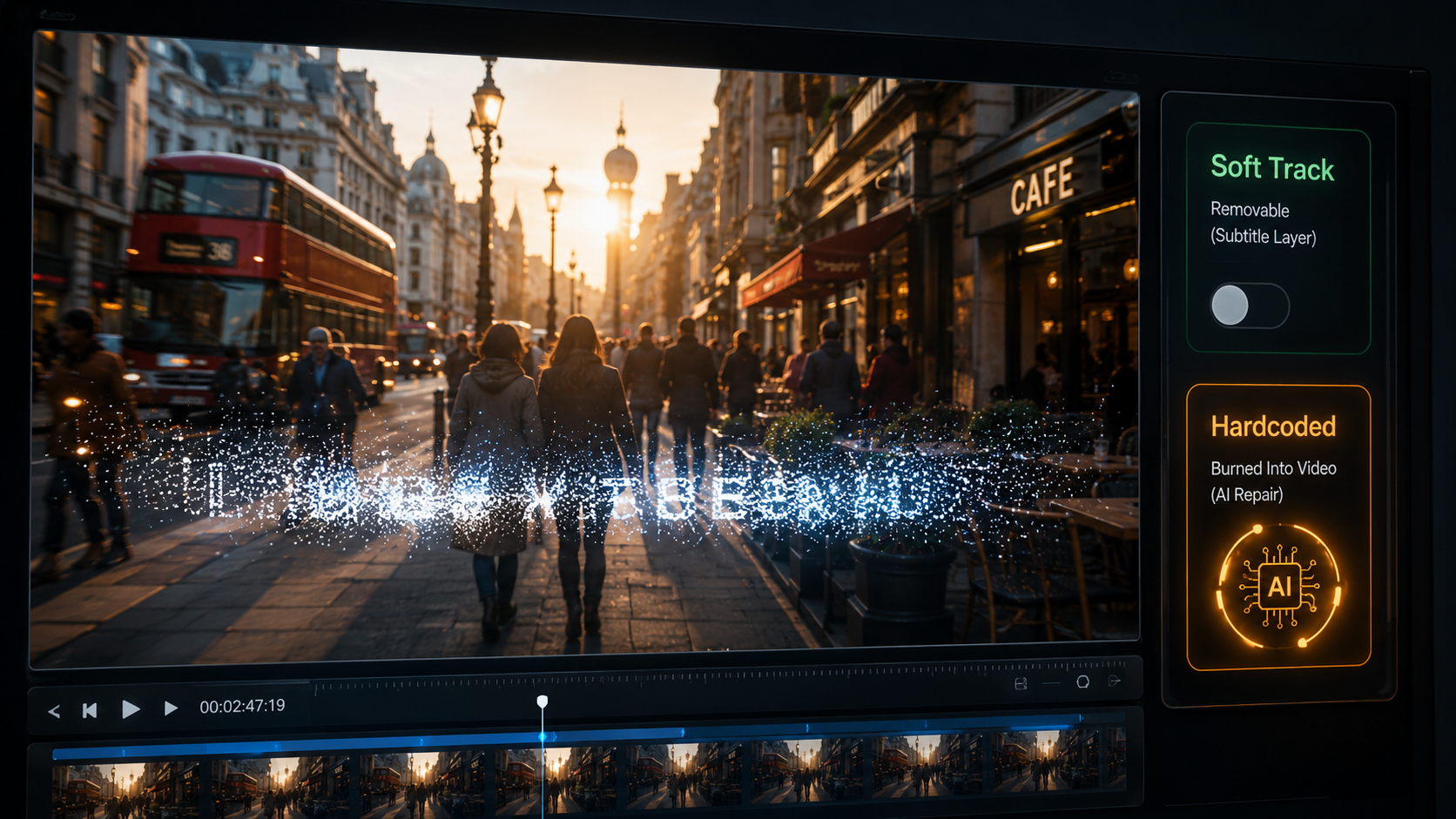
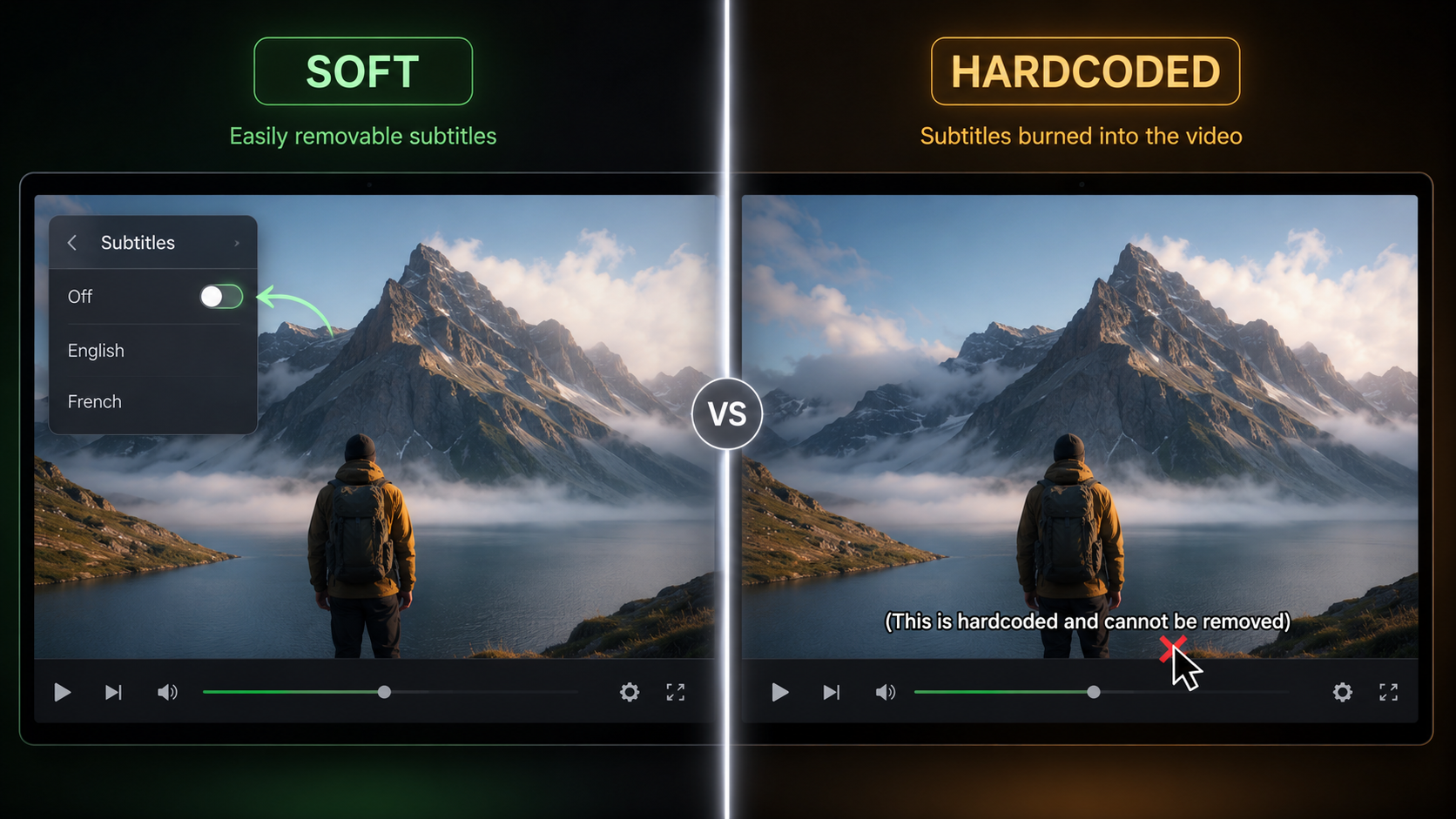
Removing subtitles from video means deleting or hiding the text captions shown on screen. There are two cases. Soft subtitles are a separate data track you can switch off. Burned-in, or hardcoded, subtitles are painted into every frame and must be repaired or covered.
This distinction decides everything. If you can toggle captions on and off in a media player, they are soft and easy to strip. If the text stays no matter what you click, they are hardcoded.
Key Takeaways
- Soft subtitles = removable track, no quality loss.
- Hardcoded subtitles = part of the image, needs repair.
- Always test playback before choosing a tool.
Why the Soft vs Burned Subtitle Difference Matters
The soft vs burned difference matters because it changes the tool, the time, and the final quality. Stripping a soft track is instant and lossless. Removing burned text means rebuilding the area behind it, which carries some artifact risk.
When our team reviewed editor discussions on caption removal, the same confusion appeared again and again. People grabbed heavy AI tools to remove captions that were actually soft tracks they could have deleted in seconds. In a Reddit thread on the topic, one editor flatly noted that classic editors like Premiere will not remove burned-in text on their own, which pushes users toward frame-based AI cleanup.
So before you do anything, open the video in VLC and look under the subtitle menu. If you can disable the captions there, you are dealing with a soft track.
First check
Before choosing a tool, open the video in VLC and check the subtitle menu. If you can disable captions there, you are dealing with a soft track.
How to Remove Soft Subtitle Tracks Step by Step
To remove a soft subtitle track, you delete or disable the embedded caption data, then re-save the file. This keeps full quality because you never touch the image. It works well for MKV, MP4, and MOV files that carry separate subtitle streams.
Step 1: Confirm the subtitle type in VLC
Open the video in VLC and check Subtitle > Sub Track to confirm captions can be toggled off.
Step 2: Install a clean export tool
Install HandBrake or MKVToolNix for a clean export.
Step 3: Load the video in HandBrake
In HandBrake, load the file and open the Subtitles tab.
Step 4: Exclude subtitle tracks
Make sure no subtitle track is set to import or burn in.
Step 5: Export the clean file
Choose your format and export. The new file plays without captions.
For MKV files, MKVToolNix lets you uncheck the subtitle track and remux without re-encoding, so the export is fast and lossless. If your subtitles came from an external SRT or VTT file, simply do not load that file when you re-export.
Soft subtitle tip
For MKV files, MKVToolNix can uncheck the subtitle track and remux without re-encoding, so the export stays fast and lossless.
How to Remove Hardcoded Subtitles Efficiently
To remove hardcoded subtitles, you must repair or cover the pixels where the text sits, since the captions are baked into the image. There are three practical routes: cropping, masking, and AI-based caption removal.
Crop the caption area. If the subtitles sit in a fixed lower band and you can sacrifice a little frame, crop them out. This is the simplest option but it changes your aspect ratio and can cut important content.
Mask or cover. Place a blurred bar or solid shape over the caption zone. Quick, but it looks obvious and is rarely good enough for client work.
Use AI caption removal. This is the cleaner path. AI tools track the text region and rebuild the background frame by frame. A dedicated Object Remover handles static and moving captions far better than a manual blur. For one-off frames, some editors export stills as PNGs and use generative fill, but that is slow for full clips.
VidAU is an AI video ad platform that generates video ads from product URLs, images, or scripts in 49 languages, and its editing tools include AI-based cleanup for unwanted on-screen elements. In the caption-removal discussions our team reviewed, one editor described VidAU as a good tool for this exact job, while honestly noting it is subscription-based. That trade-off is normal: free tools usually leave artifacts or push you to upgrade.
If you are repurposing footage, clean removal also helps with the next step. Once the old captions are gone, you can add fresh text, re-voice, or translate the clip using tools like Text to Speech or Text to Video
Want a faster way to clean and rebuild short-form clips? Try VidAU’s Object Remover, on a sample video before committing to a longer edit.
Key Takeaways
- Cropping is fastest but changes the frame.
- Masking is quick but looks rough.
- AI removal gives the cleanest result on baked-in text.
Clean and Rebuild Videos With VidAU
Use VidAU Object Remover, Vid Remix, Vid Remake, Text to Speech, Text to Video, AI Video, and Video Enhancer when you need to remove unwanted on-screen text, refresh captions, localize clips, or repurpose short-form footage.
VidAU workflow
Where VidAU fits in subtitle removal and repurposing
- Check subtitle type first: Use VLC to confirm whether captions are soft tracks or hardcoded pixels before choosing a tool.
- Use remux tools for soft subtitles: Use HandBrake or MKVToolNix to remove subtitle tracks without touching the image when captions are separate streams.
- Use Object Remover for burned-in captions: Clean hardcoded text by repairing the image frame by frame instead of masking it with a rough blur.
- Then Use Vid Remix or Vid Remake after cleanup: Refresh cleaned clips with new structure, captions, branding, or short-form variations for reuse.
- Finally, Use Text to Speech, Text to Video, AI Video, and Video Enhancer for localization: Add new voice, rebuild clips, publish across regions, and improve footage after subtitle removal where needed.
Best Tools to Remove Subtitles From Video, Compared
The best tool depends on whether your subtitles are soft or hardcoded. Soft tracks need a remux or re-encode tool. Hardcoded captions need pixel repair.
| Subtitle Type | Recommended Tools | Why |
|---|---|---|
| Soft track | VLC, HandBrake, MKVToolNix | Delete or skip the track, no quality loss |
| Burned-in text | VidAU Object Remover, AI cleanup tools | Rebuilds background behind captions |
| Single frames | Photoshop generative fill | Useful for short or static fixes |
For most creators, the workflow is simple: confirm the type, then pick from the matching row. If you also plan to enhance the footage after removal, a Video Enhancer can recover some sharpness lost during re-encoding.
Tool rule
Confirm the subtitle type first, then choose the matching tool: remux or re-export for soft tracks, pixel repair for burned-in text.
Common Mistakes When Removing Subtitles From Video
The most common mistake is treating burned-in subtitles like a soft track and re-exporting, then wondering why the text is still there. Check the type first.
- Re-encoding a soft-track video repeatedly, which compresses quality each time instead of remuxing once.
- Using a heavy blur that smears the whole lower third and looks worse than the captions.
- Cropping so aggressively that faces or product details get cut.
- Ignoring the ethics of removing other creators’ captions before reusing their content. In the threads our team reviewed, this objection came up almost immediately, so make sure you have the right to edit and republish the footage.
A quick honest note: AI removal is strong but not perfect. On busy backgrounds or fast motion, you may still see faint artifacts. VidAU may not be the right fit if you only need a single one-off edit and do not want a subscription. In that case, a free remux tool for soft tracks is enough.
Mistake to avoid
Do not treat burned-in subtitles like a soft track. If the text is baked into the image, re-exporting without a subtitle stream will not remove it.
Honest limitation
AI removal is strong but not perfect. On busy backgrounds or fast motion, you may still see faint artifacts, and a subscription tool may not make sense for a single one-off edit.
Advanced Tips for Clean, Reusable Footage
For reusable footage, plan the removal as the first step in a repurposing pipeline, not a final patch. Clean the captions, then rebuild the clip with new text, voice, or branding.
If you frequently repurpose short videos, batch your work. Group clips with captions in the same fixed zone, then run AI removal across the set. After cleaning, you can refresh the content with VidAU Vid Remix or rebuild a similar format with VidAU Vid Remake.
For translation work, removing the original burned-in subtitles lets you add accurate new captions and even a localized voice. Pairing clean footage with VidAU AI Video makes it easier to publish the same clip across regions.
Suggested Visual: Before-and-after frame comparison showing a video with burned-in captions next to the cleaned version, alt text “before and after removing hardcoded subtitles”, filename subtitle-removal-before-after.png
Repurposing tip
Plan subtitle removal as the first step in a repurposing pipeline. Clean the captions, then rebuild the clip with new text, voice, or branding.
Key takeaway
Final Thoughts
The whole job comes down to one question: are your subtitles a soft track or burned into the frame? Soft tracks are a quick, lossless delete in VLC, HandBrake, or MKVToolNix. Hardcoded captions need cropping, masking, or AI repair, and AI cleanup gives the cleanest result.
Start by confirming the type, pick the matching tool, and check the export before reusing the clip. If you are cleaning burned-in captions for repurposing, test VidAU’s Object Remover on a short sample first, then rebuild the video with fresh text or a translated voice.
FAQ
Here are answers to common questions about how to remove subtitles from video, soft subtitle tracks, hardcoded captions, VLC, quality loss, AI caption removal, legality, free subtitle removers, and adding new captions afterward.
How do I know if my subtitles are soft or hardcoded?
Open the video in VLC and look in the Subtitle menu. If you can turn the captions off there, they are a soft track and easy to delete. If the text stays on screen no matter what you select, the subtitles are hardcoded into the image and need pixel-based removal.
Can I remove subtitles from video without losing quality?
Yes, if the subtitles are a soft track. Use MKVToolNix to remux the file and drop the subtitle stream without re-encoding, which keeps full quality. Hardcoded subtitles always require some image rebuilding, so expect minor quality changes in the repaired area depending on the tool.
What is the best way to remove hardcoded subtitles?
The cleanest method is AI-based caption removal that tracks the text and rebuilds the background frame by frame. A dedicated object remover handles both static and moving captions better than a manual blur. Cropping works only if the captions sit in a band you can safely cut from the frame.
Can VLC remove subtitles permanently?
VLC can disable a soft subtitle track for playback, but it does not always save that change to a new file cleanly. For a permanent result, use HandBrake or MKVToolNix to re-export the video with no subtitle track included. VLC is best for the initial check, not the final export.
Will removing subtitles change my video resolution?
Removing a soft track does not change resolution at all. Cropping out hardcoded captions reduces the frame size and may alter your aspect ratio. AI removal keeps the original resolution because it repairs the existing pixels instead of cutting them, though heavy re-encoding can slightly soften detail.
Is it legal to remove subtitles from someone else’s video?
Removing subtitles is a technical task, but reusing another creator’s footage raises copyright questions. You generally need permission or rights to edit and republish content you did not make. Always confirm ownership or licensing before stripping captions for reuse, especially for short-form clips you plan to post publicly.
Why do free subtitle removers leave marks on the video?
Many free tools rely on blurring or basic patching rather than true frame rebuilding, so faint smears or blocks remain. On moving captions and busy backgrounds, this is harder to hide. AI-based tools usually produce cleaner results because they reconstruct the background, though they often sit behind a subscription.
Can I remove subtitles and add new ones afterward?
Yes. Once you remove the original captions, especially burned-in ones, you can add fresh on-screen text or a translated voice track. This is common in repurposing and localization. Clean the captions first, then rebuild the clip with new text or AI voiceover so the final video looks intentional, not patched.