How to Create Video Ads With the Sora 2 Model on VidAU — Full Tutorial & Settings Guide
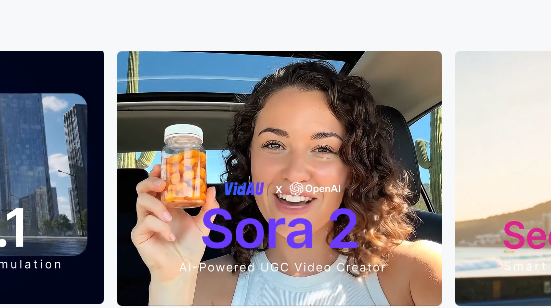
VidAU’s Sora 2 model gives marketers, creators, and ecommerce brands a fast way to generate cinematic video ads using written prompts and product reference images. No filming, no actors, no editing software.
If you want to turn product ideas, selling points, or campaign concepts into scroll-stopping ads, this guide walks you through every step of using Sora 2 on VidAU.
What Is Sora 2?
Sora 2 is VidAU’s top-tier AI video model designed to generate realistic motion videos from text prompts and reference images. Unlike traditional video tools, Sora 2 doesn’t require editing knowledge, timeline work, or camera hardware.
Sora 2 is capable of:
- Smooth camera motion
- Realistic physics and lighting
- Accurate reflections and textures
- Ad-style visual pacing
The model produces high-quality footage that is optimized for TikTok, Instagram Reels, YouTube Shorts, Meta Ads, and ecommerce product marketing.
How Sora 2 Creates Video Ads
Sora 2 generates a full video scene from text instructions. You describe:
- The subject
- The action
- The setting
- Lighting style
- Camera behavior
The model builds the entire clip based on your description. If you upload a reference image, Sora locks the design to match your real product or brand.
Because the footage is created from scratch, you don’t deal with filming, casting, props, or studio costs.
Step-by-Step Tutorial: Using Sora 2 on VidAU
Step 1 — Open Sora 2
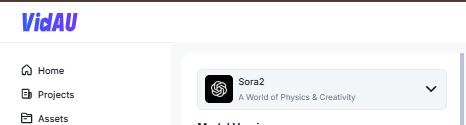
Log in to your VidAU dashboard. On the left sidebar, go to Generative AI → AI Video.
Click Create AI Video. In the model dropdown, select Sora2. The Sora 2 workspace loads with the Prompt box, First frame upload, and visual settings.
The page now shows the Sora 2 workspace with the Prompt box, First frame upload, Aspect ratio, Resolution, Duration, Quantity, and Generate button. So you can begin video creation.
Step 2 — Choose Pro or Normal
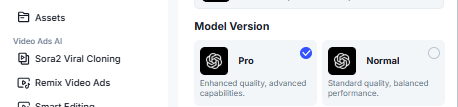
Under Model Version, you see two options.
Pro
Choose Pro when you want the strongest visual output.
It provides:
- Sharper textures
- Stronger lighting and shadows
- Better reflections and surface detail
- Smoother camera motion
Use Pro for:
- Product ads
- Client or brand campaigns
- Commercial content
- High-detail storytelling
Normal
Choose Normal when speed matters more than extreme detail.
It provides:
- Balanced quality
- Faster rendering
- Lower credit usage
Use Normal for:
- Early concept drafts
- Idea exploration
- A/B testing before final renders
Your choice affects:
- Realism
- Render time
- Credit usage
If you are making real ads, choose Pro. If you are still testing ideas, choose Normal first, then switch to Pro later.
Step 3 — Write Your Prompt
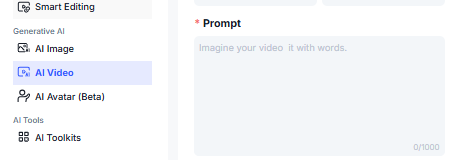
Move to the Prompt box. This is where you describe what Sora 2 should create. You do not need filmmaking language. You write what the viewer sees.
What a strong prompt includes
- Main subject
- Action or movement
- Environment or background
- Lighting and atmosphere
- Camera motion or angle
Examples:
Ecommerce Prompt — Wireless Earbuds
“Ultra-realistic wireless earbuds rotating slowly on a reflective glass platform inside a premium product showroom, bright soft-box studio lighting, crisp highlights on metallic surface, water droplets sliding across the case to emphasize waterproof design, shallow depth of field, smooth camera dolly-in, glossy reflections on glass floor, cool white background with faint mist particles in the air, 60fps motion, hyper-clean product focus.”
Product Branding Prompt — Smartwatch
“Rose-gold smartwatch floating above a polished marble surface, neon blue glow behind the watch creating a cinematic silhouette, futuristic laboratory environment with glass walls and subtle particle light streaks, holographic interface reflections visible on the watch display, slow pan camera movement circling the product, dramatic contrast lighting, sharp reflections on metal edges, ultra-smooth motion and 4K look.”
Education Prompt — Teacher Explainer Scene
“Teacher writing on a glowing digital whiteboard inside a modern classroom, soft day-time lighting from windows, smooth tracking shot from left to right, floating animated icons and math symbols interacting with the board, natural fabric textures on clothing, crisp detail on facial expressions, shallow focus on board as equations appear in real time, warm cinematic tone, classroom depth visible in background.”
What to avoid
- Long paragraphs
- Emotion-only lines like “Make it exciting”
- Unclear instructions like “A product on a table”
Quick Prompt Formula
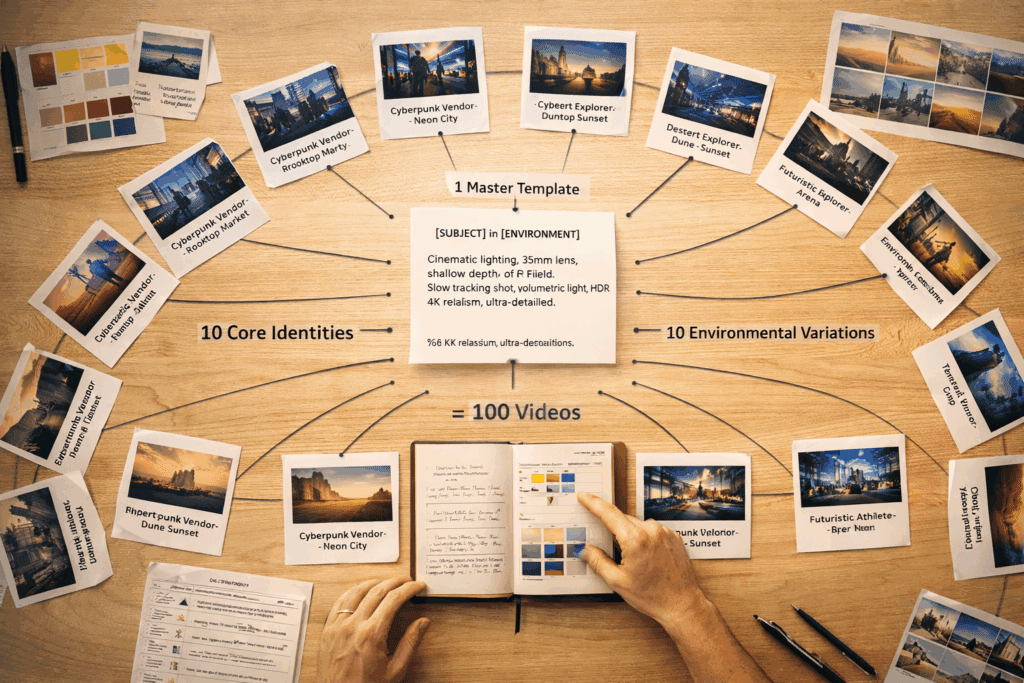
Subject + Action + Environment + Lighting + Camera motion
Once the prompt looks clear, continue to the next step to lock in accuracy.
Step 4 — Upload a First Frame (Optional)
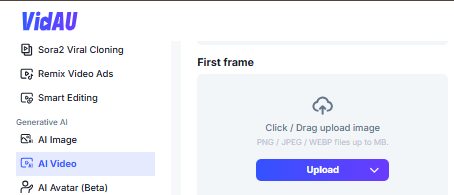
Below the prompt box, you see First frame. This upload is optional but powerful. You click Upload and select a PNG, JPEG or WEBP image from your device.
You use this step when you want:
- A specific product design
- A consistent character look
- A fixed style or color theme
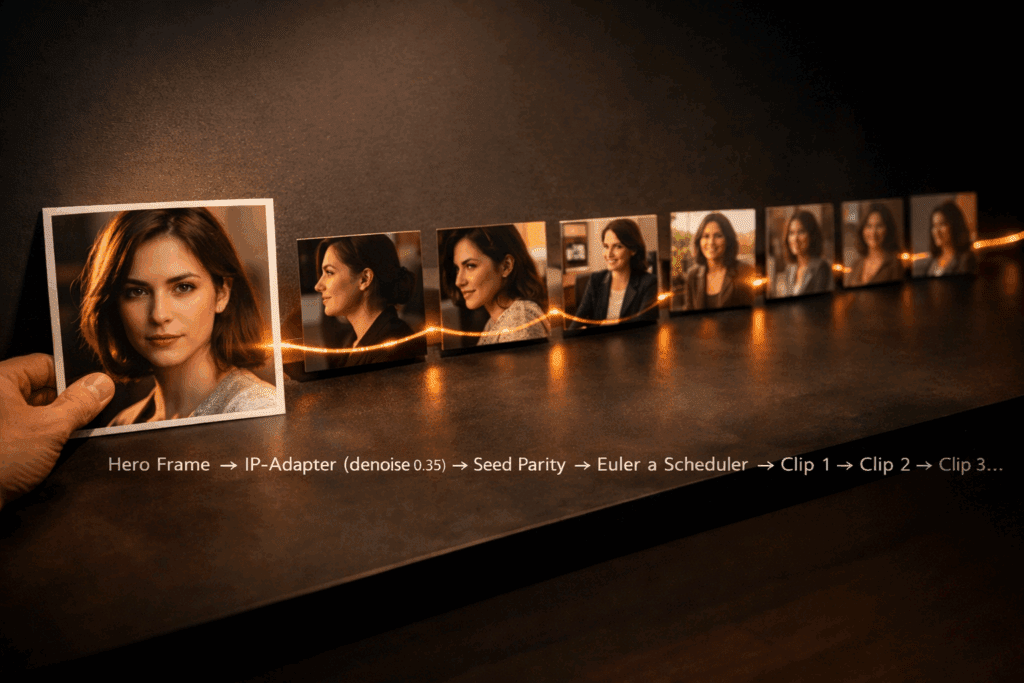
- A recognisable brand visual in the opening frame
If you upload a product photo, Sora uses it to shape the object in the video. If you upload a scene reference, Sora uses it to match mood and layout. skipping this step also generates visuals based entirely on your prompt.
Once the image is uploaded, you continue to your visual settings.
Step 5 — Select Aspect Ratio
In the settings panel, you choose an aspect ratio that matches where your video will be published.
- 16:9 Aspect Ratio
Best for YouTube feed, desktop viewers, websites and widescreen ads.
Use this when your audience watches horizontally. - 9:16 Aspect Ratio
Best for TikTok, Instagram Reels, YouTube Shorts and Snapchat.
This fills the vertical screen and performs strongly on mobile.
Choosing the correct ratio prevents black bars, auto-cropping and quality loss when uploading to social platforms.
Step 6 — Select Resolution
Next, choose the resolution for your video.
- 720p
Better for drafts, idea testing and fast generation.
Good when you want to confirm the prompt direction before final renders. - 1080p
Best for ads, publishing and polished brand content.
Generates sharper detail, stronger textures and cleaner product surfaces.
Most users generate first rounds in 720p, refine prompts, then switch to 1080p for final high-quality outputs.
Step 7 — Select Duration
Under Duration, choose how long the clip should run.
- 4s
Ideal for quick hooks, intro flashes and attention-grab moments. - 8s
Ideal for short ads and single benefit statements.
This will often perform best for TikTok and Meta performance campaigns. - 12s
Ideal for storytelling, before-and-after presentation, or multi-benefit sequences.
Shorter durations convert faster on social feeds. Longer durations help when you need more on-screen explanation. Once aspect ratio, resolution and duration are selected, you move to the next setting, quantity and generation.
Step 8 — Select Quantity
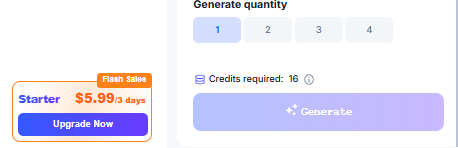
In the Generate quantity section, choose how many videos you want Sora 2 to create in one run.
Options: 1, 2, 3 or 4
Why multiple outputs are useful:
- You get different camera angles, pacing and visual variations from the same prompt
- A/B testing becomes faster and cheaper
- You build more creative options in less time
Recommended workflow:
- Select 1 while testing a new prompt
- Select 2–4 after you lock in a winning visual direction to scale ads quickly
Sora treats each clip as a fresh render, so every result is slightly different even when the prompt is the same.
Step 9 — Review Credits Required
Below the quantity selector, you see Credits required.
This number tells you the exact cost for the settings you selected.
Credit usage increases when you:
- Choose 1080p instead of 720p
- Choose 12 seconds instead of 4 or 8 seconds
- Generate 2–4 videos instead of 1
- Use the Pro model instead of Normal
If your credit balance is low, adjust any of those settings or upgrade when needed to avoid interruptions during rendering.
Step 10 — Generate and Refine
Click Generate. VidAU sends your prompt, first frame and settings to Sora 2 and starts rendering. Wait until a preview thumbnail appears in your project list. Click it to open the video.
Watch the full clip and review:
- Subject clarity
- Lighting and reflections
- Camera motion and pacing
When the preview thumbnail appears:
- Open the video
- Watch the full clip
- Evaluate:
- Subject clarity
- Reflections and lighting
- Camera motion
- Pacing and flow
If the video is close but not perfect, make small adjustments to:
- Prompt
- First frame
- Duration
- Aspect ratio
How well it fits your ad idea
If something feels off, return to the settings. Tighten the prompt, swap the first frame, adjust duration, or change aspect ratio.
Then regenerate.
Each iteration improves accuracy and visual quality. When satisfied, export the video as MP4 — or send it to Smart Editing, Subtitles or AI Voiceover inside VidAU for final polish.
Your Sora 2 ad is ready to post on TikTok Ads, Meta Ads, YouTube Ads, Amazon PDP, or Shopify product pages.
Sora 2 Video Specs & Limits (On VidAU)
| Category | Details |
| Resolution | 720p and 1080p |
| Aspect Ratios | 9:16, 16:9 |
| Duration | 4s, 8s, 12s |
| File Format | MP4 |
| Output Type | Camera-motion video, not slideshow |
These specs allow you to publish across all major paid-ad platforms without resizing.
Conclusion
Sora 2 turns ideas into ad-ready videos. No actors. No studios. Zero editing timeline. You describe the visual moment you want and Sora builds it into a full motion clip.If you’re a marketer, creator, or ecommerce brand looking to scale video production, Sora 2 is one of the fastest ways to test and launch new ad concepts without extra resources.
Frequently Asked Questions
Does Sora 2 replace the need for filming?
Yes. You generate ads without recording footage.
Do I need video editing skills?
No. Sora 2 handles motion, lighting, and camera control automatically.
Can Sora 2 generate multiple ad variations?
Yes. Use the quantity selector to generate 1–4 clips at once.
Should I upload a first frame every time?
Upload a first frame if you want the model to match your product exactly. For concept videos, text-only prompts work well.
Which duration is best for TikTok ads?
4–8 seconds work best for hooks and quick conversions.
12 seconds works when you need storytelling.
Is the output usable for paid ads?
Yes. Videos export cleanly in MP4 and meet platform requirements for TikTok, Meta, YouTube, Amazon, and Shopify.