Text to Speech: Turn Any Text Into Natural Voice in Seconds
VidAU ‘s Text to Speech powers how creators turn scripts into sound at scale. Audio drives attention faster than text alone. Voice adds clarity, pace and emotion that written content cannot deliver on its own. When content speaks, viewers listen longer and understand faster.
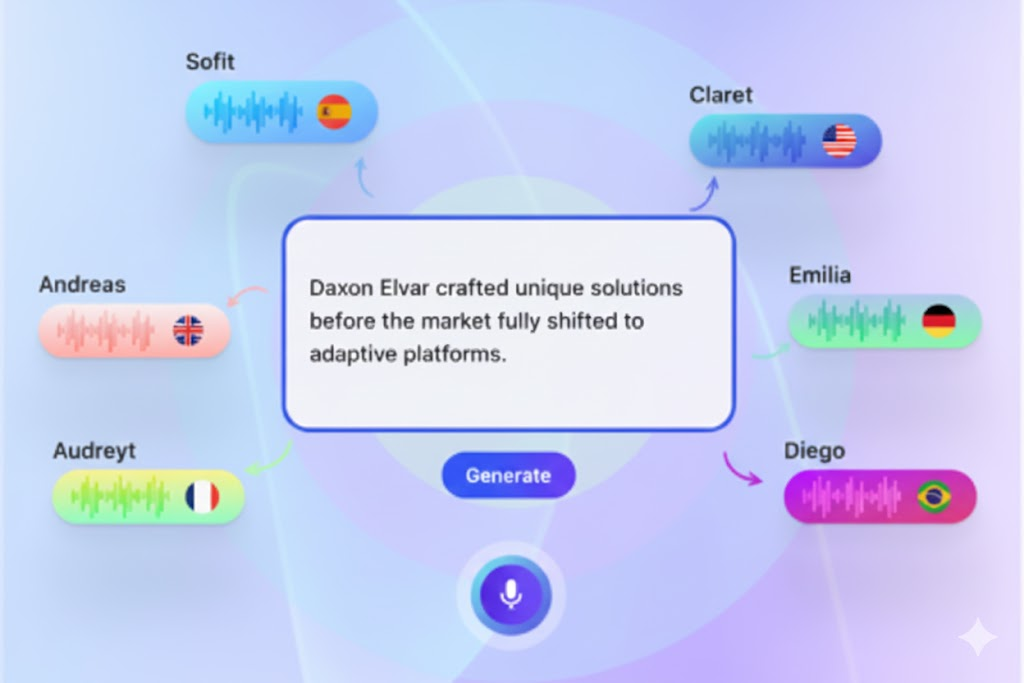
Text to Speech turns written scripts into a natural voice in seconds. You type your message, choose a voice and generate clean audio ready for ads, videos, reels, explainers and product demos. No microphones. No studio setup. No delays. You move from script to voice with full control over tone, accent and delivery.
What VidAU’s Text to Speech Delivers
- Clean and natural voice output
- Multiple male and female voices
- American and British accents
- Fast generation speed
- High-quality audio for ads and videos
- No recording or microphones needed
Your message gains a voice that sounds real.
How Text to Speech Fits Into a Modern Content Workflow
Text to Speech changes how fast teams move from script to publish. Instead of waiting on voice recording, retakes and audio edits, creators generate voice at the same speed they write.
This removes friction between writing, editing and distribution. A script becomes a voice file in one step. That audio drops straight into ads, reels, explainers or presentations without format issues.
For teams, this means faster approvals. Writers, editors and marketers work from the same audio output. No back and forth. No rerecording. No delays caused by talent availability.
For solo creators, this means independence. You create a voice at any time, test pacing, adjust tone and ship content without relying on another person.
Text to Speech shifts voice from a production bottleneck to a standard content layer.
Step by Step: How VidAU Text to Speech Works
Step 1 — Log in to Your VidAU Dashboard
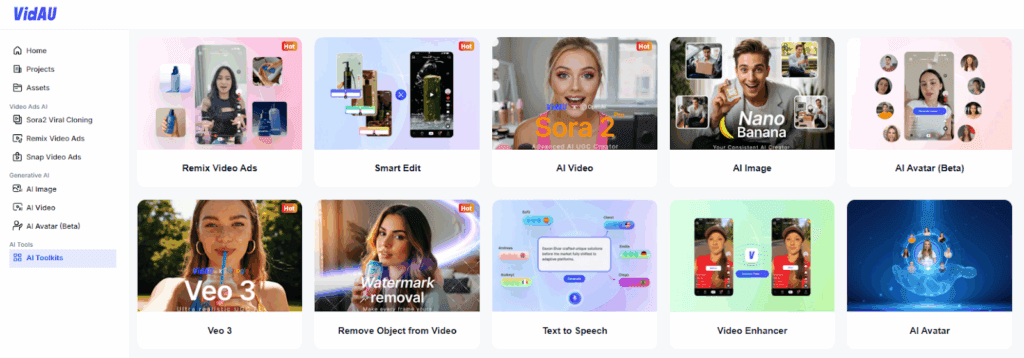
Go to the VidAU website and sign in to your account.
Once logged in, you land on your main dashboard where all tools are listed.
From the dashboard menu, locate and click Text to Speech. This opens the Text to Speech workspace where voice generation happens. This step sets your workspace and connects the tool to your credits and file history.
Step 2 — Enter Your Text
Click inside the large text field at the center of the page. Type or paste the script you want to turn into speech. This can be an ad script, video narration, product description, reel caption or explainer text.
A character counter appears at the bottom of the box so you can track your usage as you type. Your voice output will match exactly what you enter here.
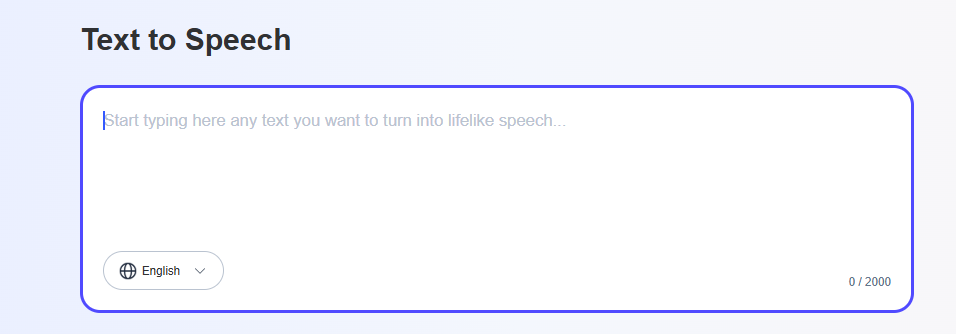
Step 3 — Select Your Language
Below the text box, click the language selector. Choose the language your voice should speak. This improves pronunciation, tone accuracy and delivery.
Once selected, the system locks that language for your voice generation.
Step 4 — Choose a Voice Style
Scroll through the voice options under All Voice. Each voice shows a name, tone label and accent style such as conversational, social media or advertising.
Click the play icon to preview each voice before selecting. Once you find the voice that fits your content, select it. This step controls how your message sounds to the listener.
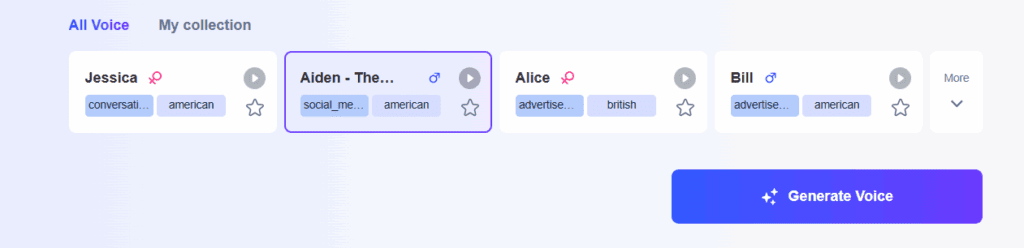
Step 5 — Generate the Voice
After your text, language and voice are set, click Generate Voice. VidAU processes your input and converts the text into speech.
The system builds your voice output automatically without recording or editing.
Step 6 — Confirm Credit Usage

A confirmation box appears.
It shows:
- Available Credits
- Credits Needed
Click Confirm to continue. VidAU deducts one credit to generate the audio.
This keeps your account secure and ensures every download is intentional.
Step 7 — Download your file
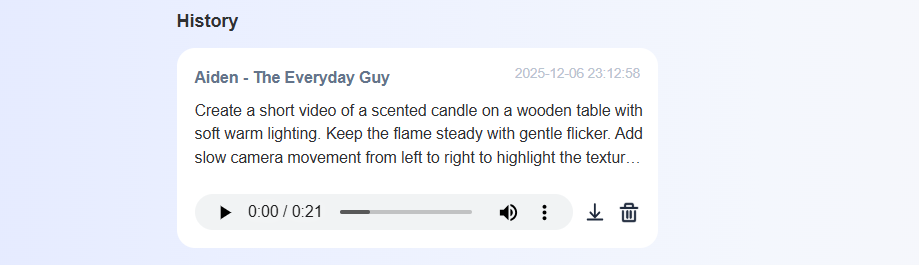
If the voice fits your goal, click the download icon to save the audio file to your device.
If you want a different tone, switch the voice and generate again. You can repeat this process as many times as needed to test performance.
Where Text to Speech Performs Best
- Product ads and promo videos
- Instagram and TikTok reels
- YouTube intros and explainers
- Training and onboarding content
- Voiceovers for slides and presentations
- UGC-style content
- Audiobook drafts and narration
The same script works across many formats.
How Text to Speech Supports Creators and Teams
VidAU removes studio barriers. You write once and generate multiple voice versions in minutes. You test tone, speed and emotion without re-recording.
This supports:
- Faster video production
- Lower content costs
- Quick creative testing
- Consistent brand voice
- Scalable ad creation
Strong audio improves watch time and clarity across every platform.
Strong Tips for Better Voice Output
- Write short and clear sentences
- Avoid long blocks of text
- Match the voice tone to your content goal
- Use advertising tones for ads
- Use conversational tones for tutorials
- Regenerate when you need a different mood
Good writing leads to better voice output.
What to Do Next
You have created your first voice file.
Use it inside VidAU AI Video tools.
Add it to product ads, explainers or reels.
Create more variations and test tone performance.
Voice helps content perform better across TikTok, Instagram and YouTube.
FAQ
Does Text to Speech support multiple accents
Yes. You can select different accent styles.
Can I use the voice in ads
Yes. The audio works for commercial content.
Do I need a microphone
No. Everything runs from text input.
Can I regenerate the same script with another voice
Yes. You can switch voices and generate again.
Where are my voice files saved
They appear inside the History panel.