Text to Speech · TTS Tools & Setup Guide
Text to Speech News: Latest Updates, Tools, and How to Enable TTS Features
Stay ahead with the latest in text to speech technology, from updated Samsung voice features to CapCut’s integration for content creators.
By Taiwo Oluwole · Updated 2026 · 24 min read
Stay ahead with the latest in text to speech technology, from updated Samsung voice features to CapCut’s integration for content creators. Discover new tools and how they can enhance both accessibility and creativity.
Text to speech technology has become an essential feature across smartphones, content creation platforms, and accessibility tools. Whether you need hands-free reading on your Samsung Galaxy device, professional voiceovers for your videos, or simply want to make digital content more accessible, understanding the current TTS landscape helps you choose the right tools and configure them effectively.
This guide explores recent developments in text to speech technology, provides detailed setup instructions for popular platforms, and examines practical applications for both accessibility and creative work.
Quick summary
- Text to speech technology converts written text into spoken audio using artificial intelligence, natural language processing, linguistic analysis, prosody generation, and waveform synthesis.
- Samsung Galaxy devices support Select to Speak and voice input through Android Accessibility Suite, Samsung Voice Typing, and Google Voice Typing.
- CapCut text to speech helps creators generate voiceovers directly inside video projects, with multiple voices, languages, and timeline editing options.
- Free TTS tools include OneNote Immersive Reader, Balabolka, and cloud services such as Google Cloud Text-to-Speech and IBM Watson Text to Speech.
- TTS supports accessibility, streaming, gaming, video creation, e-learning, commercial workflows, and future voice-first experiences.
What is Text to Speech Technology

Text to speech technology converts written text into spoken audio using artificial intelligence and natural language processing. Modern TTS systems analyze text input, process linguistic patterns, and generate human-like speech through synthesized voices.
TTS technology serves multiple purposes across different user groups. People with visual impairments rely on TTS for accessing digital content. Language learners use it to hear proper pronunciation. Content creators leverage TTS for generating voiceovers without recording equipment. Busy professionals appreciate hands-free reading while multitasking.
The core components of TTS systems include text analysis, linguistic processing, prosody generation, and waveform synthesis. Text analysis breaks down written content into processable units. Linguistic processing determines pronunciation, stress patterns, and intonation. Prosody generation adds natural rhythm and emotional tone. Waveform synthesis produces the final audio output.
Why this matters
Text to speech is no longer only an accessibility feature. The article shows how it now supports hands-free reading, language learning, content creation, video narration, streaming, gaming, e-learning, and voice-first communication.
Recent Developments in Samsung Galaxy TTS Features
Samsung Galaxy devices have received notable updates to their text to speech capabilities, particularly with the Galaxy S23 and newer S25 series. These improvements reflect growing demand for accessible, hands-free interaction with mobile devices.
The newest capabilities of Samsung’s Select to Speak feature enhance user experience significantly. Select to Speak allows users to tap any text on screen and have it read aloud immediately. This functionality works across apps, web pages, messages, and documents.
Samsung Galaxy S25 and S25 Ultra users gain access to refined TTS controls through the Android Accessibility Suite. The implementation on these newer devices offers smoother voice output, better text recognition from images, and more reliable background reading.
Key improvements in recent Samsung TTS updates include expanded language support, adjustable speech rate without quality degradation, customizable pitch settings, and enhanced text recognition accuracy. The system now handles complex formatting better, including proper reading of lists, tables, and mixed-language content.
Samsung offers two primary voice typing engines: Samsung Voice Typing and Google Voice Typing. Users can select their preferred engine based on accuracy needs and language requirements. Both engines continue receiving updates that improve recognition accuracy and processing speed.
How to Enable Text to Speech on Samsung Galaxy Devices

Enabling text to speech on Samsung Galaxy devices requires installing the Android Accessibility Suite and configuring Select to Speak. The process remains consistent across Galaxy S23, S25, and S25 Ultra models.
Installing Android Accessibility Suite
Begin by opening the Google Play Store on your Samsung device. Search for “Android Accessibility Suite” and install the official app from Google LLC. This suite contains Select to Speak along with other accessibility features.
Once installation completes, the accessibility tools become available in your device settings. The Android Accessibility Suite receives regular updates that improve performance and add features, so enabling automatic updates ensures you always have the latest improvements.
Configuring Select to Speak
Open the Settings app on your Samsung Galaxy device. Scroll down and select “Accessibility” from the settings menu. Within Accessibility settings, tap “Installed Apps” to see available accessibility tools.
Select “Select to Speak” from the list of installed accessibility apps. Toggle the switch to enable Select to Speak functionality. The system will prompt you to set up a gesture or button trigger for activating the feature.
You can choose between several activation methods. The most common option uses a combination of both volume buttons pressed simultaneously. Alternatively, you can select a floating button that remains on screen for quick access. Some users prefer the accessibility button in the navigation bar.
After enabling Select to Speak, configure the speech engine settings. Tap “Settings” within the Select to Speak menu to access customization options.
Customizing Speech Settings
The speech settings allow you to personalize how text is read aloud. Set the preferred engine to “Google” for generally better quality and more natural-sounding speech. You can compare different engines by testing sample text.
Adjust the speech rate using the slider control. Slower rates help with language learning or complex content. Faster rates work well for familiar material or quick information scanning. Find a comfortable rate that balances comprehension with efficiency.
Pitch adjustment lets you modify the voice tone. Higher pitch settings create a lighter voice quality. Lower pitch settings produce a deeper, more authoritative sound. Most users find the default middle range most natural.
Language selection determines which pronunciation rules and accent the TTS engine uses. You can set a default language and easily switch between languages when reading multilingual content. The system supports dozens of languages with varying voice quality depending on the language’s priority in Google’s development.
Enable background reading if you want TTS to continue while using other apps. This allows you to listen to an article while checking messages or browsing other content. Be aware that background reading consumes more battery.
Activate text reading from images to enable optical character recognition. This powerful feature lets Select to Speak read text from photos, screenshots, and other images. The accuracy depends on image quality and text clarity.
Using Select to Speak in Practice
Once configured, using Select to Speak becomes straightforward. Open any app containing text you want to read aloud. This includes web browsers, messaging apps, email clients, document viewers, and social media platforms.
Activate Select to Speak using your chosen trigger method. If using the volume button method, press both volume buttons simultaneously. The screen will display a highlighted border indicating Select to Speak is active.
Tap any text you want read aloud. Select to Speak highlights the selected text and begins reading immediately. You can tap individual words, sentences, paragraphs, or entire pages.
On-screen controls appear during reading. The play/pause button lets you stop and resume reading. The forward and backward buttons move between sentences. The speed control allows quick adjustments without returning to settings. The close button exits Select to Speak mode.
For continuous reading of longer content, tap once at the beginning of the text. Select to Speak will read until reaching the end of available content or until you pause manually. This works well for articles, chapters, and lengthy documents.
Tip
For long articles, chapters, or documents, activate Select to Speak once and tap at the beginning of the content. Continuous reading helps turn written material into hands-free audio without manually selecting each sentence.
Enabling Voice Input Speech to Text on Samsung Keyboard
While Select to Speak reads text aloud, voice input converts your speech into written text. This complementary feature enhances hands-free interaction with your Samsung Galaxy device.
Setting Up Voice Input
Open the Settings app and select “General Management” from the menu. Tap “Samsung Keyboard Settings” to access keyboard configuration options.
Look for the “Voice Input” option within keyboard settings. By default, this setting is usually set to “None,” meaning voice input is disabled.
Tap “Voice Input” to see available options. You can choose between Samsung Voice Typing and Google Voice Typing. Both options provide accurate speech recognition with slightly different interfaces and feature sets.
Samsung Voice Typing integrates seamlessly with Samsung’s ecosystem and offers good performance across most languages. Google Voice Typing leverages Google’s extensive speech recognition infrastructure and may provide better accuracy for some languages and accents.
Select your preferred voice typing engine. The system saves your choice and applies it immediately.
CapCut Text to Speech for Content Creation
CapCut’s text to speech feature offers exciting possibilities for video content creation, bringing professional voiceover capabilities to mobile and desktop video editing. This tool has gained significant popularity among content creators who need quick, reliable voiceovers without recording equipment.
Understanding CapCut TTS Capabilities
CapCut integrates AI-powered text to speech directly into its video editing workflow. The feature converts written scripts into voiceover audio that can be added to video projects instantly.
The TTS system in CapCut provides multiple voice options covering different genders, ages, accents, and personalities. Creators can select voices that match their content style, whether professional, casual, energetic, or calm.
Language support extends across dozens of languages, making CapCut TTS valuable for multilingual content creation. Each language typically includes several voice options to provide variety.
The generated voiceovers integrate seamlessly with CapCut’s timeline editing. Audio appears as a standard audio track that can be trimmed, split, adjusted for volume, and layered with music and sound effects.
Using CapCut Text to Speech
To use text to speech in CapCut, open your video project and position the playhead where you want the voiceover to begin. Tap the “Text” tool in the editing menu and select “Add Text.”
Type or paste your script into the text field. Keep sentences clear and properly punctuated for best results. The TTS engine uses punctuation to determine pauses and intonation.
After entering your text, look for the text to speech option. This typically appears as a speaker icon or “Text to Speech” button near the text formatting tools. Tap this option to access the voice selection menu.
Browse the available voices by category or preview them with sample text. CapCut usually organizes voices by language first, then by gender and style. Take time to listen to several options before committing.
Select your preferred voice and confirm the generation. CapCut processes the text and creates an audio file that appears on your timeline. Generation usually takes just a few seconds for typical script lengths.
The resulting voiceover can be adjusted like any audio clip. Change the volume to balance with other audio elements. Apply fade in and fade out effects for smooth transitions. Trim the beginning or end if needed.
Best Practices for CapCut TTS
Write scripts specifically for voiceover rather than directly converting written articles. Spoken language differs from written language in structure and flow. Shorter sentences work better for TTS clarity.
| TTS workflow | What it does | Best use |
|---|---|---|
| Samsung Select to Speak | Reads on-screen text aloud across apps, web pages, messages, and documents | Accessibility, hands-free reading, articles, documents, and multitasking |
| Samsung or Google Voice Typing | Converts spoken words into written text through the Samsung keyboard | Messages, emails, notes, forms, search, and hands-free writing |
| CapCut Text to Speech | Turns scripts into voiceover audio inside video projects | Short-form videos, tutorials, product demos, social clips, and multilingual content |
Free Text to Speech Tools and Applications
Beyond device-specific features and content creation platforms, numerous standalone TTS tools serve various needs. Understanding the options helps you select appropriate tools for different situations.
OneNote Immersive Reader
Microsoft OneNote includes Immersive Reader, a built-in text to speech feature available on Windows, Mac, iOS, and Android. This tool reads notes aloud with good voice quality and helpful visual highlighting.
To use Immersive Reader in OneNote, open a note containing text you want to read aloud. Click or tap the “View” menu and select “Immersive Reader.” The interface switches to a simplified reading view optimized for listening.
The Immersive Reader toolbar provides playback controls, voice settings, and text customization options. Click the play button to begin reading from the current position. The system highlights each word as it reads, helping you follow along visually.
Voice settings let you choose male or female voices and adjust reading speed. Text customization options include font size, spacing, and background color—helpful features for users with dyslexia or visual processing difficulties.
One advantage of OneNote’s Immersive Reader is that it works with content you’re already organizing in OneNote. Copy web articles, paste study materials, or write your own notes, then use Immersive Reader for auditory review.
You can record the audio output using Windows Voice Recorder or other recording software. This creates audio files you can listen to later or share with others.
Balabolka for Windows
Balabolka is a free Windows application dedicated to text to speech conversion. It offers more control and features than most built-in TTS tools, making it popular among power users.
The application supports various text file formats including TXT, DOC, EPUB, PDF, and HTML. Open a document directly in Balabolka, and the application displays the text ready for conversion.
Balabolka accesses all TTS voices installed on your Windows system. This includes the built-in Microsoft voices and any third-party voices you’ve added. The application lets you preview and compare voices easily.
Key features include adjustable speech rate, pitch, and volume for fine-tuned output. You can emphasize specific words, insert pauses, and control pronunciation of difficult terms using the pronunciation dictionary.
The batch conversion feature processes multiple documents automatically. Set your preferred voice and settings, then convert an entire folder of documents to audio files. This saves significant time when processing large amounts of content.
Balabolka exports audio in multiple formats including MP3, WAV, OGG, and WMA. Choose the format based on your needs for quality, file size, and compatibility.
Cloud-Based TTS Services
Several major technology companies offer cloud-based text to speech services accessible through web interfaces or APIs. While primarily designed for developers, some provide demo interfaces useful for general users.
Google Cloud Text-to-Speech delivers high-quality voices powered by the same technology used in Google Assistant and Google Translate. The service supports over 100 voices across more than 40 languages. WaveNet voices offer particularly natural-sounding speech with human-like intonation.
IBM Watson Text to Speech provides another professional-grade option. Watson voices include expressive capabilities that convey emotion and emphasis. The service supports multiple languages and dialects with customizable voice characteristics.
These cloud services typically offer limited free usage tiers suitable for occasional personal use. Enterprise features and unlimited usage require paid subscriptions, but the free tiers work well for testing and small projects.
Text to Speech in Communication Platforms
Discord Text to Speech
Discord includes built-in text to speech functionality that reads messages aloud in voice channels. This feature serves both accessibility purposes and entertainment value in community servers.
To use Discord’s TTS, type your message preceded by the command /tts in any text channel. When you send the message, Discord reads it aloud to everyone in the connected voice channel. The system uses the default TTS voice configured in Discord settings.
Server administrators can disable TTS in specific channels or server-wide if it becomes disruptive. Users can also mute TTS in their personal settings while still seeing the text messages.
Discord bots extend TTS functionality with additional features. Some bots offer multiple voices, different languages, or voice effects. Others provide TTS for specific use cases like announcements or automated notifications.
When considering Discord TTS bots, verify the bot’s reliability and permissions before adding it to your server. Check user reviews and ensure the bot comes from a reputable developer. Some popular TTS bots include built-in moderation features to prevent spam.
Text to Speech in Gaming Platforms
Gaming platforms increasingly incorporate TTS for accessibility and communication. Games with text chat often include options to have messages read aloud, helping players who prefer audio communication or need accessibility support.
Voice chat systems in games sometimes offer TTS conversion for players who cannot or prefer not to use microphone input. This creates more inclusive gaming environments where communication preferences don’t limit participation.
Some platforms allow custom TTS voice selection, enabling players to choose voices that match their character or personal preference. This personalization enhances the social gaming experience.
Text to Speech for Streaming and Content Broadcasting
Streamers and live content creators increasingly rely on text to speech technology for interaction and content enhancement. TTS serves multiple purposes in streaming environments.
Donation and Alert Systems
Many streaming platforms integrate TTS with donation and subscription alerts. When viewers support the stream financially, the system reads their message aloud using TTS. This creates immediate recognition and interaction without interrupting the streamer’s focus on content.
Streamers can configure TTS settings to control message length, filter inappropriate content, and select voice characteristics that match their stream personality. Some streaming software allows different voices for different alert types, creating audio variety.
Chat Reading Solutions
For streamers who cannot constantly monitor text chat while gaming or creating content, TTS chat readers provide a solution. These tools read chat messages aloud, allowing the streamer to hear and respond to viewer comments without looking away from their primary activity.
Chat TTS systems typically include filtering options to exclude spam, limit message length, and skip messages from muted users. Priority settings can emphasize messages from subscribers or moderators.
The best text to speech for streaming balances clear pronunciation, appropriate pacing, and personality that matches the stream’s tone. Professional streamers often test multiple TTS voices before settling on one that resonates with their audience.
Accessibility Benefits for Viewers
TTS features make streams more accessible to viewers with visual impairments or reading difficulties. When important on-screen text is read aloud, all viewers can follow along regardless of reading ability or screen visibility.
Some streaming platforms now offer automated caption generation with optional TTS playback. This technology recognizes spoken content, generates captions, and optionally reads them aloud for viewers who prefer audio-only consumption.
Text to Speech in Video and Content Creation Workflows
Beyond CapCut, various tools integrate TTS into content creation workflows. Understanding these options helps creators select the best fit for their production process.
Video Editing Software TTS Integration
Professional video editing applications increasingly include native TTS features or support for TTS plugins. These integrations streamline voiceover production within the editing environment.
Some editors allow script import directly into the timeline with automatic TTS generation. This workflow eliminates the separate step of generating voiceover files and importing them.
Timing synchronization features help match TTS voiceover to visual content. The software can automatically adjust speech rate or insert pauses to align narration with video segments.
AI Video Platforms
AI-powered video creation platforms combine TTS with automated video generation. Users input scripts and visual preferences, and the system generates complete videos with TTS narration.
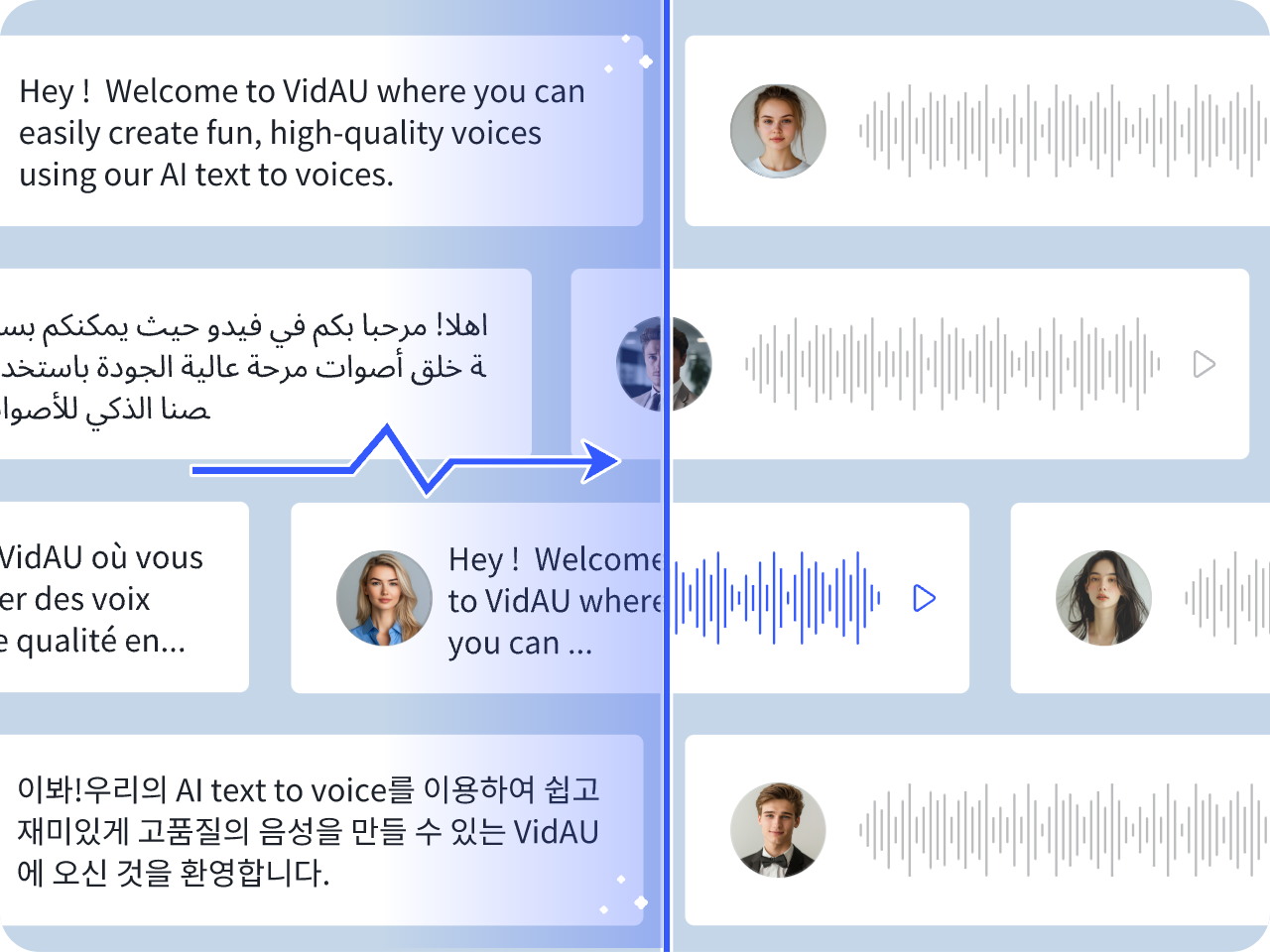
For creators producing regular content like product explanations, tutorial videos, or news summaries, platforms like VidAU AI integrate TTS into comprehensive video generation workflows. These systems handle both visual composition and narration, reducing production time significantly.
The AI avatar features in some platforms lip-sync to generated TTS, creating realistic presentation videos without filming. This approach works well for educational content, product demonstrations, and corporate communications.
Create AI Voiceover Videos
Use VidAU AI to turn scripts, product explanations, tutorials, and news summaries into videos with AI narration, avatars, and visual composition in one workflow.
VidAU workflow
From script to TTS-powered video
- Start with a voice-ready script: Write shorter sentences, add punctuation for pacing, and format the content for spoken delivery rather than direct article reading.
- Generate narration: Use AI text to speech to create a clear voiceover that matches the content type, audience, tone, and language.
- Add visual structure: Pair narration with product visuals, tutorial steps, news graphics, AI avatars, captions, and background music.
- Publish in multiple formats: Adapt the same script into short-form videos, educational explainers, product demos, corporate communications, and multilingual content.
E-Learning and Educational Content
Educational content creators use TTS extensively for course videos, tutorials, and instructional materials. TTS enables rapid content production and easy updates when information changes.
Multilingual educational content becomes more feasible with TTS. Creators can generate narration in multiple languages from translated scripts without hiring voice actors for each language.
Accessibility compliance for educational institutions often requires audio alternatives for text content. TTS provides a scalable solution for meeting these requirements across large content libraries.
Customizing Text to Speech Output

Voice Selection Strategies
Selecting the right voice for your purpose significantly impacts effectiveness. Consider these factors when choosing TTS voices:
Content type influences appropriate voice characteristics. Instructional content benefits from clear, authoritative voices. Entertainment content may work better with energetic, expressive voices. Professional communications typically require neutral, trustworthy voices.
Speech Rate Optimization
Speech rate significantly affects comprehension and engagement. Too slow creates boredom and wastes time. Too fast reduces comprehension and causes listener fatigue.
Typical comfortable listening rates range from 150 to 160 words per minute for conversational content. Instructional content often works better at 140 to 150 words per minute, allowing time for mental processing.
Technical or complex content benefits from slower rates. Listeners need processing time to understand specialized terminology and complex concepts.
Pronunciation Control
TTS systems sometimes mispronounce specialized terms, brand names, or uncommon words. Most advanced TTS tools provide pronunciation control mechanisms.
Phonetic spelling helps guide TTS engines. Rewrite problem words using phonetic approximations that the system pronounces correctly. For example, “pronunciation” might need to be respelled to achieve the desired output.
Custom pronunciation dictionaries available in tools like Balabolka let you define correct pronunciations for repeatedly used terms. Add technical jargon, product names, and acronyms to the dictionary with pronunciation guides.
Adding Natural Pauses
Appropriate pausing makes TTS output sound more natural and improves comprehension. Strategic use of punctuation creates pauses in the right places.
Commas create brief pauses equivalent to natural breath points in speech. Use commas to separate clauses and create rhythm in longer sentences.
Periods create longer pauses that signal sentence completion and give listeners time to process the previous thought before moving to the next.
Watch out
Cloud TTS services may process text on remote servers. For confidential, proprietary, regulated, or sensitive content, review privacy policies and consider on-device or enterprise TTS options.
Key takeaway
Conclusion
Text to speech technology has become a practical tool for accessibility, productivity, content creation, streaming, gaming, education, and video production. Samsung Galaxy Select to Speak helps users listen to on-screen text, Samsung and Google voice typing support hands-free writing, CapCut brings TTS into video editing, and free tools like OneNote Immersive Reader and Balabolka provide flexible options for reading and converting text.
The best TTS workflow depends on your goal. Accessibility users may prioritize device-level controls and offline voices. Creators may need voice selection, pacing, pronunciation control, and commercial usage rights. Businesses and educators may need privacy, multilingual support, and scalable narration. For video-first workflows, platforms like VidAU AI can help combine scripts, TTS narration, visuals, avatars, and publishing formats into a streamlined content production process.
FAQ
Here are answers to common questions about text to speech technology, Samsung Galaxy Select to Speak, Samsung voice input, CapCut TTS, free TTS tools, pronunciation, speech rate, commercial use, offline access, and Android voice customization.
What is text to speech technology and how does it work?
Text to speech technology converts written text into spoken audio using artificial intelligence and natural language processing. The system analyzes text structure, determines pronunciation and intonation patterns, and synthesizes speech through AI-generated voices.
How do I enable text to speech on my Samsung Galaxy S25 or S25 Ultra?
Install the Android Accessibility Suite from Google Play Store, then open Settings and navigate to Accessibility. Select Installed Apps and choose Select to Speak. Enable the feature and set up your preferred activation method using volume buttons or an accessibility button. Customize speech settings including rate, pitch, language, and voice engine. Set Google as the preferred engine for better quality. Enable background reading and text reading from images for expanded functionality.
What is the difference between Select to Speak and voice input on Samsung devices?
Select to Speak reads displayed text aloud to you. You activate it and tap text on screen to hear it spoken. Voice input converts your spoken words into written text on the keyboard. Select to Speak helps you consume content through listening, while voice input helps you create content through speaking. Both features complement each other for comprehensive hands-free interaction.
How do I use CapCut text to speech for my videos?
Open your video project in CapCut and add text at the desired timeline position. Type or paste your script with proper punctuation. Select the text to speech option represented by a speaker icon near text formatting tools. Browse available voices by language, gender, and style. Preview voices with sample text before selecting. Choose your preferred voice and generate the audio. The TTS audio appears on your timeline as an editable audio track that you can adjust, trim, and layer with other audio elements.
What are the best free text to speech tools available?
OneNote Immersive Reader provides excellent free TTS with visual highlighting across Windows, Mac, iOS, and Android. Balabolka offers advanced features for Windows users including batch conversion and multiple output formats. Google Cloud Text-to-Speech and IBM Watson Text to Speech provide limited free tiers with professional-quality voices.
Can I use text to speech for commercial video content?
Many TTS services include commercial use rights in their terms, but you must verify the specific license for your chosen tool. CapCut TTS generally permits use in published videos. Cloud services like Google Cloud and IBM Watson offer commercial licenses through paid tiers. Some free TTS voices restrict commercial use.
How do I improve text to speech pronunciation accuracy?
Start with correct spelling and proper punctuation in source text. Use phonetic respelling for problem words that guides the TTS engine toward correct pronunciation. Add custom pronunciations to your TTS system’s dictionary if available. For advanced control, use SSML tags in compatible systems to specify exact phonemes and pronunciation patterns.
What speech rate should I use for text to speech content?
Conversational content works well at 150-160 words per minute. Instructional or educational content benefits from slightly slower rates around 140-150 words per minute. Technical content with specialized terminology should use even slower rates to ensure comprehension.
How do I enable voice typing on Samsung keyboard?
Open Settings and select General Management, then tap Samsung Keyboard Settings. Look for Voice Input option which defaults to None. Tap Voice Input and choose either Samsung Voice Typing or Google Voice Typing based on your preference. Save the setting. A microphone icon now appears on your keyboard whenever text input is available.
Does text to speech work offline on Samsung Galaxy devices?
Select to Speak requires downloaded voice data but functions offline once voices are installed. Navigate to Settings, then Language and Input, and Text-to-speech to manage voice data downloads. Download voices for your required languages while connected to internet. After downloading, Select to Speak works without internet connection. Voice input typically requires internet connection for best accuracy since it uses cloud-based speech recognition.
Can I customize the text to speech voice on my Android device?
Android TTS settings allow selection between installed voice engines like Google and Samsung. Within each engine, you can adjust speech rate, pitch, and select from available voices. Some engines offer male and female voice options. Download additional language packs for multilingual support.
What are the main differences between Google Voice Typing and Samsung Voice Typing?
Google Voice Typing uses Google’s cloud-based speech recognition infrastructure with extensive language support and generally high accuracy across accents and dialects. Samsung Voice Typing integrates more tightly with Samsung device features and may process some requests on-device for faster response.