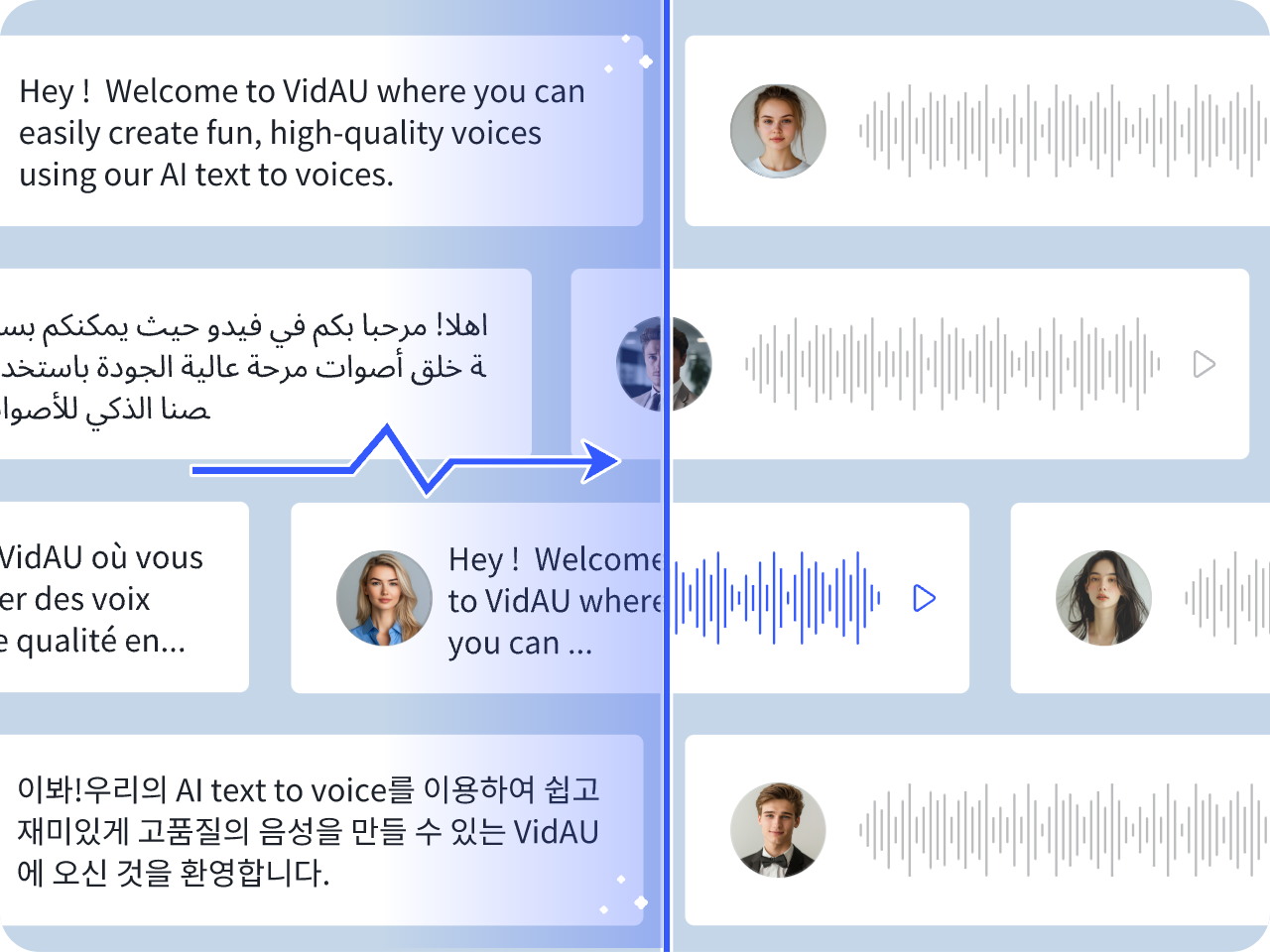
Text to Speech Software · Device Settings Guide
How to Turn Off Text to Speech Software on iPhone, Android, PS5, and Discord
Learn how to turn off text to speech software on iPhone, Android, PS5, and Discord with quick shortcuts, manual settings, and troubleshooting fixes.
By the VidAU Editorial Team · Updated 2026 · 12 min read
Text to speech software helps users hear on-screen text, notifications, and navigation prompts across phones, gaming consoles, and apps. While text to speech software improves accessibility, accidental activation often turns simple tasks into a frustrating experience.
Is your iPhone reading everything out loud? You’re not alone, and there’s a quick fix. Turn off VoiceOver with easy, exact steps to silence your device and regain full control.
The best text to speech features are valuable accessibility tools designed to help users navigate their devices through spoken feedback. However, they become frustrating when activated accidentally. Your iPhone may suddenly read every tap, your Android phone may not stop talking, or your PS5 may narrate your gaming session. This guide explains the exact steps to disable these features across major platforms.
Summary
- Text to speech software improves accessibility across phones, gaming consoles, and communication apps, but accidental activation often creates frustrating user experiences.
- This guide explained exact methods for how to turn off text to speech on iPhone, Android, PS5, and Discord using both quick shortcuts and manual settings adjustments.
- The fastest fixes include the iPhone triple-click shortcut, holding both Android volume keys for three seconds, disabling PS5 Screen Reader through Accessibility settings, and changing Discord Text-to-Speech Notifications to “Never.”
- The guide also covered troubleshooting methods for situations where VoiceOver, TalkBack, or TTS settings refuse to turn off normally.
- Start with quick shortcuts before navigating deeper accessibility settings, especially when screen readers change device navigation behavior.
In this guide
- Why Text-to-Speech Features Activate Accidentally
- Understanding Text-to-Speech Features
- How to Turn Off Text to Speech on iPhone
- Learn How to Turn Off Text to Speech on Android
- How to Turn Off Text to Speech on PS5
- How to Turn Off Text to Speech on Discord
- Troubleshooting Common Issues
- When Text-to-Speech Features Are Useful
- Conclusion
- FAQ
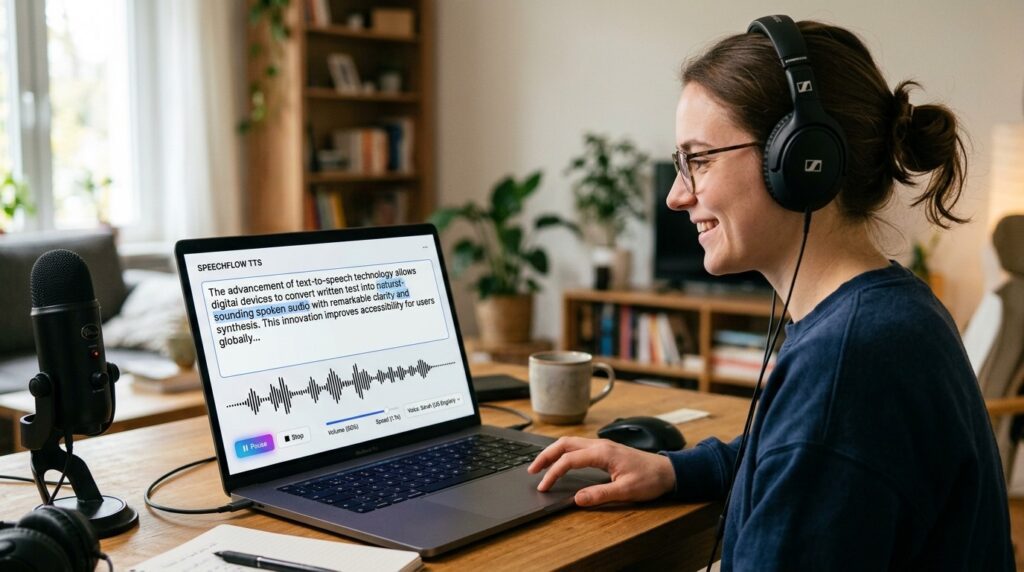
Why Text-to-Speech Features Activate Accidentally
Most users do not intentionally enable text to speech software. Accessibility shortcuts often activate after pressing side buttons, volume keys, or controller shortcuts repeatedly without noticing.
Different platforms use different triggers:
- iPhone uses triple-click side button shortcuts
- Android devices use both volume keys
- PS5 enables Screen Reader through controller shortcuts
- Discord activates TTS through notification settings or “/tts” commands
Understanding these triggers helps prevent the issue from happening repeatedly.
Key takeaway
Text to speech software is designed for accessibility, but accidental shortcuts are the biggest reason devices suddenly start reading everything aloud.
Understanding Text-to-Speech Features
FREE AI Voice Generator Like ElevenLabs 😱 Unlimited Text To Speech
Text-to-speech (TTS) technology converts written text into spoken words. Different devices and platforms use different names for their text-to-speech systems:
- iPhone and iPad: VoiceOver is Apple’s comprehensive screen reader
- Android devices: TalkBack provides spoken feedback for navigation
- PlayStation 5: Screen Reader assists with console navigation
- Discord: Text-to-speech output reads chat messages aloud
These accessibility features activate through various triggers often accidentally. The triple-click Home or Side button shortcut on iPhone, holding both volume keys on Android, or navigating accessibility menus can enable these features unintentionally.
| Platform | Text-to-speech feature name | What it does |
|---|---|---|
| iPhone and iPad | VoiceOver | Apple’s comprehensive screen reader for spoken navigation feedback. |
| Android devices | TalkBack | Provides spoken feedback for device navigation. |
| PlayStation 5 | Screen Reader | Assists with console navigation through spoken feedback. |
| Discord | Text-to-speech output | Reads chat messages aloud when enabled or triggered. |
How to Turn Off Text to Speech on iPhone
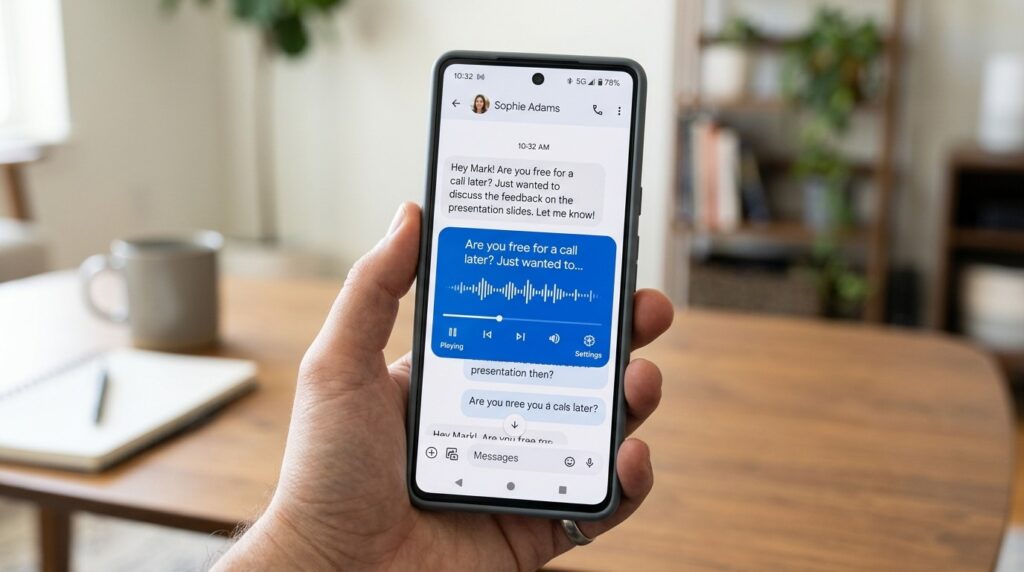
VoiceOver can be disabled through the Settings app or by using the triple-click Home/Side button shortcut. The visual cue for active VoiceOver is a triple border around selected items on your screen.
Method 1: Using the Accessibility Shortcut
The fastest way to disable VoiceOver is through the accessibility shortcut:
- Triple-click the Home button (iPhone 8 and earlier) or triple-click the Side button (iPhone X and newer)
- If VoiceOver is the only accessibility feature enabled, it will toggle off immediately
- If multiple features are enabled, select “VoiceOver” from the menu that appears
- Tap it once to disable
This method works even when VoiceOver is making navigation difficult, as the triple-click shortcut is specifically designed for quick accessibility toggling.
Method 2: Through Settings App
For a more permanent solution:
- Open the Settings app
- Navigate to Accessibility
- Locate the VoiceOver settings under Settings > Accessibility > VoiceOver to toggle it off easily
- Tap VoiceOver at the top of the screen
- Toggle the VoiceOver switch to the off position (it will turn from green to gray)
When VoiceOver is active, you’ll need to adjust your interaction method:
- Single tap to select an item
- Double-tap to activate it
- Swipe with three fingers to scroll
Disabling the VoiceOver Shortcut
To prevent accidental activation:
- Go to Settings > Accessibility
- Scroll to the bottom and tap Accessibility Shortcut
- Uncheck VoiceOver from the list
- This prevents the triple-click shortcut from activating VoiceOver
Other iPhone Voice Features to Check
If disabling VoiceOver doesn’t solve the issue, check these additional features:
- Speak Screen: Settings > Accessibility > Spoken Content > Speak Screen
- Speak Selection: Settings > Accessibility > Spoken Content > Speak Selection
- Siri Announcements: Settings > Siri & Search > Announce Notifications
Tip
If your iPhone is reading everything out loud, start with the triple-click Home or Side button shortcut before trying to navigate the Settings app with VoiceOver active.
How to Turn Off Text to Speech on Android
Android devices use TalkBack as their primary screen reader. The exact steps may vary by manufacturer (Samsung, Google Pixel, OnePlus, etc.), but the core process remains similar.
Quick Method: Volume Key Shortcut
Most Android devices support a quick disable method:
- Press and hold both volume keys simultaneously for 3 seconds
- You’ll hear a confirmation sound
- TalkBack will disable immediately
This shortcut works on most Android devices running Android 8.0 or newer.
Method Through Settings App
- Open the Settings app
- Use the search bar at the top and type “TalkBack” or “Vision”
- Tap Accessibility from the search results
- Locate TalkBack or Screen Reader (naming varies by device)
- Toggle the switch to Off
- Confirm by tapping OK or Turn Off in the popup dialog
Samsung-Specific Instructions
- Open Settings
- Tap Accessibility
- Select Vision enhancements or Vision
- Tap Voice Assistant or TalkBack
- Toggle off the feature
- Tap Stop to confirm
Google Pixel Instructions
- Open Settings
- Tap Accessibility
- Select TalkBack
- Toggle Use TalkBack to off
- Tap OK to confirm
Navigating with TalkBack Active
When TalkBack is enabled, interaction changes:
- Single tap selects an item and reads it aloud
- Double-tap activates the selected item
- Swipe right or left to move between items
- Then, Swipe down then up in one motion to scroll down
- Swipe up then down in one motion to scroll up
Disabling Text-to-Speech Output
Separate from TalkBack, Android has a text-to-speech output setting:
- Open Settings
- Search for “Text-to-speech output”
- Tap Text-to-speech output under Vision or Accessibility
- Adjust the speech rate slider to minimum or select Turn off
- Some devices allow disabling the preferred TTS engine entirely
How to Turn Off Text to Speech on PS5
The PlayStation 5 has two separate text to speech software features: the general Screen Reader for console navigation and broadcast-specific text-to-speech for live streaming.
Disabling PS5 Screen Reader
- Press the PlayStation button on your controller to open the Control Center
- Navigate to Settings (gear icon in the top right)
- Select Accessibility
- Choose Screen Reader
- Toggle Enable Screen Reader to Off
- Confirm your selection
Alternatively, you can hold the PlayStation button for a few seconds to access quick settings and toggle Screen Reader from there.
Disabling Chat Transcription
Chat transcription reads incoming voice chat as text:
- Go to Settings
- Select Accessibility
- Choose Voice Chat Transcription
- Toggle it to Off
This stops the PS5 from converting voice chat into spoken text feedback.
Disabling Broadcast Text-to-Speech
If text-to-speech is reading chat messages during live streams:
- Go to Settings
- Navigate to Captures and Broadcasts
- Select Broadcasts
- Choose Audio
- Find Text-to-Speech settings
- Toggle Enable Text-to-Speech to Off
This prevents chat messages from being read aloud during your broadcasts while keeping other audio features active.
PS5 Screen Reader Shortcut
To prevent accidental activation:
- Go to Settings > Accessibility
- Select Shortcuts
- Disable Screen Reader Shortcut
This removes the hold PlayStation button shortcut for Screen Reader activation.
| Device or app | Fastest way to turn off text to speech | Manual settings path |
|---|---|---|
| iPhone | Triple-click the Home button or Side button | Settings > Accessibility > VoiceOver |
| Android | Hold both volume keys for 3 seconds | Settings > Accessibility > TalkBack |
| PS5 | Use quick settings or controller shortcut if available | Settings > Accessibility > Screen Reader |
| Discord | Change Text-to-Speech Notifications to “Never” | User Settings > Notifications > Text-to-Speech Notifications |
How to Turn Off Text to Speech on Discord
Discord’s text-to-speech feature reads messages aloud when users prefix their messages with “/tts” or when the setting is enabled for all messages.
Disabling TTS Through User Settings
- Open Discord (desktop or mobile app)
- Click the gear icon next to your username (User Settings)
- Navigate to Notifications in the left sidebar
- Scroll down to Text-to-Speech Notifications
- Select Never from the dropdown menu
- This prevents any TTS messages from playing
Alternative options include:
- For all channels: Plays TTS in every server
- For current selected channel: Only plays in your active channel
- Never: Completely disables TTS playback
Server-Specific TTS Settings
To disable TTS for specific servers:
- Right-click the server name or icon
- Select Notification Settings
- Disable Text-To-Speech Notifications
- Click Done
This allows you to customize TTS behavior per server.
Mobile Discord TTS Settings
On Discord mobile:
- Tap your profile icon (bottom right)
- Tap User Settings
- Select Notifications
- Tap Text-To-Speech
- Choose Never
- Tap Save
Preventing Others from Using TTS
Server administrators and moderators can disable TTS messages:
- Go to Server Settings
- Select Roles
- Choose the role you want to modify
- Scroll to Text Permissions
- Toggle off Send Text-to-Speech Messages
- Save changes
Try VidAU Now
Use VidAU to turn scripts, product messages, captions, and AI voice workflows into polished videos with voiceover-ready formats for creators, brands, and marketing teams.
VidAU workflow
From text and voice settings to video-ready content
- Start with text: Prepare the script, narration, tutorial, product message, or educational explanation you want to turn into a video.
- Choose the voice workflow: Use AI voice, voiceover, captions, or speech-driven presentation layers depending on your content goal.
- Build the video: Pair spoken narration with visuals, captions, avatars, product scenes, or instructional steps.
- Export for your channel: Create polished content for social media, tutorials, explainers, product videos, or accessibility-friendly communication.
Troubleshooting Common Issues
iPhone VoiceOver Won’t Turn Off
If the standard methods don’t work:
- Restart your iPhone while VoiceOver is active (remember to use double-tap to activate)
- Try asking Siri: “Turn off VoiceOver”
- Connect to iTunes/Finder on a computer, which can help navigate settings
- As a last resort, restore your iPhone through Recovery Mode
Android TalkBack Stuck On
If TalkBack remains active:
- Try the volume key shortcut (hold both volume keys for 3 seconds) multiple times
- Restart the device in Safe Mode to rule out third-party app interference
- Use Google Assistant voice command: “Turn off TalkBack”
- Reset app preferences: Settings > System > Reset Options > Reset App Preferences
PS5 Screen Reader Keeps Reactivating
If Screen Reader turns back on:
- Check if someone else is using your console and accidentally triggering it
- Disable the Screen Reader shortcut in Accessibility settings
- Update your PS5 system software to the latest version
- Check controller button mapping in Accessibility settings for conflicts
Discord TTS Still Playing
If TTS continues despite settings changes:
- Completely close and restart Discord
- Clear Discord cache (User Settings > Advanced > Clear Cache)
- Check server-specific notification overrides
- Verify you haven’t enabled a screen reader or TTS extension in your browser
- Reinstall Discord if the issue persists
| Problem | Fixes to try |
|---|---|
| iPhone VoiceOver won’t turn off | Restart the iPhone, ask Siri to turn off VoiceOver, connect to iTunes/Finder, or restore through Recovery Mode as a last resort. |
| Android TalkBack stuck on | Try the volume key shortcut multiple times, restart in Safe Mode, use Google Assistant, or reset app preferences. |
| PS5 Screen Reader keeps reactivating | Check other users, disable the shortcut, update system software, and review controller button mapping. |
| Discord TTS still playing | Restart Discord, clear cache, check server overrides, verify browser extensions, or reinstall Discord. |
When Text-to-Speech Features Are Useful
While this guide focuses on disabling these features, text to speech software technology serves important accessibility purposes:
- Vision impairment: Essential for users who cannot see screens clearly
- Reading difficulties: Helps users with dyslexia or other reading challenges
- Multitasking: Allows listening to content while performing other tasks
- Language learning: Helps with pronunciation and comprehension
- Hands-free operation: Useful while driving or cooking
If you intentionally use these features but need to temporarily disable them, remember how to quickly reactivate them using the same settings paths.
Key takeaway
Conclusion
The best speech to text features across devices serve important accessibility functions but can be frustrating when activated accidentally. The key to disabling these features is knowing where to look:
- iPhone: Use the triple-click shortcut or Settings > Accessibility > VoiceOver
- Android: Hold both volume keys for 3 seconds or navigate to Settings > Accessibility > TalkBack
- PS5: Access Settings > Accessibility > Screen Reader, or disable broadcast TTS separately
- Discord: User Settings > Notifications > Text-to-Speech Notifications > Never
Each platform provides multiple methods to control these features, ensuring you can regain control of your device regardless of how the feature was activated. Remember that these are accessibility tools designed to help users, so consider leaving them enabled if they serve a useful purpose for your needs.
FAQ
Here are answers to common questions about VoiceOver, TalkBack, PS5 Screen Reader, Discord text-to-speech, Speak Screen, Android shortcuts, Siri commands, and device narration settings.
How do I know if VoiceOver is turned on?
You’ll see a triple black border around selected items, and your iPhone will speak every action you take. Everything you touch will be announced aloud before it activates.
Why does my iPhone keep reading everything to me?
VoiceOver is likely enabled, either through the triple-click shortcut or accessibility settings. Use the triple-click Home or Side button shortcut to quickly disable it.
How do I turn off text to speech on Android without using settings?
Press and hold both volume keys simultaneously for 3 seconds. This shortcut works on most Android devices to quickly toggle TalkBack on or off.
What’s the difference between VoiceOver and Speak Screen?
VoiceOver is a full screen reader that changes how you interact with your device. Speak Screen only reads content when you swipe down with two fingers and doesn’t change navigation.
Can I disable text to speech on PS5 for broadcasts only?
Yes. Go to Settings > Captures and Broadcasts > Broadcasts > Audio and toggle off Text-to-Speech. This keeps Screen Reader available for console navigation while silencing broadcast chat.
Why does Discord keep reading messages aloud?
You likely have Text-to-Speech Notifications enabled. Go to User Settings > Notifications and set Text-to-Speech to “Never” to stop all TTS playback.
How do I prevent accidentally enabling VoiceOver?
Disable the accessibility shortcut by going to Settings > Accessibility > Accessibility Shortcut and unchecking VoiceOver. This prevents the triple-click from activating it.
Does turning off TalkBack affect other Android accessibility features?
No. TalkBack operates independently from other accessibility features like magnification, color correction, or font size adjustments. Disabling it only stops the screen reader.
Can I use Siri to turn off VoiceOver?
Yes. Activate Siri and say “Turn off VoiceOver.” This can be helpful if you’re having difficulty navigating the settings while VoiceOver is active.
Why does my Samsung phone’s voice assistant keep turning back on?
Check if you’ve enabled the Side key shortcut (pressing power button multiple times). Disable this in Settings > Accessibility > Interaction and dexterity > Side and Volume up keys.
How do I disable text-to-speech for Discord on mobile?
Tap your profile icon, go to User Settings > Notifications > Text-To-Speech, and select “Never.” This works the same as desktop Discord.
Will disabling Screen Reader on PS5 affect game audio?
No. Screen Reader only affects system navigation voice feedback and doesn’t impact game audio, music, or party chat functionality on your PlayStation 5.