VEED.io Review · Browser-Based AI Video Editor
VEED.io Review 2026: Features, Pricing, Pros & Cons
A practical review of VEED.io’s browser-based AI video editor, including auto subtitles, translation, AI text-to-video, pricing, login setup, editing workflow, pros, cons, and alternatives.
By the Sarah Iruoje · VEED.io review · 12 min read
VEED.io is a browser-based AI video editor designed to make video production more accessible to creators of different experience levels. Its online workspace brings together everyday editing tools and AI-powered features, allowing users to trim footage, generate automatic subtitles, translate spoken content, clean up audio, compress files, and create videos from text,all without downloading or installing desktop software.
This VEED.io review takes a closer look at how the platform works and what it offers in 2026. We explore its most useful editing and automation features, compare the free and paid pricing plans, and explain the signup and setup process. We also examine its strengths and limitations, including the restrictions users may encounter when working with the free version.
The guide is intended for content creators, YouTubers, social media marketers, educators, and small business owners looking for a convenient way to produce professional-looking videos online. Whether you need to caption short-form content, translate a presentation, prepare marketing videos, or make quick edits from your browser, this review will help you decide if VEED.io is a practical fit for your needs, budget, and workflow.
Quick Summary
- VEED.io is a browser-based AI video editor best for quick social clips, auto subtitles, and multilingual video without installing software.
- For full AI ad generation from product URLs or scripts, VidAU AI Video (https://www.vidau.ai/vidau-ai-video/) is a stronger fit than VEED.io.
- VEED offers a free plan with watermarks and export limits, plus paid tiers that unlock higher resolution and watermark-free output.
- Beginners, YouTubers, and marketers editing short-form video for TikTok, Instagram, and YouTube benefit most from VEED.io.
What Is VEED.io?
VEED.io is an online, browser-based AI video editor that lets you create and edit video without downloading any software. You upload a clip, then trim, add subtitles, apply branding, and export, all from a single dashboard. It runs in Chrome and other modern browsers and saves projects to your account.
The platform positions itself around AI features: auto subtitles with translation, AI text-to-video, and editing tools that speed up routine tasks. That makes it useful for fast turnaround on short-form content.
Key definition
VEED.io is a browser-based AI video editor for trimming clips, adding subtitles, applying branding, translating audio, generating text-to-video drafts, and exporting social videos without installing desktop software.
Why VEED.io Matters for Creators and Marketers
VEED.io matters because it removes the setup friction of desktop editors. There is nothing to install, and projects sync across devices through the veed.io login. For creators who publish daily, that speed counts.
Our team reviewed how VEED is presented across recent tutorials and reviews, and the consistent message is accessibility. The auto-subtitle workflow alone saves the manual typing many marketers dread. For social video where captions drive watch time, that is the headline benefit.
Key Takeaways
- VEED.io is built for fast, browser-based editing without downloads.
- Auto subtitles and translation are the standout time-savers.
- It fits short-form social workflows better than long, complex edits.
VEED.io Key Features and AI Tools
VEED.io combines a standard timeline editor with AI tools that reduce manual work. Here are the features creators reference most.
- Auto subtitles and translation: Generate captions automatically, then translate them into other languages for wider reach.
- AI text-to-video: Turn a script or prompt into a draft video, useful for quick concepts.
- Branding tools: Apply logos, brand colors, and fonts to keep videos consistent.
- Templates: Start from pre-built layouts for YouTube, TikTok, and Instagram formats.
- Recording: Record screen and webcam inside the editor.
- Basic editing: Crop, trim, split, add music, and overlay text on a timeline.
The AI text-to-video feature is improving but still works best as a starting draft rather than a finished ad. For polished product ads from a URL or sample, dedicated ad tools like VidAU AI Video handle that job more directly. VidAU is an AI video ad platform that generates video ads from product URLs, images, or scripts in 49 languages.
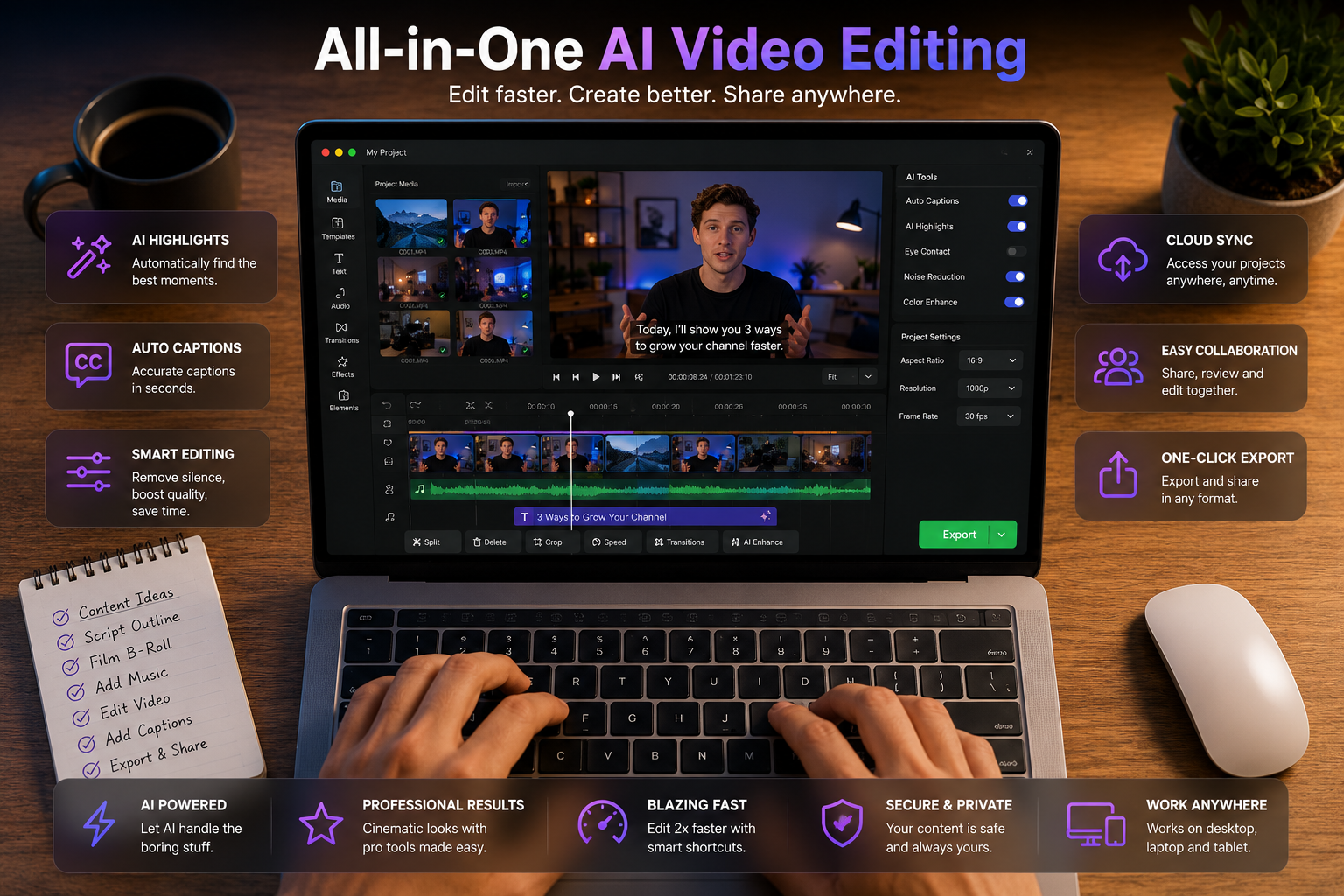
Suggested Visual: Annotated screenshot of the VEED.io editor showing the timeline, subtitle panel, and AI tools sidebar. Filename: veed-io-editor-interface.png
Tip
Use VEED.io when you need flexible editing, captions, translation, templates, or browser-based recording. Use an ad-focused tool when you need product URL to ad video, UGC-style creatives, and campaign output speed.
VEED.io Pricing Plans Compared
VEED.io uses a freemium model: a free plan plus paid subscription tiers. The free plan is good for testing, but it applies watermarks and limits export length and resolution. Paid plans unlock higher resolution, watermark-free export, and more AI usage.
| Plan | Annual Price (Per Month) | Monthly Price | Max Export Quality | Core Features |
| Free | $0 | $0 | 720p | Watermarked videos, 10-min max length, 30 min/mo subtitles. |
| Lite | ~$12 | ~$24 | 1080p | No watermarks, 25-min max length, 12 hrs/mo subtitles, stock media. |
| Pro | ~$22 | ~$55 | 4K | AI avatars, voice cloning, video translation, subtitle downloads. |
| Business | ~$70 | Custom | 4K | AI avatars, voice cloning, video translation, subtitle downloads. |
| Enterprise | Custom | Custom | 4K | Custom volume licensing, dedicated support, enterprise-grade security. |
Pricing and exact feature splits change over time, so check the current plan page before subscribing. The main decision is simple: the free plan is fine for trials, but you will want a paid tier to remove watermarks and export in higher resolution for client or brand work.
Pricing note
The free plan is useful for testing, but watermarks and export caps make a paid tier more practical for client work, brand videos, and higher-resolution publishing.
How to Sign Up and Use the veed.io login
Creating a VEED.io account takes about two minutes. Many tutorials cover this because the signup flow is the first thing new users search for.
- Go to the VEED.io site and click Sign Up.
- Register with Google, Apple, Microsoft, or your email address.
- Verify your email if prompted.
- Answer a few quick setup questions about your use case.
- Land on the dashboard, where you can start a project or open the editor.
For returning users, the veed.io login uses the same provider you signed up with. If you registered with Google, log in with Google to avoid duplicate accounts. You can also invite editors to a shared workspace from the dashboard.
If you only want a quick voiceover or a clean script-to-video draft instead of full editing, tools like VidAU Text to Speech and VidAU Text to Video can cover those single tasks faster.
Create AI Videos and Ad Creatives With VidAU
Use VidAU AI Video, Text to Video, Text to Speech, URL to Video, UGC Avatars, and Video Enhancer when you need faster product ads, voiceovers, multilingual scripts, and campaign-ready video workflows.
VidAU workflow
Where VidAU fits alongside VEED.io
- Use VEED.io for browser editing: Trim clips, add subtitles, apply branding, translate captions, and export flexible social edits.
- Use VidAU for ad generation: Generate product ads from URLs, images, or scripts when the goal is paid campaign output instead of general editing.
- Create fast script and voice assets: Use VidAU Text to Speech and Text to Video when you only need narration or a script-based video draft.
- Build UGC-style creatives: Use VidAU UGC Avatars when the ad needs a spokesperson or native-feeling presenter format.
- Improve final quality: Use VidAU Video Enhancer when exported clips need sharper resolution before posting or campaign launch.
How to Edit and Export a Video in VEED.io
Editing in VEED.io follows a clear path from upload to export. Here is the basic workflow.
- Upload: Drag your video, image, or audio into the editor, or record directly.
- Trim and arrange: Cut unwanted sections and place clips on the timeline.
- Add subtitles: Run auto subtitles, then review and fix any errors.
- Brand it: Add your logo, text overlays, and music.
- Translate if needed: Convert subtitles into another language for reach.
- Export: Choose your resolution, then download. On the free plan, expect a watermark and resolution caps.
The veed.io video compressor is also useful when files are too large for fast uploading. Many creators search for the veed video compressor to shrink clips before exporting or sharing, which helps when posting to platforms with size limits.
When you need to push final output quality higher, an external tool like VidAU Video Enhancer can upscale clips after export.
Suggested Visual: Step-by-step flow chart from upload to export inside VEED.io. Filename: veed-io-export-workflow.png
Tip
Review subtitles before exporting. Auto captions save time, but names, slang, punctuation, and brand terms still need a human check.
Pros, Cons, and Common Mistakes
A balanced VEED.io review should name both strengths and limits. Here is the honest version.
Pros
- No download required; works in the browser.
- Fast auto subtitles and translation.
- Beginner-friendly interface with templates.
- Solid branding controls for consistent video.
Cons
- Free plan adds a watermark and caps exports.
- AI text-to-video is best as a draft, not a final ad.
- Heavy or long-form projects can feel slower in-browser.
- Advanced editors may outgrow the timeline.
Common mistakes to avoid:
- Skipping subtitle review. Auto captions still need a human check for names and slang.
- Exporting on free and being surprised by the watermark. Upgrade first if it is client work.
- Choosing the wrong aspect ratio. Set 9:16 for TikTok and Reels, 1:1 for feed, before editing.
Watch out
The most common VEED.io mistakes are skipping subtitle review, exporting client work on the free plan with a watermark, and choosing the wrong aspect ratio before editing.
VEED.io Alternatives by Use Case
VEED.io is strong for browser editing, but it is not the only option. Match the tool to the job.
| Use Case | Tool Fit | Why |
|---|---|---|
| Quick social edits | VEED.io | Browser editing, fast subtitles |
| Product ads from a URL | VidAU AI Video | Generates ads from links or scripts |
| UGC-style spokesperson video | VidAU UGC Avatars | Avatar-led ad creatives |
For ecommerce sellers and ad teams, VidAU URL to Video and VidAU UGC Avatars target ad production specifically, while VEED.io stays general-purpose. Pick VEED.io when you want flexible editing, and pick an ad-focused tool when output speed for paid campaigns matters most.
Tip
Choose VEED.io for flexible browser editing and subtitles. Choose VidAU workflows when you need product ads, URL-to-video output, UGC-style spokespersons, or higher-volume paid campaign production.
Key takeaway
Final Thoughts
VEED.io is a practical, accessible AI video editor for creators who want to edit, caption, and translate video in the browser without installing anything. The free plan is good for testing, while paid tiers remove watermarks and unlock higher resolution for professional work.
If your main goal is producing product ads or multilingual ad creatives at scale, try a purpose-built option like VidAU AI Video (https://www.vidau.ai/vidau-ai-video/) alongside VEED.io and use each for what it does best.
FAQ
Here are answers to common questions about VEED.io, the veed.io login, auto subtitles, translation, watermarks, VEED.io pricing, the veed.io video compressor, beginner workflows, YouTube and TikTok formats, and alternatives for ad creation.
Is VEED.io free to use?
Yes, VEED.io has a free plan that lets you edit, add auto subtitles, and export video in the browser. However, the free tier applies a watermark and limits export length and resolution. Paid plans remove the watermark and unlock higher resolution and more AI usage for serious creators.
How do I sign up and log in to VEED.io?
Go to the VEED.io site, click Sign Up, and register with Google, Apple, Microsoft, or email. Verify your email if asked, answer a few setup questions, and you reach the dashboard. For the veed.io login later, use the same provider you signed up with to avoid creating duplicate accounts.
Does VEED.io put a watermark on videos?
The free VEED.io plan adds a watermark to exported videos. To export watermark-free, you need to upgrade to a paid subscription. If you are creating client or brand work, choose a paid plan before exporting so you do not have to re-render the final video later.
Can VEED.io add and translate subtitles automatically?
Yes. VEED.io can generate auto subtitles from your video audio and then translate those captions into other languages. This is one of its strongest features for social video. Always review the auto captions for names, slang, and punctuation before exporting, since AI transcription is not always perfect.
Does VEED.io have a video compressor?
Yes, the veed.io video compressor helps shrink large clips so they upload and share faster. Creators often use the veed video compressor before exporting or posting to platforms with file size limits. It is handy when your raw footage is too large for quick uploading or social media requirements.
Is VEED.io good for beginners?
VEED.io is beginner-friendly because it runs in the browser, needs no download, and offers templates for YouTube, TikTok, and Instagram. The timeline is simple, and AI tools handle repetitive tasks like captions. Beginners can produce a basic social video in minutes, then add branding and music as they grow more confident.
What are the best VEED.io alternatives for ad creation?
For product ads, alternatives focused on ad output may suit you better than a general editor. VidAU AI Video generates ads from product URLs, images, or scripts, and VidAU UGC Avatars creates spokesperson-style creatives. Use VEED.io for flexible editing and an ad-focused tool when campaign speed and volume matter most.
Can I use VEED.io for YouTube and TikTok videos?
Yes. VEED.io supports common aspect ratios, so you can set 9:16 for TikTok and Reels or 16:9 for YouTube before editing. Templates and auto subtitles fit short-form workflows well. Set the correct aspect ratio at the start to avoid awkward cropping when you export and publish to each platform.