Vidu Q2 for Beginners: Learn AI Video Creation the Easy Way
What is Vidu Q2?
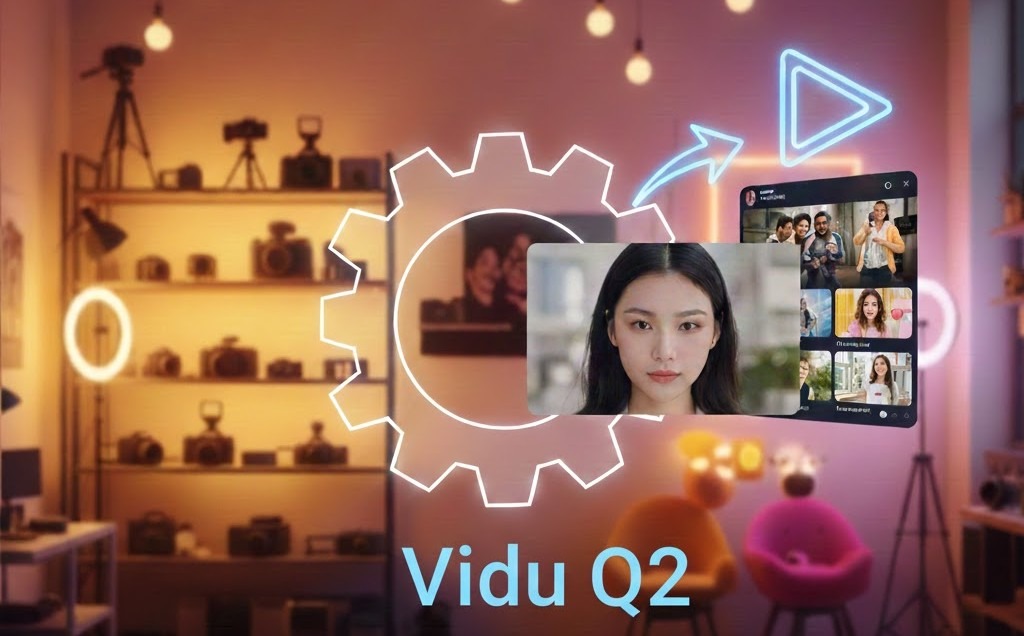
Vidu Q2 is a precision AI video model designed to create clean, controlled and marketing-ready motion clips without manual editing. It takes a written prompt or image and turns it into a finished video scene built for social feeds, ads and storytelling. Unlike cinematic AI models that focus on world-building, Vidu Q2 puts the subject at the center and pushes strong pacing, eye-direction, movement and product focus.
This makes Vidu Q2 ideal for creators and brands who need scroll-stopping TikTok, Reels and YouTube Shorts content without filming, actors or editing software. You describe the shot with words, and the model handles motion, composition and timing automatically.
Step-by-Step Tutorial for Using Vidu Q2 on VidAU

Step 1 — Open AI Video
To begin, sign in to your VidAU dashboard and open the AI Video section from the left sidebar. If the video creation workspace does not appear immediately, click Create AI Video to load it. This brings you into the main editor where Vidu Q2 generates videos from prompts and frame images.
Step 2 — Switch the model to Vidu Q2
At the top of the editor you will find a dropdown that lists all available AI video models. Select Vidu Q2 from that list. The interface will shift to reveal the full Vidu Q2 workspace, including the prompt field, frame uploads and model version options. Once you see those controls, the system is ready to produce videos using Vidu Q2.
Step 3 — Select the Model Version
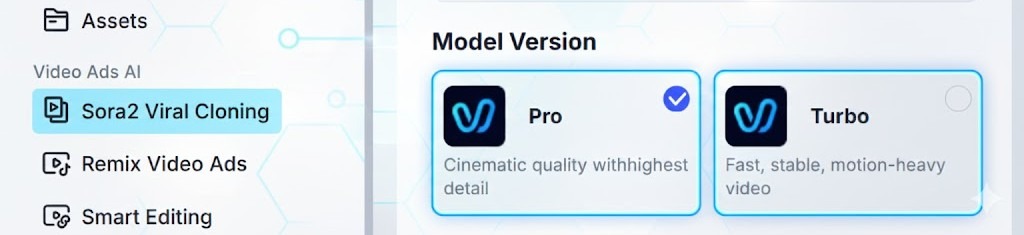
This part determines how Vidu Q2 approaches the generation. There are two versions: Pro and Turbo. Pro focuses on maximum visual detail, refined motion control and high-end commercial quality, making it the better choice for branded deliverables and ads that will go live. Turbo focuses on speed and credit efficiency, ideal for early-stage concept testing and quick exploration. Many users prefer to experiment in Turbo first, then switch to Pro when the idea is locked in and ready for final production.
The quick rule is:
- Turbo for testing ideas
- Pro for publishing and paid promotion
Step 4 — Enter Your Prompt
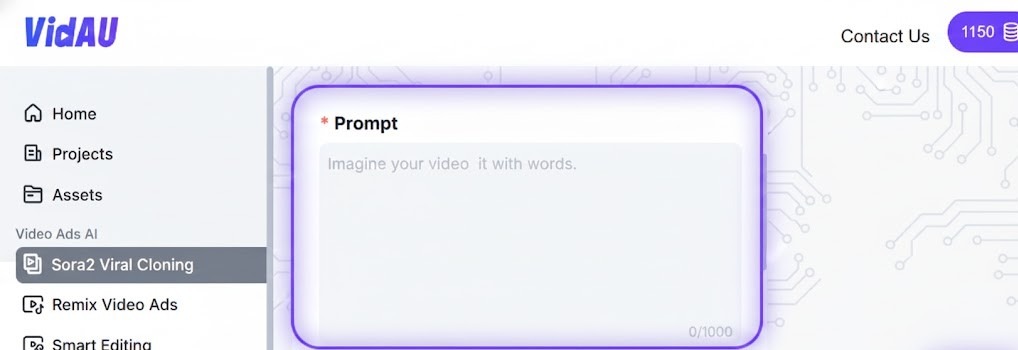
The prompt tells Vidu Q2 what you want the viewer to see. Longer is not better. Clarity is better. The model responds strongest when you describe the actual shot visually rather than expressing emotion or intention. Include the subject, the movement happening on screen, the surroundings, the lighting and the camera motion. For example, “Black wireless earbuds sitting on a marble counter, soft top-light, water splash motion behind, slow camera slider from left to right” gives Vidu Q2 a clean blueprint. In contrast, prompts like “a powerful cinematic video for social media” do not guide the model well. Think like a director describing the shot.
Step 5 — Add Frame Images
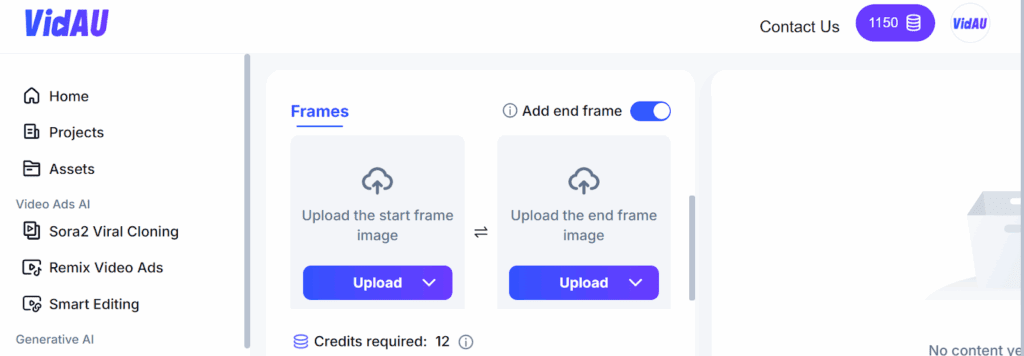
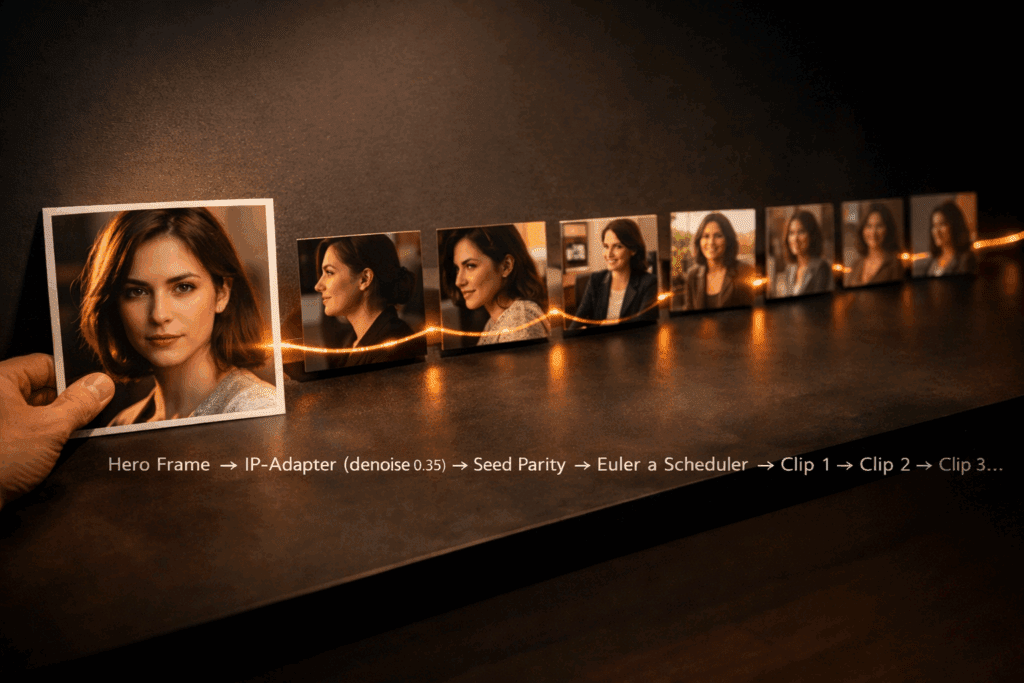
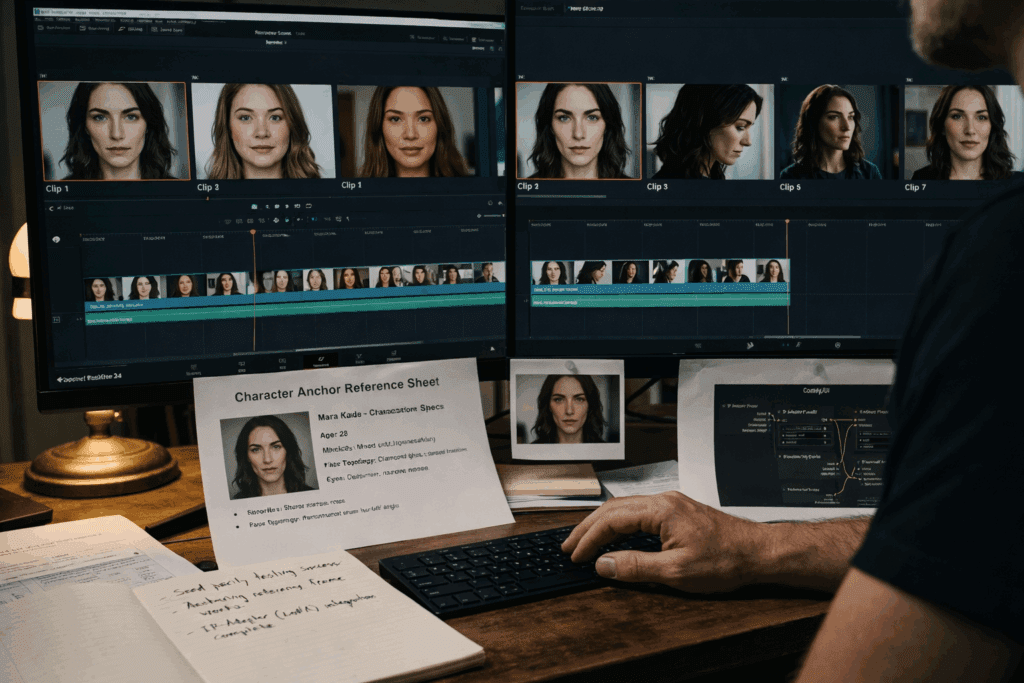
If you want the output to match a real product, a real face or a brand style, upload frame images before generating. The start frame teaches Vidu Q2 what the subject should look like and helps maintain accuracy from the beginning of the clip. Turning on the end frame toggle lets you upload a second image that guides the final shot layout. This is especially helpful for planned poses, specific closing angles or transitions. Vidu Q2 works without frames, but results become more predictable when at least one frame is added. The cleaner the frame, the fewer regeneration attempts you will need.
Step 6 — Check Credits Required
Below the frame section, the system calculates the exact credits required to generate the clip. The number changes depending on the model version chosen and the configuration. Turbo always requires fewer credits and finishes faster, while Pro consumes more credits because it pushes realism and polished motion. If you want to control budget during testing or early experimentation, adjust your settings before generating.
Step 7 — Click Generate
Once everything looks right, click Generate and Vidu Q2 starts building the video. The processing runs in the background and a preview thumbnail appears when the clip is ready. Always watch the full video instead of judging the result from the first frame. If the output is close but not perfect, refine the input rather than starting over: rewrite the prompt with clearer action, replace the frame with a sharper image or switch between Turbo and Pro to tune realism versus speed. Small adjustments dramatically improve final results. When you reach a version that hits your creative goal, export it or continue inside VidAU with Smart Editing, Subtitles or AI Voiceover to prepare it for posting or ad campaigns.
Where Vidu Q2 Performs Best
Vidu Q2 delivers strong results in:
- Product and eCommerce ads
- UGC-style motion content
- Influencer and brand collabs
- Shorts to test different creative angles
- Trend-driven marketing videos
The model focuses on clarity, pacing and attention retention, which matter most on social platforms.
Why Teams Adopt Vidu Q2 Quickly
Businesses use Vidu Q2 because it removes production bottlenecks. Instead of planning shoots, coordinating talent and editing, they generate ready videos in minutes. Output increases without hiring editors or extending timelines.
This works especially well when campaigns require constant creative refresh.
Conclusion
Vidu Q2 gives creators and brands a fast and reliable way to produce social-ready video content inside VidAU. There is no filming, no talent scheduling and no editing timeline to manage. You describe the shot in a prompt, support it with frame images when needed and choose the model version based on your creative goal. The system handles motion, pacing, subject focus and composition automatically.
This workflow turns video production into a repeatable process that fits modern content needs. You move from idea to usable short-form footage in minutes instead of planning shoots or coordinating resources. Whether the objective is a product ad, a UGC-style promo, a trend-based video or a brand awareness clip, Vidu Q2 is built to deliver scenes that look ready for TikTok, Reels and YouTube Shorts.
When the render matches your direction, you can export instantly or continue shaping the clip inside VidAU with Smart Editing, Subtitles or AI Voiceover. Each completed video becomes part of a reusable content library you scale across campaigns, channels and launch cycles.
The next step is simple: open AI Video, select Vidu Q2 and start building your first video.
Frequently Asked Questions
Do I need editing skills to use Vidu Q2?
No. The model generates finished motion clips automatically.
Does Vidu Q2 work for real products and faces?
Yes. Uploading a start frame helps it match appearance and branding.
Which model version should I choose?
Turbo for testing ideas. Pro for publishing or paid ads.
Can I generate more than one variation?
Yes. Repeat generation with the same setup gives different motion takes you can A/B test.
Does Vidu Q2 support 9:16 videos for TikTok and Reels?
Yes. Videos export cleanly to all major platforms.
Can I refine the video after generation?
Yes. Use Smart Editing, Subtitles or AI Voiceover inside VidAU.