AI Photo to Video Generator · Free & Paid Tool Comparison
Best AI Photo to Video Generator: Tools to Animate Your Images
Compare the best AI photo to video generator that turn still images into animated clips. See which tools are truly free, how to animate a photo, and what to pick.
By the VidAU Editorial Team · AI photo animation guide · Free and paid workflow comparison
An AI photo to video generator turns a single still image into a short animated clip by predicting natural motion, camera movement, or subtle effects. The best free options can animate a photo in a few clicks, while paid tools add longer clips, higher resolution, and better control. Most creators only need a free or freemium tool to start.
This guide is for content creators, social media marketers, educators, and casual users who want to animate images without editing skills. We focus on real photo animation, not slideshow makers, and flag where free really means free versus freemium with credit limits.
Quick Summary
- For genuinely free photo animation, browser tools like Vheer, Grok, and Meta AI let you animate an image without paying upfront, though daily limits apply.
- For ad-style video built from images, VidAU AI Image and VidAU AI Video turn product photos into structured, multilingual video content.
- True photo animation outputs short clips, usually 4 to 10 seconds at 720p or 1080p, while slideshow tools just pan across static frames.
- Casual users and short-form creators benefit most from free tools, while ecommerce and marketing teams gain more from paid, batch-ready platforms.
In This Guide
- What an AI photo to video generator is and how it works
- Why photo animation differs from a slideshow generator
- The best free AI photo to video generator options compared
- Best paid AI photo to video generator tools by use case
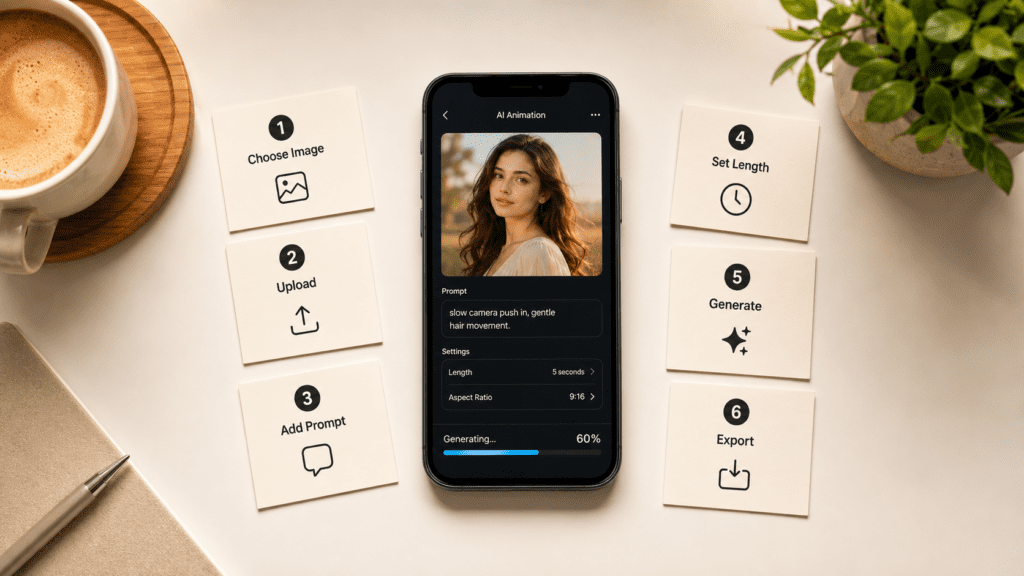
- How to animate a photo step by step
- Common mistakes when animating images with AI
- How to choose the right tool for your use case
- Final Thoughts
- FAQ
What Is an AI Photo to Video Generator?
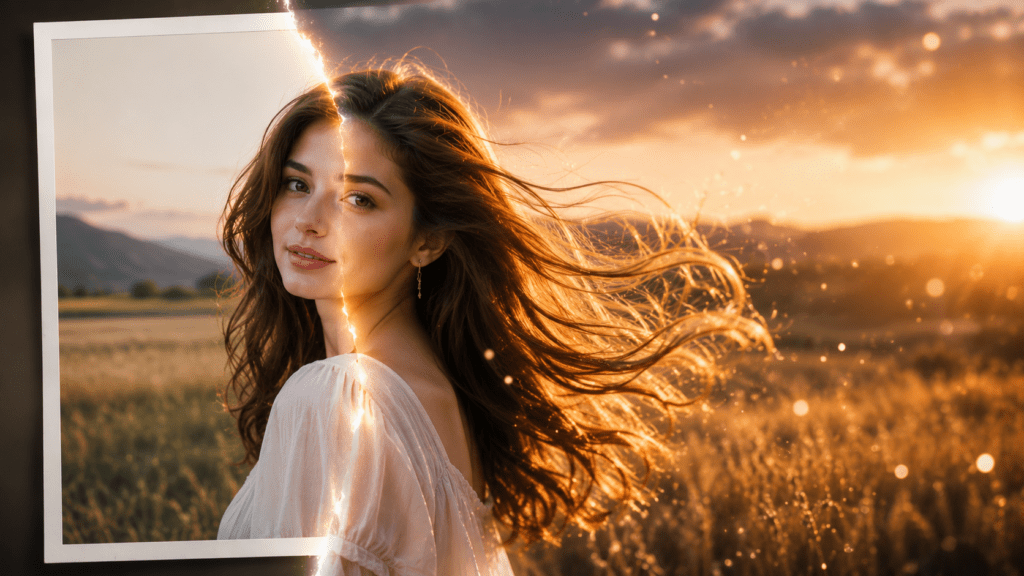
An AI photo to video generator is a tool that converts a static image into a short moving clip using generative AI. It analyzes the photo, predicts depth and motion, and uses frame interpolation to create new in-between frames. The result is a video where the subject, background, or camera appears to move.
Most tools accept a JPG or PNG, then ask for an optional text prompt describing the motion. Output formats are usually MP4 at 720p or 1080p, with clip lengths from about 4 to 10 seconds on free tiers.
Key Takeaways
- Photo animation uses motion prediction and frame interpolation, not pre-set transitions.
- Free tools cap clip length and resolution, then push longer or higher-res exports to paid plans.
- A clear prompt for the desired motion improves results more than a fancy source image.
Why Is Photo Animation Different From a Slideshow Generator?
Photo animation creates new movement inside a single image, while a slideshow generator arranges multiple static photos with transitions and music. They solve different problems, and the best ai video slideshow generator will not actually animate the content of one photo.
If you want a person to blink, hair to move, or a camera to pan with parallax, you need a photo to video generator. If you want a montage of holiday photos set to music, a slideshow tool is faster and cheaper.
When we reviewed the common confusion in this space, most users searching for slideshow makers actually wanted motion inside a single frame. That mismatch leads to disappointment, so match the tool to the outcome you want.
| Tool Type | What It Does | Best Use |
|---|---|---|
| AI photo to video generator | Creates new movement inside one image | Animating a portrait, product photo, or scene |
| AI video slideshow generator | Arranges multiple static photos with transitions and music | Creating montages, recaps, and photo collections |
Tool match
Use animation tools for movement inside a single frame and slideshow tools for photo montages. The wrong match leads to disappointment.
Which Free AI Photo to Video Generator Options Are Worth Using?
The best free AI photo to video generator options let you animate an image without paying, though most cap usage with daily credits or queues. Based on the free-tool comparisons we reviewed, browser tools like Vheer, Grok, and Meta AI are the most accessible starting points for casual animation.
Here is how the main free and freemium approaches compare:
| Tool Type | Best For | Realistic Free Limit |
|---|---|---|
| Browser AI generators | Quick single-photo motion | Short clips, daily caps |
| Assistant-based tools | Casual prompts, fast tests | Queue waits, basic control |
| Freemium platforms | More control, watermarks | Credits then upgrade prompts |
The honest catch is that free rarely means unlimited. In the free AI video research we reviewed, many tools market themselves as free but ration credits, limit resolution, or stamp watermarks. That is not always bad, just something to plan around.
We also saw a clear buyer pattern in AI video reviews: people complain less about price and more about wasted credits. On one review platform, a popular tool held a 3.7 rating across 211 reviews, with praise for ease of use but frustration over confusing credits and failed generations. The lesson is to test free tiers before paying.
Key Takeaways
- Free tools are great for testing, not heavy production.
- Watch for credit systems that burn value on failed clips.
- Expect watermarks or resolution caps on most free exports.
If you want to generate clean source images first, VidAU AI Image (https://www.vidau.ai/vidau-ai-image/) can produce the still, and then you can animate it elsewhere.
Which Paid AI Photo to Video Generator Tools Offer the Best Value?
The best paid AI photo-to-video generator tools justify their cost with longer clips, higher resolution, watermark-free exports, and batch creation. Paid value is less about features on paper and more about consistent, usable output, since failed generations are the real hidden cost.
A few notable approaches in the broader AI video space:
- Editable workflow tools position AI as a chat layer you can keep refining. Kapwing, for example, frames its assistant as a way to create and edit video, image, and audio in one browser workspace, which matters when you want to tweak rather than regenerate.
- Agent-based access is growing too. Runway has promoted generating video from assistants like Claude and ChatGPT through MCP, signaling that video generation is moving into the tools teams already use.
- Ad-focused platforms like VidAU AI take a different angle. VidAU is an AI video ad platform that generates video ads from product URLs, images, or scripts in 49 languages, which suits marketers turning product photos into structured promo videos rather than pure single-photo motion.
VidAU is not the right pick if you only want one artistic photo to gently move for a personal post. For that, a lightweight free animator is simpler. VidAU fits better when you need AI video (https://www.vidau.ai/vidau-ai-video/) built from images, scripts, or product samples at scale.
If your source is a product photo, Product Sample to Video and URL to Video turn assets into ad-ready clips, and UGC Avatars add a spokesperson when motion alone is not enough.
Honest limitation
VidAU is not the right pick if you only want one artistic photo to gently move for a personal post. For that, a lightweight free animator is simpler.
Create Product Videos from Images with VidAU
Use VidAU AI Image, AI Video, Product Sample to Video, URL to Video, UGC Avatars, and Text to Speech when still images need to become structured, multilingual, ad-ready clips at scale.
VidAU workflow
Where VidAU fits in a photo-to-video workflow
- Use a free browser animator for casual photo motion: Start with tools like Vheer, Grok, or Meta AI when you only need a short personal clip.
- Use VidAU AI Image for clean source visuals: Generate or refine still images before animating or turning them into structured video content.
- Use VidAU AI Video for ad-ready clips: Build videos from images, scripts, or product samples when the output needs to be repeatable and polished.
- Use Product Sample to Video and URL to Video for ecommerce: Turn product photos or product pages into marketing videos without building every scene manually.
- Use UGC Avatars and Text to Speech when motion alone is not enough: Add a spokesperson or voiceover to make product videos feel more complete.
How to Animate a Photo Step by Step
To animate a photo with an AI photo to video generator, upload a clear image, describe the motion you want, generate the clip, then export it in the format your platform needs. The process is similar across most tools.
Step 1: Choose a high-quality source image
Sharp, well-lit photos animate better. Blurry or low-resolution images often produce warped faces or jittery motion.
Step 2: Upload the photo to the tool
Use a JPG or PNG. Crop to the aspect ratio you need, such as 9:16 for Reels or 1:1 for feed posts.
Step 3: Add a short motion prompt
Describe what should move, like “slow camera push in” or “gentle hair and fabric movement.” Keep it specific and simple.
Step 4: Set length and resolution
Free tiers usually offer 4 to 10 second clips at 720p or 1080p. Pick the shortest length that tells your story.
Step 5: Generate and review
Watch for distorted hands, faces, or background flicker. Regenerate with a clearer prompt if needed.
Step 6: Export in MP4
Match the resolution and aspect ratio to your platform to avoid extra compression.
If the motion looks rough but the still is strong, you can also export the best frame and rebuild from there. For projects that need narration, Text to Speech (https://www.vidau.ai/vidau-text-to-speech/) adds a voiceover without recording.
Animation tip
Pick the shortest length that tells your story. Longer clips fail more often, especially on free tiers.
What Mistakes Should You Avoid When Animating Images?
The most common mistake is expecting AI to fix a weak source image. Like editing software, an AI photo to video generator works with what you give it, and low-quality input limits the output.
Avoid these issues:
- Using low-resolution photos. Soft or pixelated images produce melting faces and unstable backgrounds.
- Writing vague prompts. “Make it cinematic” gives random results. Describe the exact movement instead.
- Chasing 4K on free tiers. Many tools, like several mobile editors, trigger an upgrade prompt the moment you select higher resolutions, and upscaling a low-res source mostly stretches pixels.
- Generating long clips first. Longer clips fail more often. Test a short version, then extend once the motion looks right.
- Ignoring platform compression. Social platforms re-compress uploads, so export at the recommended resolution and bitrate to keep perceived sharpness.
We saw these themes repeated across creator discussions: people often blame the tool when the real problem is source quality plus platform compression. Fixing the input usually beats hunting for a hidden setting.
Watch out
Do not expect AI to fix a weak source image. Source quality plus platform compression causes more problems than most hidden settings.
How Do You Choose the Right AI Photo to Video Generator?
Choose based on your output goal, budget, and how much control you need. Casual animation favors free browser tools, while repeatable marketing content favors paid, batch-ready platforms.
Use this quick logic:
- One personal photo to animate: Start with a free tool like Vheer, Grok, or Meta AI.
- Multiple product photos into ads: Use an ad platform such as VidAU AI for structured, multilingual output.
- Frequent edits and refinements: Pick an editable workspace tool where you can adjust without full regeneration.
- Higher resolution and no watermark: Expect to move to a paid tier and confirm credit policies first.
The smartest move is to test the free version of any tool before paying, since wasted credits are the most common complaint we found in buyer reviews.
Selection rule
Choose based on output goal, budget, and control needs. Casual animation favors free browser tools; repeatable marketing content favors paid, batch-ready platforms.
Key takeaway
Final Thoughts
The best AI photo to video generator is the one that matches your goal. For a single image and a casual post, a free browser tool is enough. For product photos that need to become polished, multilingual ad clips, a dedicated platform saves time and reduces failed generations.
Start small, test the free tier, and judge tools by consistent output, not marketing claims. If you are turning product images or scripts into video at scale, explore VidAU AI Image and VidAU AI Video to build ad-ready content from your existing assets.
FAQ
Here are answers to common questions about AI photo to video generators, free photo animation tools, how to animate a photo, slideshow generators, freemium limits, file formats, distorted outputs, product photo video ads, and short AI-generated clips.
What is the best free AI photo to video generator?
There is no single winner, but accessible browser tools like Vheer, Grok, and Meta AI let you animate a photo without paying upfront. They cap clip length, resolution, and daily usage. They suit casual creators best, while ecommerce and marketing teams usually need a paid, batch-ready platform for consistent output.
How do I animate a photo with AI?
Upload a clear JPG or PNG to an AI photo to video generator, add a short prompt describing the motion you want, choose a length of about 4 to 10 seconds, then generate and export as MP4. Use a high-quality source image and match the aspect ratio to your target platform for the best result.
Is an AI photo to video generator the same as a slideshow maker?
No. An AI photo to video generator creates new motion inside one image using motion prediction and frame interpolation. The best ai video slideshow generator instead arranges multiple static photos with transitions and music. Use animation tools for movement inside a single frame and slideshow tools for photo montages.
Are free AI video generators truly free?
Free usually means freemium. Many tools offer free generations but ration daily credits, add watermarks, or limit resolution, then prompt upgrades for longer or higher-quality clips. Test the free tier before paying, since reviews show wasted credits and failed generations frustrate users more than the sticker price.
What file formats do AI photo animation tools accept?
Most tools accept JPG and PNG images as input and export MP4 video. Free tiers commonly output 720p or 1080p clips between 4 and 10 seconds. Higher resolutions, longer durations, and watermark-free exports typically require a paid plan, so confirm limits before starting a project.
Why does my animated photo look distorted?
Distortion usually comes from a low-quality source image or a vague prompt. Soft or pixelated photos create warped faces and unstable backgrounds. Use a sharp, well-lit image, write a specific motion prompt, and keep clips short first. Regenerate with a clearer description if hands or faces appear melted.
Can I turn product photos into video ads with AI?
Yes. While most photo animators add subtle motion, ad platforms turn product images into structured video. VidAU AI generates video ads from product URLs, images, or scripts in 49 languages, which suits marketers more than single-photo animation. It is overkill for one personal photo but useful for repeatable ad creatives.
How long are clips from a free AI photo to video generator?
Most free tiers produce short clips, typically 4 to 10 seconds, at 720p or 1080p. Longer durations fail more often and are usually reserved for paid plans. Generate a short version first to confirm the motion looks right, then extend it once the result is stable.