Free AI Video Generator Like Sora · Image to Video Tools
Best Free AI Video Generator Like Sora: Image to Video
Compare free Sora-style AI video generators for image-to-video, cinematic clips, Shorts, Reels, TikTok content, and budget-friendly creator workflows.
By the VidAU Editorial Team · Free AI video generator guide · 13 min read
Video content is everywhere, and creators want tools that match Sora’s quality without the paywall. If you want a free AI video generator like Sora, the strongest current options are Google Veo 3 access points, Seedance models through BytePlus, Higgsfield, and Qwen, with each handling image-to-video and text-to-video differently.
This guide compares the best free AI video generators that animate images into video, with honest notes on limits and workflows. Sora itself is hard to access directly, so this guide focuses on Sora-style alternatives that animate images and generate clips without a paid subscription.
This comparison is for content creators, YouTube automation channels, and social media marketers who make Shorts, Reels, and TikToks on a budget. We tested workflows across more than 30 models and kept the tools worth your time, with clear notes on free credits, output limits, and where each one fits best.
Quick Summary
- Google Veo 3 via Google Vids and free access points is the most beginner-friendly free way to animate an image into cinematic video with built-in editing.
- Seedance models through BytePlus are the best free option for image-to-video control, start-and-end-frame animation, and AI video with sound.
- Most free tools run on credit pools that refresh over time, so use draft mode and image-to-video first to avoid wasting generations.
- YouTube creators making Shorts, Reels, and TikTok content benefit most, especially when they start from a strong image in 9:16 or 16:9.
In This Guide
- What an AI video generator like Sora actually does
- Why free image-to-video tools matter for creators
- Best free AI video generators like Sora compared by use case
- How to animate a photo into video step by step
- Platform-specific optimization for Shorts, Reels, and TikTok
- Common mistakes creators make with free AI video tools
- Advanced strategies for consistent, scalable AI video
- Final Thoughts
- FAQ
What Is an AI Video Generator Like Sora?
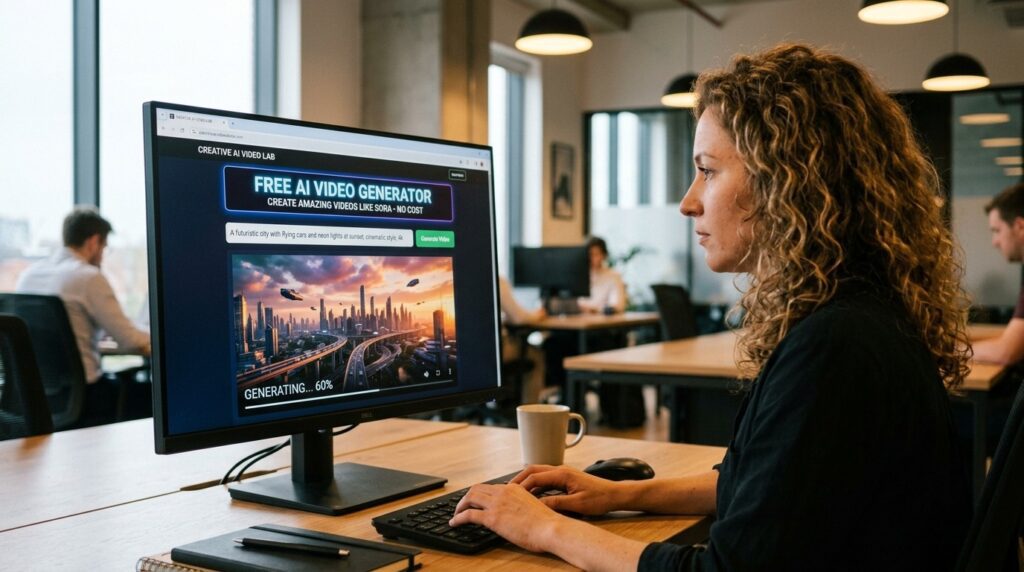
An AI video generator like Sora is a tool that creates video clips from text prompts or still images using a generative model, producing motion, camera movement, and sometimes sound without filming anything. Sora is OpenAI’s video model, but most creators can’t access it freely, so they rely on Sora-style alternatives.
These tools split into two core workflows. Text-to-video turns a written prompt into a clip. Image-to-video animates a photo or generated image, which gives you far more control over the look, character, and framing of the final shot.
When I reviewed the most-shared 2026 tutorials, the pattern was clear: creators who start from an image get more consistent, usable results than those relying on text prompts alone. That’s why image-to-video is the central workflow in this guide.
Key definition
An AI video generator like Sora creates video clips from text prompts or still images, producing motion, camera movement, and sometimes sound without filming, while Sora-style alternatives offer similar workflows when direct Sora access is limited.
Why Free Image-to-Video Tools Matter for Creators
Free image-to-video tools matter because paid AI video subscriptions add up fast, especially when you publish daily. A short-form creator can burn through credits in a single afternoon, and most premium plans charge per generation or per second of output.
The shift in recent content is away from paid-only tools and toward free or generous-credit alternatives. The strongest video titles from May and June 2026 repeat the same promise: free and unlimited generation, no watermark, and image-to-video control.
Here’s the honest part. Nothing online is permanently free or truly unlimited. These platforms change pricing, free credits, watermark rules, and commercial terms often, so always check the current terms before using a clip in a real project.
Key Takeaways
- Image-to-video gives more control than text-to-video for consistent results.
- Free tools run on credit systems, not endless generation.
- Always verify current pricing, watermark, and commercial-use rules before publishing.
Best Free AI Video Generators Like Sora Compared by Use Case
The best free AI video generator like Sora depends on whether you need beginner-friendly editing, fine image-to-video control, or higher cinematic quality. Below is how the top free and freemium tools compare based on our review of current creator workflows.
| Tool | Best For | Key Trade-Off |
|---|---|---|
| Google Veo 3 / Google Vids | Beginners animating images with editing | Access and credits vary by account |
| Seedance via BytePlus | Image-to-video control and sound | Separate free credit pools to manage |
| Higgsfield | Cinematic shots and ad-style video | Sponsored positioning, paid tiers exist |
| Qwen | Free image generation plus video attempts | Limited free video generations |
| Luma AI / Runway ML | Polished image-to-video clips | Free credits run out quickly |
Google Veo 3 and Google Vids
Google Veo 3 paired with Google Vids is the easiest free route for animating an image into video directly in a browser. You upload an image, choose an aspect ratio, use the animate-an-image feature, and write a motion prompt. Google Vids also lets you add AI voiceovers, captions, and music, then export an MP4.
Verdict: best starting point for creators who want one tool that animates and edits.
Seedance via BytePlus
Seedance models accessed through BytePlus offer the strongest free image-to-video control, including start-and-end-frame animation, draft mode, and AI video with sound. The separate free credit pools help you keep creating longer if you manage them well.
Verdict: best free pick for creators who want more control over motion and framing.
Higgsfield
Higgsfield is built for cinematic AI video and ad-style content, and Seedance 2.0 runs well inside it for higher-quality shots. It appears as a sponsored tool across many creator videos, so weigh that when you read claims. It has paid tiers, but it’s useful when you need premium-looking results.
Verdict: strong for cinematic and marketing video, with paid options beyond the free tier.
Qwen
Qwen looks like a chatbot but hides creator modes for images and video. You can build a prompt, generate a 16:9 image, then turn it into a clip. The real limit is the small number of free video generations, so use them carefully.
Verdict: useful free combo for image plus occasional video, not heavy output.
Luma AI and Runway ML
Luma AI and Runway ML both produce polished image-to-video clips and offer free credits to start. They’re reliable for quality but run out fast, which makes them better for hero shots than daily volume.
Verdict: good for a few high-quality clips, not bulk production.
If your goal is video ads from product images or URLs rather than open-ended cinematic clips, a marketing-focused platform may fit better. VidAU is an AI video ad platform that generates video ads from product URLs, images, or scripts in 49 languages. You can explore the VidAU AI Video (https://www.vidau.ai/vidau-ai-video/) workflow or the Product Sample to Video (https://www.vidau.ai/product-sample-to-video/) tool when the output needs to convert, not just look cinematic.
Create Clips With VidAU
Use VidAU AI Video, Product Sample to Video, Text to Video, Object Remover, Video Enhancer, UGC Avatars, URL to Video, and Vid Remix when you need image-to-video ads, product clips, voice-ready creatives, and scalable campaign workflows.
VidAU workflow
Where VidAU fits beside free Sora-style tools
- Use Google Veo 3 and Google Vids for beginner-friendly image animation: This route fits creators who want browser-based animation, editing, voiceovers, captions, music, and MP4 export in one place.
- Use Seedance via BytePlus for more motion control: This route fits creators who need start-and-end-frame animation, draft mode, AI video with sound, and separate credit pools.
- Use Higgsfield, Luma AI, and Runway ML for cinematic clips: These tools fit creators who need higher-quality hero shots, cinematic motion, and polished image-to-video output.
- Use Qwen for occasional free image plus video workflows: Qwen fits creators who want to generate an image and attempt a video clip, but not heavy daily output.
- Use VidAU for conversion-focused video ads: VidAU fits marketers who need product images, URLs, or scripts turned into ad-ready clips rather than open-ended cinematic experiments.
How to Animate a Photo Into Video Step by Step
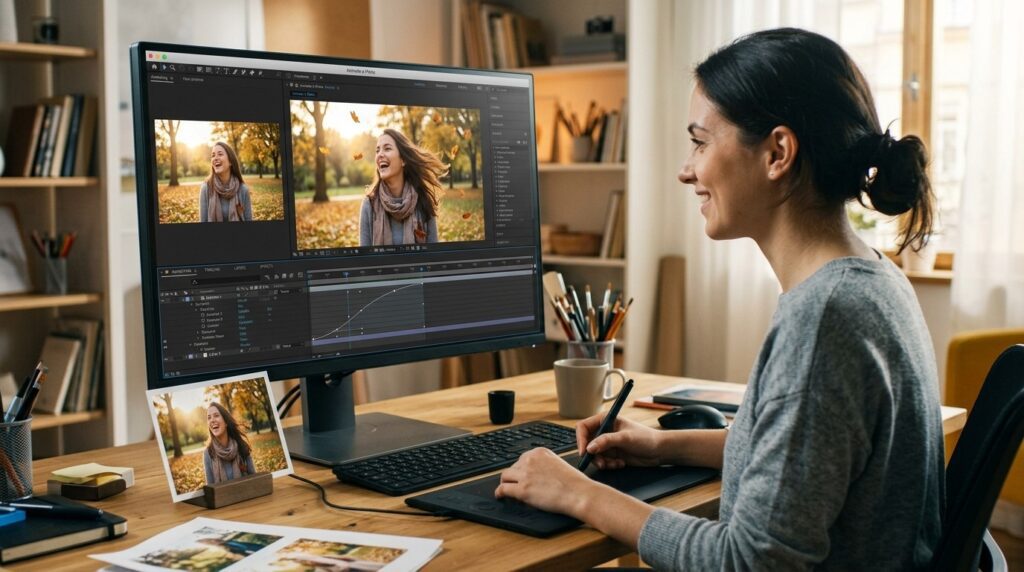
To animate a photo into video with a free AI tool, start with a strong image, pick the right aspect ratio, write a clear motion prompt, test in draft mode, then generate the final clip. This image-to-video workflow gives you more control than text-to-video alone.
Step 1: Choose or generate a clean base image with the subject clearly framed.
Step 2: Set the aspect ratio first.
Use 9:16 for Shorts, Reels, and TikTok, or 16:9 for YouTube.
Step 3: Open the animate-an-image or image-to-video feature in your chosen tool.
Step 4: Write a short motion prompt describing camera movement, subject action, and mood.
Step 5: Run a draft or low-credit version to check the motion before spending more credits.
Step 6: Generate the final clip, then add voiceover, captions, and music if the tool supports it.
For narration, you can pair the clip with a separate voice tool like Text to Speech if your generator lacks built-in audio. To clean up an early frame before animating, an Object Remover helps remove distractions that would otherwise carry into the video.
Tip
Run a draft or low-credit version before generating the final clip. This protects free credits and lets you fix weak motion before committing to a higher-quality render.
Platform-Specific Optimization for Shorts, Reels, and TikTok
The biggest optimization for short-form is locking the aspect ratio before you generate, because re-rendering in the wrong frame wastes free credits. Vertical 9:16 is the standard for Shorts, Reels, and TikTok, while 16:9 suits YouTube long-form and image-to-video that you’ll repurpose.
Keep clips short. Most free generators cap clip length, so plan 3 to 8 second shots and stitch them in an editor. Add captions and a hook in the first second, since short-form viewers decide fast.
If you publish across platforms, generate one master clip, then resize and recut rather than regenerating. To improve a soft or low-resolution output before posting, a Video Enhancer can sharpen the final file.
| Platform | Recommended Setup | Practical Note |
|---|---|---|
| YouTube Shorts | 9:16 vertical | Set aspect ratio before generation and add a hook in the first second. |
| Instagram Reels | 9:16 vertical | Use short 3 to 8 second shots and captions for fast viewing. |
| TikTok | 9:16 vertical | Generate vertical from the start instead of cropping later. |
| YouTube long-form | 16:9 horizontal | Use 16:9 for clips you will repurpose or stitch into longer videos. |
| Cross-platform publishing | One master clip, then resize and recut | Resize and recut instead of regenerating per platform to save credits. |
Tip
Set 9:16 before generating Shorts, Reels, and TikToks. Re-rendering or cropping after generation wastes free credits and can weaken framing.
Common Mistakes Creators Make With Free AI Video Tools
The most common mistake is generating full clips before testing, which burns free credits on results you won’t use. Run draft mode or a quick low-quality pass first, then commit credits to the version that works.
Other frequent errors:
- Relying only on text-to-video when image-to-video gives more control.
- Ignoring aspect ratio until after generation.
- Writing vague prompts with no camera or motion direction.
- Assuming a tool stays free, unlimited, or watermark-free forever.
- Publishing commercially without checking the platform’s license terms.
That last point matters. Free access, credits, and commercial-use rights change often, and several of these tools shift their terms with little notice. Always confirm rights before you monetize a clip.
Watch out
Do not generate full clips before testing, rely only on text-to-video, ignore aspect ratio, write vague prompts, assume a tool stays free forever, or publish commercially without checking license terms.
Advanced Strategies for Consistent, Scalable AI Video
The advanced move is building a repeatable pipeline instead of jumping between tools per clip. Start with a strong base image, animate it, keep characters and products consistent across shots, then test variations before publishing.
Use reference elements where a tool supports them to lock a character, product, or location across multiple clips. This keeps a series visually consistent, which matters for branded content and recurring formats.
For higher volume, separate your steps: generate images in one tool, animate in another, and edit in a third. If you’re producing UGC-style ads at scale, dedicated workflows like UGC Avatars or turning a page into a clip with URL to Video can cut steps. You can also repurpose existing footage with VidAU Vid Remix when you’d rather remix than start over.
Scaling workflow
- Start with a strong base image.
- Animate it with a clear motion prompt.
- Keep characters and products consistent across shots.
- Test variations before publishing.
- Separate image generation, animation, and editing when volume increases.
Key takeaway
Final Thoughts
The best free AI video generator like Sora depends on your goal: Google Veo 3 for easy image animation, Seedance via BytePlus for image-to-video control, and Higgsfield or Luma for cinematic shots. Start with a strong image, set your aspect ratio, test in draft mode, and always confirm current credits and terms before publishing.
Free tools are perfect for experimenting, but they shift fast and rarely guarantee commercial rights. If your real need is conversion-focused video ads from product images, URLs, or scripts, try a marketing-built workflow like Text to Video and see whether ad-ready output beats open-ended cinematic clips for your campaigns.
FAQ
Here are answers to common questions about free AI video generators like Sora, Sora access, image-to-video apps, animating photos with AI, free credits, Shorts and Reels aspect ratios, commercial use, and why image-to-video often beats text-to-video.
What is the best free AI video generator like Sora?
There is no single winner, but Google Veo 3 through Google Vids is the easiest free way to animate images, while Seedance via BytePlus offers stronger image-to-video control. Higgsfield and Luma AI suit cinematic shots. The best choice depends on whether you want simple editing or fine motion control.
Can I access Sora itself for free?
Direct free access to Sora is not reliable, since OpenAI’s video model has limited and changing availability. Most creators use Sora-style alternatives like Seedance, Google Veo 3, Qwen, or Luma AI that handle text-to-video and image-to-video without a guaranteed Sora account.
What is the best AI app to convert image to video?
For beginners, Google Vids with Veo 3 is a strong image to video generator online because it animates and edits in one browser tab. For more control, Seedance via BytePlus and Luma AI produce polished image-to-video clips, though free credits on these tools run out quickly.
How do I animate a photo into a video with AI?
Upload a clean photo, set the aspect ratio, open the animate-an-image or image-to-video feature, and write a short prompt describing camera movement and motion. Run a draft first to check the result, then generate the final clip and add voiceover, captions, or music.
Are free AI video generators really unlimited?
Rarely. Most run on free credit pools that refresh over time rather than offering true unlimited generation. Tools market themselves as free and unlimited, but limits, watermarks, and pricing change often, so verify the current terms before relying on any tool for important work.
Which aspect ratio should I use for Shorts and Reels?
Use 9:16 vertical for YouTube Shorts, Instagram Reels, and TikTok, and set it before generating to avoid wasting credits on re-renders. Use 16:9 for YouTube long-form. Generating one master clip and resizing later is more efficient than regenerating per platform.
Can I use free AI video clips commercially?
Not always, and you should never assume so. Commercial-use rights, licensing, and watermark rules differ by tool and change frequently. Review each platform’s terms of service and licensing rules before you publish, monetize, or sell any AI-generated video, especially for client or brand work.
Is image-to-video better than text-to-video?
For most creators, yes. Image-to-video gives more control over the subject, framing, and consistency because you start from a fixed image. Text-to-video is faster for quick ideas but less predictable. Many strong workflows generate an image first, then animate it for cleaner results.