

AI Video Tools · Free Image to Video Generator Guide
Best Free Image to Video Generators: AI Tools with No Limits
Compare free image-to-video tools, understand watermark and credit limits, extract video frames with FFmpeg or VLC, and choose when VidAU fits repeatable product video workflows.
By the Sarah Iruoje · Free AI image-to-video guide · 2026 workflow comparison
Most free image to video generator tools work fine until you hit a watermark, a daily cap, or a credit meter halfway through a project. If you want to turn static images into short videos for social media without paying upfront, you have real options in 2026, but truly unlimited free access is rare. The honest framing matters more than the hype.
This guide is for content creators, social media marketers, and YouTubers who need image-to-video conversion on a budget. We compare browser-based tools, downloadable software for frame work, and where VidAU fits. VidAU is an AI video ad platform that generates video ads from product URLs, images, or scripts in 49 languages.
Featured image placeholder for free image to video generator tools, watermark and credit limits, browser AI generators, FFmpeg and VLC frame extraction, TikTok, YouTube, Instagram optimization, VidAU AI Video, Text to Video, Product Sample to Video, URL to Video, and UGC Avatars.
Quick Summary
- The best free image to video generator approach in 2026 is a browser-based AI tool with a generous free tier for short clips, paired with a backup tool for when limits hit.
- For repeatable product and ad videos from images, VidAU AI Video is a strong alternate when you need consistent output instead of one-off generations.
- Most free tiers cap export length, resolution, or add a watermark, so always check watermark removal, export duration, and credit ceilings before committing to a tool.
- Creators producing high volumes of short-form content benefit most, especially those who rotate between tools and use a video to frame image converter for thumbnails and stills.

What Is a Free Image to Video Generator?
A free image to video generator is an AI tool that animates a static image into a short video clip, usually by adding motion, camera movement, or scene transitions. Most run in a browser, accept an image upload, and export an MP4. Free tiers typically limit clip length, resolution, or watermark the output.
These tools sit inside the wider AI video generation category alongside text to video AI and product video ads. Some accept a single image, others combine several images into a sequence with music. The free in free image to video generator almost always refers to a specific plan or quota, not permanent unlimited access.
Definition
A free image to video generator animates a static image into a short MP4 clip, but the free plan usually comes with limits on duration, resolution, watermark removal, or daily credits.
Why Free Tier Limits Matter More Than Model Quality
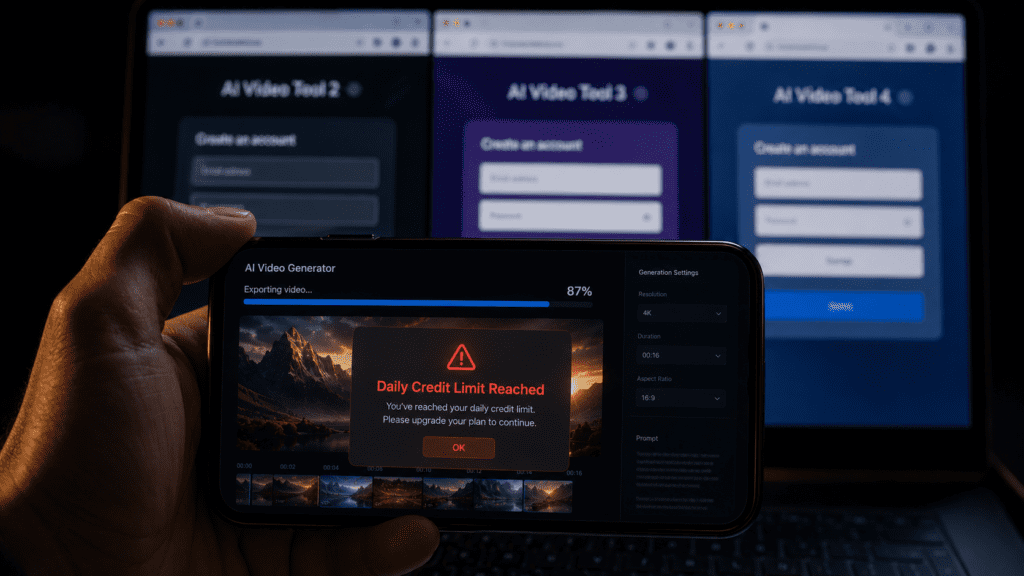
The real challenge with any free image to video generator is operations, not raw model quality. When the marketing team at VidAU AI reviewed community discussions on image-to-video demand, one line stood out: free unlimited video generation is effectively nonexistent. Most users end up managing credits, daily caps, and content filters instead of chasing the single best model.
That reframes the whole category. Based on our review of community snapshots, creators commonly rotate between two or three services when limits hit, split bigger jobs into smaller steps, and accept that reliability sometimes means paying. The CapCut situation is a clear example. In one widely shared thread, a user said the tool moved everything behind their credit system now, and others immediately asked for alternatives because the old free feature was enough for putting together a few AI-generated images for a brand.
Key Takeaways
- Free almost always means a quota, not unlimited generation.
- Watermark removal, export length, and credit ceilings are the real boundary lines.
- Rotating between tools is a normal workaround, not a failure.
Best Free Image to Video Generator Tools Compared by Use Case
The best free image to video generator depends on what you are making. There is no single winner across every use case, so match the tool to the output you need.
| Use Case | Tool Type | What To Watch |
|---|---|---|
| Quick social clips | Browser AI generator | Watermark and length caps |
| Editable workflow | Prompt-to-video editor | Free credit limits |
| Product and ad videos | VidAU AI Video | Plan features |
| Frame and thumbnail stills | FFmpeg or VLC | None, fully free |
Browser-based AI generators are the easiest entry point. Many let you upload an image, pick an aspect ratio and duration, then generate and download MP4 output. The trade-off is that the free download often carries a watermark or a short length cap.
Tools that combine generation and editing are worth a look when you want more than a single output. Editors built around a conversational AI layer let you create and edit videos, images, and audio in one browser workflow, which matters more to teams than raw generation alone. The catch is the free-to-paid jump. On one popular editor, the free plan includes 10 credits, 2GB storage, a watermark, 1-minute exports, and 720p, while removing the watermark and unlocking 4K and longer exports requires a paid plan.
That pattern repeats across the market. Pricing pages reveal product boundaries more clearly than feature pages do. The free tier gets you started; the paid tier removes watermarks and extends export duration.
If you want to test a browser generator first, the VidAU Text to Video and VidAU AI Image tools are useful starting points for turning prompts and visuals into content.
Free-tier warning
Pricing pages reveal product boundaries more clearly than feature pages do. The free tier gets you started; the paid tier usually removes watermarks and extends export duration.
How to Use a Video to Frame Image Converter With FFmpeg and VLC
A video to frame image converter does the reverse job: it extracts still frames from a video as JPG or PNG files. This is useful for thumbnails, storyboards, or pulling a clean still from generated footage. Two free, no-watermark options handle this well.
FFmpeg (command line, fully free):
Step 1: Install FFmpeg
Install FFmpeg on Windows, Mac, or Linux.
Step 2: Open a terminal in your video folder
Open a terminal in your video folder.
Step 3: Run a frame extraction command
Run a command to extract frames from an MP4 or AVI file.
Step 4: Choose export scope
Choose to export every frame or a single frame at a specific timestamp.
Step 5: Collect the exported images
Collect the exported images from the output folder.
VLC Media Player (no extra software):
Step 1: Open your video in VLC
Open your video in VLC.
Step 2: Capture frames
Use the scene filter or snapshot feature to capture frames.
Step 3: Export stills
Export stills as JPG or PNG.
Step 4: Find the saved images
Find the saved images in your snapshot folder.
Both are genuinely free with no credit system. FFmpeg gives precise control for batch frame extraction, while VLC is faster for grabbing one or two stills. For pulling audio instead of stills, VidAU Video to Audio handles that side of the workflow.
Suggested Visual: side-by-side screenshot of FFmpeg terminal output and a VLC snapshot menu. Filename: video-to-frame-image-converter-ffmpeg-vlc.png
Frame extraction tip
Use FFmpeg when you need precise batch frame extraction. Use VLC when you only need one or two stills quickly.
How VidAU Fits Image-to-Video and Product Video Workflows
VidAU fits when you need repeatable image-to-video output rather than one-off generations, especially for product ads and social creatives. Instead of generating a single animated clip, VidAU AI Video builds ad-ready videos from images, scripts, or product URLs, which suits creators producing many variations.
This is the honest trade-off. If you only need a single animated image for fun, a free browser generator is simpler.VidAU is more useful when you are turning a product sample into video , converting a product URL into a video ), or building UGC-style avatar ads (https://www.vidau.ai/ugc-avatars/) at scale. For repurposing existing footage, VidAU Vid Remix covers that workflow.
The broader market trend supports this. As generation becomes commoditized, platforms increasingly compete on workflow extras like scheduling, multilingual output, and publishing, not just the animation itself.
Honest trade-off
If you only need a single animated image for fun, a free browser generator is simpler. VidAU is more useful when you need repeatable product, URL-to-video, UGC avatar, or repurposing workflows at scale.
Create Repeatable Image-to-Video Ads With VidAU
Use VidAU AI Video, Text to Video, AI Image, Product Sample to Video, URL to Video, UGC Avatars, Vid Remix, Video Enhancer, Text to Speech, and Video to Audio when you need a full content workflow instead of one-off free generations.
VidAU workflow
Where VidAU fits after free image-to-video tools
- Use a free browser generator for one-off animated images: Start with a generous free tier when you only need a short clip and can accept watermark or quota limits.
- Use FFmpeg or VLC for frame extraction: Pull thumbnails, storyboard frames, or clean stills from generated footage with genuinely free no-credit tools.
- Use VidAU AI Video for repeatable ad output: Build ad-ready videos from images, scripts, or product URLs when you need many variations.
- Use Product Sample to Video and URL to Video for product workflows: Turn product assets or product pages into videos instead of manually assembling each clip.
- Use Vid Remix, Video Enhancer, Text to Speech, and Video to Audio for repurposing: Refresh existing footage, improve quality, add narration, or extract audio as part of a broader content workflow.
Platform-Specific Optimization for TikTok, YouTube, and Instagram
Match your image-to-video output to each platform before you export. The aspect ratio and length rules differ, and getting them wrong wastes free credits.
- TikTok and Instagram Reels: Use 9:16 vertical, short clips, and a strong first second.
- YouTube Shorts: Use 9:16, keep it under 60 seconds, and add captions.
- Standard YouTube: Use 16:9 and higher resolution where the free tier allows.
- Feed posts: Use 1:1 square when the platform favors it.
If your free tool caps resolution, generate at the highest allowed setting, then use a video enhancer only if quality is the bottleneck. For voiceover on short clips, VidAU Text to Speech adds narration without recording.
| Platform | Best Format | Practical Note |
|---|---|---|
| TikTok | 9:16 vertical | Use short clips and a strong first second. |
| Instagram Reels | 9:16 vertical | Keep the motion simple and attention-grabbing. |
| YouTube Shorts | 9:16 vertical | Keep it under 60 seconds and add captions. |
| Standard YouTube | 16:9 | Use higher resolution where the free tier allows. |
| Feed posts | 1:1 square | Use square when the platform favors it. |
Platform tip
Set the aspect ratio before generating. Re-rendering because of the wrong format wastes free credits faster than almost any other mistake.
Common Mistakes Creators Make With Free AI Video Tools
The most common mistake is assuming free image to video generator means unlimited. It rarely does. From our review of user discussions, the second most common mistake is building a workflow around one free feature, then scrambling when it moves behind credits.
Other frequent errors:
- Ignoring watermark and export length limits until export time.
- Skipping commercial usage rights before posting to a brand account.
- Burning free credits on test renders instead of finalized prompts.
- Forgetting to check aspect ratio before generating.
- Treating one tool as permanent when terms change often.
Always confirm commercial rights and platform terms before using any output in a paid campaign. Free tiers often restrict commercial use even when the download has no watermark.
Commercial use warning
Always confirm commercial rights and platform terms before using any output in a paid campaign. Free tiers often restrict commercial use even when the download has no watermark.
Key takeaway
Final Thoughts
The best free image to video generator strategy in 2026 is realistic, not magical. Pick a browser tool with a generous free tier, keep a backup for when limits hit, and use FFmpeg or VLC for frame extraction. Check watermark rules, export caps, and commercial rights every time.
If you reach the point where free tools cost more time than they save, especially for product ads and high-volume social content, a dedicated workflow tool fits better. Try VidAU AI Video (https://www.vidau.ai/vidau-ai-video/) when you need repeatable image-to-video and product video output instead of one-off clips.
FAQ
Here are answers to common questions about free image to video generator tools, no-limit AI video claims, watermarks, free tiers, video to frame image converters, FFmpeg, VLC, commercial rights, VidAU image-to-video workflows, aspect ratios, and saving free AI video credits.
What is the best free image to video generator with no limits?
No browser tool offers truly unlimited free image to video generation in 2026. The most practical approach is a browser AI generator with a generous free tier, paired with a backup tool. Always check watermark rules, export length, and daily credit caps, since free almost always means a quota rather than unlimited access.
Are free image to video generators really free?
Most are free only within limits. Free tiers commonly cap clip length, resolution, or daily generations, and many add a watermark to the export. Removing the watermark and unlocking longer or higher-resolution exports usually requires a paid plan. Read the pricing page before building a workflow around any free feature.
How do I convert a video to frame images for free?
Use FFmpeg or VLC Media Player, both free with no watermark. FFmpeg extracts frames from MP4 or AVI files through the command line and supports batch or single-frame export. VLC captures stills as JPG or PNG using its snapshot feature, which is faster when you only need one or two frames.
Can I use free image to video output commercially?
Not always. Many free tiers restrict commercial use even when the exported file has no watermark. Before posting generated video to a brand account or paid campaign, confirm the tool’s commercial usage rights and platform-specific terms. Skipping this step is a common and risky mistake among creators.
Why did some free AI video features move behind credits?
Several tools shifted free AI video creation to credit systems as a business-model change, not a temporary bug. In community threads, users reported features moving behind credits and immediately looked for alternatives. This is why keeping a backup tool and confirming current terms matters when relying on any free image to video generator.
Does VidAU offer image to video generation?
VidAU focuses on AI video ad creation from images, scripts, and product URLs in 49 languages. It fits repeatable product video and social ad workflows rather than single animated-image generations. For one-off clips, a free browser generator is simpler, but VidAU is useful when producing many variations or UGC-style ads at scale.
What aspect ratio should I use for image to video clips?
Match the platform. Use 9:16 vertical for TikTok, Instagram Reels, and YouTube Shorts, and 16:9 for standard YouTube. Use 1:1 square for some feed posts. Set the aspect ratio before generating so you do not waste free credits re-rendering content in the wrong format.
How can I avoid burning through free AI video credits?
Finalize your prompt or image selection before generating, since test renders consume the same credits as final outputs. Generate at the highest allowed resolution in one pass, choose the correct aspect ratio first, and rotate to a backup tool when daily limits hit. Splitting larger jobs into smaller steps also helps.


