
Video Text Removal · Mobile & Desktop Methods
How to Remove Text from Video: 5 Easy Methods (Mobile & Desktop)
Learn five practical ways to remove unwanted text, captions, watermarks, and logos from video using CapCut, InShot, Canva, AI video text remover tools, and Adobe After Effects.
By the VidAU Editorial Team · Video editing guide · 13 min read
Struggling to remove unwanted text from your videos using just your phone? You can erase captions, watermarks, and logos with free mobile apps like CapCut and InShot in minutes.
You can remove text from video using free mobile apps like CapCut and InShot, online tools like Canva, AI watermark removers, or desktop software like Adobe After Effects. The fastest method for most creators is the duplicate-and-mask technique in CapCut on mobile, which covers text by blending a clean section of the same footage over it. This guide walks through five practical methods step by step.
This tutorial is built for content creators, social media users, and beginner-to-intermediate video editors who want accessible options without expensive software. We tested the most-viewed mobile and desktop approaches and ranked them by speed, quality, and difficulty so you can pick the right one for your clip.
Quick Summary
- The CapCut mobile duplicate-and-mask method is the most reliable free way to remove text from video without watermarks on a phone.
- InShot and Canva work well for quick crop, blur, or overlay fixes when text sits near a video edge.
- Masking covers text while content-aware fill in After Effects actually removes and reconstructs the background, which matters for text in busy scenes.
- Beginners editing 9:16 social clips benefit most from mobile masking, while complex footage with moving text needs desktop tools.
What Is Removing Text from Video?
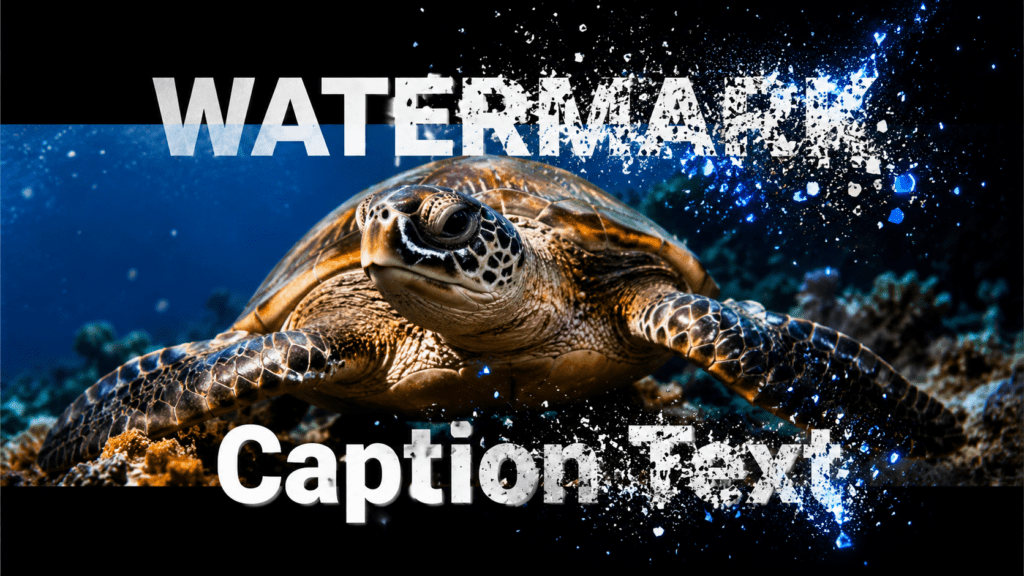
Removing text from video means deleting or hiding unwanted on-screen elements like captions, watermarks, logos, or burned-in subtitles. Most free methods do not truly erase text; they cover it using a mask, overlay, or crop. True removal, which reconstructs the background behind the text, requires AI tools or content-aware fill in advanced software.
That distinction matters. A video text remover that masks text works best when the area behind the text is simple, like a solid color or a slow-moving background. A caption remover that crops the frame works when the text sits at the top or bottom edge. Knowing which is which saves time.
Key Takeaways
- Masking and overlays cover text but do not rebuild the background.
- Cropping removes text only when it sits near the frame edge.
- AI and content-aware fill attempt actual removal and reconstruction.
Why Text Position and Background Decide Your Method
The right method depends on where the text sits and what is behind it. We reviewed the highest-viewed text-removal tutorials, and the same pattern shows up: simple backgrounds and edge-positioned text are easy, while text over faces, motion, or detailed scenes is hard.
Use this quick logic before you start:
- Text near the top or bottom edge: crop or use the overlay-and-mask method.
- Text on a solid or slow background: duplicate-and-mask in CapCut works well.
- Text over busy or moving backgrounds: use AI tools or After Effects.
- Watermark you do not have rights to remove: stop and check copyright first.
Set realistic expectations. Basic masking on a phone rarely looks perfectly seamless on complex footage. For clean results on detailed scenes, an AI or desktop method is worth the extra effort.
Copyright warning
If the watermark belongs to content you do not own or have permission to edit, stop and check copyright first. Only edit videos you own or have permission to alter.
Method 1: How to Remove Text from Video in CapCut Mobile
CapCut mobile is the best free starting point because its duplicate-and-mask workflow covers text using a clean copy of the same footage. This is the technique most high-view tutorials rely on, and it works without leaving a watermark.
Here is the step-by-step process:
Step 1: Open CapCut and import your video
Open CapCut and tap New Project, then select your video from the gallery.
Step 2: Add the clip to the timeline
Tap Add to import the clip into the timeline.
Step 3: Duplicate the video layer
Select the video layer, swipe the bottom menu until you find Duplicate, then tap it to create a copy.
Step 4: Turn the duplicate into an overlay
Tap Overlay so the duplicated clip becomes a separate layer above the original.
Step 5: Open the Mask tool
Select the duplicated overlay layer, swipe the menu, and tap Mask.
Step 6: Choose a rectangle mask
Choose the Rectangle mask shape, then size it to match the text you want to cover.
Step 7: Feather the mask
Tap Adjust, select Feather, and increase the feather value so the edges blend softly.
Step 8: Move clean footage over the text
Move the overlay so a clean area of footage sits directly over the text, then confirm with the checkmark.
Step 9: Preview and adjust
Preview the result and nudge the overlay until the covered area looks natural.
Feathering is the step most beginners skip. Without it, you get a hard rectangle outline that screams edit. A soft feather makes the patch blend into the surrounding pixels.
Verdict: Best free mobile method for captions, simple watermarks, and burned-in subtitles on calm backgrounds.
Tip
Do not skip feathering. A soft feather helps the duplicate-and-mask patch blend naturally into the surrounding footage instead of leaving a visible rectangle.
Method 2: How to Remove Text from Video with InShot
InShot is the simplest caption remover for beginners who want a quick fix. It does not have a true content-aware tool, but its crop, sticker, and blur features cover text fast, which is why it appears in so many free tutorials.
Follow these steps:
- Open InShot, tap Video, and import your clip.
- If the text sits near an edge, tap Canvas or Crop and trim the frame to cut it out.
- For text in the middle, tap Sticker or PIP to overlay a matching color block or a clean image patch.
- Resize and position the cover so it sits over the text.
- Use a slight feather or blur where available so the patch is less obvious.
- Export at the highest resolution to avoid quality loss.
Verdict: Great for fast watermark and edge-text cleanup, but covering text in the center looks less natural than CapCut masking. For more on improving exported clips, a video enhancer can sharpen footage that loses quality after heavy editing.
Method 3: How to Use Canva to Crop or Cover Text
Canva works as an online video text remover for users who already create graphics there. It handles text removal through cropping and overlay elements rather than reconstruction, which suits social posts and short clips.
Quick workflow:
- Open Canva and start a video project, then upload your clip.
- Drag the clip onto the canvas and select it.
- Use the crop handles to trim away edge text.
- For interior text, add a rectangle element, color-match it to the background, and place it over the text.
- Adjust transparency or add a subtle shadow so the cover blends.
- Download as MP4.
Verdict: Best when you want text removal plus design edits in one browser tab, especially for marketing graphics and simple backgrounds.
If you create a lot of marketing content, it helps to know where text removal fits in a larger workflow. Tools like VidAU AI Video can generate fresh ad creatives from a product URL or script, which is sometimes faster than salvaging a cluttered old clip.
Method 4: AI Video Text Remover Tools
AI video text remover tools attempt true removal by analyzing the frame and reconstructing the background behind the text. This is the closest a non-desktop user gets to seamless results, and it shines on backgrounds that are too detailed for masking.
General steps across most AI tools:
- Upload your video to the online tool.
- Draw a selection box around the text or watermark.
- Let the tool process and rebuild the covered area.
- Preview and refine the selection if edges look smudged.
- Export the cleaned clip.
Tools in this category include HitPaw Video Enhancer and various online AI watermark removers shown in popular tutorials. They handle moving text better than manual masking, though results vary with footage complexity and free tiers often cap resolution or length.
Verdict: Best for text over busy or moving backgrounds when manual masking fails. Set expectations: AI removal can still leave slight artifacts on fast motion.
Mid-article tip
If your goal is producing clean videos rather than fixing damaged ones, generating new footage is often smarter. The URL to Video and text to video tools build watermark-free clips from scratch, so you never inherit someone else’s burned-in text.
Method 5: How to Remove Text from Video in After Effects
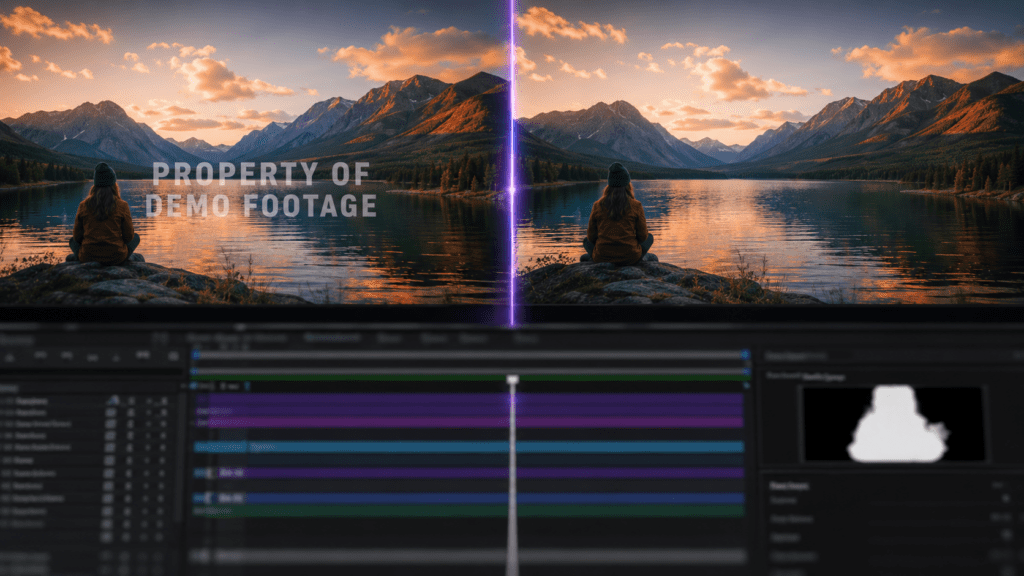
Adobe After Effects offers the strongest desktop method through its Content Aware Fill feature, which removes text and reconstructs the background frame by frame. This is for advanced users handling complex footage, not the primary mobile audience.
The core process:
- Open your video in After Effects.
- Use the pen or rectangle tool to draw a mask around the text you want gone.
- Open the Content-Aware Fill panel under Window.
- Click Generate Fill Layer so After Effects analyzes surrounding pixels.
- Adjust the content-aware settings, including the fill method and range, to reduce flicker.
- Render the result and review for artifacts.
Verdict: The highest-quality option for moving text on detailed backgrounds, but it has a steep learning curve and requires a paid subscription. Most social creators do not need it.
Common Mistakes When You Remove Text from Video
Most text-removal problems come from skipping small steps. After reviewing the top tutorials and testing the workflows, these are the errors that ruin results most often:
- Skipping feathering, which leaves a hard rectangle outline around the patch.
- Using a mask on a busy background where the cover never blends.
- Cropping too aggressively and losing important parts of the frame.
- Expecting basic masking to look seamless on moving footage.
- Exporting at low resolution, which makes the patched area more visible.
- Removing watermarks from videos you do not own without checking copyright.
That last point matters. Removing a watermark or text from content you do not have rights to use can violate copyright and fair use. Only edit videos you own or have permission to alter.
Watch out
The biggest mistakes are skipping feathering, masking busy backgrounds, cropping too aggressively, expecting seamless mobile masking on moving footage, exporting at low resolution, and removing watermarks without rights.
Key Takeaways
- Match the method to text position and background complexity.
- Always feather mask edges for natural blending.
- Use AI or After Effects for moving text on busy scenes.
- Respect copyright when removing watermarks.
Create Clean Video Ads With VidAU
Use VidAU AI Video, URL to Video, Text to Video, and Video Enhancer when you want fresh, watermark-free clips instead of repeatedly patching old footage with burned-in text.
VidAU workflow
When making new video is faster than removing text
- Use Video Enhancer after heavy edits: Sharpen footage that loses quality after masking, cropping, overlaying, or repeated exports.
- Use URL to Video for fresh ad clips: Build watermark-free videos from product pages instead of salvaging cluttered old footage.
- Use Text to Video for clean creative from scratch: Generate new footage from scripts or prompts when burned-in text is too hard to remove cleanly.
- Use VidAU AI Video for full ad workflows: Create fresh product ads from URLs, images, or scripts instead of patching someone else’s layout.
- Choose the fastest path: If text removal takes more time than rebuilding the clip, generating clean footage is often the smarter workflow.
Key takeaway
Final Thoughts
For most creators, the CapCut mobile duplicate-and-mask method is the fastest free way to remove text from video, with InShot and Canva as quick backups for edge text. When the background is busy or the text moves, step up to an AI tool or After Effects content-aware fill, and always feather your masks for clean results.
If you find yourself repeatedly cleaning up old clips, it is often faster to make new ones. The VidAU AI Video platform generates video ads from product URLs, images, or scripts in 49 languages, so you start with clean, watermark-free footage instead of patching someone else’s text.
FAQ
Here are answers to common questions about how to remove text from video, free mobile text removal, CapCut masking, InShot, Canva, content-aware fill, AI video text remover tools, watermarks, copyright, quality loss, and when to create clean clips from scratch.
Can I remove text from a video for free on my phone?
Yes. CapCut and InShot both offer free mobile text removal. CapCut’s duplicate-and-mask method covers text without leaving a watermark, while InShot uses crop, sticker, and blur tools. Both work well for captions and simple watermarks, though seamless results depend on the background behind the text.
What is the difference between masking and content-aware fill?
Masking covers text with an overlay or shape but does not rebuild the background, so it works best on simple scenes. Content-aware fill, found in After Effects and AI tools, analyzes surrounding pixels and reconstructs what was behind the text, giving cleaner results on detailed or moving footage.
Why does my removed text still leave a visible box?
A visible box usually means you skipped feathering. Feathering softens the mask edges so the patch blends into the surrounding pixels. Increase the feather value in CapCut’s mask adjustment or add a slight blur in InShot. Exporting at higher resolution also reduces how noticeable the patch looks.
Can I remove text from a video without losing quality?
You can minimize quality loss by exporting at the original or highest available resolution and avoiding repeated re-exports. Masking and overlay methods keep quality intact in the untouched areas. If footage looks degraded after editing, a video enhancer can sharpen the final clip before publishing.
Which app is best to remove captions from videos?
CapCut is the best free caption remover for most users because its masking tool handles burned-in subtitles on calm backgrounds. For captions near the frame edge, InShot’s crop tool is faster. For captions over busy or moving scenes, an AI video text remover or After Effects produces cleaner results.
Is it legal to remove watermarks from videos?
It depends on ownership. Removing watermarks or text from videos you created or have permission to edit is fine. Removing watermarks from content you do not own can violate copyright and fair use rules. Always confirm you have the rights before editing or republishing any video.
How do AI tools remove text from video?
AI video text remover tools let you draw a box around the text, then analyze surrounding frames to rebuild the background behind it. They handle moving text better than manual masking. Results vary with footage complexity, and free tiers often limit resolution, length, or output quality.
Do I need After Effects to remove text from video?
No. After Effects offers the highest-quality removal through content-aware fill, but it requires a paid subscription and has a learning curve. Most social creators get good results with free mobile apps like CapCut or with online AI tools, reserving After Effects for complex, moving text on detailed backgrounds.
What is the fastest way to remove a watermark from a video?
For a watermark near the edge, cropping in InShot or Canva is fastest. For a centered watermark, the CapCut overlay-and-mask method is quick and free. For watermarks over busy footage, an AI watermark remover gives the cleanest one-click result, though it may cap resolution on free plans.
Can I avoid removing text altogether?
Yes. Instead of patching old clips, you can generate clean footage from scratch using text-to-video or URL-to-video tools, which produce watermark-free output. This is often faster than fixing cluttered videos and avoids the artifacts that masking and AI removal can leave behind on complex backgrounds.


