
iPhone Live Photo Guide · Video to Live Wallpaper Converter
How to Convert Video to Live Photo on iPhone (Step-by-Step Guide)
Learn how to turn a video into a Live Photo on iPhone using TikTok or intoLive. Create animated wallpapers and motion photos in minutes.
By the VidAU Editorial Team · iPhone Live Photo guide · Step-by-step tutorial
Transforming your favorite video clips into Live Photos on your iPhone is now a one-click job, especially when you know how to turn a video into a Live Photo without installing extra software.
The fastest way to turn a video into a Live Photo on iPhone is the TikTok method: upload your clip with the visibility set to Only Me, then tap the three-dot menu and choose Live Photo to save it straight to your Photos app. It takes about a minute and needs no dedicated converter app.
This guide is for iPhone users who want to learn how to turn a video into a Live Photo for animated Lock Screen wallpapers or motion photos, no matter their skill level. We cover three proven methods, the HEIC format behind Live Photos, and which clips actually look best once converted.
Quick Summary
- The TikTok method is the easiest way to turn a video into a Live Photo on iPhone, using the Only Me visibility setting and the built-in Live Photo save option.
- The intoLive app is the strongest alternative for users who prefer a dedicated video to live wallpaper converter, with trimming to roughly 5 seconds before conversion.
- Live Photos save in HEIC format and play their motion effect only when you press and hold the image in the Photos app on supported iPhone models.
- iPhone users who want animated Lock Screen wallpapers from short, steady clips with clear movement benefit most from these methods.
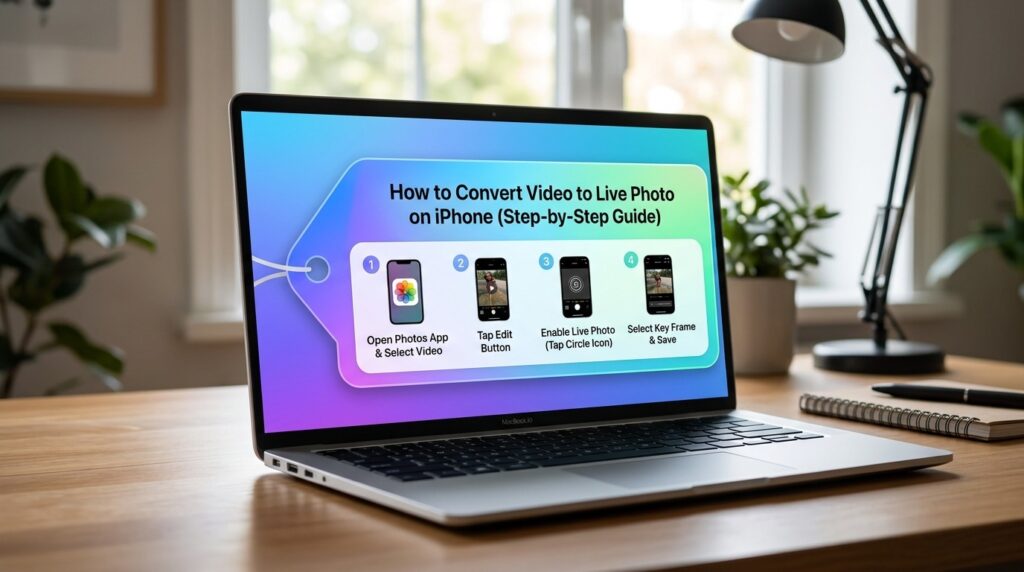
What Is a Live Photo?
A Live Photo is an Apple camera feature that captures roughly 1.5 seconds of motion before and after a still frame, creating a short moving image with sound. When you press and hold the photo, it plays the motion effect. Live Photos are stored in HEIC format, which holds both the still image and the motion data in one file.
That HEIC format is the key reason converting works. A normal video is just a video file. To use it as a Live Photo or an animated Lock Screen wallpaper, the clip has to be packaged into that still-plus-motion structure your iPhone recognizes.
Key Takeaways
- Live Photos combine a still frame with a short motion clip.
- The motion effect plays on press and hold in the Photos app.
- HEIC is the format that makes Live Photos and animated wallpapers possible.
Why Converting Video to Live Photo Matters
Converting video to Live Photo matters most when you want a moving Lock Screen wallpaper or a motion photo to share. iPhone wallpapers that animate use Live Photos, so a flat video file simply won’t work until you convert it. This is the gap most people hit when they try to set a clip as a wallpaper and find no animation.
It’s also a quick way to relive a moment. A pet running, a wave breaking, or a slow camera pan turns into a tappable moment instead of a buried video in your camera roll.
Why it matters
Animated wallpapers use Live Photos, not plain video files. Converting packages your clip into the still-plus-motion structure your iPhone recognizes.
How to Turn a Video Into a Live Photo Using TikTok
The TikTok method is the simplest way to turn a video into a Live Photo, and it works without any separate converter app. The trick is uploading privately so nobody sees your clip. Here’s the full process.
Step 1: Download TikTok
Download TikTok from the App Store and open the app.
Step 2: Start a new upload
Tap the plus button at the bottom of the screen.
Step 3: Select your video
Tap Upload, then select the video you want to convert.
Step 4: Set visibility to Only Me
Tap Next, then set the visibility to Only Me before posting.
Step 5: Post privately
Tap Post to publish the clip privately.
Step 6: Open the posted video
Open your posted video, then tap the three-dot menu.
Step 7: Choose Live Photo
Tap Live Photo from the menu options.
Step 8: Save to Photos
The Live Photo saves automatically to your Photos app.
Step 9: Confirm the motion effect
Press and hold the image in Photos to confirm the motion effect plays.
The Only Me setting is the part people miss. It keeps the upload private to your account, so the clip never appears on a public feed. TikTok also trims the result automatically to fit Live Photo length limits, so longer clips get shortened.
If the motion effect doesn’t play, open the photo, tap the LIVE badge in the top-left corner, and make sure it isn’t set to Off or Loop in a way you didn’t intend.
Privacy reminder
The Only Me setting is the part people miss. It keeps the upload private to your account, so the clip never appears on a public feed.
How to Make a Live Photo From Video With intoLive
The intoLive app is the best alternative if you’d rather use a dedicated video to live wallpaper converter than touch TikTok. It gives you more control over trimming and lets you skip social uploads entirely. Based on the most relevant tutorials our team reviewed, the flow is short.
Step 1: Download intoLive
Download intoLive from the App Store and open it.
Step 2: Select your video
Select the video you want to convert from your library.
Step 3: Trim the clip
Trim the clip to about 5 seconds or less for best results.
Step 4: Convert to Live Photo
Tap the option to make or convert the Live Photo.
Step 5: Save to camera roll
Save the finished Live Photo to your camera roll.
intoLive suits people who convert clips regularly, want precise trim points, or simply don’t want a TikTok account. The trade-off is that some advanced features and longer clips may sit behind a paid tier, which is common across these converter apps.
Tip
Use intoLive when you want more control over trimming, convert clips regularly, or prefer a dedicated converter instead of uploading through TikTok.
Best Methods Compared by Use Case
I reviewed and analysed the available tutorials across both approaches, and the right pick depends on whether you value speed or control. Here’s a quick comparison.
| Method | Best For | Trade-Off |
|---|---|---|
| TikTok | Fastest one-click conversion | Requires a TikTok account and auto-trim |
| intoLive | Precise trimming and control | Some features may need a paid tier |
| Photos app crop | Light edits to existing Live Photos | Cannot create a Live Photo from scratch |
For most people, TikTok wins on speed. For repeat use and tighter control, intoLive is the steadier choice. If your clip is already a Live Photo and you only need to trim it, the built-in Photos app handles small edits.
Method choice
For most people, TikTok wins on speed. For repeat use and tighter control, intoLive is the steadier choice. For existing Live Photos, the built-in Photos app handles small edits.
How to Set Your Live Photo as an Animated Wallpaper
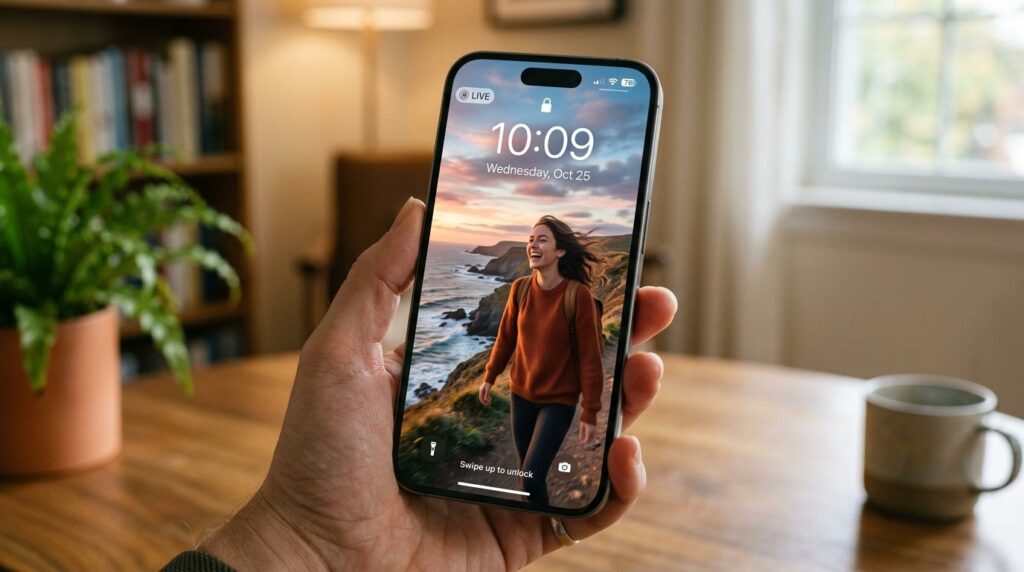
Once your video is a Live Photo, setting it as an animated Lock Screen wallpaper takes a few taps. Open Settings, tap Wallpaper, then choose to add a new wallpaper. Select Photos, pick your converted Live Photo, and make sure the Live toggle is on. The motion plays when you raise your iPhone or press the Lock Screen.
A Live Photo only animates on the Lock Screen, not the Home Screen, on supported iPhone models. If the wallpaper stays still, confirm the Live option is enabled and that Low Power Mode isn’t suppressing the effect.
Key Takeaways
- Animated wallpapers use Live Photos, not plain video files.
- Enable the Live toggle when setting the wallpaper.
- Low Power Mode can pause the motion effect.
Generate Clean Source Videos With VidAU
Use VidAU AI Video, Text to Video, Video Enhancer, and Object Remover when you want cleaner short clips from scripts, images, or existing footage before converting them into Live Photos.
VidAU workflow
Where VidAU fits before Live Photo conversion
- Use TikTok for the fastest conversion: Upload privately with Only Me, choose Live Photo, and save the result to Photos.
- Use intoLive for precise trimming: Trim clips to about 5 seconds or less when you need more control than TikTok provides.
- Use VidAU AI Video for new source clips: Generate clean short videos from scripts or images before converting them into Live Photos.
- Use Text to Video for written ideas: Turn a written idea into a short clip that can become a Live Photo or animated wallpaper.
- Use Video Enhancer and Object Remover for cleanup: Improve grainy clips or remove unwanted elements before freezing them into a Live Photo still frame.
Common Mistakes iPhone Users Make When Converting
Most conversion problems come from the source clip, not the method. Just as creators often blame export settings when the real issue is the original footage, the same logic applies here. A shaky, dark, or overly long clip rarely becomes a clean Live Photo.
- Choosing a clip with too much fast motion, which looks jittery as a wallpaper.
- Forgetting the Only Me setting on TikTok and accidentally posting publicly.
- Expecting a long video to keep its full length when TikTok auto-trims it.
- Picking a low-quality or dark clip and expecting sharp playback.
- Setting the wallpaper without enabling the Live toggle, so it stays static.
The Photos app stores converted Live Photos in your main library and in the Live Photos album under Media Types, so check there if you can’t find the file.
Watch out
A shaky, dark, overly long, or fast-moving clip rarely becomes a clean Live Photo. Source quality matters more than the conversion method.
Practical Tips for Choosing the Right Video Clip
The clip you start with decides how good the Live Photo looks. Short, steady footage with one clear movement works best. A slow pan, gentle waves, or a pet trotting toward the camera converts cleanly. Frantic, zoomed, or hand-held shaky video tends to stutter.
- Keep the clip short, around 3 to 5 seconds, since Live Photos are brief by design.
- Pick footage where the motion loops naturally so the wallpaper feels smooth.
- Favor well-lit, in-focus clips because compression won’t add sharpness later.
- Avoid clips with on-screen text or watermarks you don’t want frozen into the still frame.
If you’re creating short videos from scratch rather than converting old footage, AI tools can speed up the source step. Platforms like VidAU AI Video help generate clean clips from scripts or images, and Text to Video turns a written idea into a short clip you can then convert into a Live Photo. VidAU is an AI video ad platform that generates video ads from product URLs, images, or scripts in 49 languages, so it’s more suited to marketing clips than personal memories, but the output makes a clean conversion source.
If your original clip is grainy, running it through a Video Enhancer before converting can improve the still frame, and Object Remover helps if there’s something in the shot you’d rather not freeze into the Live Photo.
Clip selection tip
Short, steady, well-lit footage with one clear movement works best. Aim for 3 to 5 seconds and choose motion that loops naturally.
Key takeaway
Final Thoughts
If you want the fastest route, use the TikTok method: upload privately with Only Me, tap the three-dot menu, and choose Live Photo. If you prefer a dedicated converter, intoLive gives you cleaner trimming and no social account. Either way, the quality of the result depends on a short, steady, well-lit clip.
Start with the TikTok method today, test the motion effect with a press and hold, then set your favorite clip as an animated Lock Screen wallpaper. If you also create short videos for content or ads, generating polished source clips with VidAU AI Video gives you better material to convert.
FAQ
Here are answers to common questions about how to turn a video into a Live Photo, how to make Live Photo from video, TikTok privacy, HEIC format, animated wallpapers, intoLive, clip length, saved Live Photos, iPad support, and choosing clips that convert cleanly.
How do I turn a video into a Live Photo on iPhone?
Upload your video to TikTok with the visibility set to Only Me, then post it. Open the posted clip, tap the three-dot menu, and select Live Photo. It saves automatically to your Photos app. You can also use the intoLive app, which trims your clip to about 5 seconds before converting it.
Does the TikTok method post my video publicly?
No, not if you set the visibility to Only Me before tapping Post. The Only Me setting keeps the upload private to your account, so the clip never appears on a public feed. This is the step most people skip, so confirm it on the post screen before publishing your video.
What format are Live Photos saved in?
Live Photos are saved in HEIC format, which stores both the still image and the motion data in a single file. This combined structure is what lets the photo play its motion effect when you press and hold it, and it’s why a plain video file won’t work as a Live Photo wallpaper until converted.
Why won’t my Live Photo animate as a wallpaper?
First, make sure the Live toggle is enabled when you set the wallpaper, since the motion plays only on the Lock Screen on supported iPhone models. Also check that Low Power Mode isn’t active, because it can pause Live Photo effects. Finally, confirm the file is an actual Live Photo and not a regular still image.
How long can a video be to convert to a Live Photo?
Live Photos are short by design, so most methods trim the result to a few seconds. TikTok automatically trims longer uploads to fit Live Photo length limits, while intoLive lets you manually trim to around 5 seconds or less. For wallpapers, a 3 to 5 second clip with smooth motion usually looks best.
Where do my converted Live Photos save on iPhone?
Converted Live Photos save to your main Photos library automatically. To find them quickly, open the Photos app, go to Albums, scroll to Media Types, and tap the Live Photos album. From there you can press and hold any photo to confirm the motion effect plays before setting it as a wallpaper.
Can I use the intoLive app for free?
intoLive offers free conversion for basic use, but some advanced features and longer clip support may sit behind a paid tier. This is common across video to live wallpaper converter apps. For a single short clip, the free version is usually enough to test how your video looks as a Live Photo.
What makes a good video for converting to a Live Photo?
Short, steady, well-lit clips with one clear movement work best, such as a slow pan or gentle waves. Avoid fast, shaky, or dark footage, since it stutters and compression won’t add sharpness later. Clips around 3 to 5 seconds that loop naturally produce the smoothest animated wallpapers on iPhone.
Do these methods work on iPad too?
The TikTok method and the intoLive app are available on both iPhone and iPad through the App Store, so the conversion steps are largely the same. Live Photos display the motion effect on supported devices when you press and hold the image, though animated Lock Screen wallpaper support is most associated with the iPhone.


