CapCut AI Video Generator · Step-by-Step Guide
How to Use CapCut AI Video Generator: Step-by-Step Guide (2026)
Learn how to use the CapCut AI video generator, what its free tier includes, what content ownership concerns creators should know, and when VidAU.ai is the stronger alternative for true AI video generation.
By the Sarah Iruoje · Updated 2026 · 10 min read
Creating professional videos once required expensive software and advanced editing skills. The CapCut AI video generator changes that, at least on the surface. It automatically transforms text prompts into assembled video sequences with scenes, transitions, and effects.
But before you go all-in, there are things about the AI video generator CapCut offers that most tutorials skip, including a critical Terms of Service update that affects commercial creators and a fundamental limitation on what CapCut’s AI actually does versus what it promises.
This guide covers everything: how to access and use the CapCut AI video generator step by step, what you actually get on the free tier, the content ownership question you need to answer before uploading anything, and why VidAU is the stronger choice if you need true AI video generation for commercial use.
Quick summary
- The CapCut AI video generator assembles stock clips based on text prompts; it is not a true generative AI tool.
- The free tier provides 150 weekly AI credits; watermarks apply to some AI template exports.
- CapCut’s June 2025 ToS grants ByteDance perpetual rights to all uploaded content, including private drafts.
- For social media editing, CapCut is excellent, and for true AI video generation, VidAU.ai is the better tool.
- This guide walks you through the full CapCut workflow and shows you where to go when you need more.
What Is the CapCut AI Video Generator?
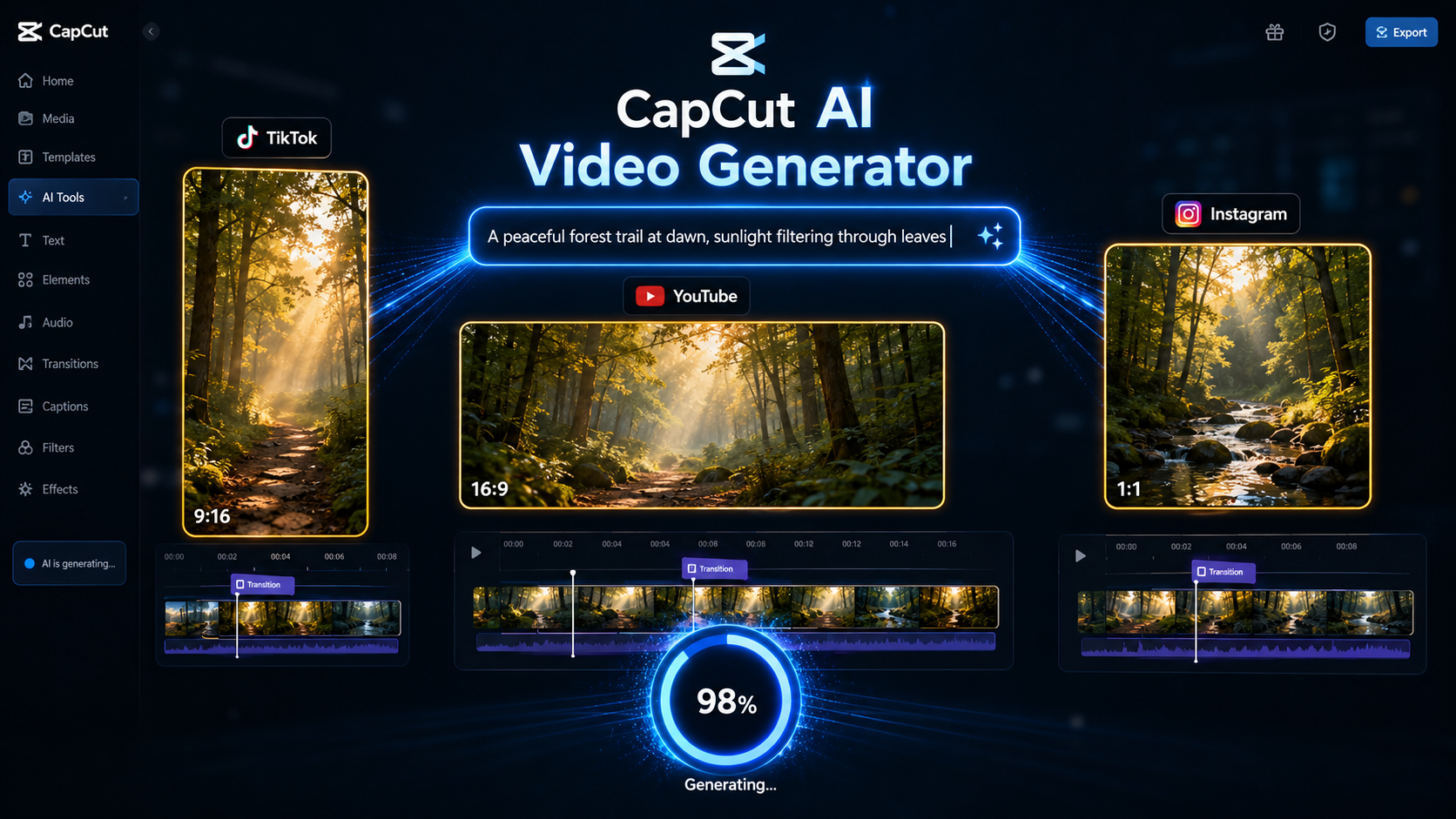
The CapCut AI video generator is a text-to-video assembly tool built into CapCut’s broader editing platform. You input a text prompt, and CapCut selects matching clips from its stock library, adds transitions, applies effects, and assembles them into a draft video.
It is important to understand what this means in practice:
- CapCut does not generate an original video from your prompt.
- It assembles existing stock footage based on how its AI interprets your text.
- The output is a draft timeline that you then edit manually.
This is meaningfully different from true AI video generators like VidAU.ai, which create original footage from a prompt. For creators who understand this distinction upfront, CapCut is a fast and genuinely useful tool. For those expecting original AI-generated visuals, the gap between expectation and output is significant.
CapCut works within its own ecosystem. After initial generation, you get access to CapCut’s full library of effects, transitions, and editing features. The combination of automated assembly and manual refinement gives you speed and control for social content workflows. CapCut AI video generator is an artificial intelligence feature that helps users create videos automatically using text prompts, templates, images, voiceovers, and smart editing tools.
Instead of manual editing, AI assists with scene generation, transitions, subtitles, and visual enhancements.
This helps creators produce videos faster for social media, ads, and short-form content.
Important distinction
CapCut is valuable as an AI-assisted editor and stock-footage assembly workflow. VidAU.ai is positioned as the stronger choice when you need original AI-generated video for commercial campaigns, high-volume production, AI avatars, and multi-language marketing content.
What Is an AI Video Generator?
An AI video generator uses artificial intelligence to create or assemble video content from a text prompt, image input, or script. Some tools, like VidAU.ai, generate original footage. Others, like CapCut, assemble pre-existing stock clips using AI to interpret the prompt. The distinction matters for commercial use, originality, and content rights.
| Tool type | How it works | Why it matters |
|---|---|---|
| True AI video generator | Creates original video from a prompt, script, image input, or other AI instruction. | Better fit for unique visuals, commercial production, ad campaigns, and original creative assets. |
| AI-assisted stock assembly tool | Selects and arranges existing stock clips based on how AI interprets the prompt. | Useful for fast social editing and draft timelines, but less original and more dependent on available library assets. |
Main Features of CapCut AI Video Generator
CapCut AI includes several automation tools.
Key features include:
- Text-to-video generation
- Auto captions
- AI script assistance
- Background removal
- AI voiceovers
- Templates and transitions
- Smart resizing for social platforms
These features reduce editing time significantly.
How to Access the CapCut AI Video Generator
Desktop Access
- Go to CapCut and sign in with your email, Google, or TikTok credentials.
- From the main dashboard, look for “AI Video Maker” or “Video Generator” in the creation tools section.
- Click to open a new project, and the AI generation interface loads with a text input field.
The desktop version gives you a larger workspace for reviewing and editing generated output. Most creators prefer starting projects here.
Mobile Access
- Download the CapCut app from the App Store or Google Play.
- Sign in with the same account credentials.
- Tap the “+” create button, then navigate to the AI Video Generator in the creation tools.
Both versions access the same generation capabilities. Projects sync across devices when logged into the same account.
How to Write Effective Prompts for CapCut AI Video
Prompt quality directly determines output quality. Since CapCut is selecting stock clips to match your description, specificity is critical.
Be Specific About Visuals
| Weak prompt | Strong prompt |
|---|---|
| A nature scene | Sunrise over a misty mountain valley with pine trees and a flowing stream in the foreground |
| A busy city | Rain-soaked city street at night, neon reflections on wet pavement, people with umbrellas |
| A product video | Close-up of a coffee cup on a wooden table, steam rising, warm morning light from a window |
Include Mood and Atmosphere
Words like cinematic, cheerful, mysterious, energetic, and calm guide the AI’s decisions about colour grading, pacing, and visual treatment. Include them deliberately.
Structure Prompts as Narrative Beats
Break your concept into sequential moments. The AI interprets structure as scene flow:
“A curious ant discovers a glowing mushroom in a dark forest. The ant approaches cautiously. The mushroom lights up, revealing a hidden pathway leading deeper into the trees.”
Specify Format Early
Mention your target platform format in the prompt if the interface does not have a separate setting:
- YouTube: 16:9 landscape
- TikTok / Reels: 9:16 vertical
- Instagram feed: 1:1 square
Tip
Because CapCut assembles stock clips, a vague prompt usually creates generic footage. The more specific your visuals, mood, scene progression, and platform format, the better your draft timeline will be.
Step-by-Step: How to Use the CapCut AI Video Generator
Step 1 — Open a New Project
Open CapCut on desktop or mobile and navigate to AI Video Generator or Script to Video from the sidebar. Tap or click to start a new project.
Before writing your prompt, decide:
- What platform is this for?
- What is the goal: inform, entertain, or promote?
- How long should the video be?
Step 2 — Enter Your Prompt
Type your detailed prompt into the text field. Take time here; this is the highest-leverage step.
Example prompt for a nature channel:
“A peaceful forest trail at dawn. Sunlight filters through tall pine trees. A path winds between the trunks. Birds fly across the sky. The camera moves forward along the path, revealing a clearing with a small waterfall.”
Review before generating: Does the prompt include specific visuals, mood, and a clear progression of scenes?
Step 3 — Select Generation Settings
Choose your aspect ratio and format:
- 16:9: YouTube standard
- 9:16: TikTok, Instagram Reels, YouTube Shorts
- 1:1: Instagram feed
Select a style if available: realistic, animated, or stylised. Choose based on your content goals. Realistic works for explainers and vlogs, while stylised works for creative or entertainment content.
Step 4 — Generate
Click the Generate button. Processing typically takes 30 seconds to 3 minutes, depending on length and server load. The AI selects appropriate stock clips, applies transitions, and assembles a draft timeline.
During generation, the AI handles:
- Scene selection based on your prompt
- Transition placement
- Pacing decisions
- Basic effects application
Step 5 — Review the Output
Watch the full generated video before editing. Note:
- Do the scenes match your prompt?
- Does the pacing feel right?
- Are transitions smooth?
- Are there scenes that feel off or generic?
Treat this as a strong first draft, not a finished product. Most generated outputs need some scene replacement or timing adjustment.
Step 6 — Edit and Export
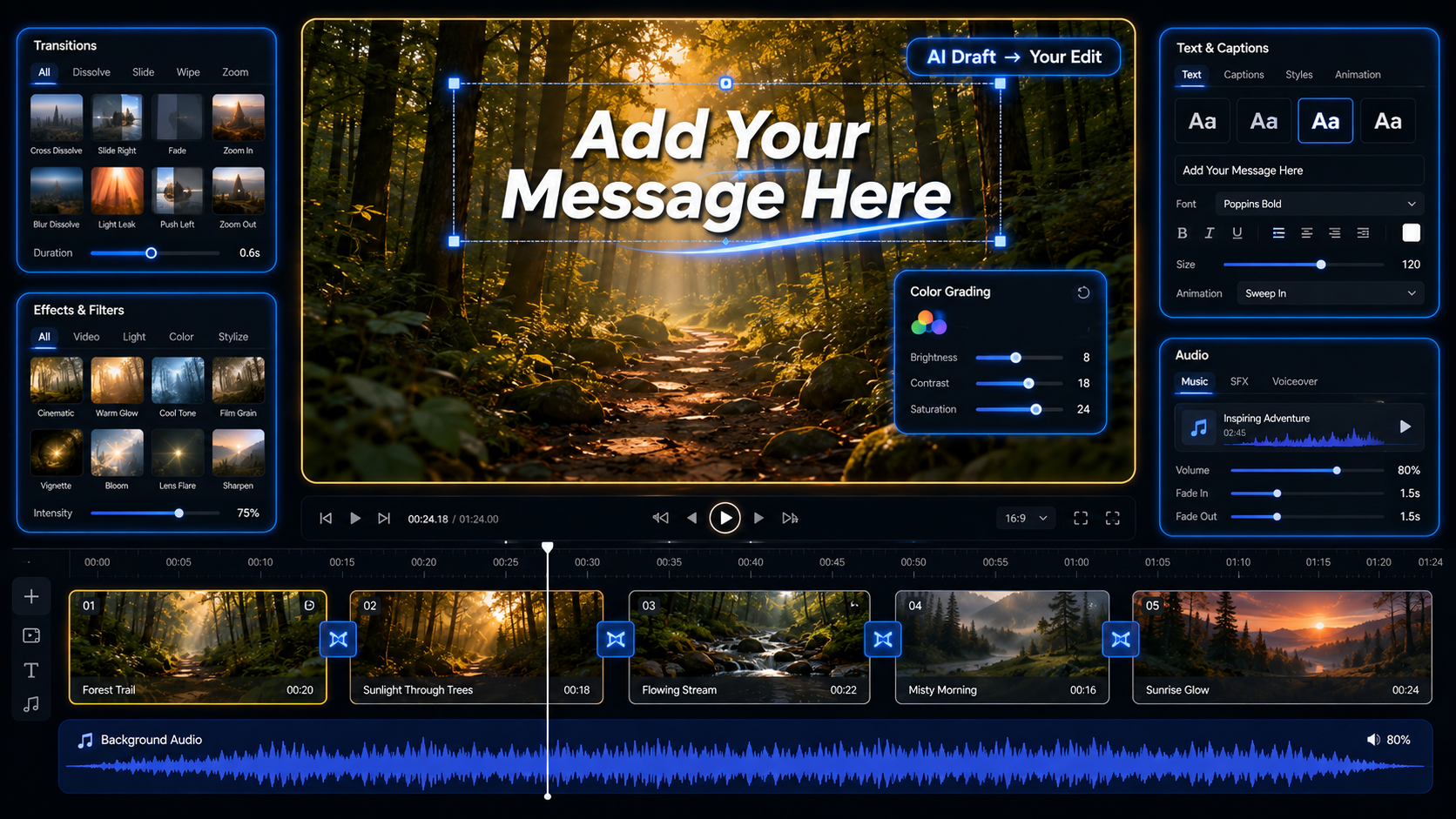
Use CapCut’s editing tools to refine:
- Replace scenes: select any clip in the timeline, and swap it.
- Trim durations: adjust how long each scene plays.
- Add captions: use Auto Captions for transcription-based subtitles.
- Adjust audio: replace background music, or add voiceover.
- Apply effects: colour grade for visual consistency across scenes.
Export settings:
- Free tier: 1080p, no watermark on standard manual edits.
- Some AI template exports: include watermarks on the free tier.
- Pro tier: 4K, watermark-free on all outputs.
Key Takeaways: CapCut AI Video Generation
- The free tier gives 150 weekly AI credits, roughly 2 minutes of video plus 75 images.
- Generation takes 30 seconds to 3 minutes.
- Auto Captions is the single highest-value free feature. Use it on every video.
- AI-generated output is a draft; plan for editing time after generation.
Optimising for Different Platforms
YouTube Shorts
- Format: 9:16 vertical, under 60 seconds.
- Hook in the first 2–3 seconds, viewer retention drops fast.
- Add captions, many viewers watch silently.
- Use 3–5 focused hashtags in the description.
TikTok
- Format: 9:16, 15 to 60 seconds optimal.
- Algorithm weights watch time and completion rate, so structure to hold attention throughout.
- Use trending sounds where they genuinely fit the content.
- Avoid forcing trends; it reads as inauthentic.
Instagram Reels
- Format: 9:16, 15 to 30 seconds performs best, with up to 90 seconds supported.
- Prioritise visual appeal and smooth pacing.
- Verify music is cleared for commercial use if posting for a brand.
- Add interactive stickers for an engagement boost.
YouTube Standard
- Format: 16:9, any length.
- AI-generated content works best as B-roll or illustrative sequences within longer videos.
- Full AI generation works well for faceless channels, educational content, and explainers.
| Platform | Best format | Optimization note |
|---|---|---|
| YouTube Shorts | 9:16 vertical, under 60 seconds | Hook in the first 2–3 seconds and use captions. |
| TikTok | 9:16, 15 to 60 seconds optimal | Structure for watch time and completion rate. |
| Instagram Reels | 9:16, 15 to 30 seconds performs best | Prioritise visual appeal, pacing, and cleared music for brand posts. |
| YouTube Standard | 16:9, any length | Use AI-generated content as B-roll, educational support, or faceless video material. |
Content Ownership: What You Must Know Before Uploading
This is the section most CapCut tutorials skip. It is the most important one for professional creators.
Is CapCut AI-generated video your own content?
The answer is two-layered:
- You retain the right to publish and monetise AI-generated video output on social platforms. CapCut’s terms allow this for standard use cases.
- However, CapCut’s June 2025 Terms of Service update grants ByteDance, CapCut’s parent company, perpetual, irrevocable, royalty-free rights to all content you upload, including private drafts you never publish.
This means:
- Every clip you upload to CapCut can be used by ByteDance.
- This applies to unpublished drafts and work-in-progress files.
- For brands, agencies, and commercial creators, this creates genuine legal exposure.
| Creator type | Risk level | Recommendation |
|---|---|---|
| Casual social creator | Low | CapCut free tier is fine. |
| Small business owner | Medium | Review ToS; avoid uploading proprietary assets. |
| Marketing agency | High | Use platforms with cleaner commercial IP terms. |
| Enterprise/brand | High | VidAU.ai or platforms with explicit commercial rights. |
Watch out
If you are creating client work, commercial campaigns, or proprietary brand content, review CapCut’s current Terms of Service before uploading. Consider platforms with cleaner IP frameworks for professional workflows.
Create Original AI Video with VidAU
Use VidAU.ai when you need true AI video generation, commercial production at volume, clean content rights, AI avatars, voiceovers, and multi-language video output for marketing teams and e-commerce brands.
When to Use VidAU Instead
CapCut is excellent for what it is: a fast, AI-assisted editor for social media content. But there are clear scenarios where VidAU.ai is the better choice.
Choose VidAU.ai when you need true AI generation from text prompts
VidAU.ai generates original video from a prompt, not assembled stock clips. For brands that need unique visual content, this distinction is the difference between templated assembly and genuine creative production.
Choose VidAU.ai when you need commercial production at volume
VidAU.ai is built for teams producing 50+ video ads per month. CapCut’s credit system and 15-minute video cap make it unsuitable for high-volume commercial workflows.
Choose VidAU.ai when you need a clean IP and content rights
VidAU.ai does not carry CapCut’s ByteDance content licence concerns. Your uploaded content is yours.
Choose VidAU.ai when you need AI avatars and multi-language support
VidAU.ai includes AI avatars, voiceover generation, and multi-language output — features built specifically for marketing teams and e-commerce brands.
VidAU workflow
From prompt to commercial AI video
- Start with a clear prompt or script: Define the scene, product, audience, platform, mood, voiceover needs, and campaign goal.
- Generate original video: Use VidAU.ai when you need footage created from the prompt rather than stock footage assembled from an existing library.
- Add marketing layers: Build in AI avatars, voiceover, captions, multi-language output, and product-specific messaging for ad campaigns.
- Scale production: Produce high-volume commercial assets for e-commerce, paid ads, creator-style campaigns, social content, and multilingual video workflows.
Common Mistakes When Using the CapCut AI Video Generator
Mistake 1 — Vague Prompts
“A business video” produces generic stock footage. “A professional in a modern office reviewing data on a laptop, warm ambient lighting, calm atmosphere” produces a usable result. Specificity is everything.
Mistake 2 — Expecting True AI Generation
CapCut assembles stock clips; it does not generate original footage. If your project requires unique visuals that do not exist in a stock library, CapCut will fall short. Use VidAU.ai for true generation.
Mistake 3 — Uploading Proprietary Content Without Reading the ToS
Client footage, confidential brand assets, or unreleased product visuals should not be uploaded to CapCut without understanding the June 2025 Terms of Service implications. Know before you upload.
Mistake 4 — Skipping the Editing Step
AI-generated output is a draft. Creators who export directly from generation without editing produce noticeably lower-quality content than those who spend 10–15 minutes refining the timeline.
Mistake 5 — Ignoring Caption Opportunities
Auto Captions is the highest-value free AI feature in CapCut. Skipping it means leaving engagement on the table; most social media users watch videos with sound off.
Mistake 6 — Overusing Transitions
AI generation sometimes adds excessive or dramatic transitions. Simpler cuts and fades maintain viewer focus better. Review and simplify transitions after generation.
Watch out
The most common failure pattern is treating CapCut’s AI output as the final video. The generated timeline should be reviewed, refined, captioned, simplified where needed, and checked against commercial use requirements before publishing.
Advanced Tips for Better Results
Iterate your prompts if the first output misses your vision. Adjust one element at a time. Add more specific visual descriptors if scenes are too generic. Simplify if the AI is producing incoherent sequences.
Use templates as structural guides. Browse CapCut’s template library before generating. Templates show you what pacing and structure work well for different content types, and they inform better prompt writing.
Use hybrid production. Combine AI-generated scenes with footage you shoot yourself. AI handles concepts that are difficult or expensive to capture; your own footage adds authenticity. This hybrid approach consistently outperforms pure AI generation.
Layer elements post-generation. Add animated text, motion graphics, and custom audio after generation. CapCut’s keyframe animation tools let you create custom motion for any element. These additions are what elevate AI-generated drafts into polished, professional-looking content.
Track credit refresh timing. The free tier provides 150 weekly credits. Plan larger projects around your refresh window to avoid running out mid-project.
Key takeaway
Conclusion
The CapCut AI video generator is a genuinely useful tool for social media creators who want to speed up content production. Auto captions, AI background removal, and template-based assembly all deliver real value, especially on the free tier.
But two things limit its usefulness for professional and commercial creators: it assembles stock clips rather than generating original video, and its 2025 Terms of Service creates content ownership concerns that casual tutorials do not mention.
For social media editing and short-form content, CapCut is hard to beat at the free tier.
For true AI video generation, commercial production, and clean content rights, VidAU is the tool built for the job.
FAQ
Here are answers to common questions about the CapCut AI video generator, CapCut script to video, free AI credits, watermarks, commercial use, video ownership, editing AI-generated videos, aspect ratios, and VidAU.ai as an alternative for true AI video generation.
What is the CapCut AI video generator?
The CapCut AI video generator is a text-to-video assembly tool that uses AI to select and arrange stock clips based on a text prompt. It is built into CapCut’s editing platform and available on desktop, web, and mobile. It is not a true generative AI tool; it assembles pre-existing footage rather than creating original video from scratch.
How do I use the CapCut AI video generator?
Open CapCut on desktop or mobile, navigate to AI Video Generator or Script to Video, enter a detailed text prompt, select your aspect ratio and style, click Generate, review the assembled draft, edit the timeline, and export. The full step-by-step process is covered in the guide above.
Is CapCut AI-generated video your own content?
You retain the right to publish and monetise AI-generated output on social platforms. However, CapCut’s June 2025 Terms of Service grants ByteDance perpetual, irrevocable, royalty-free rights to all content you upload, including private drafts. For commercial creators working with client assets or proprietary footage, this is a significant consideration. Review the current ToS before uploading sensitive content.
Is the CapCut AI video generator completely free?
Yes, core AI generation is available on the free tier. The free plan provides approximately 150 weekly AI credits, equivalent to around 2 minutes of AI video and 75 image generations. Some features, including 4K export, AI avatars, and unlimited auto captions, require CapCut Pro, listed in the article as $7.99–$19.99/month depending on plan and platform.
Does CapCut add watermarks to AI-generated videos?
CapCut does not watermark standard manual edits on the free tier. However, some AI template exports and premium effect outputs include watermarks on free accounts. The Pro plan removes watermarks from all outputs. Check your specific export before publishing.
Can I use CapCut AI-generated videos for commercial purposes?
Generally, yes, for platform monetisation such as YouTube AdSense or the TikTok Creator Fund. For paid advertising, client deliverables, or licensing to third parties, review CapCut’s current terms carefully. The June 2025 ToS update created additional considerations for commercial use cases involving uploaded proprietary content.
How long does generation take?
Simple videos are generated in 30 seconds to 2 minutes. Longer or more complex videos may take 3–5 minutes. Server load during peak hours can extend processing time. Your internet connection speed also affects generation time.
What is a better alternative to CapCut for true AI video generation?
VidAU.ai generates original video from text prompts, not assembled stock footage. It is built for commercial production volume, includes AI avatars and multi-language support, and does not carry CapCut’s content licence concerns. It is the stronger choice for marketers, agencies, and brands creating commercial video content. Try it at VidAU.
Can I edit AI-generated videos after creation?
Yes, extensively. After generation, you can trim scenes, replace clips, adjust transitions, add text overlays and captions, incorporate music or voiceover, apply effects and colour grades, and make any other modifications available in CapCut’s full editor. The AI output is a starting draft, not a finished product.
What aspect ratios does CapCut AI video support?
CapCut supports 16:9 for YouTube standard, 9:16 for TikTok, Instagram Reels, and YouTube Shorts, and 1:1 for Instagram feed. Select your format before generation or adjust it during editing.