

Kapwing AI Text to Video Generator · Complete Guide 2026
How to Use Kapwing AI Text to Video Generator: Complete Guide
Learn how to use the Kapwing AI text to video generator for fast video creation, subtitles, editing, pricing decisions, and creator workflows.
By the VidAU Editorial Team · Kapwing AI video guide · 13 min read
The Kapwing AI text to video generator turns a short prompt, script, or full article into an editable video in roughly three clicks, complete with B-roll, animated text, and a voiceover.
The Kapwing AI text to video generator turns a short prompt, script, or full article into an editable video in about three clicks. It auto-adds B-roll, animated text, and a voiceover, then drops the result into Kapwing’s timeline so you can refine it. You start with AI, then fix the parts that need a human touch.
This guide is for content creators, marketers, YouTubers, and social media managers who want fast video output without advanced editing skills. We cover both the prompt and article workflows, customization, subtitles, voiceover limits, and the pricing detail that matters most for free users.
Quick Summary
- The Kapwing AI text to video generator creates editable videos from a text prompt, script, or pasted article in roughly three clicks, adding B-roll and animated text automatically.
- Kapwing offers two main input paths: a text prompt for short ideas and a document-to-video tool for articles or blog posts.
- Free users hit a 3-minute text-to-speech limit, while Kapwing Pro at $16/month unlocks longer videos and unlimited cloud storage.
- This workflow fits creators and social media managers who want a fast first draft they can edit, not a finished hands-off render.
What Is the Kapwing AI Text to Video Generator?
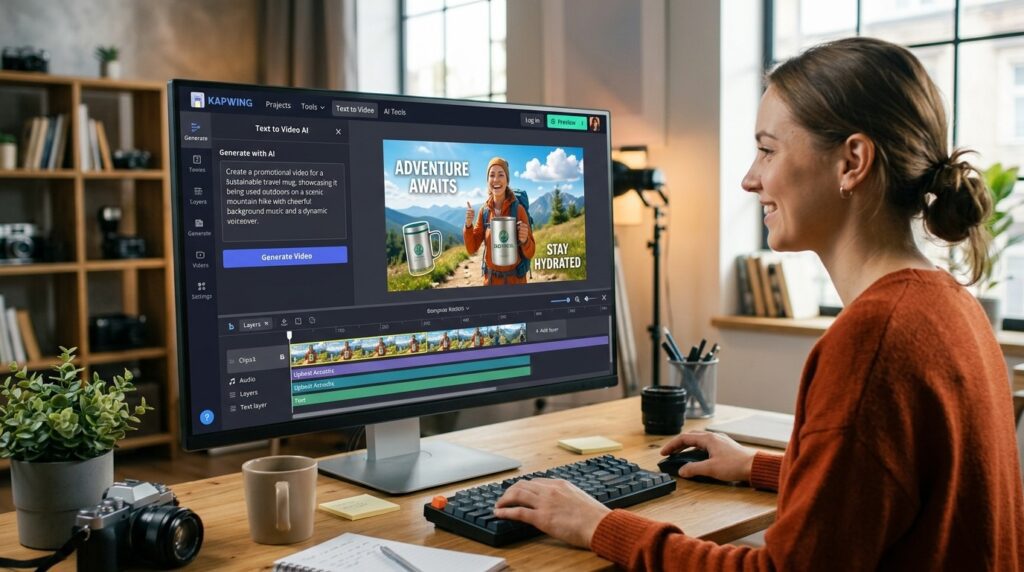
The Kapwing AI text to video generator is an online tool that converts text input into a video with stock B-roll, animated text overlays, transitions, and an AI voiceover. You give it a prompt, script, or article, and it produces a draft inside Kapwing’s editor that you can change at any point.
The key thing to understand: AI generation is the starting point, not the finished product. Kapwing builds a rough video automatically, then hands you a fully editable timeline. That difference shapes how you should use it.
Key definition
The Kapwing AI text to video generator converts a prompt, script, or article into an editable video draft with stock B-roll, animated text, transitions, and AI voiceover inside Kapwing’s timeline.
Why Text-to-Video Matters for Creators and Marketers
Most teams lose time turning a written idea into footage. You write the script, then hunt for clips, time the captions, and record a voiceover. Kapwing’s AI video generator compresses that into one pass.
For short-form social content, that speed is the point. You can test five hooks in the time it used to take to edit one. The trade-off is that AI picks generic B-roll, so the polish still depends on your edits.
Key Takeaways
- AI generation gives you a fast first draft, not a final video.
- The biggest time savings come from automated B-roll, captions, and voiceover.
- Editing after generation is where your video actually gets good.
Step-by-Step: Generate a Video From a Text Prompt
The prompt workflow is the fastest way to use Kapwing’s AI video generator. It works best for short, specific ideas rather than vague requests.
Step 1: Open Kapwing’s AI Studio and choose the text-to-video option.
Step 2: Type a clear prompt describing your video.
For example: “A 30-second video on three tips for better morning routines.”
Step 3: Pick an aspect ratio that matches your platform.
Use 9:16 for TikTok and Reels, 16:9 for YouTube, and 1:1 for feed posts.
Step 4: Click generate and wait for Kapwing to assemble the draft.
Step 5: Review the auto-added B-roll, text overlays, and voiceover in the editor.
That’s the three-click idea in practice. The more specific your prompt, the closer the first draft lands to what you want.
Tip
Use a short, specific prompt and choose the aspect ratio before generating. Vague prompts produce weaker scenes, while platform-matched formatting reduces rework later.
How to Turn an Article or Blog Post Into a Video
Kapwing’s document-to-video tool converts an article, blog post, or any pasted text into a video. This is useful when you already have written content and want a video version for social or YouTube.
- Open the article-to-video tool in Kapwing’s AI Studio.
- Copy and paste your article text, or add the source content.
- Choose your aspect ratio and voice settings.
- Generate the video and let Kapwing pull out key points into scenes.
- Open the timeline to trim, reorder, and fix the script as needed.
Articles with clear structure work best. Listicles, how-to posts, and short news pieces convert more cleanly than long, dense essays. Expect to trim hard, since the AI often keeps more text than a video needs.
Best fit
Kapwing’s article-to-video workflow works best with structured written content such as listicles, how-to posts, and short news pieces, but long dense essays usually need aggressive trimming.
How to Customize and Edit Your AI-Generated Video

After generation, your video lands in Kapwing’s standard editing timeline, where everything is editable. This is the step most creators skip, and it’s the difference between a generic clip and something worth posting.
Here’s what to adjust first:
- Swap weak B-roll for clips that actually match your script.
- Tighten text overlays so each line is short and readable.
- Fix transitions that feel abrupt or repetitive.
- Re-time the voiceover against the visuals so they line up.
You can also edit the video by editing the text in newer Kapwing workflows, which speeds up trims. Treat the AI output like a rough cut from an assistant: useful, but it needs your judgment.
Watch out
The AI-generated draft is not the final video. Skipping the edit step is how creators end up with mismatched B-roll, stiff pacing, weak overlays, and voiceover timing problems.
Using the Kapwing Subtitle Generator and Text-to-Speech
The Kapwing subtitle generator auto-transcribes your audio into captions, which you can then style or animate. Animated subtitles tend to hold attention on social feeds, and Kapwing lets you apply preset social styles or customize fonts and colors.
To add captions, open the subtitles tab, auto-generate them, then review for accuracy and click to animate. You can also translate captions into other languages and export hard-coded subtitles or a separate SRT file.
For voiceover, Kapwing’s text-to-speech reads your script aloud. One limit to plan around: free users get a 3-minute text-to-speech cap. If your video runs longer, you’ll need to upgrade or split the project.
Tip
Always review auto-generated subtitles before publishing. Animated captions can help retention, but names, jargon, punctuation, and timing still need a human check.
Kapwing Pricing and Free-Plan Limits
Kapwing pricing starts with a free plan and a Pro plan at $16/month. The free tier lets you test the AI video generator, but the limits show up quickly once you make real content.
| Plan | Notable Limits or Perks | Best For |
|---|---|---|
| Free | 3-minute text-to-speech cap | Trying the AI tools |
| Pro ($16/mo) | Longer videos, unlimited cloud storage | Regular creators |
The 3-minute text-to-speech limit is the one to watch. If you produce talking-head explainers or longer narrated videos, that cap forces an upgrade. For short social clips under three minutes, the free plan covers a lot.
Generate Videos With VidAU
Use VidAU AI Video, URL to Video, Text to Video, Text to Speech, and UGC Avatars when you need product-focused video ads, multilingual output, ad variations, and faster creative production from scripts, URLs, or product assets.
VidAU workflow
Where VidAU fits alongside Kapwing
- Use Kapwing for editable drafts: Start with a prompt, script, or article when you need a rough cut inside a flexible editing timeline.
- Try VidAU for ad-first workflows: Use VidAU AI Video, URL to Video, or Text to Video when the main goal is product-focused video ads rather than general content.
- Use voice tools when narration matters: Use VidAU Text to Speech when you need a dedicated voiceover workflow or multilingual delivery outside Kapwing’s free text-to-speech limits.
- Use UGC formats for spokesperson content: Use VidAU UGC Avatars when the video needs a presenter-led or native ad style.
- Pair tools when useful: Generate a draft in Kapwing, then create ad versions or multilingual variants in VidAU when campaign speed and product output matter most.
Common Mistakes and an Alternative Worth Checking
The most common mistake is treating AI output as the final video. The generator gives you a draft; skipping the edit step is how you end up with mismatched B-roll and stiff pacing.
A few other traps:
- Writing vague prompts that produce off-topic scenes.
- Pasting a full long-form article without trimming, which bloats the video.
- Ignoring the 3-minute text-to-speech limit until export fails.
- Leaving auto-captions unreviewed, since names and jargon often misfire.
If your main goal is video ads rather than general content, it’s worth comparing tools built for that. VidAU is an AI video ad platform that generates video ads from product URLs, images, or scripts in 49 languages. For product-focused output, its URL to Video and Text to Video workflows aim at ad creatives, and UGC Avatars cover spokesperson-style content. The honest trade-off: if you mostly need a flexible editor for varied content rather than ads, Kapwing’s broader toolkit may fit you better.
You can also pair tools. Generate a draft in Kapwing, then use a dedicated Text to Speech workflow or VidAU AI Video for ad versions when you need multilingual output.
Watch out
Kapwing’s AI output should be treated as a draft. Review the B-roll, trim long article imports, watch the 3-minute text-to-speech cap, and check auto-captions before publishing.
Key takeaway
Final Thoughts
The Kapwing AI text to video generator is a fast way to turn a prompt, script, or article into an editable draft. Pick the right input path, generate, then spend your real effort customizing B-roll, captions, and timing. That edit step is what separates a usable video from a generic one.
Start with a short prompt on the free plan to learn the flow, and watch the 3-minute text-to-speech limit before you commit to longer projects. If your focus is product video ads at scale, compare a purpose-built option like VidAU AI Video and test which output fits your channel best.
FAQ
Here are answers to common questions about the Kapwing AI text to video generator, prompt-to-video workflows, article-to-video, Kapwing subtitle generator, text-to-speech limits, Kapwing pricing, editable AI drafts, and ad-focused alternatives.
How does the Kapwing AI text to video generator work?
You enter a text prompt, script, or pasted article, and Kapwing’s AI assembles a video with B-roll overlays, animated text, transitions, and a voiceover. The result opens in Kapwing’s editing timeline, where every element stays fully editable so you can refine the AI draft before exporting.
How many clicks does it take to make a video in Kapwing?
Kapwing markets a three-click process for its AI video generator. You type your prompt, choose settings like aspect ratio, and click generate. After that, the AI builds a draft, but expect to add editing time if you want the video polished for a specific audience or platform.
Can Kapwing turn an article into a video?
Yes. Kapwing’s document-to-video tool lets you copy and paste an article, blog post, or document, then generates a video that pulls key points into scenes. Structured posts like listicles and how-to guides convert most cleanly. You’ll usually need to trim the script down for video length.
What is the Kapwing text-to-speech limit for free users?
Free users have a 3-minute text-to-speech limit on the Kapwing AI video generator. If your narrated video runs longer than three minutes, you’ll need to upgrade to Kapwing Pro or split the content into shorter projects to stay within the free-plan cap.
How much does Kapwing cost?
Kapwing pricing includes a free plan and a Pro plan at $16/month. Pro adds longer videos, unlimited cloud storage, custom font uploads, and access to premium features. The free plan is enough to test the AI video generator and short social clips under the text-to-speech limit.
How do I add subtitles in Kapwing?
Open the subtitles tab and use the Kapwing subtitle generator to auto-transcribe your audio into captions. You can then style or animate them with preset social styles, translate them into other languages, and export hard-coded subtitles or a separate SRT file. Always review auto-captions for accuracy first.
Are Kapwing AI videos editable after generation?
Yes. AI generation is only the starting point. Kapwing places your generated video in its standard editing timeline, so you can swap B-roll, edit text overlays, adjust transitions, re-time the voiceover, and change the script. This editing step is what turns a generic draft into a usable video.
Is Kapwing good for making video ads?
Kapwing works for general video content and short social clips, but it isn’t built specifically for product ads. For ad-focused output, a platform like VidAU generates video ads from product URLs, images, or scripts in 49 languages. Compare both to match your channel, budget, and ad workflow.


