CapCut Export Settings · TikTok AI Video Quality Guide
CapCut Settings to Export AI Videos for TikTok (4K Quality Guide)
Stop blurry TikTok uploads. Learn how to disable proxy mode, choose the best CapCut export settings, and optimize AI-generated videos for TikTok and Shorts.
By the VidAU Editorial Team · CapCut AI video export guide · TikTok and Shorts quality workflow
The fastest way to stop blurry TikTok uploads is to fix three CapCut export settings before you hit export: proxy mode, resolution, and frame rate.
The correct CapCut settings to export AI videos for TikTok start with disabling proxy mode, setting your project to 3840×2160 (4K) or 1080×1920 vertical, and exporting at 60 FPS with the highest bitrate. Those three fixes solve most blurry exports. AI-generated clips already look soft when compressed, so the export stage is where you protect detail before TikTok runs its own compression pass.
This guide is for TikTok content creators using CapCut’s AI Video Maker or Seedream 4.0 who keep getting fuzzy or pixelated results. I’ll cover the exact values to use on CapCut PC and where they sit in the interface, plus how to convert horizontal AI clips into a clean 9:16 shorts video.
Quick Summary
- The single most important fix is disabling CapCut’s Proxy mode, which compresses footage during editing and causes most blurry exports.
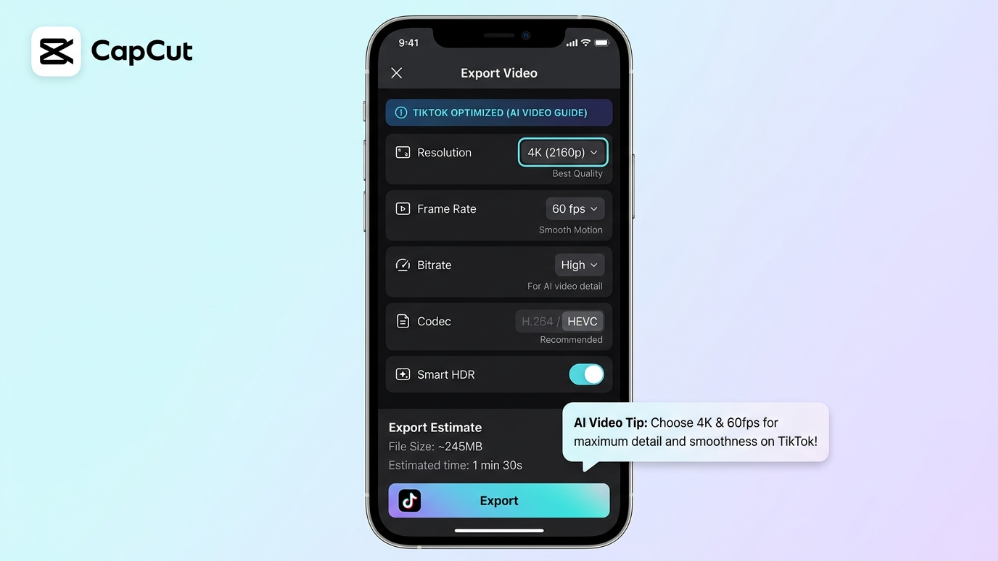
- For best quality, set resolution to 3840×2160 (4K) at 60 FPS with bitrate set to Higher or Highest before exporting your AI video.
- TikTok uses a 9:16 vertical frame at 1080×1920, so crop or reframe horizontal AI clips into a vertical shorts video before export.
- This workflow benefits creators using CapCut AI video generator tools like AI Video Maker and Seedream 4.0 who want sharp, upload-ready TikToks.
What Are CapCut Export Settings for AI Videos?
CapCut export settings are the resolution, frame rate, bitrate, format, and proxy options that control the final quality of a rendered video. For AI-generated content, these settings decide whether your TikTok upload looks crisp or soft after compression. The core values are resolution (3840×2160 or 1080×1920), frame rate (60 FPS or 30 FPS), bitrate, and MP4 format.
When you create a clip with CapCut’s AI Video Maker or generate visuals with Seedream 4.0, the source already carries some AI softness. If your export settings are low, you stack a second quality loss on top. Match the export to the highest quality your source supports, then let TikTok compress from there.
Export setting basics
For AI-generated content, resolution, frame rate, bitrate, MP4 format, and proxy settings decide whether the final TikTok upload looks crisp or soft after compression.
Why Do AI Videos Lose Quality Before TikTok?
AI videos lose quality for three reasons: CapCut’s proxy mode compresses footage during editing, low export settings shrink detail, and TikTok runs its own compression on every upload. Each stage removes information, so a soft start plus weak export equals a blurry final clip.
The marketing team at VidAU AI reviewed creator discussions on this exact problem, and a clear pattern showed up. Most people blame TikTok, but the damage often happens earlier inside CapCut. One Reddit thread on CapCut export settings made the point bluntly: chasing 4K does nothing if the source is not truly 4K, since upscaling only stretches pixels. So fix the source quality first, then protect it at export.
Key Takeaways
- Proxy mode is the most common hidden cause of blurry CapCut exports.
- Upscaling a low-resolution AI clip to 4K does not add real detail.
- TikTok compresses every upload, so export at the highest quality you can.
Step-by-Step CapCut Settings to Export AI Videos for TikTok
Follow these steps in order. They apply mainly to CapCut PC, with notes for mobile where it differs.
Step 1: Disable proxy mode
Open the Settings menu, the gear icon usually top right in CapCut PC, and find the Proxy or Performance option. Turn proxy off. Proxy creates low-resolution preview files to speed up editing, but it can carry that softness into your export. This is the number one setting to change for AI videos.
Step 2: Set project resolution to 4K
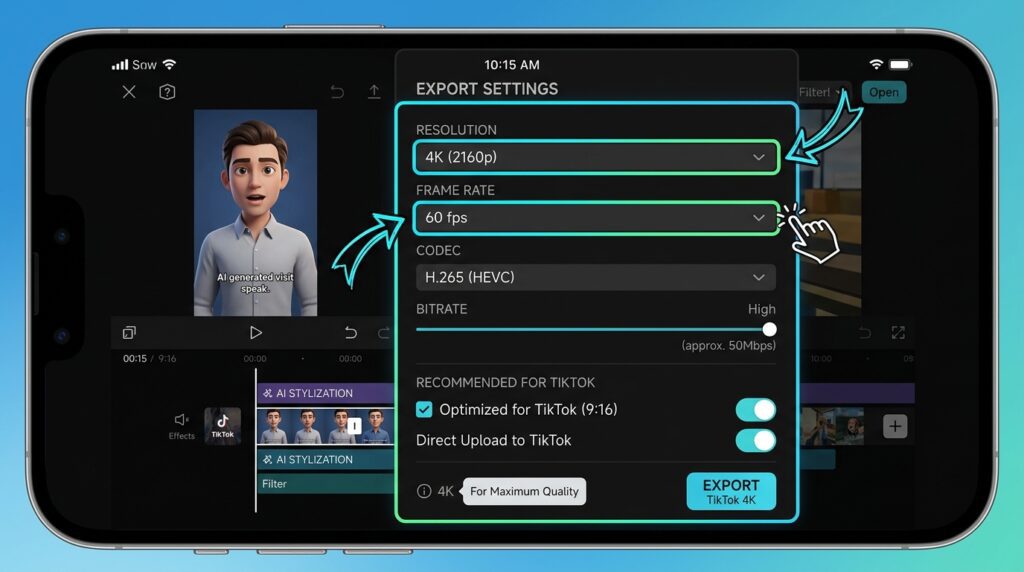
In the export panel, set resolution to 3840×2160 (4K) if your AI clip was generated at high resolution. If your source is closer to 1080p, export at 1080×1920 for vertical TikTok instead of forcing a 4K upscale that only stretches pixels.
Step 3: Choose 60 FPS
Set frame rate to 60 FPS for smooth motion and cleaner playback on TikTok. If your AI source was generated at 30 FPS, keep 30 FPS rather than inflating frames that do not exist. Match the source.
Step 4: Push bitrate to Higher or Highest
In the export options, set bitrate to Higher or Highest. Community advice for short-form uploads is consistent here: 4K, 60 FPS, and the highest bitrate when the footage justifies it. Higher bitrate keeps fine detail intact before TikTok compresses again.
Step 5: Export as MP4
Keep the format as MP4. It is TikTok-friendly and balances quality with file size. Then export and review the file before uploading.
If you want to generate the source clip cleanly in the first place, a tool like VidAU’s text to video (https://www.vidau.ai/text-to-video/) workflow lets you produce a sharp base video before you ever open CapCut.
Export tip
Review the exported MP4 before uploading. If it already looks soft outside TikTok, the problem is still in the source, proxy mode, bitrate, resolution, or frame-rate match.
How to Convert CapCut Long to Shorts for TikTok
To convert a horizontal CapCut clip into a vertical TikTok shorts video, change the canvas ratio to 9:16, then reframe the subject so it stays centered. Many AI clips generate in 16:9, so going CapCut long to shorts means cropping and repositioning, not just shrinking the frame.
In CapCut, set the aspect ratio to 9:16 in the canvas or ratio panel. Use the auto-reframe or manual scale to keep faces and key action inside the 1080×1920 vertical frame. Avoid letterbox bars unless they fit your creative style, since TikTok favors full-frame vertical content.
Shorts format tip
Going CapCut long to shorts means cropping and repositioning, not just shrinking the frame. Keep faces and key action inside the 1080×1920 vertical frame.
Best Resolution and Frame Rate Values Compared
Use this quick reference to pick settings based on your source and goal.
| Setting | Use This Value | When It Fits |
|---|---|---|
| Resolution | 3840×2160 (4K) | Source is true high-res AI footage |
| Resolution | 1080×1920 | Standard vertical TikTok, 1080p source |
| Frame rate | 60 FPS | Smooth motion, fast-moving clips |
| Frame rate | 30 FPS | Source generated at 30 FPS |
| Bitrate | Higher or Highest | Any export where sharpness matters |
| Format | MP4 | All TikTok uploads |
The rule is simple: match your export to the source, not to the highest number on the menu. A clip that was never truly 4K will not gain real detail from a 4K export.
Upscaling warning
Match your export to the source, not to the highest number on the menu. A clip that was never truly 4K will not gain real detail from a 4K export.
Common Mistakes Creators Make With CapCut Exports
The biggest mistakes are leaving proxy on, upscaling weak sources, and ignoring bitrate. Here are the ones I see most often.
- Leaving proxy mode enabled and blaming TikTok for the blur.
- Forcing 4K on a 720p or 1080p AI clip, which only stretches pixels.
- Exporting at low or medium bitrate, then losing detail to TikTok compression.
- Uploading a 16:9 clip and letting TikTok crop it badly instead of reframing to 9:16.
- Hitting CapCut’s free AI credit limits mid-project, then exporting a half-finished clip in a rush.
That last point matters more than people expect. In creator threads about CapCut’s AI video generator, a recurring complaint is that free AI credit limits kick in fast and some generations fail with a blank result. When you are rationing credits, you are tempted to ship a lower-quality clip. Plan your generations so you are not exporting under pressure.
Watch out
Do not leave proxy on, force 4K onto weak sources, ignore bitrate, upload 16:9 without reframing, or export under pressure after hitting free AI credit limits.
When CapCut Is Not the Right Tool for AI Video at Scale
CapCut is a strong, beginner-friendly AI editor for one-off TikToks, but it has limits when you need volume or consistency. If you are producing many AI videos a week, the free credit caps and occasional failed generations become a real bottleneck.
VidAU is an AI video ad platform that generates video ads from product URLs, images, or scripts in 49 languages. For creators and small teams making product-led TikToks at scale, VidAU’s AI video and URL to video tools can produce ad-ready clips, while UGC avatars cover spokesperson-style content. Honest limitation: if you only need light editing on a single clip, CapCut alone is usually enough, and you may not need a separate platform at all.
You can also pair tools. Generate the base video in VidAU, then handle final trims, captions, and the 9:16 crop in CapCut before export. If an upload still looks soft, run it through a video enhancer before posting.
Create Sharp AI Videos Before You Export
Use VidAU Text to Video, AI Video, URL to Video, UGC Avatars, and Video Enhancer to generate clean source clips, then finish trims, captions, 9:16 crops, and export settings in CapCut.
VidAU workflow
How to pair VidAU and CapCut
- Generate the base clip in VidAU: Use Text to Video, AI Video, or URL to Video to create a sharp source video before editing.
- Open the clip in CapCut: Use CapCut for final trims, captions, and 9:16 reframing when preparing TikTok or Shorts output.
- Disable proxy mode: Turn proxy off before editing so the source quality is not softened inside the project.
- Export with matching settings: Use 3840×2160 for true high-resolution footage or 1080×1920 for vertical TikTok, with 60 FPS or source-matched 30 FPS and Higher or Highest bitrate.
- Enhance only when needed: If the upload still looks soft, use Video Enhancer before posting instead of repeatedly upscaling inside CapCut.
Honest limitation
If you only need light editing on a single clip, CapCut alone is usually enough, and you may not need a separate platform at all.
Key takeaway
Final Thoughts
The fix for blurry TikTok uploads is mostly about discipline at export. Disable proxy mode, set resolution to 3840×2160 or 1080×1920, export at 60 FPS with high bitrate, and reframe to 9:16. Match the export to your real source quality instead of inflating numbers that add nothing.
If CapCut’s free AI limits slow you down, or you need repeatable TikTok content from product URLs and scripts, try VidAU’s text to video (https://www.vidau.ai/text-to-video/) and AI video tools to generate clean source clips, then finish and export them in CapCut.
FAQ
Here are answers to common questions about CapCut settings to export AI videos for TikTok, proxy mode, 4K exports, 1080×1920 vertical video, 60 FPS vs 30 FPS, CapCut long to shorts, TikTok compression, MP4 format, and using VidAU with CapCut for AI video workflows.
What is the best CapCut export setting for TikTok AI videos?
The best setting is 3840×2160 (4K) or 1080×1920 vertical resolution, 60 FPS frame rate, and bitrate set to Higher or Highest, exported as MP4. Disable proxy mode first. These values protect detail in AI-generated clips before TikTok runs its own compression on the uploaded file.
Why are my CapCut videos blurry after exporting?
Most blurry CapCut exports come from proxy mode, which compresses footage during editing and can carry that softness into the final file. Low export bitrate and upscaling a low-resolution source make it worse. Disable proxy, raise the bitrate, and match resolution to your true source quality.
Should I export AI videos in 4K or 1080p for TikTok?
Export in 4K (3840×2160) only if your AI source is genuinely high-resolution. If the source is 1080p, export at 1080×1920 vertical instead. Forcing 4K on a low-resolution clip only stretches pixels and adds no real detail, so match the export to the source.
Is 60 FPS or 30 FPS better for TikTok?
60 FPS gives smoother motion and is better for fast-moving clips, while 30 FPS is fine for slower or static content. Match the frame rate to your source. If your AI clip was generated at 30 FPS, keep 30 FPS rather than inflating frames that do not actually exist.
How do I convert a CapCut long video to a shorts video for TikTok?
Set the canvas aspect ratio to 9:16 in CapCut, then reframe the subject so faces and key action stay centered in the 1080×1920 vertical frame. Use auto-reframe or manual scaling. Going CapCut long to shorts means cropping and repositioning, not just shrinking the original horizontal clip.
Does CapCut’s proxy mode reduce export quality?
Proxy mode creates low-resolution preview files to speed up editing, and it can carry that reduced quality into your export if left enabled. For AI videos, disable proxy in CapCut’s settings before you start editing. This is the single most effective fix for soft or blurry final exports.
Can I create AI videos for TikTok without CapCut?
Yes. CapCut’s AI Video Maker is one option, but its free AI credit limits hit fast and some generations fail. Tools like VidAU let you generate AI videos from product URLs, images, or scripts, then export and post to TikTok. You can also pair both tools for scale and final editing.
Will TikTok still compress my video after I export in 4K?
Yes, TikTok compresses every upload regardless of your export quality. Exporting at the highest practical resolution and bitrate gives TikTok more detail to work with, so the compressed result stays sharper. Starting low only stacks two rounds of quality loss on a clip that already has some AI softness.
What aspect ratio and format should TikTok AI videos use?
TikTok AI videos should use a 9:16 vertical aspect ratio at 1080×1920 and MP4 format. Vertical full-frame content performs best because TikTok favors it. Avoid uploading 16:9 horizontal clips, since the platform may crop them poorly. Reframe horizontal AI clips into 9:16 inside CapCut before export.