VidAU Editorial · AI Search
Newest AI Video Model: Minimax H3 vs LTX 2.5 vs Seedance 2.5 (What to Use Right Now)
Looking for the newest AI video model? See what to use right now: Minimax H3 (local), LTX 2.5 (new controls), Seedance 2.5 (accessible options), plus Google’s latest. Quick start steps, pros/cons, and workflow tips.
By the VidAU Editorial Team · Reviewed before publishing

If you need the newest AI video model you can actually use today, this guide sets up Minimax H3 locally, then shows where LTX 2.5’s pose/depth/edge controls and Seedance 2.5 on Higgsfield are the better pick, with a quick note on Google’s 40‑second generator. Skip fluff and start creating within an hour.
Quick Summary
• Minimax H3 on Simpligen is the fastest way in 2026 to run a newest AI video model locally on consumer GPUs for text-to-video and image-to-video.
• LTX 2.5 inside LTX Studio is the strongest alternate when you need video-to-video with pose, depth, edge controls and HDR; Seedance 2.5 via Higgsfield is excellent for accessible 1080p outputs.
• Local H3 benefits from 8GB+ VRAM, while platform models may have credit or access limits; always verify current terms and licensing.
• Indie filmmakers, editors, and marketers needing tight shot control or quick iterations gain most, especially with Blender plus Claude and the Higgsfield Blender Plugin.
What Is the Newest AI Video Model?
The newest AI video model refers to the latest-generation text-to-video or video-to-video system you can use right now to generate short clips with improved motion, coherence, and control. As of recent tests, practical standouts include Minimax H3 (local), LTX 2.5 (pose/depth/edge and HDR), Seedance 2.5 via Higgsfield (accessible 1080p), and a Google AI video generator producing 40‑second clips.
Newest AI Video Model: Minimax H3 Local Quick Start
Minimax H3 is an open-source model many creators now run locally using Simpligen. The appeal: no queues, predictable iteration, and solid results on consumer GPUs.
Hardware and setup notes
• GPU: Nvidia with 8GB+ VRAM recommended; lower VRAM can work with slower speeds.
• Disk space: Ensure room for model weights and caches.
• OS: Windows is common in recent demos; macOS/Linux users should confirm GPU support.
Step-by-step (Simpligen + Minimax H3)
1) Install Simpligen: Download and install the studio app that hosts local image/video workflows.
2) Get the Minimax H3 model: Inside Simpligen, choose H3 from the model picker or load the local weights.
3) Configure VRAM mode: Select an 8GB-friendly profile if needed; lower batch sizes and shorter durations help stability.
4) Start with image-to-video: Use a strong reference image for composition and style; set 24 fps, 2–4 seconds, 768–1080p depending on VRAM.
5) Move to text-to-video: Write a compact, visual prompt; specify subject, camera, action, lighting, lens, and mood.
6) Use a Claude-powered master prompt: Ask Claude to break your scene into shots, then paste each shot’s prompt into Simpligen for consistent pacing.
7) Dial seed and motion: Lock a seed for reproducibility; use moderate motion strength to reduce artifacts.
8) Iterate quickly: Change one variable at a time (lens, lighting, motion); save best seeds.
9) Export and review: Render ProRes or MP4; check motion continuity and subject stability.
When Minimax H3 fits best
• You want local control and predictable costs.
• You need quick A/B prompt iterations without platform queues.
• You can accept some motion limits and occasional identity drift in exchange for speed and ownership of the workflow.
Watch‑outs
• VRAM limits: Expect slower renders at 8GB.
• Licensing: Review Minimax H3’s current licensing or usage form before commercial work.
• Longer continuity: Multi-shot narrative continuity still needs careful planning and shot-by-shot stitching.
Suggested Visual: A Simpligen screen with H3 selected, showing resolution, fps, and motion settings.
When to Use LTX 2.5 (Pose/Depth/Edge + HDR)
LTX 2.5’s quiet jump in video-to-video control makes it a go-to when you need to tightly guide motion and composition.
What the controls do
• Pose control: Uses a skeletal pose map from your source to preserve human/body positions.
• Depth control: Maintains scene geometry and camera parallax from your source depth map.
• Edge control: Leverages edge outlines to keep silhouettes and strong contours.
• HDR: Helps with highlight roll-off and dynamic range in bright or contrasty scenes.
Practical results from recent tests
• Depth often yields the most stable motion and camera feel.
• Pose is powerful for body mechanics but can drift with extreme motion.
• Edge can get weird on complex textures; use sparingly or blend with other controls.
• Short shots (2–4 seconds) help preserve identity; longer takes risk drift.
Basic LTX Studio workflow
1) Prepare a base clip: Rough previz, stock movement, or a blocked scene.
2) Choose control type: Start with Depth for stability; add Pose if character motion is key.
3) Set control strength: Medium first; increase if the output veers off.
4) Turn on HDR when highlights clip or scenes feel flat.
5) Stylize in a second pass: Use a consistent style description or a reference frame.
6) Add a 2‑second tail: Some creators report cleaner endings and fewer truncation artifacts.
Use LTX 2.5 when
• You have exact camera/actor motion to preserve from a source.
• You need better highlight handling and stylization transfer.
• You can accept some identity drift and occasional artifacts on fast or long shots.
Key Takeaways
• Start with Depth control; add Pose for character accuracy.
• Keep shots short and include 2‑second handles.
• Use HDR for bright scenes; stylize in a separate pass.
Suggested Visual: Side‑by‑side frames showing Pose vs Depth results on the same input clip.
Seedance 2.5 on Higgsfield: Access and Best Fits
Seedance 2.5 is accessible via Higgsfield and has been highlighted in tests for convenient 1080p outputs and solid platform tooling. Some creators observed free or sandbox-style access during testing; verify current plan, credit, and licensing terms before relying on it.
Fast Higgsfield workflow
1) Create an account and open the Seedance 2.5 model.
2) Select resolution (1080p) and aspect (vertical, square, or 16:9).
3) Provide a clean prompt or a strong reference image.
4) Iterate with light changes per pass: lens, lighting, costume cues.
5) Use versioning: Save best results, tweak only one variable for stability.
Blender + Claude + Higgsfield Plugin
• Block shots in Blender first: Place camera, set focal length, animate basic motion.
• Use Claude to convert your shot list into concise prompts per shot.
• Send scene info through the Higgsfield Blender Plugin to Seedance 2.5 so the model executes your exact framing without wasting credits on guesswork.
Use Seedance 2.5 when
• You want accessible 1080p generations with a smooth platform experience.
• You prefer directed iterations and version control within a hosted tool.
• You plan to previz in Blender and push precise camera moves downstream.
Suggested Visual: A simple Blender viewport with camera path, next to a Seedance 2.5 output frame.
Where Google’s 40‑Second Generator Fits
Google’s newer model that can generate 40‑second clips is compelling for longer continuity tests and pacing. Access may be limited or staged. It suits:
• Mood pieces, single-location scenes, or product ambience with fewer cuts.
• Early continuity studies before you break into shorter, controlled shots.
• Teams comfortable trading granular controls for long-form coherence.
Watch‑outs
• Access and credits vary; confirm before production.
• Longer clips are slower to iterate; lock prompts and references first.
• You may still need shot-by-shot polish in other tools for precision.
Quick Comparison of the Newest Models
• Model: Minimax H3 (Simpligen)
Best For: Local, fast iteration
Watch-outs: Needs 8GB+ VRAM; speed varies
• Model: LTX 2.5 (LTX Studio)
Best For: Video-to-video control, HDR
Watch-outs: Identity drift; short shots best
• Model: Seedance 2.5 (Higgsfield)
Best For: Accessible 1080p, versioning
Watch-outs: Check plan/credits/licensing
• Model: Google 40s generator
Best For: Longer continuity
Watch-outs: Access limits; slower tweaks
• Model: Bach (Video Rebirth)
Best For: Character consistency tests
Watch-outs: Early-stage limits; credits vary
Practical Prompting and Workflow Tips
Shot design first
• Write a 5–8 shot beat sheet; 3–5 seconds per shot.
• Add 2‑second handles on in/out for smoother cuts and stabilization.
Prompt structure
• Subject: Who/what and defining traits.
• Camera: Lens, movement, framing.
• Action: Verbs the model can visualize.
• Light/Style: Time of day, mood, color, texture.
References and controls
• Use a reference image for style anchors.
• Prefer Depth control for stable camera motion in LTX 2.5.
• Use Pose control for body mechanics and blocking; blend with Depth.
• Keep Edge control low; reserve it for clean silhouettes.
• Prompt Relay + ID LoRA + IC LoRA in ComfyUI can tighten character identity across shots.
• Lock seeds when you like the motion recipe.
Finishing
• Upscale after selecting winners; avoid wasting time on weak takes.
• For HDR scenes, grade with highlight protection; test SDR exports on mobile.
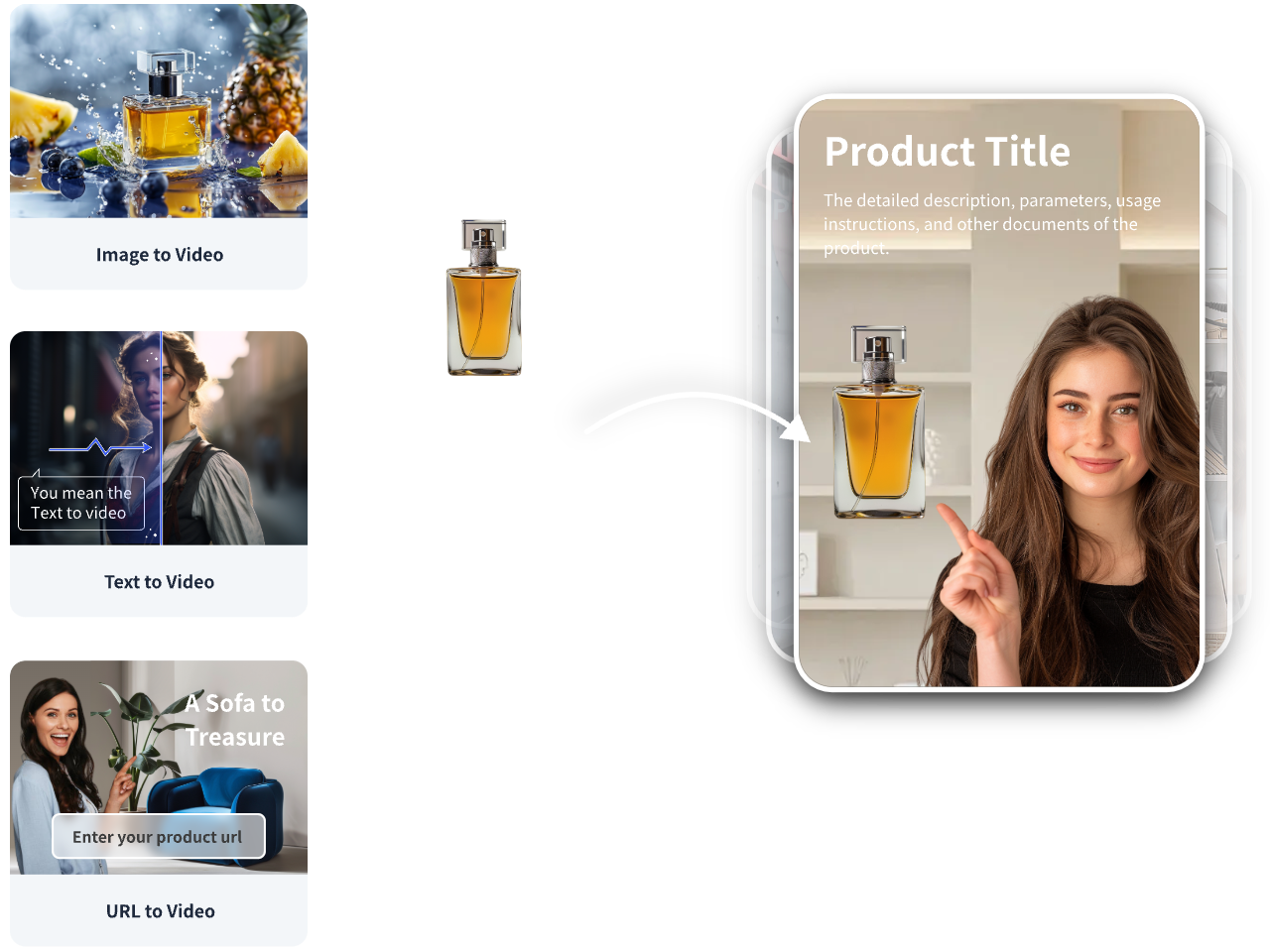
For advertisers: a fast-track baseline with VidAU
• Input: Product URL, product images, or an approved script.
• Capability: VidAU AI Video turns commerce inputs into ad-ready short-form creative for TikTok, Meta, and YouTube.
• Output: Editable video you can immediately test; then refine hero shots in LTX 2.5 or Seedance 2.5 for style or motion control.
Key Takeaways
• Design shots first; prompts serve the plan, not vice versa.
• Depth/Pose beat Edge for stability in many tests.
• Build a baseline asset, then selectively re-generate hero shots.
Create With VidAU
Turn scripts, product URLs, and creative ideas into ad-ready video assets with a structured AI workflow.
Key takeaway
Final Thoughts
If you need something usable today, start local with Minimax H3 on Simpligen to iterate fast and learn what your scenes require. When you need tighter control and HDR, move shots into LTX 2.5. If you prefer a hosted experience with accessible 1080p, Seedance 2.5 via Higgsfield is a strong pick. Consider Google’s 40‑second model for longer continuity when access allows.
For marketers producing ad creative, a practical next step is to create a baseline video from a product URL or images with VidAU AI Video, then re-generate select shots in LTX 2.5 or Seedance 2.5 using pose/depth references. Always verify platform terms and licensing before commercial use.
Frequently asked questions
What is the newest AI video model I can use right now?
Recent, practical options include Minimax H3 running locally via Simpligen, LTX 2.5 inside LTX Studio with pose/depth/edge controls and HDR, Seedance 2.5 via Higgsfield for accessible 1080p outputs, and a Google model capable of generating 40‑second clips. Availability, credits, and licensing vary, so verify terms before production.
Can Minimax H3 run on an 8GB VRAM GPU?
Yes, creators have reported running Minimax H3 locally on systems with 8GB VRAM using Simpligen, though render speeds may be slower and resolutions or durations may need to be reduced. Expect to tweak batch size, resolution, and motion strength, and review licensing terms before commercial use.
When should I pick LTX 2.5 over local H3?
Choose LTX 2.5 when you need guided video-to-video control using Pose and Depth maps, stylization transfer, and HDR handling. It tends to preserve camera motion and blocking better, especially with short 2–4 second shots. Watch for identity drift in longer or fast-motion clips and adjust control strength.
How do pose, depth, and edge controls differ in practice?
Pose control preserves human/body positions from a source; Depth maintains scene geometry and parallax; Edge keeps silhouettes and contours. In recent tests, Depth often delivered the most stable motion, Pose helped with character mechanics, and Edge could introduce artifacts on complex textures, so use Edge sparingly or blended.
Is Seedance 2.5 on Higgsfield free or unlimited?
Some users observed free or sandbox-style access during testing, including 1080p outputs, but plans, credits, and licensing can change. Treat access as variable, confirm current terms on your account, and avoid assuming permanent free or unlimited usage for production needs.
Where does Google’s 40‑second generator make sense?
Use it to explore longer continuity, mood, and pacing without cutting every few seconds. It suits ambience, single-location sequences, and early narrative tests. Access can be limited, and iteration is slower on long clips, so lock prompts and references before generating and polish with shorter controlled shots afterward.
Do I need ComfyUI, Prompt Relay, or LoRA for consistency?
Not strictly, but advanced users get better character and identity stability across shots by combining Prompt Relay with ID or IC LoRAs in ComfyUI. This is most helpful for recurring characters or branded spokespeople. Expect a learning curve and budget time for testing and version control.
How does Blender with Claude and the Higgsfield Plugin help?
Block shots in Blender to finalize camera paths, framing, and timing, then use Claude to convert your shot list into concise prompts. With the Higgsfield Blender Plugin, you can pass scene details to Seedance 2.5, reducing guesswork and wasted credits while achieving closer adherence to your intent.
What’s the best model for ad creative and marketing content?
For rapid ad baselines from product inputs, use VidAU AI Video to generate testable short-form creative. Then refine hero shots with LTX 2.5 using Depth/Pose controls or with Seedance 2.5 on Higgsfield for style and composition. Verify licensing and platform terms before launching campaigns.
How long should each generated shot be?
Aim for 3–5 seconds with an extra 2‑second handle at the end to aid editing and reduce cutoff artifacts. Shorter shots help maintain identity and motion stability across models like LTX 2.5 and Minimax H3. For long-form continuity, consider Google’s 40‑second model, then polish with shorter controlled passes.