Restyle Any VideoWithout Losing the Motion

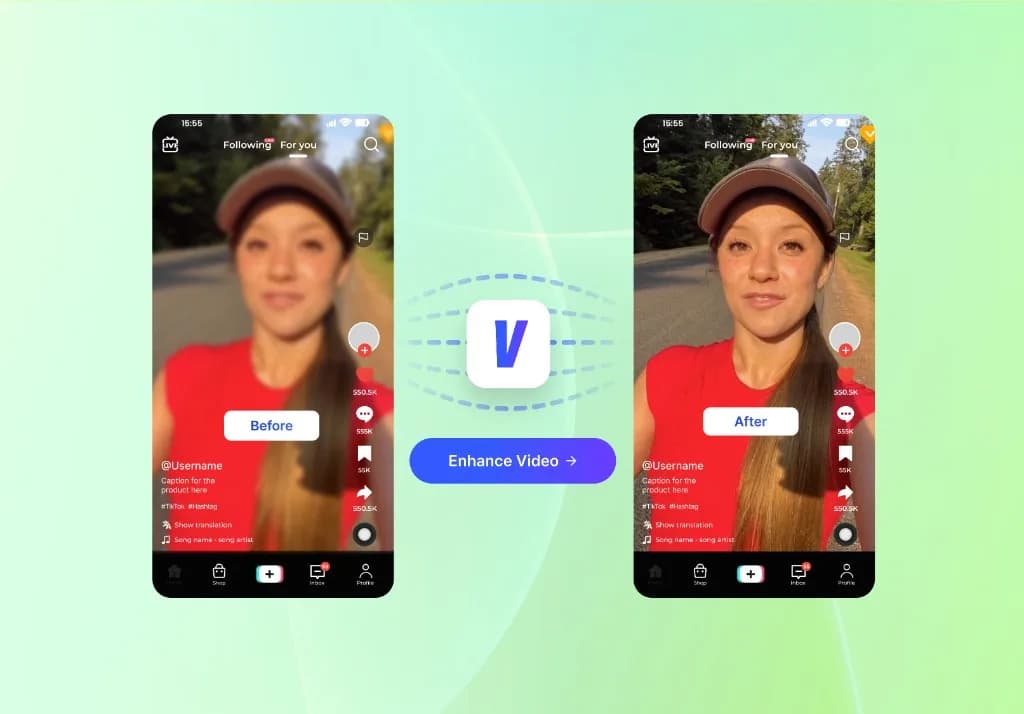
Upload existing footage, choose a new visual direction, and use VidAU Video to Video AI to give the clip a different look while keeping the original action and timing connected.

Switch Between Styles Without Reshooting

Try different visual treatments on the same source footage to see which direction fits the idea best. Move between animated, cinematic, illustrated, surreal, graphic, or other prompt-led looks without rebuilding the scene from the beginning.
Try Another Style

Animation

Put the same clip into an animated treatment without starting the scene over.

Cinematic

Test a cinematic look while the original action stays in place.

Illustration

Try an illustrated direction on footage you already have.

Turn Performance Clips Into New Visual Concepts

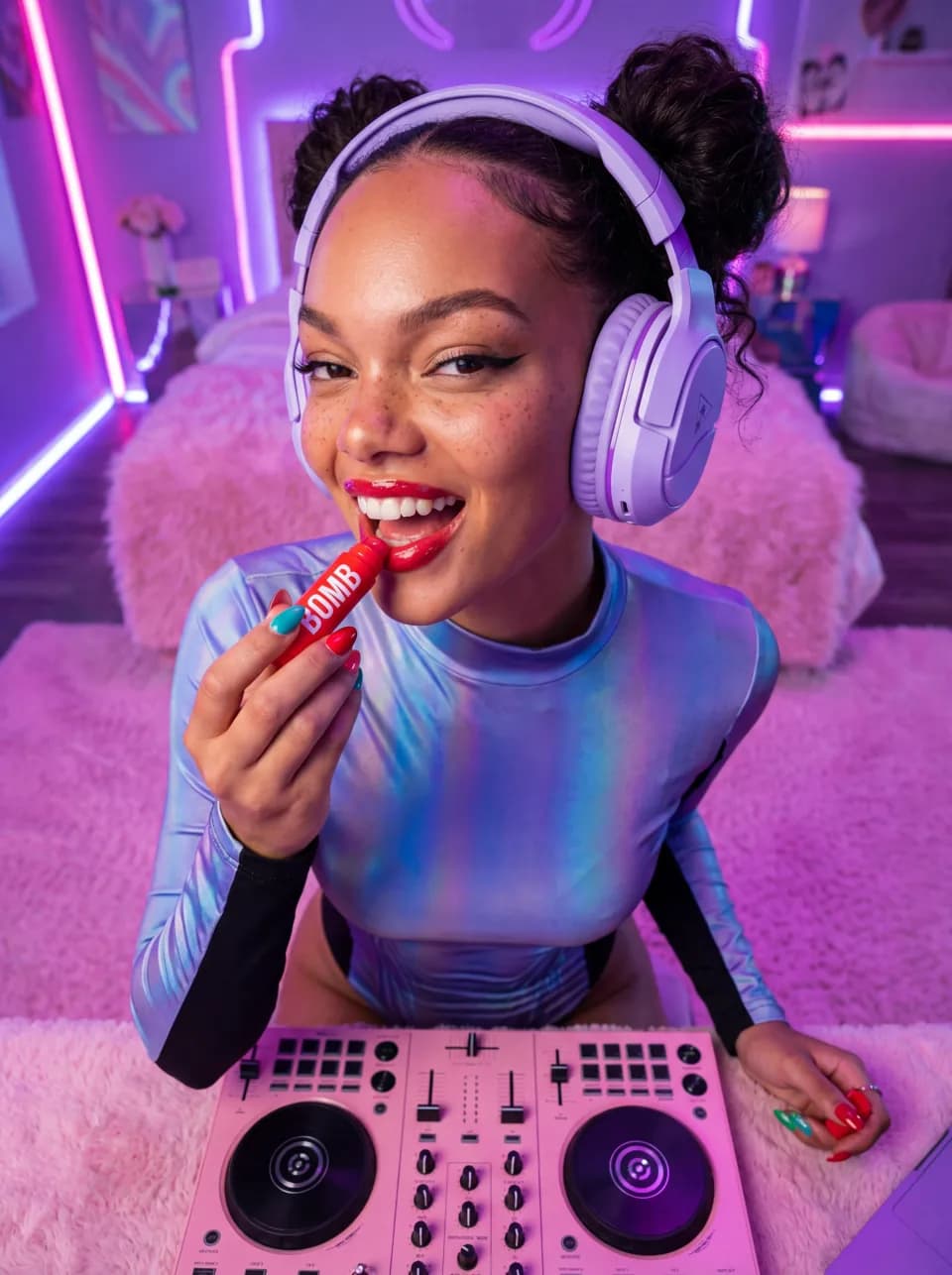
Dance, movement, and performance footage already contains timing, energy, and expression. Restyle the scene around that performance so the same choreography or action can support a different mood, visual world, or creative concept without another recording session.
Restyle a Performance Clip

Keep the Action, Change the Aesthetic

A strong video-to-video transformation should still feel connected to the source clip. Use the original footage as the motion guide so gestures, body movement, camera rhythm, and scene progression remain familiar while the visual treatment changes around them.
Keep My Motion

Give Existing Footage a Second Creative Life

A useful clip does not have to end after one edit. Restyle the same movement into a fresh visual direction with VidAU Video to Video AI and keep exploring what the footage can become.
Transform a Video Now

Video to Video AI for Different Creative Goals

The same source footage can solve very different creative problems for creators, filmmakers, marketers, and people experimenting with visual ideas.

Creators

Creators

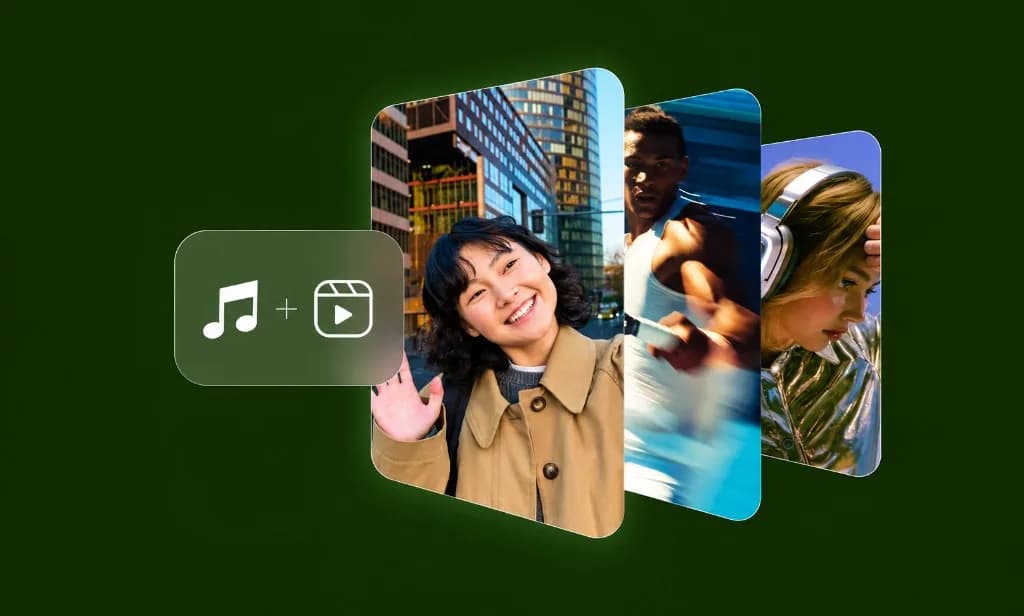
Reuse footage you already like for Shorts, Reels, TikTok, channel intros, or experimental posts. A new visual treatment gives one performance or scene another way to appear in the feed without recording the whole idea again.

Filmmakers

Filmmakers

Use existing footage to explore how a scene might feel under a different cinematic, illustrated, stylized, or concept-driven treatment. It gives directors and creative teams a faster way to compare visual directions before committing to a larger production decision.

Marketers
Marketers

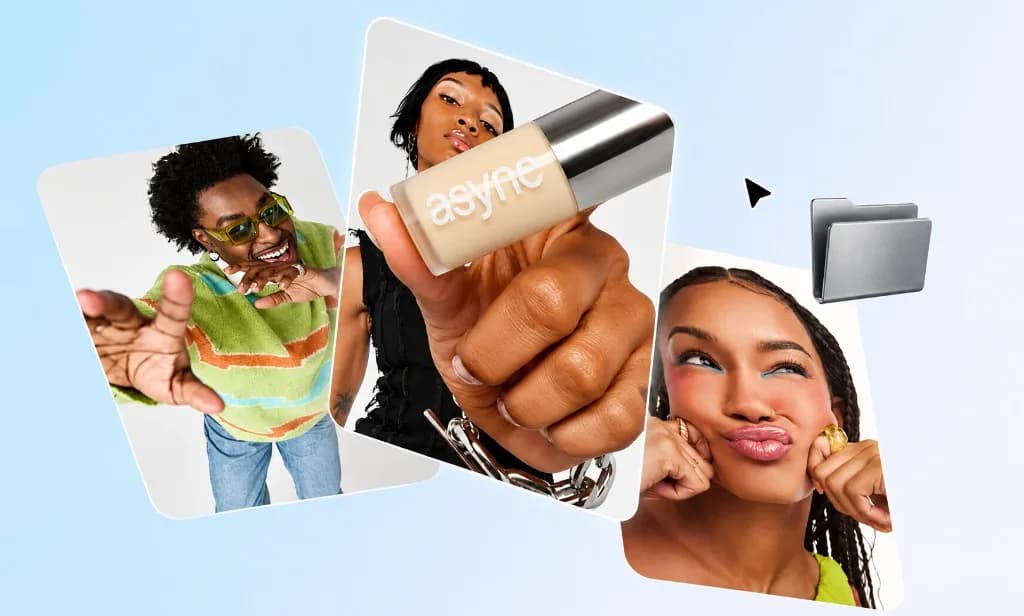
Take approved campaign clips and explore fresh visual treatments for social posts, concept tests, launch creative, or new campaign variations. The original movement stays familiar while the presentation changes to fit a different creative angle.

Creative Experimenters

Creative Experimenters

Start with a clip and experiment with visual ideas that would normally take more manual styling work. Change the mood, scene treatment, or rendering direction and use the results for personal projects, inspiration, or creative testing.

How to Restyle a Video With VidAU in 3 Steps

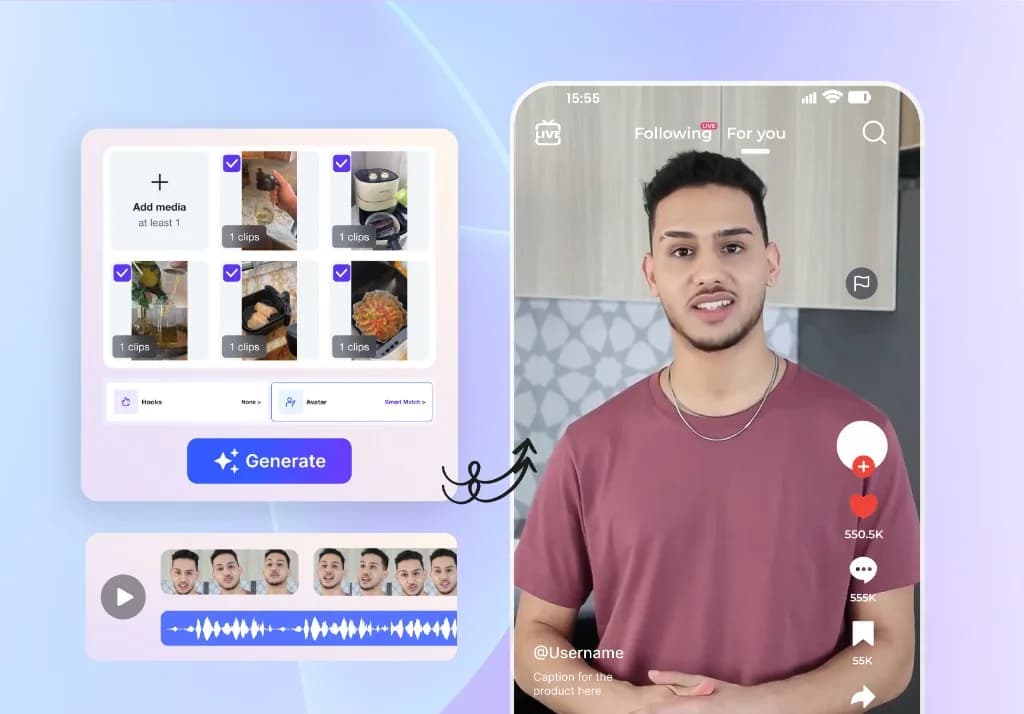
VidAU Video to Video AI keeps the process focused on the source clip: upload the footage, define the new look, then generate and review the transformed result.
Restyle My First Video
01

Upload Your Video

Choose the existing clip you want to transform. Use footage with clear subjects and movement so the new visual treatment has a strong source to follow.
Upload Your Video
02

Choose the New Visual Direction

Select the available style or describe the look you want with a clear prompt. Add useful details such as setting, lighting, palette, atmosphere, material, or level of stylization.
03

Generate and Review

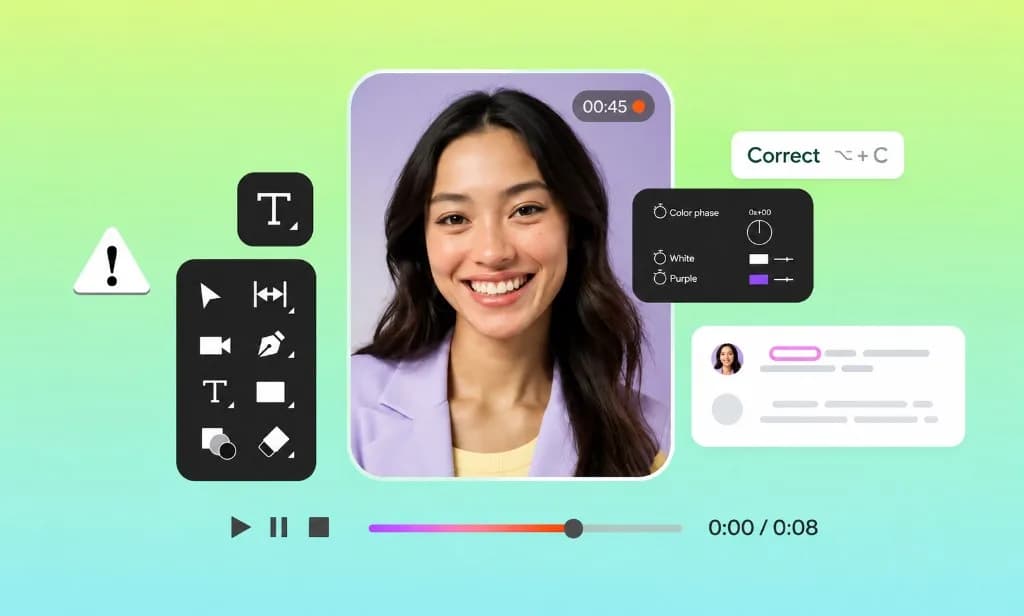
Create the transformed version and compare it with the original. Check motion continuity, subject identity, scene details, and overall visual direction, then refine where needed.
Generate and Review

More Ways to Create Video With VidAU

Continue with another generation workflow when the project needs a different starting point.
Image to Video AI

Image to Video AI

Animate a still image when you have the visual but need motion.
StillMotionAnimate
Text to Video AI

Text to Video AI

Start from a written scene or idea when there is no source footage yet.
PromptSceneNew Clip
Photo to Video Avatar

Photo to Video Avatar

Turn a portrait or photo into an avatar-led video workflow.
PortraitAvatarPresenter
AI Video Generator

AI Video Generator

Generate a new video from supported text, image, and model-based workflows.
TextImageModels
Reference to Video

Reference to Video

Use visual references when a new generation needs clearer guidance around appearance or direction.
ReferenceLookDirection
Mimic Motion

Mimic Motion

Apply a selected movement or motion reference to a still subject when motion transfer fits the concept better than restyling an existing video.
MotionTransferStill

Trusted by Teams Creating at Campaign Speed

VidAU customer stories describe faster creative output, easier high-volume production, and more time for testing and creative decisions across ecommerce, affiliate, and agency workflows.

“Amara’s team needed to keep producing new campaign creative without increasing the same level of production work every time. After bringing more of the workflow into VidAU, she reports that the team can ship roughly three times more creative and keep testing ideas while the brand continues to grow.”
“Daniel’s agency works with campaigns that need many creative variations while deadlines are still moving. He points to batch generation as the change that made higher-volume testing more practical, helping the team produce and compare more options without rebuilding every asset manually.”

“Lucy says VidAU saves her team about 12 hours each week by reducing repetitive setup across the creation process. That extra time gives the team more room for creative judgment, client feedback, and the decisions that still need a human eye.”

Video to Video AI FAQs

Give Your Video a Completely New Look

Start with footage you already have, choose the direction you want next, and use VidAU Video to Video AI to turn the same movement into a fresh creative result.

Try Video to Video AI ↗