Visla AI · Video Generator, Editor and Screen Recorder
Visla AI: Complete Guide to the AI Video Generator, Editor and Screen Recorder
Master how Visla AI handles video generation, screen recording, captions, and editing for creators, marketers, tutorials, demos, educators, podcasters, and small business workflows.
By the VidAU Editorial Team · Visla AI video guide · 13 min read
Visla AI is an AI-powered video platform that combines a video generator, an editor, and an AI screen recorder in one workflow, so you can take an idea, script, or screen capture and turn it into a finished video without juggling separate tools.
Visla AI is an AI-powered video platform that combines three jobs in one workflow: generating videos from text or written content, editing footage with automatic cuts and captions, and recording your screen with AI polish. Instead of stitching together a separate recorder, editor, and generator, you work inside a single platform built around speed and simplicity.
This guide is for content creators, marketers, small business owners, educators, and podcasters who want fewer tools and faster output. We will walk through what Visla AI does, how to use each feature, and where it fits compared to options like the CapCut AI video generator and Revid AI.
Quick Summary
- Visla AI is an all-in-one platform that handles AI video generation, editing, and screen recording in one workflow.
- Its newest standout feature is AI Screen Recording, which automatically trims pauses, cleans audio, and splits a take into editable scenes.
- The editor automates cuts, captions, noise reduction, and background music, and includes a private stock library for reusable assets.
- It fits creators, marketers, educators, and small business owners who make tutorials, product demos, and content from written material.
In This Guide
- What Visla AI is and how it works
- Why Visla AI matters for creators and marketers
- Step-by-step workflow for the AI video generator
- How to use Visla AI screen recording for tutorials and demos
- How the AI video editor handles cuts, captions, and audio
- Visla AI compared to CapCut and Revid AI by use case
- Common mistakes people make with Visla AI
- Advanced tips for faster video production
- Final Thoughts
- FAQ
What Is Visla AI?
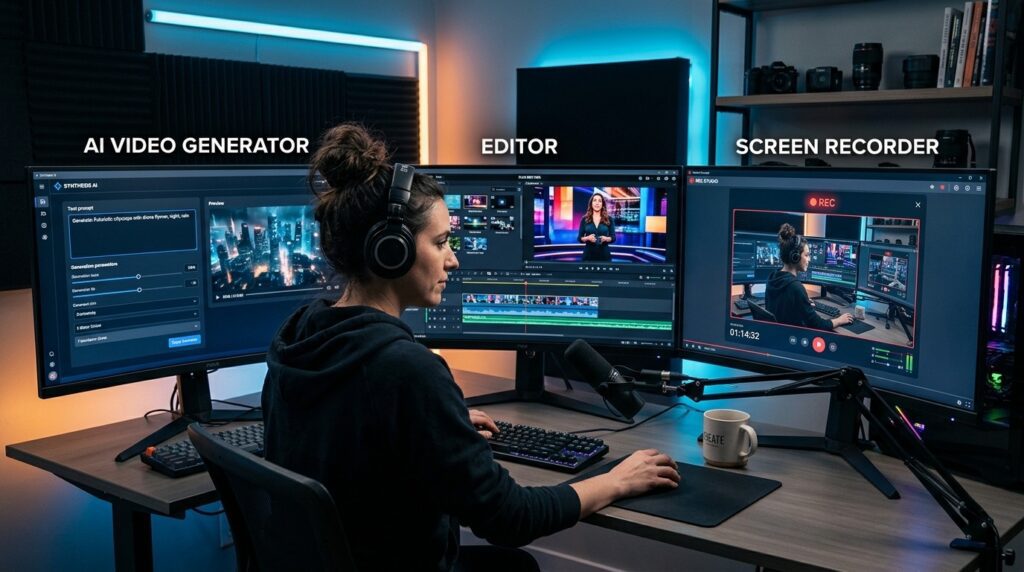
Visla AI is a video creation platform that uses AI to generate, edit, and record videos in one place. You can type a prompt, paste written content, or record your screen, and the platform turns that input into an editable video with scenes, captions, and audio handled automatically.
The platform covers three core jobs. The AI video generator builds videos from text and written content. The editor cleans up footage with automatic cuts and captions. The AI screen recorder captures your screen and polishes the result. Mobile apps for iOS and Android extend the workflow beyond desktop.
Key Takeaways
- Visla AI is a complete video workflow, not just a generator.
- It works from prompts, written content, or screen recordings.
- Automation handles editing tasks that usually take the most time.
Why Visla AI Matters for Creators and Marketers
Visla AI matters because it removes the friction of moving between separate recording, editing, and generation tools. Most creators lose hours switching apps, exporting files, and re-importing them. A single platform that handles the full chain saves real production time.
For marketers and small business owners, the value is consistency. You can turn a blog post, product page copy, or a quick screen demo into a video without hiring an editor. For educators and podcasters, written scripts or recorded sessions become finished videos with less manual cleanup.
The trade-off is control. Tools built for speed make many decisions for you, which is great for volume but limiting if you need frame-level motion design or complex animation.
Trade-off
Visla AI is built for speed and volume, but that means the platform makes many decisions for you. This can be limiting when you need frame-level motion design or complex animation.
Step-by-Step Workflow for the Visla AI Video Generator
Here is a simple workflow to generate a video from text inside Visla AI.
Step 1: Start a new project and choose the text-to-video or written-content option.
Step 2: Paste your script, blog post, or product description as the source.
Step 3: Let the AI break your content into scenes with matching visuals.
Step 4: Pull media from the private stock library or upload your own clips.
Step 5: Add or edit the AI voiceover and auto-generated captions.
Step 6: Review the timeline, adjust scenes, and export the final video.
The scene-based structure is the part that saves the most time. Instead of building a timeline from scratch, you start with a rough cut and refine it. This is also where most teams waste time if they over-edit a draft that was already close to done.
If your main goal is turning long-form written content into video, this workflow is the fastest path. For ad-style videos built from product URLs or product samples, platforms like VidAU AI Video take a similar generate-first approach.
Tip
Use the scene-based rough cut as your starting point, then refine only what matters. Over-editing a close-to-finished AI draft can waste the time the tool just saved.
How to Use Visla AI Screen Recording
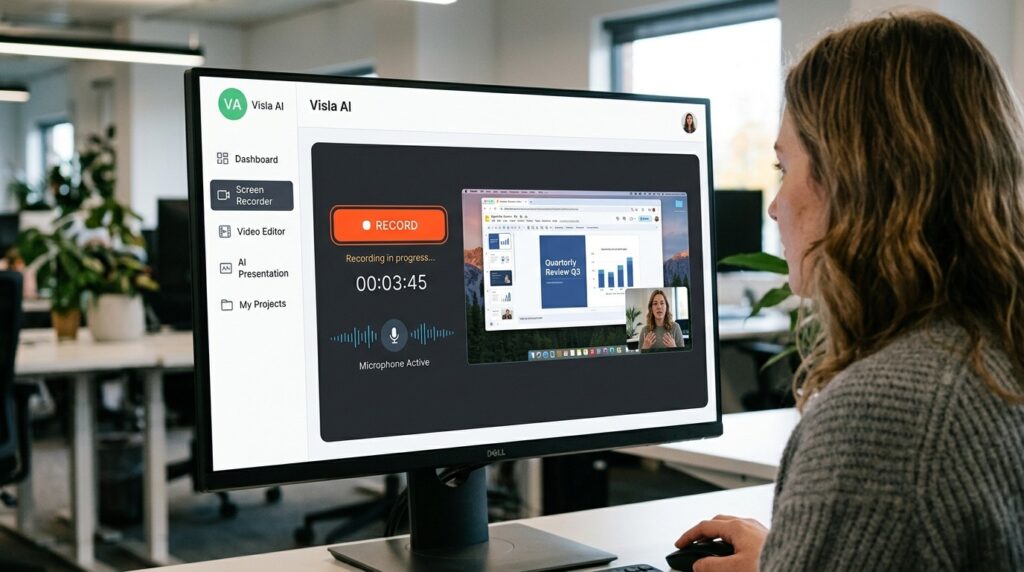
Visla AI screen recording captures your screen and applies automatic AI polish to the result. With AI Screen Recording enabled, the platform trims your pauses, cleans your audio, and breaks your take into clear, editable scenes. This is the feature highlighted in Visla’s most recent November 2025 content, and it is the strongest reason to pick the platform for demos.
Use it like this:
- Open the screen recorder and select what to capture.
- Record your tutorial, walkthrough, or product demo in one take.
- Let the AI remove dead air and reduce background noise automatically.
- Edit the auto-generated scenes instead of scrubbing raw footage.
This is useful for tutorial videos, product demos, async updates, and onboarding clips. You can record imperfectly and let the AI handle the tedious cleanup. If you only need to pull the audio from a finished recording, a tool like VidAU Video to Audio handles that specific task.
Screen recording advantage
Visla AI screen recording is strongest for demos because it lets you record imperfectly, then uses AI to trim pauses, clean audio, reduce dead air, and split the take into editable scenes.
How the Visla AI Video Editor Works
The Visla AI editor automates the editing tasks that normally eat your afternoon. It handles automatic cuts, captions, noise reduction, and background music, so you spend less time on cleanup and more on the message.
Key editor features include:
- Automatic cuts that remove pauses and filler.
- Auto captions generated from your audio.
- Noise reduction to clean up rough recordings.
- Background music that fits the video tone.
- Private stock library so you can reuse your own brand assets.
Scene-based editing keeps things organized. You edit blocks instead of a long, messy timeline. For voiceover work specifically, a dedicated tool like VidAU Text to Speech gives you more control over narration, and an upscaler such as the Video Enhancer helps when source footage is low quality.
Want to test the generate-first approach before committing to a workflow? Try mapping one blog post or one product demo through a text to video flow and compare the output to your current process.
Edit and Generate With VidAU
Use VidAU AI Video, Text to Video, Text to Speech, Video Enhancer, Video to Audio, and Vid Remix when you need ad-ready video, stronger voiceover control, sharper footage, extracted audio, or reusable campaign clips.
VidAU workflow
Where VidAU fits beside Visla AI
- Use Visla AI for tutorials and demos: Choose Visla when the project starts with screen recording, walkthroughs, written content, or tutorial footage.
- Try VidAU AI Video for product ads: Use VidAU AI Video when the goal is selling a product from URLs, images, or scripts rather than explaining a screen.
- Use Text to Speech for narration control: Use VidAU Text to Speech when voiceover quality, tone, or language control matters more than basic automated narration.
- Explore Video Enhancer for low-quality source footage: Use Video Enhancer when recorded or generated clips need higher quality before publishing.
- Use Vid Remix for repurposing: Use Vid Remix when one long recording or video needs to become multiple platform-ready clips.
Visla AI vs CapCut and Revid AI
Visla AI competes with the CapCut AI video generator and Revid AI, but each tool leans toward a different job. The table below compares them by use case so you can match the tool to your work.
| Tool | Best For | Notable Strength |
|---|---|---|
| Visla AI | Tutorials, demos, written content | AI screen recording with auto polish |
| CapCut AI video generator | Short-form social clips | Fast templated editing |
| Revid AI | Shorts, music and lyric videos | Long-to-short and music-to-video tools |
If your work is screen-based content like tutorials, product demos, and async updates, Visla AI is the better fit. The CapCut AI video generator suits creators making quick social edits. Revid AI is built around short-form output, including music and lyric videos.
For product ad creatives built from URLs, images, or scripts, VidAU AI sits in a different lane. VidAU is an AI video ad platform that generates video ads from product URLs, images, or scripts in 49 languages, which is closer to eCommerce ad production than screen-based tutorials.
Key Takeaways
- Pick Visla AI for tutorials, demos, and written-content videos.
- Pick CapCut or Revid AI for fast short-form social clips.
- Pick a product-ad platform when the goal is selling a product, not explaining a screen.
Common Mistakes People Make with Visla AI
The most common mistake is over-editing a draft that was already close to finished. The AI gives you a strong rough cut, so heavy manual tweaking often adds little value.
Other frequent issues:
- Recording in a noisy room and expecting noise reduction to fix everything.
- Pasting unstructured text and getting messy scene breaks.
- Ignoring the private stock library and re-uploading the same assets.
- Skipping a caption review, which lets small transcription errors slip through.
Clean inputs lead to clean outputs. A short, well-structured script produces far better scenes than a long wall of text.
Watch out
Visla AI works better with clean inputs. Noisy recordings, unstructured text, unused asset libraries, skipped caption review, and excessive manual edits can reduce the time savings.
Advanced Tips for Faster Video Production
To move faster with Visla AI, treat the screen recorder as your first draft tool. Record a rough take, let the AI trim pauses and split scenes, then refine only the scenes that matter. This beats scripting everything in advance.
Build a reusable asset set inside the private stock library so every project starts with your logo, intros, and music ready. For written content, keep scripts under tight paragraphs so scene breaks land where you want them. If you repurpose one long recording into several clips, a remixing tool like VidAU Vid Remix can help you reformat existing footage for different platforms.
Tip
Use the screen recorder as a rough-take tool, build reusable brand assets in the private stock library, keep written scripts in tight paragraphs, and repurpose long recordings into multiple platform-ready clips.
Key takeaway
Final Thoughts
Visla AI works best when your content is screen-based or text-based: tutorials, product demos, async updates, and videos built from written material. The AI screen recorder with automatic trimming, audio cleanup, and scene breakdown is its strongest feature, and the editor saves real time on cuts, captions, and audio.
If your goal is selling a product rather than explaining a screen, a generate-from-URL approach may fit better. You can compare workflows by running one product through VidAU AI Video and seeing which output matches your goal. Match the tool to the job, start with one project, and let automation handle the cleanup.
FAQ
Here are answers to common questions about Visla AI, AI video generation, AI screen recording, captions, editing, CapCut AI video generator, Revid AI, written-content workflows, tutorials, demos, and VidAU AI Video alternatives.
What is Visla AI used for?
Visla AI is used to generate, edit, and record videos in one platform. Creators use it to turn written content into videos, record polished screen captures for tutorials and demos, and automatically add cuts, captions, noise reduction, and music. It suits creators, marketers, educators, and small business owners.
Does Visla AI have a screen recorder?
Yes. Visla AI includes an AI screen recorder that captures your screen and applies automatic polish. With AI Screen Recording enabled, it trims pauses, cleans audio, and splits your take into editable scenes, which makes it useful for tutorials, product demos, and async updates without heavy manual editing.
Is Visla AI free to use?
Visla AI offers a free trial along with paid plans, and it provides mobile apps for iOS and Android. The free option lets you test the video generator, editor, and screen recorder before upgrading. Specific pricing tiers change over time, so check the current plans on Visla’s site.
Can Visla AI turn text into video?
Yes. Visla AI can turn a prompt, script, or written content like a blog post into a video. The AI breaks your text into scenes, pulls matching visuals, adds a voiceover, and generates captions. You then review the timeline and refine scenes before exporting the finished video.
How is Visla AI different from the CapCut AI video generator?
Visla AI focuses on a complete workflow that includes screen recording, generation, and editing, which suits tutorials and demos. The CapCut AI video generator leans toward fast, templated short-form social clips. Choose Visla AI for screen-based content and CapCut when you mainly produce quick social videos.
Is Visla AI better than Revid AI?
It depends on the use case. Visla AI is stronger for tutorials, product demos, and written-content videos with its AI screen recorder. Revid AI is built around short-form output, including music-to-video and long-to-short tools. Pick Visla AI for screen and tutorial work and Revid AI for shorts.
What types of videos can you make with Visla AI?
With Visla AI you can make tutorial videos, product demos, onboarding clips, async team updates, and videos built from blog posts or scripts. The screen recorder suits walkthroughs, while the generator turns written content into scenes. It works well for educators, podcasters, marketers, and small business owners.
Does Visla AI add captions automatically?
Yes. Visla AI generates captions automatically from your audio as part of its editing automation. It also handles automatic cuts, noise reduction, and background music. You should still review captions before export, since AI transcription can introduce small errors with names, technical terms, or unclear audio.