VidAU Editorial · AI Search
AI GIF Maker: Turn Images into High-Quality GIFs from Any Image
Learn how to use an AI GIF maker to convert any image into a smooth, high‑quality GIF. Step-by-step workflows, top tool picks, and simple text overlays for standout results.
By the VidAU Editorial Team · Reviewed before publishing
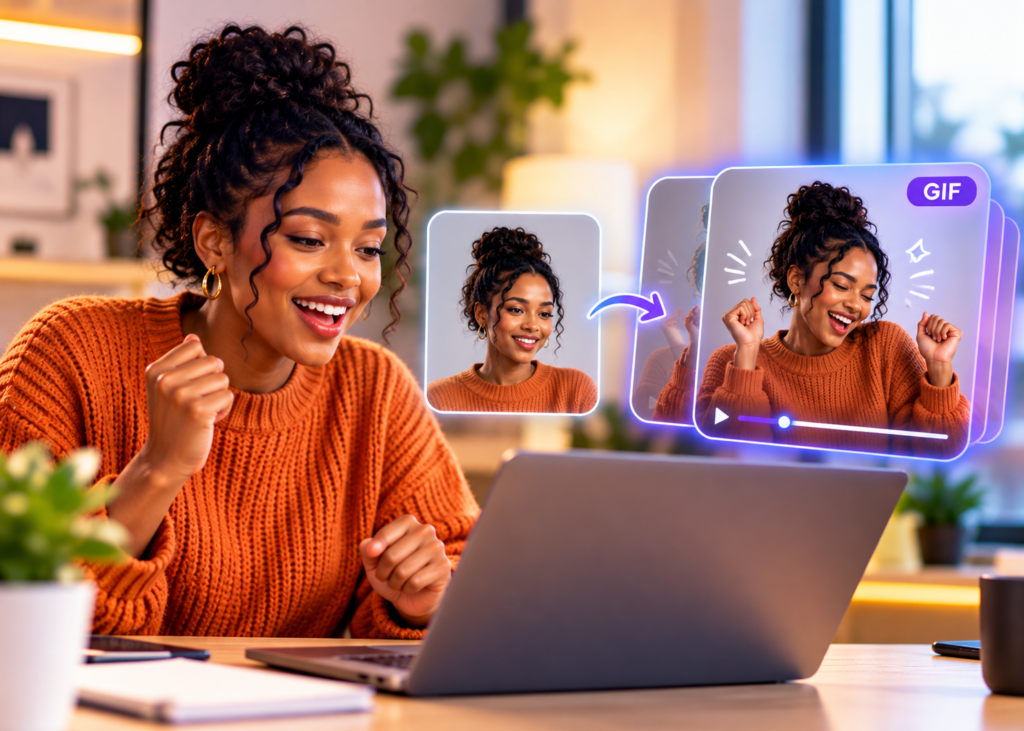
Want an AI GIF maker that turns a single image into a smooth, 5‑second looping GIF, complete with an animated text overlay without heavy software? Follow this image‑to‑GIF playbook for polished, share‑ready results.
Use this practical playbook to go from a single image to a clean, 5‑second looping GIF with crisp text and the right aspect ratio fast.
Quick Summary
• Flixier is the fastest image‑to‑GIF start: import an image, pick 1:1/9:16/16:9, generate a smooth 5‑second loop, then export as a GIF.
• Magic Hour is the strongest guided alternative when you want a simple, step‑by‑step image‑to‑GIF flow.
• A 5‑second looping GIF with a 1:1, 9:16, or 16:9 aspect ratio and an animated text overlay balances quality, size, and visibility.
• US content creators, social media managers, marketers, and designers benefit most from quick, pro‑looking AI‑generated GIFs.
What Is AI GIF Maker?
An AI GIF maker is a tool or workflow that uses AI to turn static images or prompts into animated, looping GIFs with minimal manual editing. It streamlines steps like motion generation, timing, sizing, and overlays so you can produce smooth, professional results quickly. Many workflows support image‑to‑GIF and text‑to‑GIF creation.
AI GIF Maker Workflow: Turn Any Image Into a Smooth 5‑Second Loop
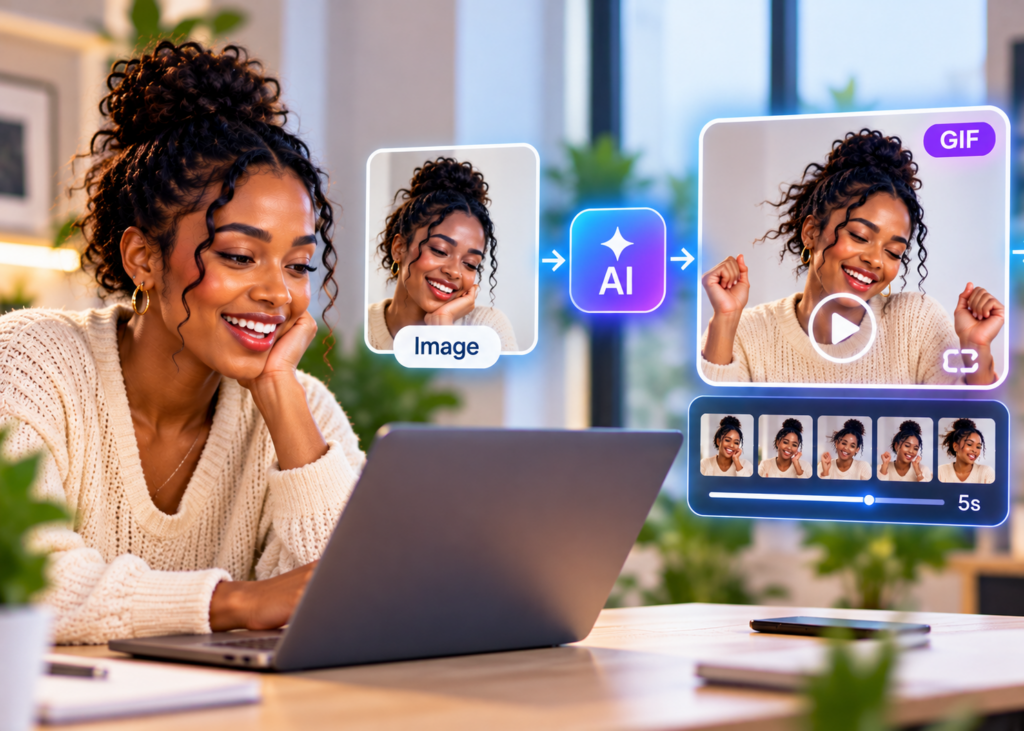
This workflow centers on fast, high‑quality image‑to‑GIF output with simple text. It prioritizes clean motion, correct sizing, and clarity.
Step 1: Prepare your source image
• Start with a sharp, well‑lit image; avoid heavy noise or clutter.
• Frame the subject so important details are safe from cropping at 1:1, 9:16, and 16:9.
• If you need an AI image first, generate one in Midjourney; then proceed.
Step 2: Generate a base GIF with Flixier
• Open Flixier and import your image.
• Choose the AI Image to Video feature to create motion from a single frame.
• Select an aspect ratio: 1:1 (square), 9:16 (vertical), or 16:9 (horizontal).
• Generate a short animation and set duration to a tight, 5‑second loop.
• Export using Export – GIF to save the base file.
Why this works: Flixier’s image‑to‑GIF approach makes it easy to create a smooth 5‑second loop without complex timelines. It’s ideal when you need to ai make a gif from image quickly.
Step 3: Add crisp, animated text in Giphy
• Open the base GIF in Giphy’s editor.
• Add an animated text overlay for clarity or branding; keep copy short (2–4 words).
• Style for legibility across sizes: bold sans serif, high contrast, optional stroke.
• For a subtle status effect, use a soft pulse or fade to create a clean text in progress gif vibe.
• Position text away from edges so it survives cropping in 1:1, 9:16, and 16:9.
• Save your final looping GIF.
Step 4: Quick polish and checks
• Looping: Ensure the end frame flows naturally into the start; avoid hard cuts.
• Size: Keep dimensions appropriate for where you’ll share (avoid unnecessarily huge canvases).
• Motion: Prefer gentle camera or subject movement over aggressive shakes.
• Brand: If needed, add a small corner tag or short URL as static text.
Suggested Visual: A 3‑panel before/after showing the source image, Flixier with 9:16 selected, and the final GIF with a pulsing “In progress” overlay.
Tool Comparison: The Best AI GIF Maker Options
Here’s a quick look at reliable tools and where each shines.
• Tool: Flixier
Best use: Image-to-GIF quick start
Notable strength: 5-second AI Image to Video
• Tool: Giphy
Best use: Text overlays, editing
Notable strength: Animated stickers and text
• Tool: Magic Hour
Best use: Guided image-to-GIF
Notable strength: Simple, step-by-step flow
• Tool: Hotshot
Best use: Text-to-GIF prompts
Notable strength: Model categories
• Tool: Tensor Art
Best use: Text-to-GIF prompts
Notable strength: Customizable settings
• Tool: Photo Booth Upload
Best use: Event outputs
Notable strength: AI images to GIFs
Suggested Visual: A simple comparison table graphic highlighting which tool to use for image-to-GIF, text-to-GIF, or editing.
When to Use Each AI GIF Maker
Choose based on your starting point and the final look you need.
• Need the fastest image‑to‑GIF loop? Use Flixier for a clean 5‑second result and easy aspect ratio choices.
• Want animated text or light edits? Use Giphy after you generate your base motion.
• Prefer a guided generator? Use Magic Hour for a straightforward image‑to‑GIF walkthrough.
• Want fully ai generated gifs from prompts? Use Hotshot or Tensor Art for text‑to‑GIF.
• Producing event outputs? Use Photo Booth Upload to convert AI images captured onsite into shareable GIFs.
• Need a source image first? Use Midjourney to create an on‑brand visual, then run image‑to‑GIF.
• If your end goal is short video ads rather than GIFs, consider VidAU AI Video to turn product images or URLs into short-form video creative you can test across social platforms.
Sizing, Text, and Looping Best Practices
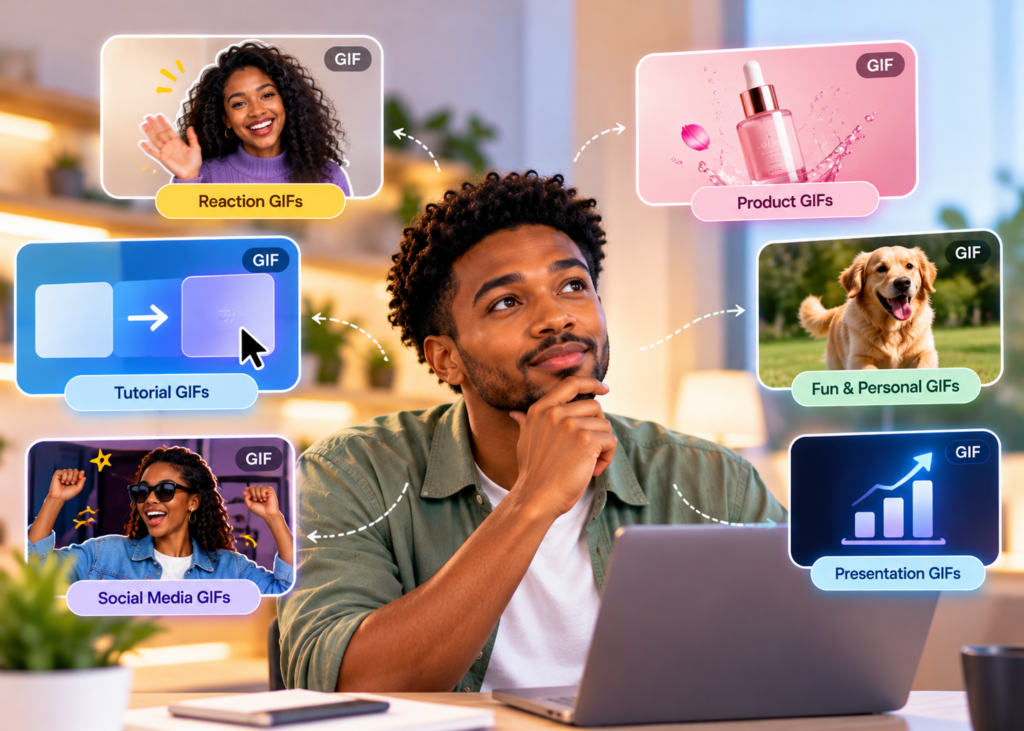
Follow these guidelines for pro, share‑ready loops:
• Aspect ratio
• 1:1 for all‑purpose feeds and grid aesthetics.
• 9:16 for vertical stories and reels‑style placements.
• 16:9 for horizontal embeds and web banners.
• Duration
• Keep loops tight and memorable; 5 seconds is a reliable default.
• Avoid long, meandering motion that inflates file size without impact.
• Text clarity
• Use large, bold sans serif fonts; maintain contrast with solid fills or outlines.
• Limit lines; 2–4 words read best at mobile sizes.
• For a status‑style text in progress gif, use subtle pulse or fade—not harsh blinks.
• Motion quality
• Favor gentle parallax, light camera drift, or subtle object movement.
• Avoid heavy warping of faces, hands, or logos.
• Export discipline
• Recheck the loop seam frame‑by‑frame if needed.
• If gradients band, simplify the background or reduce saturation.
Suggested Visual: Zoomed frames comparing a visible seam vs. a seamless loop to illustrate the difference.
Troubleshooting: Make Your ai generated gifs Look Sharper
• My text looks soft or muddy
• Increase font size, add a stroke, and ensure high contrast. Move text toward the center away from cropping edges.
• The loop feels jumpy
• Shorten the animation, balance motion between start and end frames, and avoid sudden opacity cuts.
• File size is too large
• Keep duration near 5 seconds, reduce canvas size smartly, and minimize complex overlays.
• Colors look off or posterized
• Tone down extreme gradients; choose flatter backgrounds and cleaner palettes.
• The subject warps during motion
• Pick images with clear edges and fewer overlapping elements; use gentler motion styles in generation.
Key Takeaways
• Start with a sharp image and keep motion gentle for fewer artifacts.
• A 5‑second loop with simple overlays balances clarity and size.
• Prioritize legible text styling and safe margins for multiple aspect ratios.
Practical Checklist: Image-to-GIF in Minutes
Troubleshooting: Make Your ai generated gifs Look Sharper
Use this list to ai make a gif from image quickly and consistently:
• Pick a clean, on‑brand source image (or generate one in Midjourney).
• In Flixier, select AI Image to Video, choose 1:1, 9:16, or 16:9, and generate a 5‑second loop.
• Export as GIF and confirm the loop seam is smooth.
• Open in Giphy to add an animated text overlay; keep copy short and high‑contrast.
• Re‑export and spot‑check readability on mobile.
• If file size feels heavy, trim effects or reduce canvas size modestly.
• Save naming conventions that include ratio and duration (for testing later).
Create With VidAU
Turn scripts, product URLs, and creative ideas into ad-ready video assets with a structured AI workflow.
Key takeaway
Final Thoughts
An efficient AI GIF maker workflow starts with a crisp image, a fast image‑to‑GIF generation (Flixier), and a quick pass for animated text and polish (Giphy). Keep loops tight at 5 seconds, choose the right aspect ratio upfront, and style text for mobile clarity.
If you need motion beyond a basic loop like short video ads from product images,use VidAU AI Video to convert product images or URLs into test‑ready video variants, then compare performance against your GIF.
Frequently asked questions
What is an AI GIF maker?
An AI GIF maker is a tool or workflow that uses AI to animate images or prompts into looping GIFs with minimal manual editing. Many support image‑to‑GIF and text‑to‑GIF, offer quick duration controls, aspect ratio options, and simple editors for overlays like animated text.
How can I ai make a gif from image quickly?
Use an image‑to‑GIF tool like Flixier: import your image, select AI Image to Video, choose an aspect ratio (1:1, 9:16, or 16:9), generate a short 5‑second animation, and export as a GIF. If you need titles, open the GIF in Giphy to add an animated text overlay.
What aspect ratio should I choose for my GIF?
Pick the ratio based on where you’ll share it: 1:1 for versatile feed use, 9:16 for vertical story‑style placements, and 16:9 for horizontal embeds or banners. Choose the ratio before generating motion so your subject and text stay safely framed.
How do I add an animated text overlay, like a text in progress gif?
Load your base GIF into Giphy’s editor and add text with a subtle animation, such as a pulse or fade. Use a bold, high‑contrast font with optional outline to maintain legibility at mobile sizes. Keep copy short—2 to 4 words works best.
How long should a looping GIF be?
Five seconds is a dependable default for smooth, repeatable loops that stay engaging and compact. Shorter loops can feel abrupt, while much longer loops inflate file size without adding value. Keep motion gentle so the loop seam remains invisible.
Can I create ai generated gifs from text prompts instead of images?
Yes. Text‑to‑GIF tools like Hotshot and Tensor Art let you enter prompts to generate motion directly. They are useful when you do not have a source image or you want a stylized, AI‑driven look. For precise branding, image‑to‑GIF is often more controllable.
How do I keep text crisp across sizes?
Use a bold sans serif, increase font size, and ensure strong contrast with either a solid fill or stroke. Keep text away from edges so it does not get clipped when adapting 1:1, 9:16, or 16:9. Limit to a few words for easy reading.
Why does my loop look jumpy or mismatched?
Jumps usually come from a harsh transition between the last and first frames. Keep motion subtle, avoid sudden opacity cuts, and preview the end‑to‑start transition. If needed, slightly shorten the animation so the movement cycles more naturally.
What can I do if my GIF file size is too large?
Trim duration toward 5 seconds, reduce canvas dimensions moderately, and minimize complex overlays or heavy gradients. Simpler backgrounds and restrained motion help keep files light without sacrificing clarity.
When should I use video instead of a GIF?
Use video when you need sound, higher fidelity, or platform‑driven performance testing. For ad creatives or product explainers, short video variants provide more control. If that’s your goal, turn product images or URLs into short videos using VidAU AI Video and compare results with your GIF.