VidAU Editorial · AI Search
AI Motion Graphics: Best Generators and Step-by-Step Workflow
Learn how to make AI motion graphics fast. See the best AI motion graphics generators and follow a clear workflow with prompt templates, quality tips, and export settings.
By the VidAU Editorial Team · Reviewed before publishing
Stop guessing which AI motion graphics generator to use. This end-to-end workflow shows you how to choose the best AI motion graphics generator or AI motion graphics maker, develop stronger concepts, and produce clean, professional results faster. We will use GPT-6 Astra or Claude Opus 5.5 to develop prompts, generate visual assets and motion in Higgsfield with Veo 3.1 or Seedream 4.0, and complete the final edit in Auto AE. By the end, you will have a repeatable process for creating AI motion graphics that ship on time, remain visually consistent, and stay true to your brand.
Quick Summary
• Higgsfield with VEO 3.1 is the fastest route to fluid, on-brand AI motion graphics when guided by strong GPT-crafted prompts.
• Seed Dream 4 is the strongest alternative for crisp, brand-faithful frames and sharp typography on the same Higgsfield platform.
• Export 1080×1920 at 30 fps H.264 for vertical, or ProRes 4444 with alpha for overlays; check each tool’s terms.
• US video editors, motion designers, YouTubers, and marketers benefit most when they need fast titles, lower thirds, and animated branding.
What Is AI Motion Graphics?
AI motion graphics are animated titles, lower thirds, logos, and visual elements generated or assisted by AI models instead of fully manual keyframing. Using text-to-video prompts, reference images, and template libraries, creators can produce b-roll overlays, typography, transitions, and logo animations that match brand colours and fonts, then assemble them in an editor or template system.
How to Choose the Best AI Motion Graphics Generator
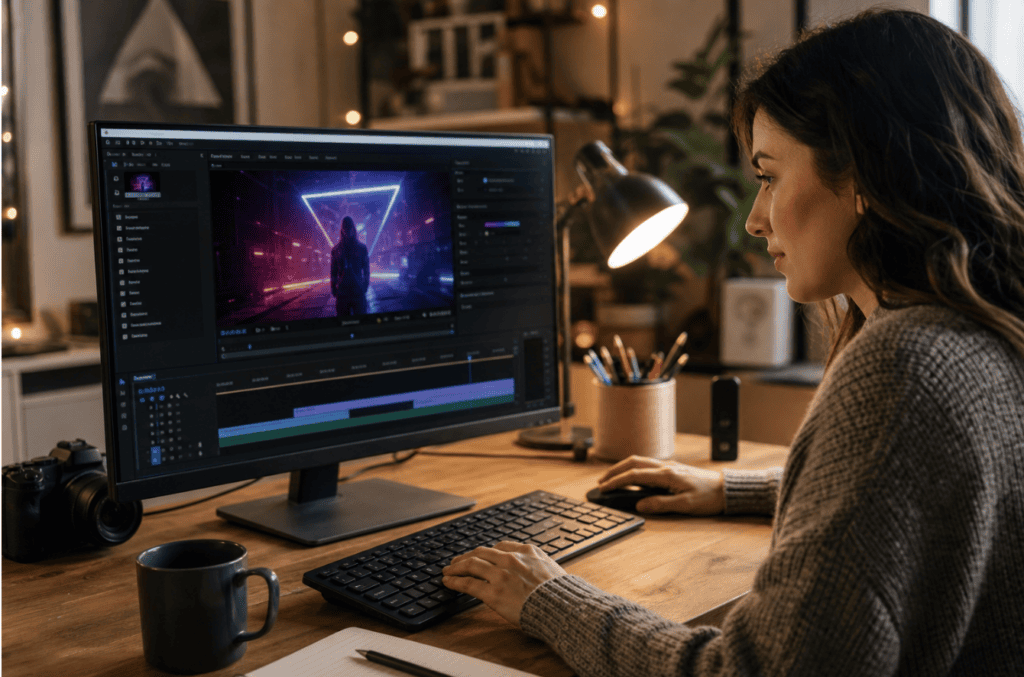
The best AI motion graphics generator depends on what you are creating and how much control the project requires. Some models are stronger at generating fluid movement, while others are better for designing sharp static assets and brand-consistent keyframes. Pick based on motion quality, brand fidelity, and delivery speed. On Higgsfield, VEO 3.1 excels at fluid motion, dynamic typography, and organic transitions. Seed Dream 4 is ideal when you must lock brand elements precisely and keep edges, logos, and text ultra clean. Use GPT-6 Astra or Claude Opus 5.5 to draft prompts that control timing, easing, colour, and typography.
Before choosing a model, consider:
- Motion quality: Does the tool produce smooth and natural movement?
- Visual consistency: Can it preserve colors, objects, and design styles between frames?
- Reference-image support: Can you upload a layout, logo, or style frame?
- Camera and motion control: Can you control object paths, framing, and transitions?
- Text accuracy: Can the model preserve important words and typography?
- Output quality: Does it support the required resolution and aspect ratio?
- Editing compatibility: Can the generated result be refined in your preferred editor?
• Use case: Fluid titles and wipes
Recommended model: VEO 3.1 is suitable for fluid transitions, animated backgrounds, flowing shapes, and cinematic wipes. Its motion controls, camera controls, reference-image support, and first-and-last-frame features make it easier to guide how an element enters, moves through, and leaves a scene
Why: Natural motion and easing
• Use case: Logo stings with fine detail
Recommended model: Seedream 4.0 is useful for producing clean style frames, logo environments, textures, lighting variations, and high-resolution design assets. It supports reference images, precise image editing, visual consistency, and output at up to 4K resolution.
Why: Sharp edges and fidelity
• Use case: Kinetic typography
Recommended model: Veo 3.1 can generate energetic backgrounds, rhythmic movement, camera motion, and abstract visual effects that complement kinetic typography. However, important text should not rely entirely on generative video because individual letters may change or become unreadable between frames.
Why: Smooth character animation
• Use case: Brand-faithful layouts
Recommended model: Seedream 4.0 is useful when a project must follow reference images, brand colors, product photography, or a defined visual style. Its image-editing and multi-reference capabilities can help create coherent style frames, storyboards, and campaign layouts before animation begin
Why: Precise frame control
• Use case: Mixed b-roll overlays
Recommended model: Veo 3.1 works well for creating animated elements that complement cinematic footage, including light streaks, particles, atmospheric effects, abstract shapes, and transitional clips. Its style references and motion controls can help the generated elements match the tone of the underlying footage.
Why: Good blend of motion + clarity
Step-by-Step Workflow: AI Motion Graphics in an AI-first pipeline
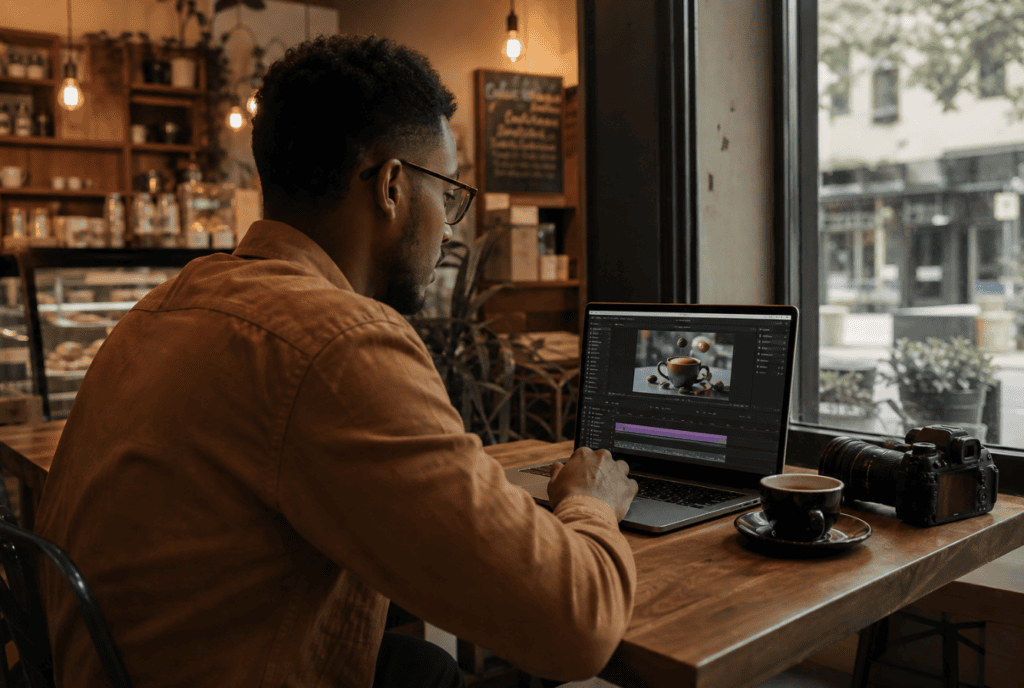
Follow this implementation path to move from brief to delivery quickly while keeping brand consistency.
1) Collect brand inputs and references
• Assets: logo SVG/PNG, style guide, sample thumbnails.
• Use Image Recreation Pro (GPT) to extract brand colors and fonts from a screenshot or PDF.
• Deliverables: HEX/RGB palette, type specs, motion references.
2) Draft precise text-to-video prompts with GPTs
• Use GPT-6 Astra or Claude Opus 5.5 with Motion Graphic Engineer (GPT) to turn your brief into parameterized prompts.
• Copy-paste template:
Prompt: Create a 4-second lower third with left-to-right slide-in and subtle bounce-out. Colors: {HEX1, HEX2}. Font: {Primary Sans}. Easing: cubic-bezier(0.22, 1, 0.36, 1). Motion blur: mild. Background: transparent or dark 80% overlay. Include subtle grain at 5%.
• For logo stings, add: Keep logo proportions exact, no stretching, no bevels, preserve spacing 1x logo height.
3) Generate on Higgsfield with VEO 3.1 or Seed Dream 4
• Choose VEO 3.1 for fluid motion, Seed Dream 4 for crisp frames.
• Start duration at 3 to 5 seconds; longer scenes tend to drift.
• If text gets soft, switch to Seed Dream 4 or reduce motion complexity.
4) Lock style with a reusable GPT system prompt
• Use this style-lock template in GPT-6 Astra or Claude Opus 5.5:
System style: Brand palette {HEX1, HEX2, HEX3}. Typography {Font A Bold, Font B Regular}. Motion character: fast-in smooth-out, 300ms ramp. No extraneous textures. Maintain safe margins of 80 px.
• Re-apply this to every subsequent prompt to keep consistency.
5) Export via Higgsfield MCP and assemble with Auto AE
• Export: high-bitrate H.264 for previews; ProRes 4444 with alpha for overlays if available.
• Frame rate: 24 or 30 fps; match your edit timeline to avoid cadence issues.
• In Auto AE (template library), drop assets into a lower-third, title, or bumper template to accelerate finishing and timing.
6) Integrate with b-roll, VFX, and sound design
• Place motion graphics around scene beats; avoid covering key faces or product details.
• Add subtle swishes or UI clicks; keep SFX under dialogue.
• Color-manage to sRGB/Rec.709 and verify legibility on mobile.
Troubleshooting quick fixes
• Flicker or jitter: lower motion strength or choose Seed Dream 4.
• Blurry type: shorten duration, switch model, or add a static plate.
• Color drift: pin exact HEX and reduce gradients in the prompt.
• Timing off: adjust in Auto AE with retime tools; keep 2-frame handles.
Suggested Visual: A simple node or timeline diagram showing GPT prompting -> Higgsfield render -> Higgsfield MCP export -> Auto AE template -> final edit with b-roll, VFX, and sound.
Key Takeaways
• Use GPTs to codify motion rules before generation.
• Pick VEO 3.1 for motion fluidity and Seed Dream 4 for crisp type.
• Export with alpha for overlays and match timeline frame rates.
When to use an AI motion graphics maker vs manual keyframing
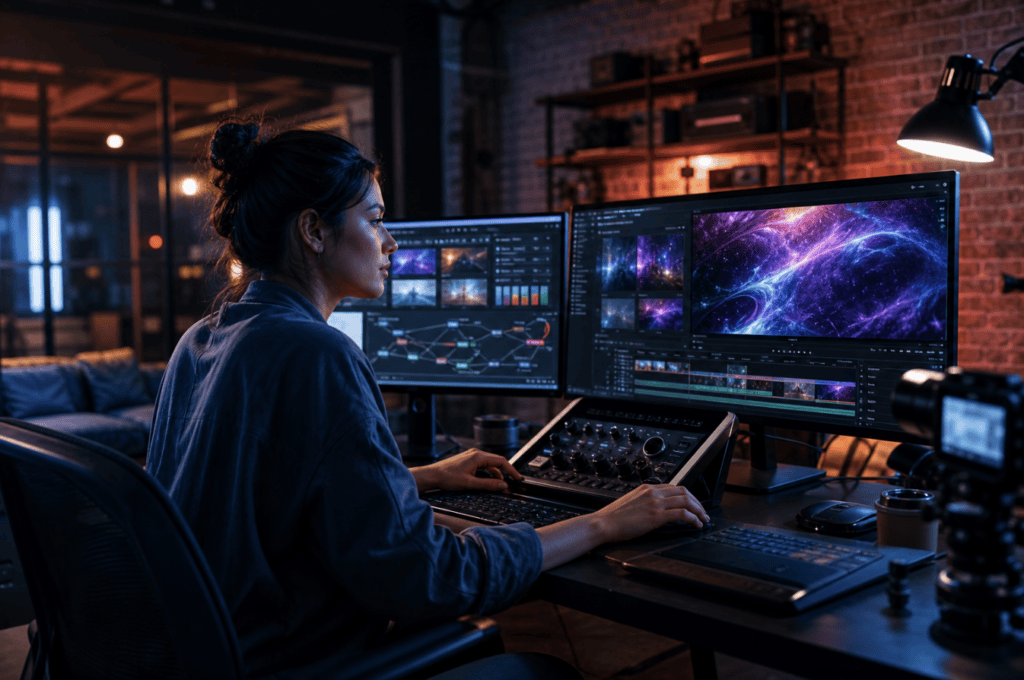
Use an AI motion graphics maker when you need fast iterations, concepting, or bulk variants of titles and lower thirds. It is ideal for shorts, social intros, and branded overlays where speed matters. Switch to manual keyframing for long-form sequences, complex 3D layouts, or broadcast packages that demand pixel-precise control and revision tracking.
Create With VidAU
Turn scripts, product URLs, and creative ideas into ad-ready video assets with a structured AI workflow.
Key takeaway
Final Thoughts
Pick the model based on the job: VEO 3.1 for fluid motion and Seed Dream 4 for sharp, brand-faithful frames. Lock your style with GPT prompts, export via Higgsfield MCP, and finish in Auto AE. That is the fastest route to clean, on-brand ai motion graphics.
If you are producing product-led social ads, you can generate ad-ready video variants from a product URL or images with VidAU AI, then layer the motion graphics from this workflow on top for a complete deliverable.
Frequently Asked Questions
What is the best AI motion graphics generator for smooth motion?
VEO 3.1 on the Higgsfield platform is a strong choice when you need fluid motion, natural easing, and kinetic typography. Pair it with GPT-6 Astra or Claude Opus 5.5 to structure prompts for timing, easing, and color so the outputs land on-brand with minimal cleanup.
When should I choose Seed Dream 4 over VEO 3.1?
Choose Seed Dream 4 when brand fidelity is critical. It tends to preserve crisp edges, logo geometry, and text clarity better on intricate designs. If your lower thirds or logo stings look soft or drift off-model in other generators, Seed Dream 4 often fixes those issues.
How do I keep ai motion graphics on-brand?
Extract colors and fonts with Image Recreation Pro (GPT), write a reusable style-lock prompt in GPT-6 Astra or Claude Opus 5.5, and apply it to every text-to-video prompt. In finishing, use Auto AE templates aligned to your typography and spacing rules to maintain consistency across assets.
What export settings should I use for social platforms?
For overlays, export ProRes 4444 with alpha if available; for general delivery, 1080×1920 at 30 fps H.264 is a safe baseline. Match your edit timeline’s frame rate to avoid cadence artefacts, and keep loudness and color in standard sRGB/Rec.709. Always check each platform’s current specs.
How do I fix blurry text or logo artefacts in AI outputs?
Shorten durations, reduce motion complexity, or switch to Seed Dream 4 for sharper frames. Add a static end-plate for final readability. You can also composite a high-resolution logo on top of the AI motion layer in Auto AE to guarantee pixel-perfect clarity.
Can I combine AI motion graphics with b-roll, VFX, and sound design?
Yes. Generate titles and overlays with Higgsfield models, export via Higgsfield MCP, and assemble in Auto AE templates. Place graphics around edit beats, add restrained SFX, and confirm legibility on mobile. Keep VFX subtle and ensure color management remains in sRGB/Rec.709 for consistency.