AI Video Generator from Image · Veo 3.1, Sora 2, Kling AI & CapCut
AI Video Generator from Image: Turn Static Photos into Moving Videos
Compare the best AI video generator from image tools for cinematic motion, first and last frame control, AI influencers, free social clips, ad-ready workflows, and product video creation.
By the VidAU Editorial Team · Image-to-video AI guide · 13 min read
An AI video generator from image turns a single static photo into a short moving clip by predicting realistic motion, lighting, and camera movement frame by frame.
An AI video generator from image takes a still photo and produces a short animated clip with realistic motion, camera movement, and sometimes audio. The newest models, like Google Veo 3.1 and OpenAI Sora 2, add precise controls such as first and last frame setting, multi-reference inputs, and scene extensions. This guide shows the best tools and the exact workflow to use them.
This article is for content creators, social media managers, marketers, and video producers who want to animate product shots, portraits, or AI influencer images. We compare four leading tools, walk through a step-by-step image-to-video workflow, and flag the common motion and audio issues you will hit in real projects.
Quick Summary
- Veo 3.1 is the strongest AI video generator from image in 2026, with first/last frame control, multi-reference ingredients, and scene extensions for cinematic results.
- Sora 2 is the best alternate, offering a Storyboard workflow and clip lengths of 15 seconds for most users and up to 25 seconds on web for Pro.
- Most tools output short clips around 8 seconds at a time, so plan to extend or stitch frames for longer sequences.
- Beginners and budget creators benefit most from the free CapCut AI video generator, while Kling AI motion control suits AI influencer and character-consistency work.
In This Guide
- What an AI video generator from image is and how it works
- Why image-to-video matters for creators and marketers
- The best AI tools compared by use case
- Step-by-step workflow to turn an image into a video
- How to use motion control for AI influencers and characters
- Common mistakes and output issues to avoid
- Advanced strategies for longer, ad-ready video
- Final Thoughts
- FAQ
What Is an AI Video Generator from Image?
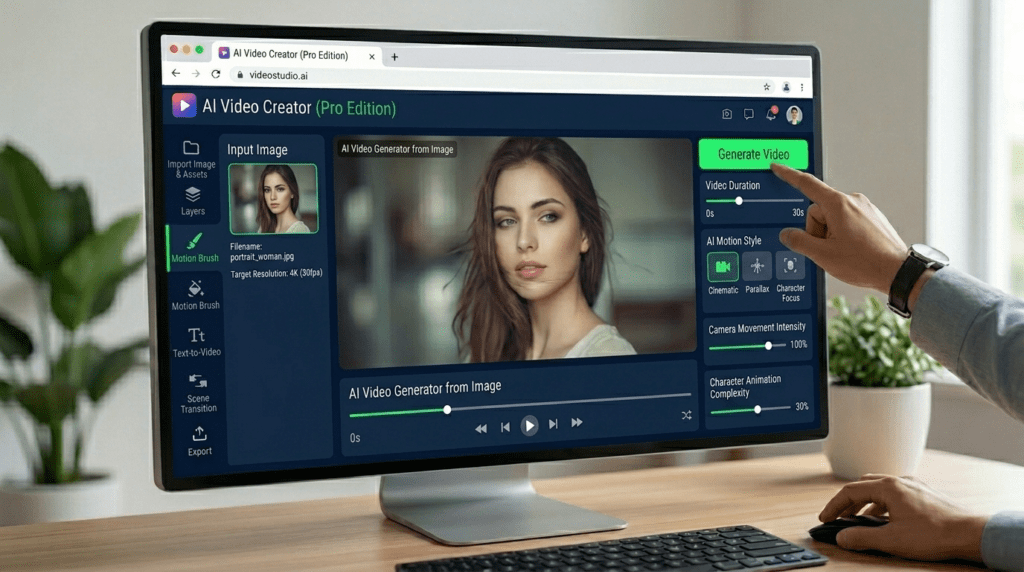
An AI video generator from image is a tool that animates a static photo into video by generating new frames that follow the original image. It predicts motion, depth, and camera movement so a single frame becomes a few seconds of believable footage. Some tools add sound, lip-sync, and physics simulation on top.
This is different from text-to-video, which starts from a written prompt with no source image. Image-to-video gives you tighter control over the look because the first frame is fixed. You decide the subject, lighting, and composition, then let the model add motion.
The entities that matter here are clear: the source image, the prompt, motion control, frame extraction, and the output clip. Modern tools like Veo 3.1 also add first frame control, last frame control, and an ingredients feature that lets you combine multiple reference images into one scene.
Key definition
An AI video generator from image animates a static photo by generating new frames that preserve the source image while adding motion, depth, lighting changes, camera movement, and sometimes audio or lip-sync.
Why Image-to-Video Matters for Creators
Image-to-video matters because it lets you reuse assets you already trust. A product photo, a brand poster, or a generated portrait can become motion content without a reshoot. That saves time and keeps your visual identity consistent across clips.
The trend has shifted in the last year. Early AI video was mostly text-to-video, which often produced random faces and shaky composition. Now the focus is precise image-based control. Veo 3.1 and Sora 2 both pushed updates that prioritize control over raw novelty.
For marketers, this is the practical part. You can animate a product sample into a short ad, then localize it for different markets. Tools like VidAU AI Video and Product Sample to Video are built around that exact ad workflow, while general models like Veo 3.1 focus on cinematic clips.
Key Takeaways
- Image-to-video reuses assets you already own, cutting production time.
- Fixing the first frame gives you control text-to-video cannot match.
- The current trend favors precise motion and frame control over flashy random output.
Best AI Video Generators from Image Compared
The best AI video generator from image depends on your goal: cinematic quality, character consistency, ad output, or a free starting point. Here is how the leading tools stack up after reviewing recent comparison tests across Veo 3.1, Sora 2, and Kling AI.
VidAU is an AI video ad platform that generates video ads from product URLs, images, or scripts in 49 languages. It fits the marketing use case rather than open-ended cinematic generation, so we treat it as the ad-focused option below.
| Tool | Best For | Notable Strength |
|---|---|---|
| Veo 3.1 | Cinematic image-to-video | First/last frame, ingredients, extensions |
| Sora 2 | Story sequences | Storyboard workflow, longer clips |
| Kling AI | AI influencers | Motion control and character consistency |
| CapCut | Beginners on a budget | Free AI video maker, fast editing |
Veo 3.1
Veo 3.1 is the most complete option for turning images into video. It supports first and last frame control, the ingredients feature for multiple reference images, scene extensions past the base clip, and richer native audio. In our review of recent side-by-side tests, it consistently held motion consistency better than earlier versions like Veo 2.0.
You can use it through Google Labs Flow, plus access points like Higgsfield, ChatLLM, Fal, and Replicate. Flow includes a Prompt-Director style formula covering subject, action, context, motion, style, framing, and audio. Verdict: best for creators who want control and cinematic quality.
Sora 2
Sora 2 is the strongest alternative, especially for multi-shot stories. Its Storyboard update lets you sequence scenes and set manual timing, with clip lengths of 15 seconds for most users and up to 25 seconds on web for Pro accounts via Storyboard. Image-to-video fidelity improved noticeably over the first Sora.
From reviewing comparison tests, Sora 2 often wins on stylized and trend-driven content, while Veo 3.1 edges ahead on realism and audio richness. Verdict: best for narrative sequences and social trends.
Kling AI
Kling AI is the pick for AI influencer and character-consistency work. Its motion control feature lets you drive a generated person with a reference video, which is hard to do cleanly in other tools. One recent free workflow paired Kling AI with Wan Video and Lovart AI to build a consistent AI influencer end to end.
That workflow used frame extraction from a reference clip, then matched pose and outfit to a generated face. Verdict: best for repeatable characters and motion-driven avatars.
CapCut AI Video Generator
The CapCut AI video generator is the accessible free starting point. It automates editing, generates scenes, and adds captions, which suits creators making TikToks, Reels, and faceless YouTube content. It is less about cinematic image-to-video and more about fast, finished social clips.
Verdict: best for beginners and high-volume social posting on a budget.
If your goal is short-form ad creatives rather than open generation, VidAU Vid Remix and UGC Avatars cover repurposing and spokesperson-style video for campaigns.
Generate Videos Now With VidAU
Use VidAU AI Video, Product Sample to Video, URL to Video, Text to Video, UGC Avatars, Vid Remix, Text to Speech, Video to Audio, Video Enhancer, and Object Remover when you need product videos, ad-ready clips, voiceover, repurposing, and cleanup workflows.
VidAU workflow
Where VidAU fits beside cinematic image-to-video tools
- Use Veo 3.1 for cinematic control: Choose Veo 3.1 when you need first and last frame control, ingredients, extensions, and richer native audio for open-ended cinematic clips.
- Use Sora 2 for story sequencing: Choose Sora 2 when the project needs Storyboard timing, narrative flow, and stylized or trend-friendly image-to-video output.
- Use Kling AI for AI influencers: Choose Kling AI when motion control, character consistency, and reference-video-driven movement matter most.
- Use CapCut for free social output: Choose CapCut when you need a beginner-friendly free AI video maker with fast editing, scenes, and captions.
- Use VidAU for ad-ready marketing: Choose VidAU AI Video, Product Sample to Video, URL to Video, UGC Avatars, and Vid Remix when the goal is fast multilingual ad creatives rather than open cinematic generation.
Step-by-Step Workflow to Turn an Image into a Video
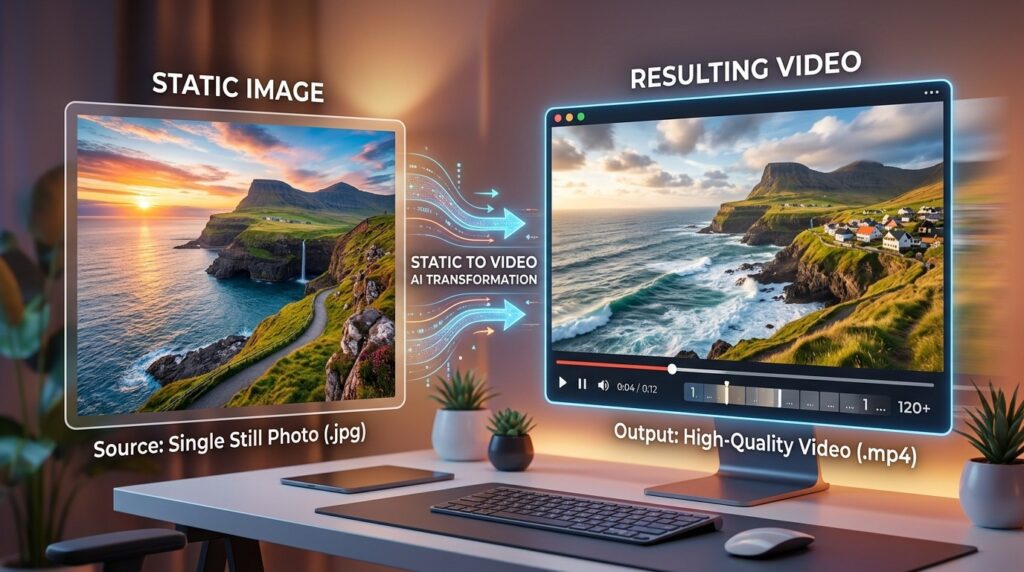
The core image-to-video workflow is the same across most tools: prepare a clean image, write a motion prompt, set frame controls, generate, then extend or stitch. Follow these steps in order.
Step 1: Start with a high-quality source image.
Sharp lighting and a clear subject reduce motion artifacts later.
Step 2: Upload the image as your first frame in the tool’s image-to-video mode.
Step 3: Write a motion prompt.
Describe subject, action, camera movement, style, and audio. Keep it specific, not vague.
Step 4: Set first and last frame if the tool supports it, like Veo 3.1, to control where the motion starts and ends.
Step 5: Add reference images if you need extra characters or a location, using the ingredients feature.
Step 6: Generate the clip, usually around 8 seconds, then review for motion consistency and face stability.
Step 7: Extend the scene or save the last frame and feed it back as a new first frame to continue the sequence.
For longer projects, the frame-extraction trick matters. Save the final frame of one clip, then use it as the starting image of the next. This keeps continuity when a single generation runs out of length.
If you want voiceover or narration on top of a silent clip, generate it separately with Text to Speech and sync it during editing. To pull audio from an existing reference video, Video to Audio handles that step.
Tip
For longer sequences, save the final frame of one clip and use it as the first frame of the next. This frame-extraction method keeps continuity when a single generation runs out of length.
How to Use Motion Control for AI Influencers
Motion control lets you drive a generated character with a reference video so the movement looks natural and repeatable. This is the method behind realistic AI influencers, and Kling AI is the tool most creators reach for here.
The practical sequence runs like this. Generate a source face with an image tool such as Lovart AI. Extract motion frames from a reference clip using a frame extractor. Then transform your model image so its pose and outfit match the extracted frame. Finally, run it through Kling AI motion control or Wan Video for the AI motion pass.
Keep lighting consistent across every image, because mismatched light breaks the illusion fast. Focus on expressions, since subtle face movement is what makes a character feel real. Many free workflows finish with a watermark remover step before export.
If you need branded spokesperson video instead of a free-form influencer, UGC Avatars gives a more controlled, ad-ready route.
Motion control note
Motion control works best when lighting, pose, outfit, expression, and reference movement stay consistent. Mismatched light breaks the illusion quickly, especially for AI influencers and generated characters.
Common Mistakes and Output Issues to Avoid
The most common mistake is starting with a low-quality image, which the model amplifies into mushy or jittery motion. A clean, high-resolution first frame prevents most artifacts. Below are the issues that show up most often in real generations.
- Audio drops during scene extensions. Music and dialogue often cut out when you push past the base clip length.
- Occlusion handoffs glitch. When an object passes in front of another, models sometimes lose tracking and warp the frame.
- Not all clips extend. Older clips, including some Veo 2.0 outputs, may refuse to extend cleanly in newer tools.
- Vague prompts produce random motion. Specify camera movement and action instead of relying on the model to guess.
- Watermarks on free tools. Some free workflows require a separate watermark removal step before publishing.
The fix for most of these is the frame-save method. When an extension fails or audio drops, save the last good frame and run a fresh frames-to-video pass, then rebuild audio in your editor.
Watch out
Low-quality images, vague prompts, audio drops during extensions, occlusion glitches, failed extensions from older clips, and watermarks on free tools are the most common issues in image-to-video workflows.
Advanced Strategies for Longer, Ad-Ready Video
For longer or ad-ready video, chain short clips with continuity controls rather than trying to force one long generation. The reliable method is to combine first/last frame control with the ingredients feature, then stitch the segments in an editor.
Use a Prompt-Director structure for each clip: subject, action, context, motion, style, framing, and audio. This keeps motion intent clear and reduces wasted credits on bad generations. Borrowing a still from an image tool as a style reference also helps lock the look across clips.
For marketing at scale, the workflow differs. Instead of cinematic shot-by-shot building, ad platforms generate variations from a product input. URL to Video turns a product page into a video, and Text to Video builds from a script when you do not have source footage. To clean up imperfect output, Video Enhancer and Object Remover handle quality and cleanup.
One honest limitation: if you need full cinematic control, frame-by-frame motion, or open-ended creative generation, ad-focused platforms are not the right fit. Use Veo 3.1 or Sora 2 for that, and reserve VidAU for fast multilingual ad creatives.
Tip
For longer videos, chain short clips with continuity controls. For ad-ready output, use product-input workflows instead of building every cinematic shot manually.
Key takeaway
Final Thoughts
Turning a static image into video is now a controlled, repeatable process rather than a gamble. Veo 3.1 leads for cinematic image-to-video with strong frame and audio control, Sora 2 wins for story sequences, Kling AI suits AI influencers, and CapCut is the free entry point. Match the tool to your goal, start with a clean source image, and use frame extraction to extend beyond short clips.
If your real goal is short-form video ads from product images or scripts rather than open generation, try VidAU AI Video (https://www.vidau.ai/vidau-ai-video/) to build ad-ready clips in multiple languages from a single asset.
FAQ
Here are answers to common questions about AI video generator from image tools, Veo 3.1, Sora 2, Kling AI, CapCut AI video generator, motion control, AI influencers, clip length, image-to-video artifacts, product ads, and watermark handling.
What is the best AI video generator from image?
Veo 3.1 is currently the strongest AI video generator from image for cinematic results, thanks to first and last frame control, the ingredients multi-reference feature, scene extensions, and richer audio. Sora 2 is the best alternative for story sequences, while CapCut suits beginners who want a free option.
Can I turn a single photo into a video for free?
Yes. The CapCut AI video generator offers free image-to-video and editing for social content. Google Labs Flow also provides limited free Veo 3.1 credits each month, and some Kling AI workflows are free with a separate watermark removal step. Free tiers usually have shorter clips and lower limits.
How long can AI image-to-video clips be?
Most AI tools generate short base clips, often around 8 seconds per generation. Sora 2 supports 15 seconds for most users and up to 25 seconds on web for Pro via Storyboard. For longer video, you extend scenes or save the last frame and start a new clip from it.
What is the difference between Veo 3.1 and Sora 2?
Veo 3.1 generally leads on realism, audio richness, and frame-level control like first/last frame and ingredients. Sora 2 stands out for its Storyboard sequencing and stylized, trend-friendly output. In comparison tests, Veo 3.1 wins for cinematic realism while Sora 2 fits narrative and social trend content better.
How do I make an AI influencer with motion control?
Generate a source face with an image tool, extract motion frames from a reference video, then match your model image pose and outfit to those frames. Run the result through Kling AI motion control or Wan Video for the AI motion pass. Keep lighting consistent and focus on expressions for realism.
Why does my AI video have motion artifacts?
Motion artifacts usually come from a low-quality source image, vague prompts, or hard occlusion moments where one object crosses another. Start with a sharp, well-lit first frame, write a specific motion prompt with camera direction, and use the frame-save method to rebuild any glitched extensions.
Can AI image-to-video work for product ads?
Yes. You can animate a product photo into a short ad clip, then localize it for different markets. General models like Veo 3.1 give cinematic control, while ad-focused platforms such as VidAU generate ad variations from a product URL, image, or script, which is faster for high-volume marketing.
Do I need to remove watermarks from AI videos?
Some free image-to-video workflows add watermarks to exports, so creators often run a separate watermark removal step before publishing. Paid tiers and official tool exports typically allow cleaner output. Always check each tool’s terms before removing watermarks to stay within usage rules.